
Help
Bulk Upload Documents
Upload many invoices at once from a CSV file. Use the sample file format, or turn on “I have my own CSV format”: map your file’s columns to KyDec’s fields once, save the mapping as a template, and pick that template the next time you upload a similar file. Every file is checked first, and rows with a problem come back in an error report with the reason beside each.
Where to find it:Sales & InvoicesInvoicesBulk Upload Invoices
What bulk upload is for
When you have many invoices to bring in at once, for example from a spreadsheet or from the system you used before, you do not have to type them one by one. You put them in a CSV file, and KyDec reads the file and checks every row.
There are three steps: Select File, Map Fields and Confirm & Upload. If your file already uses the sample file’s column names, the middle step is skipped.
Good to know. Your file is checked first, and any row with a problem comes back in an error report. Confirm & Upload then creates the invoices from the rows that passed. The other document lists — quotations, proforma invoices, sales orders, delivery challans, credit notes, debit notes, purchases, expenses and purchase orders — have the same bulk upload under the arrow beside their create button.
Open it and choose your file
Open Sales & Invoices, then Invoices. Click the arrow beside Create New Invoice and choose Bulk Upload Invoices.
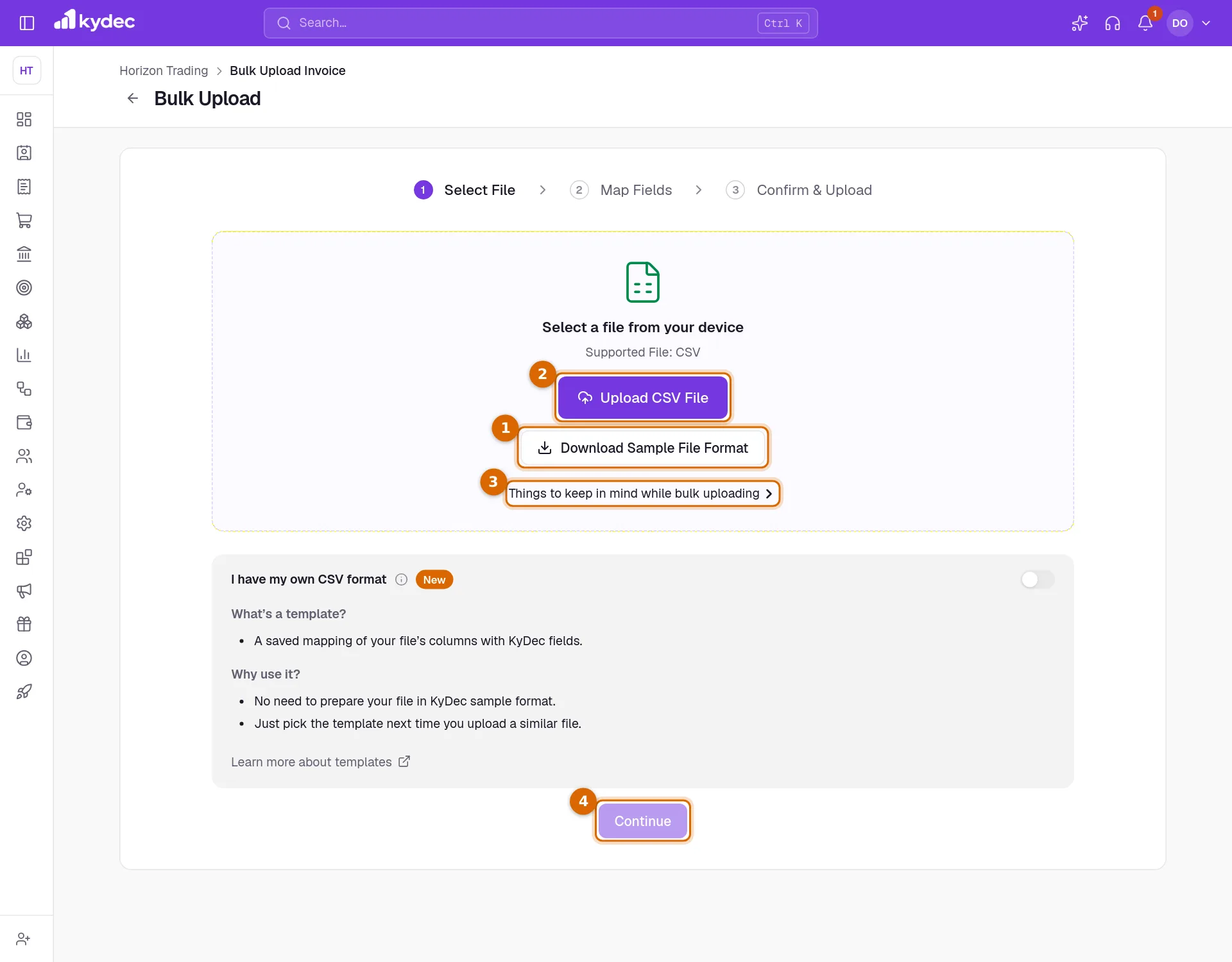
- 1Download Sample File Format gives you an empty CSV with every column KyDec understands. Fill it in a spreadsheet and save it as CSV.
- 2Upload CSV File picks the file from your device. You can also drag the file onto the box.
- 3Things to keep in mind while bulk uploading lists the rules your file is checked against. Read it once before your first upload.
- 4Click Continue. The file is checked straight away.
How to fill the file
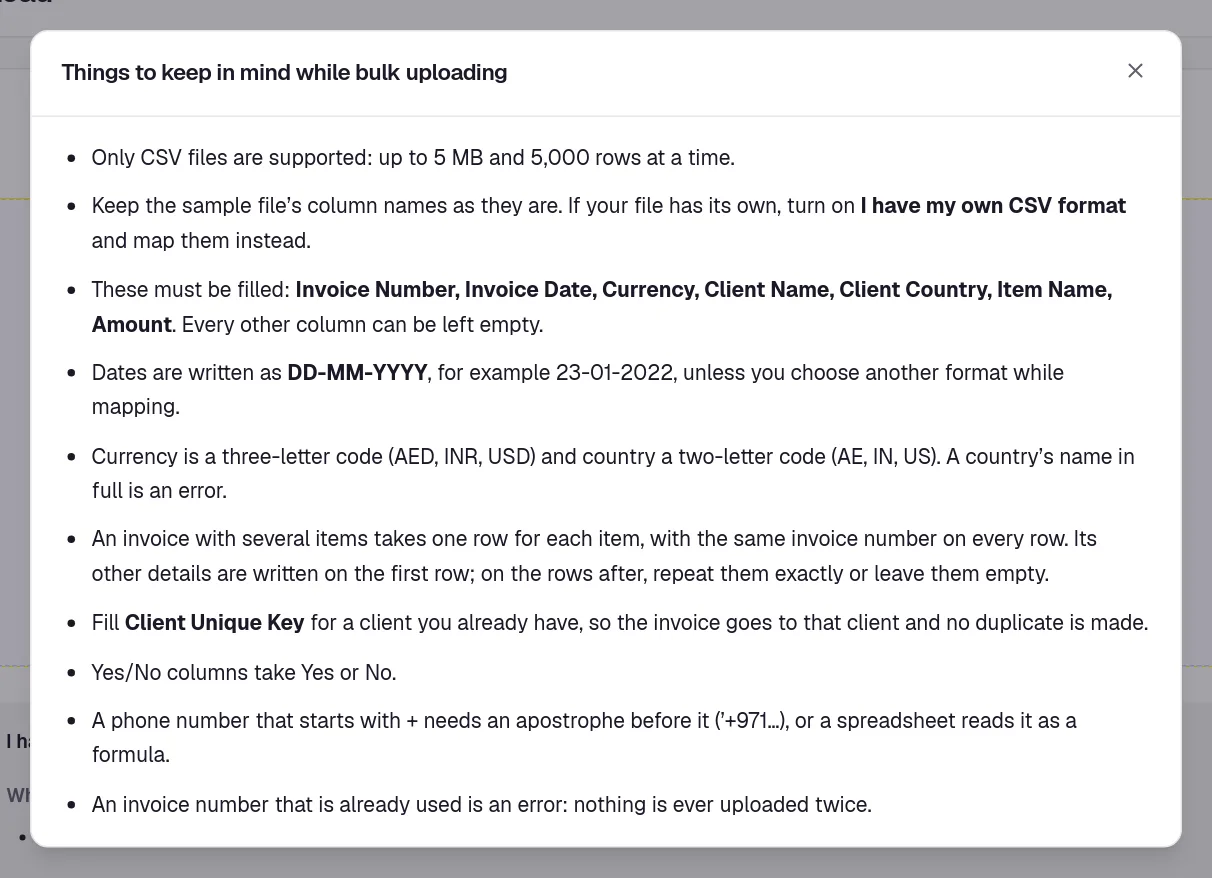
- Only CSV files are accepted, up to 5 MB and 5,000 rows at a time.
- Keep the sample file’s column names exactly as they are, unless you are using your own format (see below).
- An invoice with several items takes one row for each item, with the same invoice number on every row. Write the invoice’s other details on its first row; on the rows after, repeat them exactly or leave them empty.
- Dates are written as DD-MM-YYYY, for example 23-01-2022, unless you choose another format while mapping.
- Currency is a three-letter code such as AED, INR or USD. Country is a two-letter code such as AE, IN or US; a country’s name written in full is an error.
- Fill Client Unique Key for a client you already have, so the invoice goes to that client and no duplicate client is made.
- Yes/No columns take Yes or No.
- A phone number that starts with + needs an apostrophe before it, or a spreadsheet reads it as a formula.
Good to know. An invoice number that is already used is an error, so nothing is ever uploaded twice.
Use your own CSV format
If your file comes out of another system with its own column names, you do not have to rename them. You tell KyDec once which of your columns is which field, and save that as a template.
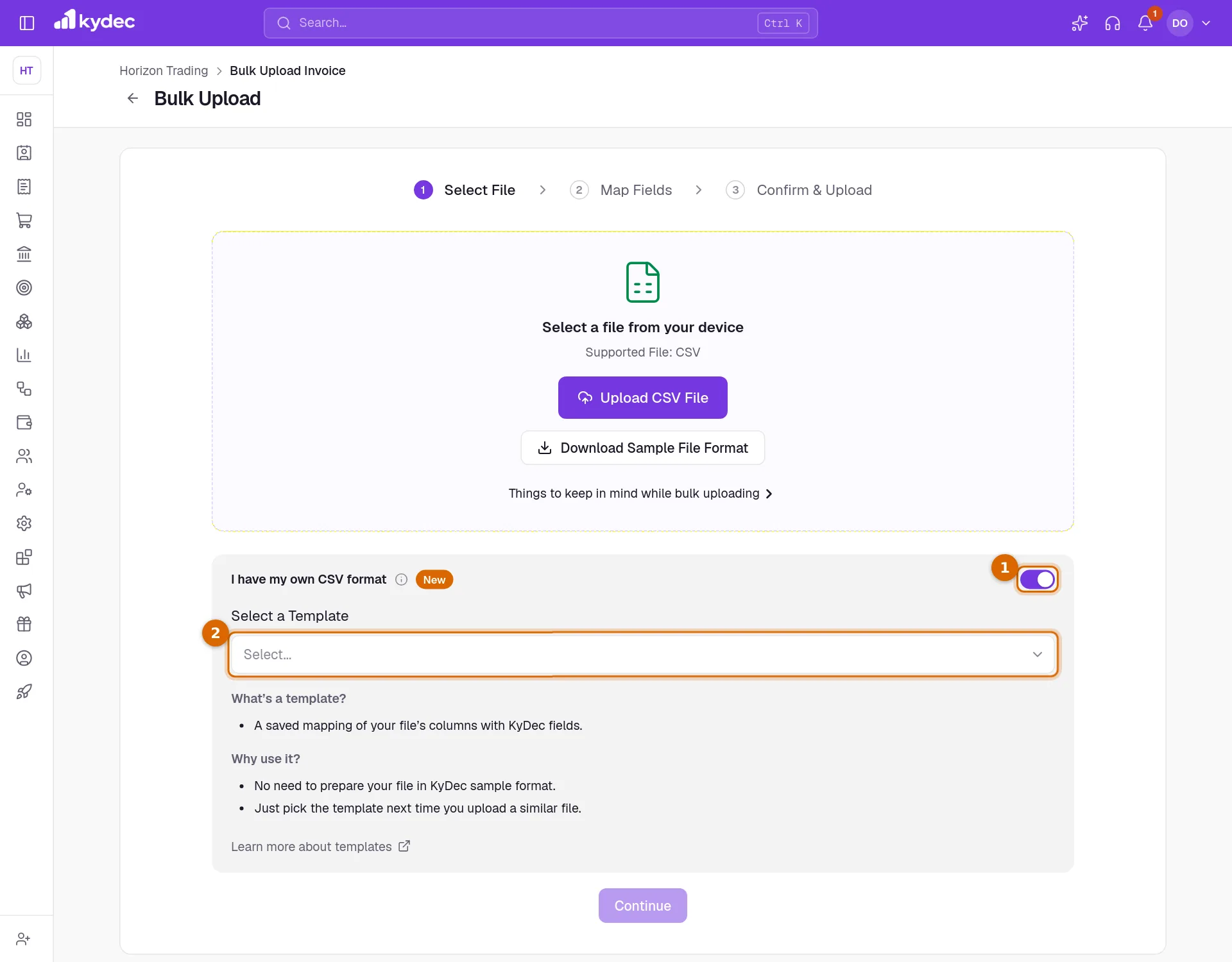
- 1On Select File, switch on I have my own CSV format.
- 2Under Select a Template, pick a template you saved before, or click + Create New Template and give it a name.
- 3Upload your file and click Continue. The Map Fields step opens.
- 4For each row under KyDec Fields, choose the matching column under Header from Uploaded File. Fields with a star must be mapped. A date field also asks for the date format your file uses.
- 5Required Fields shows only the fields that must be mapped; All Fields shows everything.
- 6Click Continue. If you left optional fields unmapped, Unmapped Fields asks you to confirm before going on.
- A template is a saved mapping of your file’s columns to KyDec’s fields. Next time you upload a similar file, pick the template and the mapping is already done.
Read the result
The last step, Confirm & Upload, tells you how the file did.
- Upload is successful means every row has valid data.
- Upload is partially successful means some invoices have a problem. You see how many are valid and how many are not.
- Download Error Report gives you your own file back with an extra column that says, row by row, what is wrong. Fix those rows and upload the report again as it is.
- Go Back returns to the step before, to change the file or the mapping.
Good to know. One row with a problem makes its whole invoice invalid, because an invoice is never created with some of its items missing.
Common questions
- My invoices were checked as valid. Why are they not in my list?
- Checking a file creates nothing by itself. Click Confirm & Upload on the last step and keep the page open until it finishes: the valid rows are then created and appear in your list. Rows with errors are left out — fix them in the error report and upload it again.
- Can I bulk upload quotations, purchases or other documents?
- Yes. Quotations, proforma invoices, sales orders, delivery challans, credit notes, debit notes, purchases, expenses and purchase orders each have their own bulk upload, under the arrow beside the list’s create button.
- What is the difference between this and Bulk Scan Invoices?
- Bulk upload reads a CSV file with one row per item. Bulk Scan Invoices reads PDFs or photos of invoices and fills in a document from each one for you to check.
Related guides
Invoice
Create invoices from customisable templates, share them as a PDF, a print or a link over WhatsApp or email, and record and track what is paid against each one.
Scan Documents
Upload a PDF or a photo of an invoice, a bill or an order, and its details are read into a new document for you to check and save. Every scanned file is listed here, with the document made of it.
Clients & Prospects
Every business you sell to, and the ones you hope to. A prospect becomes a client the moment you invoice it; archiving keeps old ones out of the way without losing their history.