
Help
Scan Documents
Upload a PDF or a photo of an invoice, a bill or an order, and its details are read into a new document for you to check and save. Every scanned file is listed here, with the document made of it.
Where to find it:Purchases & ExpensesPurchases & ExpensesScanned Documents
What scanning does
Scanning saves you typing. You upload a PDF or a photo of a document, KyDec reads the details from it, and a new document opens already filled in for you to check and save.
Four kinds of document can be scanned, each from its own list: invoices under Invoices, vendors' bills under Purchases & Expenses, and orders under Sales Orders and Purchase Orders.
Good to know. Scanning a file does not save a document. Nothing is created until you have checked it and saved it yourself.
Scan one document
- 1On the list for that kind of document, click the scan button: Scan Invoice on Invoices and on Purchases & Expenses, Scan Sales Order or Scan Purchase Order on the order lists.
- 2Click Select a file from your device and choose the file, or drag it onto the box.
- 3Wait while the file is read. It takes a few seconds; keep the window open.
- 4The create page for that document opens with the details filled in.
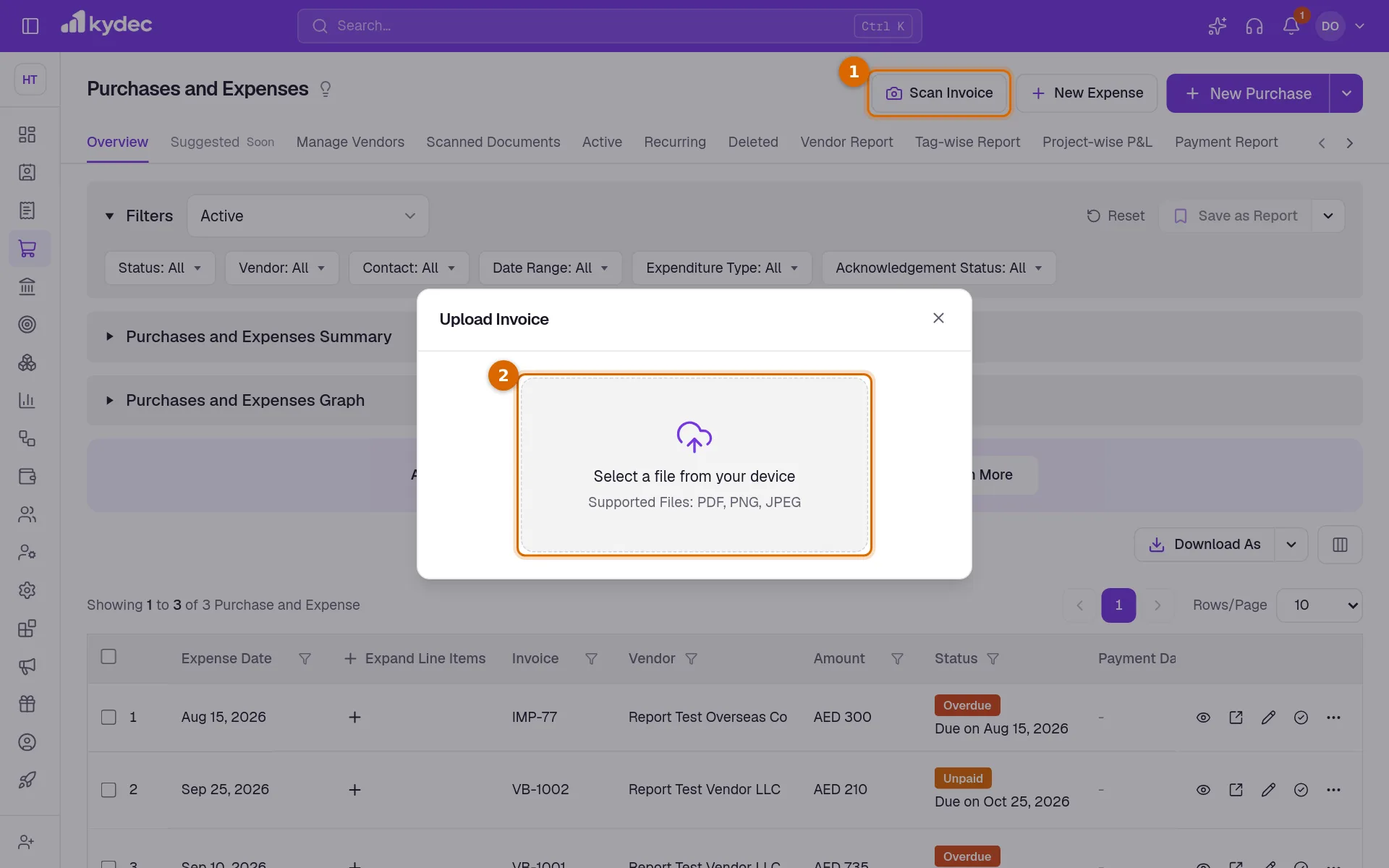
Good to know. PDF, PNG and JPEG files of up to 10 MB are accepted. A file that cannot be read says why, and is kept in Scanned Documents with the status Failed.
Check what was read
- 1The file is shown beside the form in the Scanned Document panel, so you can compare the two. Scan shows the file; Used shows the details that were read from it.
- 2If the file names a client or a vendor, Confirm Client Details or Confirm Vendor Details sets it beside your own record. Click Confirm Client to use the match, pick another under Your Registered Client, or choose Skip & Create New to add them from the file.
- 3Correct anything that was read wrongly, then save the document as you normally would.
- When no match is found, Create New adds the client or vendor from the details in the file.
- Closing that dialog leaves the client or vendor for you to pick on the form.
- Once the document is saved, the scan is marked Added and linked to it.
Scan several at once
Open the arrow beside the create button on the list and choose its bulk option: Bulk Scan Invoices, Bulk Scan Expenses, Bulk Scan Sales Orders or Bulk Scan Purchase Orders.
- 1Click Upload PDF or Image File and choose your files, or drag them in. Up to 20 files can be scanned at a time.
- 2Under Review & Confirm, each file is listed with its size and Ready to Scan. Remove any you do not want with the × at the end of its row.
- 3Click Continue With … Files. The files are uploaded and read in the background.
- 4You get a notification when scanning finishes. Go to Scanned Documents takes you to the results.
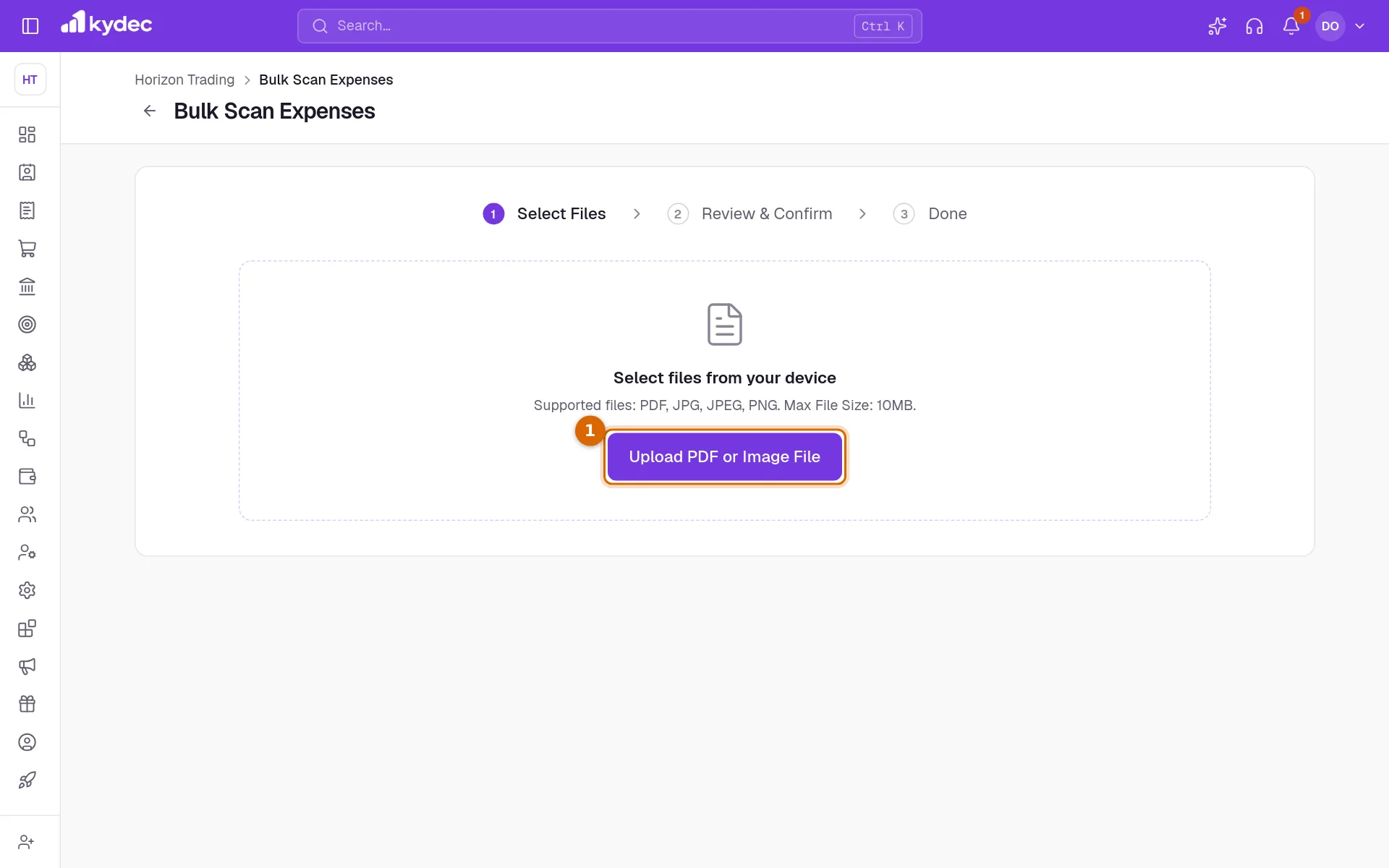
Good to know. Bulk scanning does not open a document for each file. Each one waits in Scanned Documents until you add it.
The Scanned Documents list
Every file you have scanned is listed here. Open it from the Scanned Documents tab of Invoices, Purchases & Expenses, Sales Orders or Purchase Orders; it opens on that kind of document.
- 1The first row of tabs picks the kind of document: All, Invoices, Purchases, Sales Order or Purchase Order.
- 2The second row shows files by what became of them: All, Scanned, Failed or Added.
- 3In the Action column, a button such as Add To Purchases opens a new document filled in from that scan.
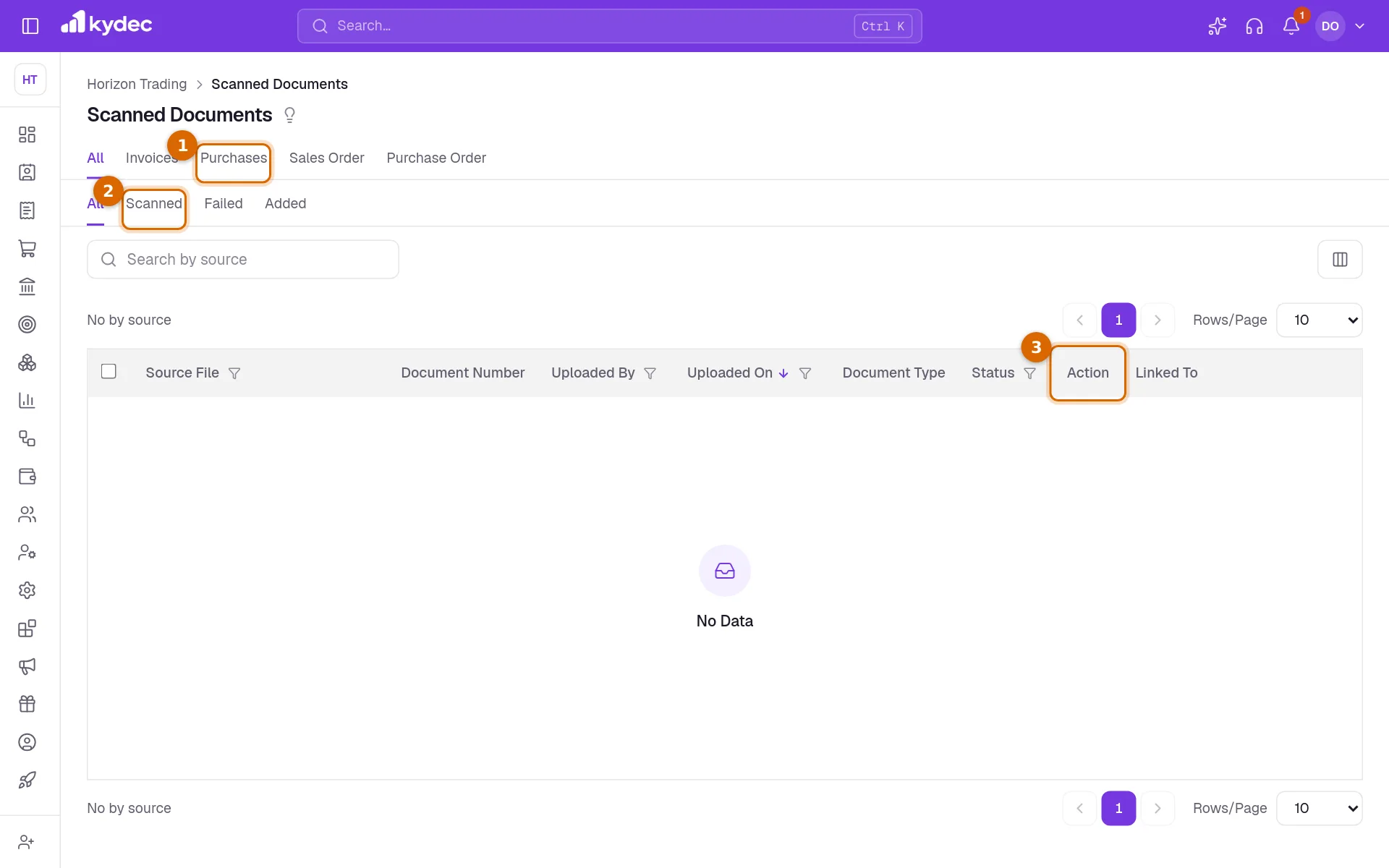
- Status reads Scanning while a file is still being read, Scanned when it is ready to add, Added once a document has been made from it, and Failed if it could not be read. Hover over Failed to see why.
- Linked To shows the number of the document made from the scan, and opens it.
- Click the name under Source File to look at the file itself.
- Add again makes another document from a scan that has already been added.
- Uploaded By and Uploaded On show who scanned the file and when.
- Files that arrive through Forwarding Channels, a section of Business Settings marked BETA, are listed here as well.
Common questions
- Which files can I scan?
- PDF, PNG and JPEG files, each up to 10 MB. Bulk scanning takes up to 20 files at a time.
- Does scanning create the document automatically?
- No. A single scan opens the document filled in, and a bulk scan leaves each file in Scanned Documents. Either way you check the details and save.
- A scan failed. What should I do?
- Hover over Failed in the list to read the reason, then scan the file again, using a clearer copy if the text could not be read. You can always enter the document by hand.
- Can I make two documents from one scan?
- Yes. Once a scan is Added, Add again at the end of its row opens another new document from the same file.
Related guides
Purchases and Expenses
Record, track, manage, and analyze all your purchases and expenses in one place.
Invoice
Create invoices from customisable templates, share them as a PDF, a print or a link over WhatsApp or email, and record and track what is paid against each one.
Purchase Order
Order goods or services from a vendor, share the order as a PDF or a link, and turn it into a purchase when their bill arrives.
Sales Order
Record a client's confirmed order before you invoice it, share it as a PDF or a link, and turn it into an invoice when the goods go out.