
Help
Clients & Prospects
Every business you sell to, and the ones you hope to. A prospect becomes a client the moment you invoice it; archiving keeps old ones out of the way without losing their history.
Where to find it:Sales & InvoicesClients & Prospects
Clients, prospects and vendors
A client is a business you sell to. A prospect is one you hope to sell to. Both are kept in one list, because a prospect is simply a client you have not billed yet.
Every record you add starts as a prospect. It becomes a client by itself the first time you invoice it or record a payment from it. A sales order, a delivery challan, a credit note or a debit note counts too.
The same record can also be a vendor you buy from, so a business you both sell to and buy from is entered once.
Good to know. The change from prospect to client goes one way only. Deleting the invoice later does not turn the client back into a prospect.
Find your way round the list
Open Sales & Invoices, then Clients & Prospects.
- 1Add Client opens the form for a new client or prospect.
- 2The tabs split the list into All Clients, Active Clients and Archived Clients. The tabs after them open the Client Report, Client Ageing Report and Client Outstanding Report.
- 3View Client opens the client in a panel beside the list. Edit and Archive sit next to it.
- 4More opens everything else you can do for that client.
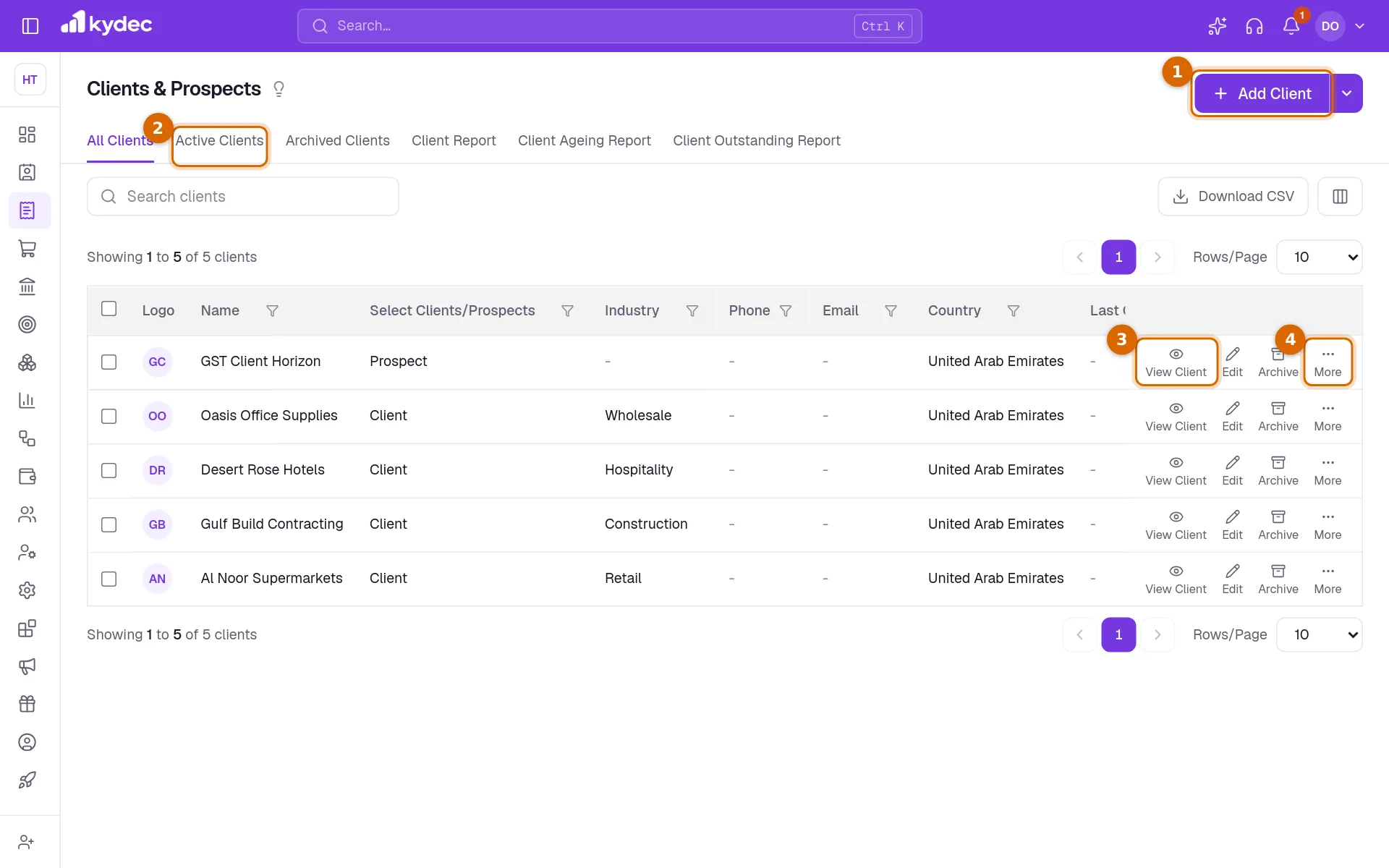
- The Select Clients/Prospects column says whether a record is a Client or a Prospect, and its filter shows one or the other.
- Search, the filter under each column heading and the sort arrows all work together.
- Download CSV saves the list as a spreadsheet file. The columns button beside it chooses the columns; tax and address columns start hidden but are included in the file.
- From More you can go straight to Create Invoice, Create Quotation, Create Proforma Invoice or Create Credit Note for that client, and to See All Invoices or See All Quotations.
Add a client
Click Add Client. Only the first section, Basic Information, has to be filled in.
- 1Enter the Business Name. As you type, KyDec lists Your existing clients that match, each marked Already added. Click one to open it rather than entering it twice.
- 2Choose their country under Select Country. The name and the country are the only required details; Client Industry and City/Town are optional.
- 3Open Tax Information to record their tax registration. The fields follow the client's country, for example TRN for the UAE or GSTIN for India.
- 4Open Additional Details for their Email and Phone No., which KyDec uses to send documents to them. Show Email in Invoice and Show Phone in Invoice decide whether they print on documents.
- 5Click Save.
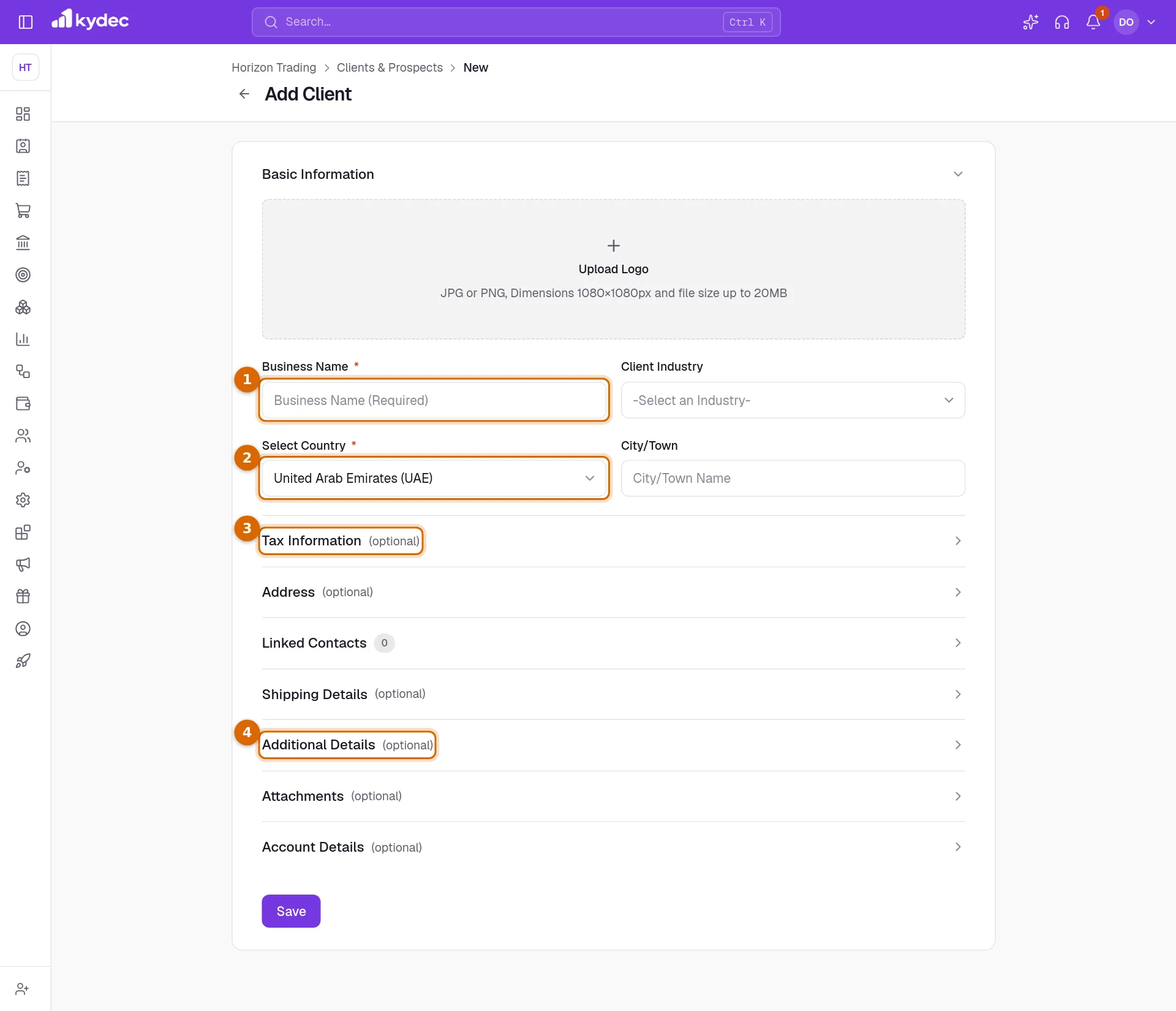
- Address holds the billing address, and Shipping Details where goods are delivered. A client can have several shipping addresses.
- Linked Contacts connects the people you deal with at this client, using Link Contact.
- Attachments keeps files with the record, and Upload Logo adds their logo.
- Account Details decides the client's ledger: Create new ledger, Link an existing ledger or Don't create. Ledgers are part of Advanced Accounting.
Good to know. A new record is saved as a prospect. There is nothing to switch: it becomes a client when you first bill it.
See everything about one client
- 1Click View Client on a row. The panel opens on Client Details: tax information, custom fields, address, shipping details and attachments, each with a link to add what is missing.
- 2View Statement opens the client's statement.
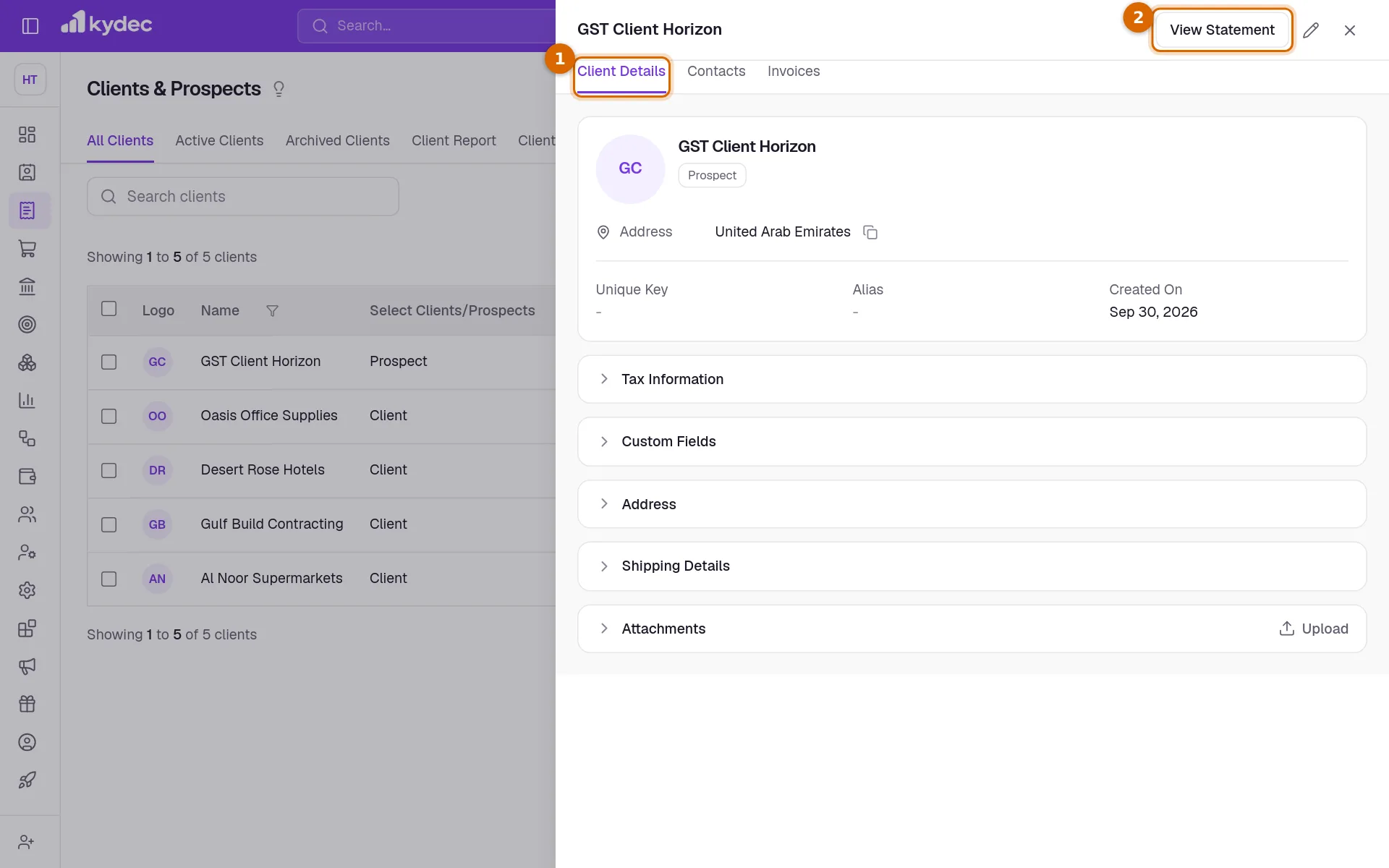
- The Contacts tab lists the people linked to the client, and Invoices the invoices raised for them.
- You can upload a file or add a shipping address straight from the panel.
- The pencil in the panel header opens the full form.
The client statement
The statement lists every document for one client with a running balance, newest first. Open it from More, Client Statement, or from View Statement in the client's panel.
- 1Unpaid Invoices shows only the invoices still owed. Show All Documents brings the rest back.
- 2Download Statement saves the rows as a CSV file.
- 3The ⋯ button opens Statement Configurations, where you choose which kinds of document the statement counts.
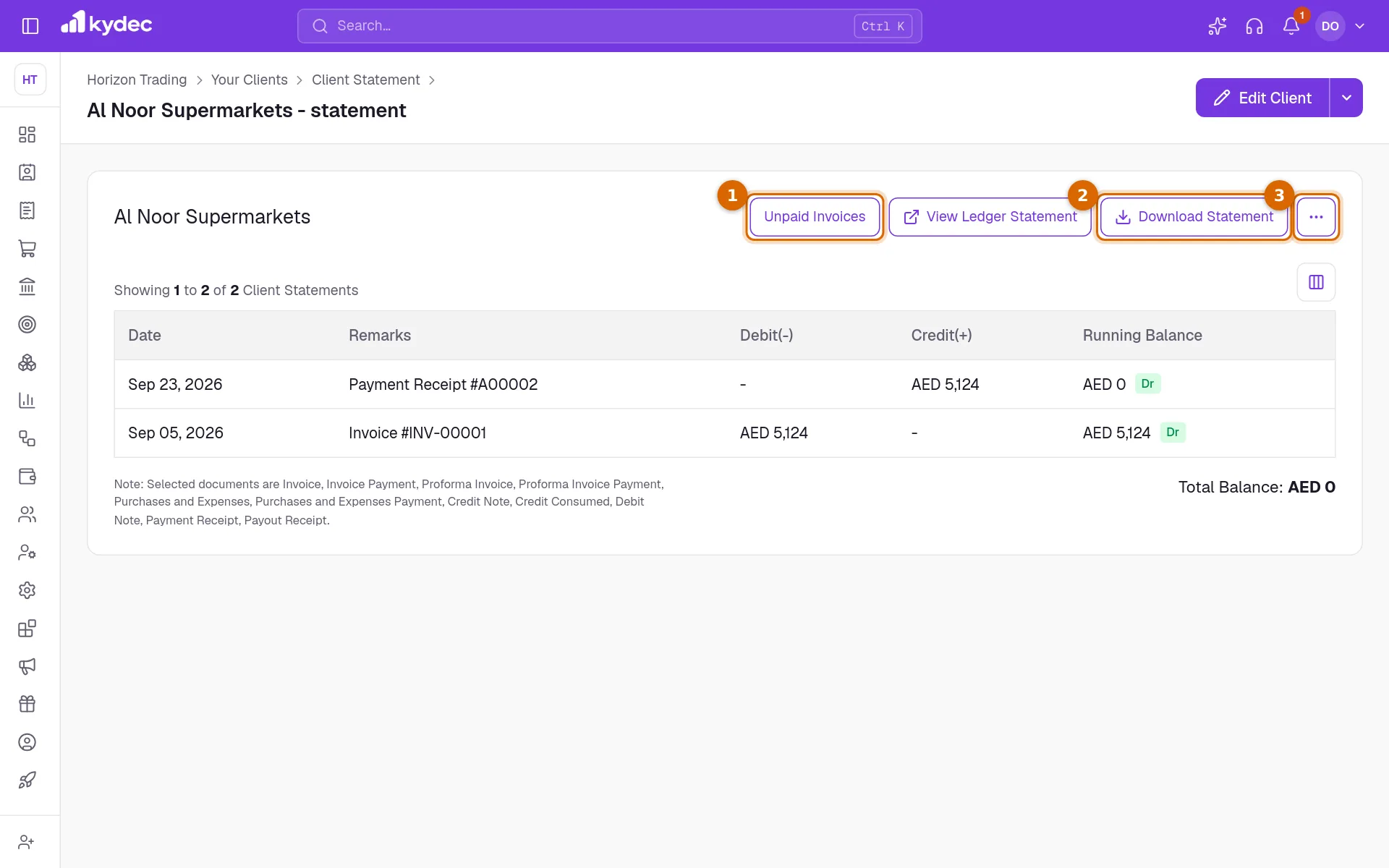
- Debit(-) is what the client was billed and Credit(+) what they paid or were credited. Running Balance is what stands after each row: Dr while they owe you, Cr while they are in advance.
- Total Balance, at the foot, is marked (Due) or (Adv.).
- A remark that names a document is a link to it.
- View Ledger Statement is shown when the client has a ledger.
Good to know. The kinds of document counted are one setting for the whole business, the same one as Clients Statement in Business Settings. Changing it here changes it for every client.
Clients who are also vendors
- Purchases & Expenses, Vendors & Suppliers lists the records marked as vendors. They are the same records, seen from the buying side.
- Add Vendor on that page creates a vendor. If the name matches a record you already have, KyDec says Vendor Already Exists and offers Edit Existing Vendor, which makes that record a vendor too, or Create New.
- In a vendor's panel, the labels Client and Vendor beside the name show that a record has both roles.
- A vendor has its own statement: More, Vendor Statement.
- Remove as Vendor takes a record off the vendor list and leaves the client as it was.
- A record added only as a vendor is not listed under Clients & Prospects until you bill it.
Archive, restore and delete
- 1Archive moves a client to Archived Clients, off the working list. Its documents and history are kept.
- 2On that tab, Restore brings it back.
- 3Delete, also on that tab, removes an archived client for good, with its shipping addresses and attachments.
- An archived client is left out of the client list when you create a new document.
Good to know. Only an archived client can be deleted, and only while nothing refers to it: no contacts, ledger, documents, payments or leads. KyDec tells you what is holding it.
Common questions
- How do I turn a prospect into a client?
- You do not have to. Raise an invoice for the prospect, or record a payment from it, and it becomes a client by itself.
- Can the same business be a client and a vendor?
- Yes, and it stays one record. Use Add Vendor under Vendors & Suppliers and choose Edit Existing Vendor when KyDec finds the match.
- Why can I not delete a client?
- A client has to be archived first, and it cannot be deleted while a document, a payment, a contact, a ledger or a lead still refers to it. Leaving it archived keeps it out of the way without losing its history.
- Can I upload many clients at once?
- Yes. Choose Bulk Upload under Add Client, download the sample file, fill one client or prospect to a row and upload it. A business name or Unique Key you already have is reported as an error, so nothing is added twice.
Related guides
Contacts
Store and manage the people behind your clients, vendors and leads. One record per person, reused on every document — so a changed phone number is changed everywhere.
Invoice
Create invoices from customisable templates, share them as a PDF, a print or a link over WhatsApp or email, and record and track what is paid against each one.
Manage Vendor Leads
Add and manage vendor leads for seamless vendor onboarding.
Custom fields
Add fields your business needs that we do not ship by default, and choose which of them print on your documents.