
Help
Customized RFI/RFQ links
Create customised RFI (Request For Invoice) and RFQ (Request For Quotation) links and share them with your vendors, so every invoice and quotation comes back in one format instead of as a free-form email.
Where to find it:Business SettingsAccounting
What an RFI/RFQ link is
When you ask vendors for a quote by email, every reply comes back in a different shape: a PDF, a spreadsheet, a few lines of text. An RFI/RFQ link is a form you design once, with the details and columns you want, so that every vendor answers in the same format.
RFI stands for Request For Invoice and RFQ for Request For Quotation. You choose which one each link is: an RFI link asks a vendor for their invoice, an RFQ link for their quotation.
Find the section
Open Business Settings › Accounting. The section is closed until you click it.
- 1Click Customized RFI/RFQ to open the section.
- 2Click Create New Link to design a link. Until you have one, the section reads No links yet.
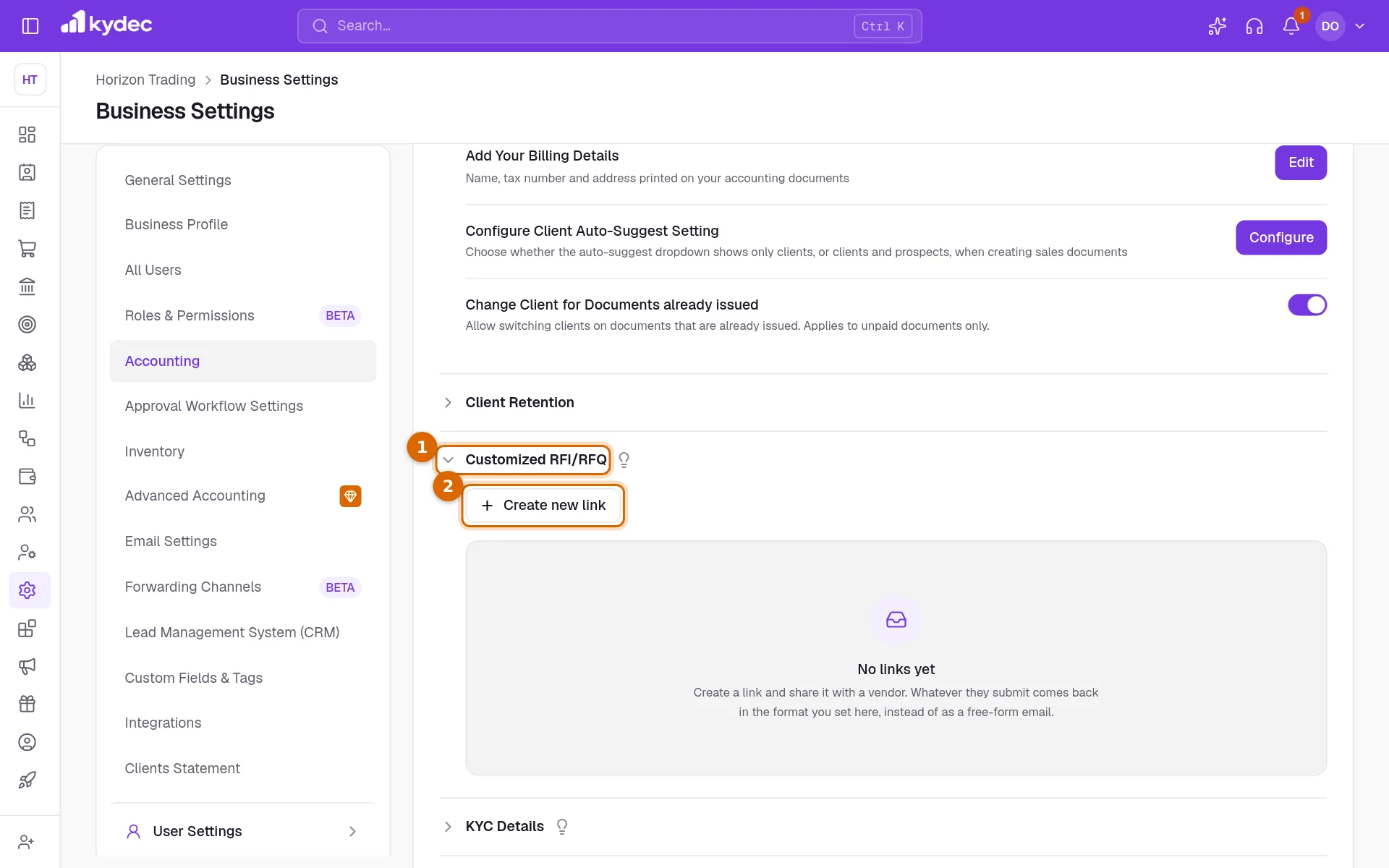
- Once links exist they are listed with their Name, Bill Type, Status and Created By.
Design a link
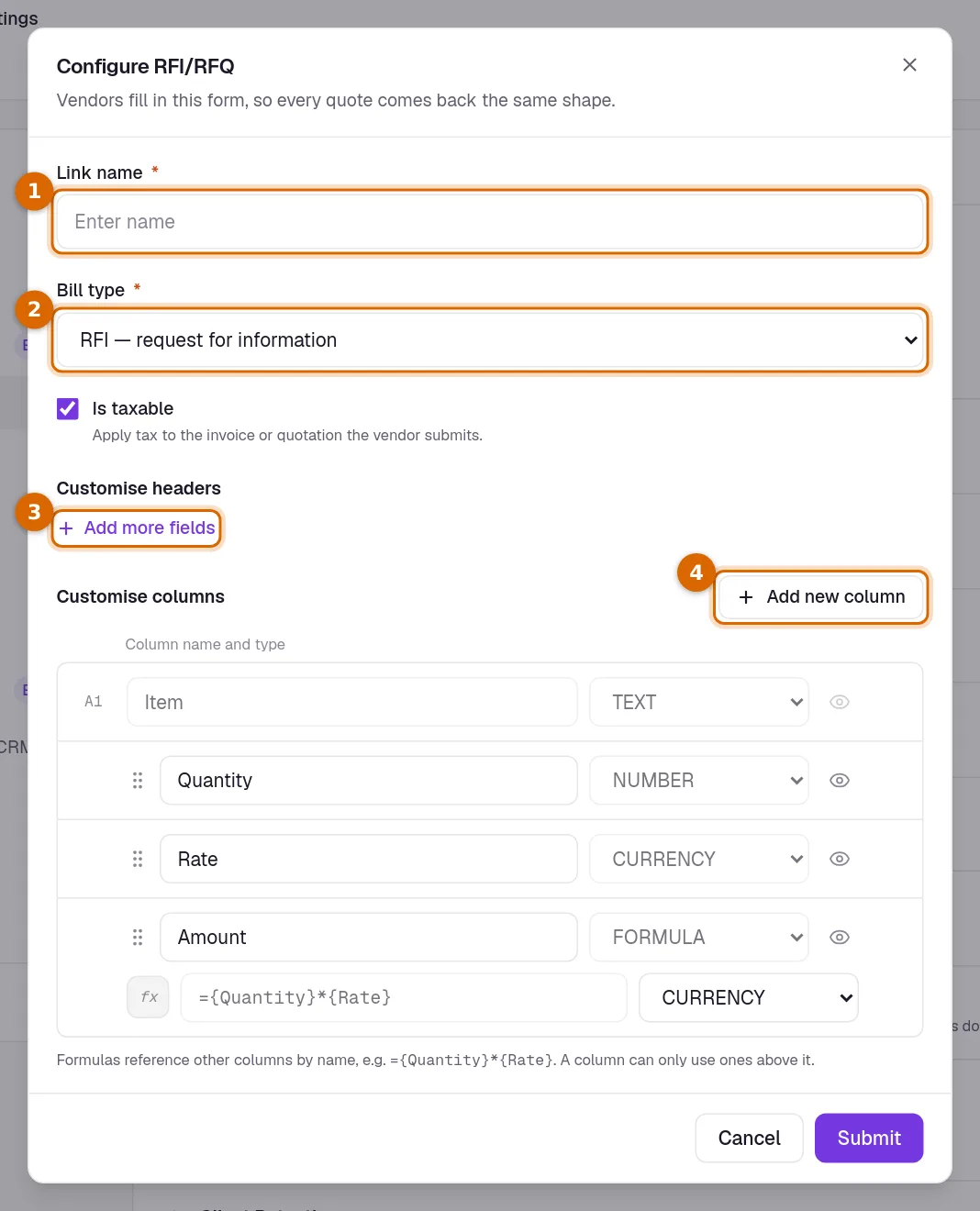
Create New Link opens the Configure RFI/RFQ dialog.
- 1Enter a Link Name that tells you what the request is for, such as "Office furniture".
- 2Choose the Bill Type, RFI or RFQ. Tick Is Taxable if tax should apply to the invoice or quotation.
- 3Under Customise Headers, Add More Fields adds a fixed detail above the table, such as a PO number or a delivery date. Each has a field name and a default value.
- 4Under Customise Columns, Add New Column adds a column to the table the vendor fills in.
- 5Click Submit. The link joins the list as Active.
Set up the columns
- Every link starts with four columns: Item, Quantity, Rate and Amount.
- A column is one of five types: TEXT, NUMBER, DATE, CURRENCY or FORMULA.
- A FORMULA column works its value out from other columns, named in curly brackets: ={Quantity}*{Rate}. A formula can only use the columns above it.
- Drag a row by its handle to change the order. The eye hides a column without removing it, and the bin removes a column you added.
- Item cannot be renamed, hidden or removed. The other three starting columns can be renamed and hidden but not removed, and Amount always stays quantity multiplied by rate.
- A link can have up to 20 columns and 20 header fields.
Manage your links
Every action for a link is under More at the end of its row.
- Edit opens the dialog again to change the link.
- Delete removes the link once you confirm.
- Copy link copies the address of the link, ready to send to your vendors.
- Mark as Inactive keeps the link in the list but switches it off: a vendor who opens it is told it is no longer active. Mark as Active switches it back on.
Good to know. Deleting a link cannot be undone, and its address stops working for everyone who holds it. Mark it inactive instead if you may need it again.
What your vendor does with the link
One link can be sent to as many vendors as you like. A vendor who opens it sees Create Your Quotation Now (or Create Your Invoice Now), already addressed to your business, with the header fields and the columns you set.
- A vendor who is not signed in to KyDec fills in the short form and clicks Save & Continue. They are asked to create a free account (or log in), and the full editor then opens on what they typed, where they check it and save.
- A vendor who is already signed in goes straight to the full editor inside their own business.
- The quotation or invoice is the vendor's own document, in their own account, with their own number. Tax is added from the vendor's own tax settings.
Where the answers reach you
- A quotation raised through an RFQ link is listed under Purchase Orders › Suggested Purchase Orders. Accept as Purchase Order makes a draft purchase order of it and opens it to check and save; Reject as Purchase Order sets it aside.
- An invoice raised through an RFI link is listed under Purchases and Expenses › Suggested Purchases. Accept Invoice opens New Purchase filled in from it, and saving that records the purchase; Reject Invoice sets it aside.
- View Quotation and View Invoice open the vendor's own copy, so you can read it before you decide.
- A rejected one moves to Rejected suggestions, from where Move Back returns it to the list.
Good to know. Only the items, quantities, rates, tax, discounts and charges are carried into your purchase order or purchase. The vendor's notes, terms and attachments stay on their own copy, which you can open with View.
Common questions
- Does my vendor need a KyDec account?
- Yes, a free one. A vendor without an account creates it when they click Save & Continue on the link, and what they typed is kept.
- What is the difference between RFI and RFQ?
- An RFI (Request For Invoice) link asks a vendor for their invoice, which reaches you as a suggested purchase. An RFQ (Request For Quotation) link asks for their quotation, which reaches you as a suggested purchase order.
- Can I change a link after creating it?
- Yes. Open More on its row, click Edit, change the name, type, headers or columns, and click Save changes. Documents vendors already raised keep the columns they were raised with.
- What happens when I open my own link?
- While you are signed in to the business that owns the link, the page shows the form your vendors see and tells you the link is your own. It cannot be saved from there.
Related guides
Manage Vendor Leads
Add and manage vendor leads for seamless vendor onboarding.
Purchase Order
Order goods or services from a vendor, share the order as a PDF or a link, and turn it into a purchase when their bill arrives.
Purchases and Expenses
Record, track, manage, and analyze all your purchases and expenses in one place.