
Help
Manage Vendor Leads
Add and manage vendor leads for seamless vendor onboarding.
Where to find it:Purchases & ExpensesVendor Leads
What a vendor lead is
A vendor lead is a supplier you are considering but have not approved yet. You keep their details here while you check them, and make them a registered vendor once you decide to buy from them.
Keeping leads apart means your vendor list holds only the suppliers you have agreed to work with.
Find your way round the list
Open Purchases & Expenses, then Vendor Leads.
- 1Create Vendor Leads opens the form for a new lead.
- 2Download CSV saves the list as a file you can open in a spreadsheet.
- 3The columns button beside it chooses which columns show. The tax and address columns start hidden.
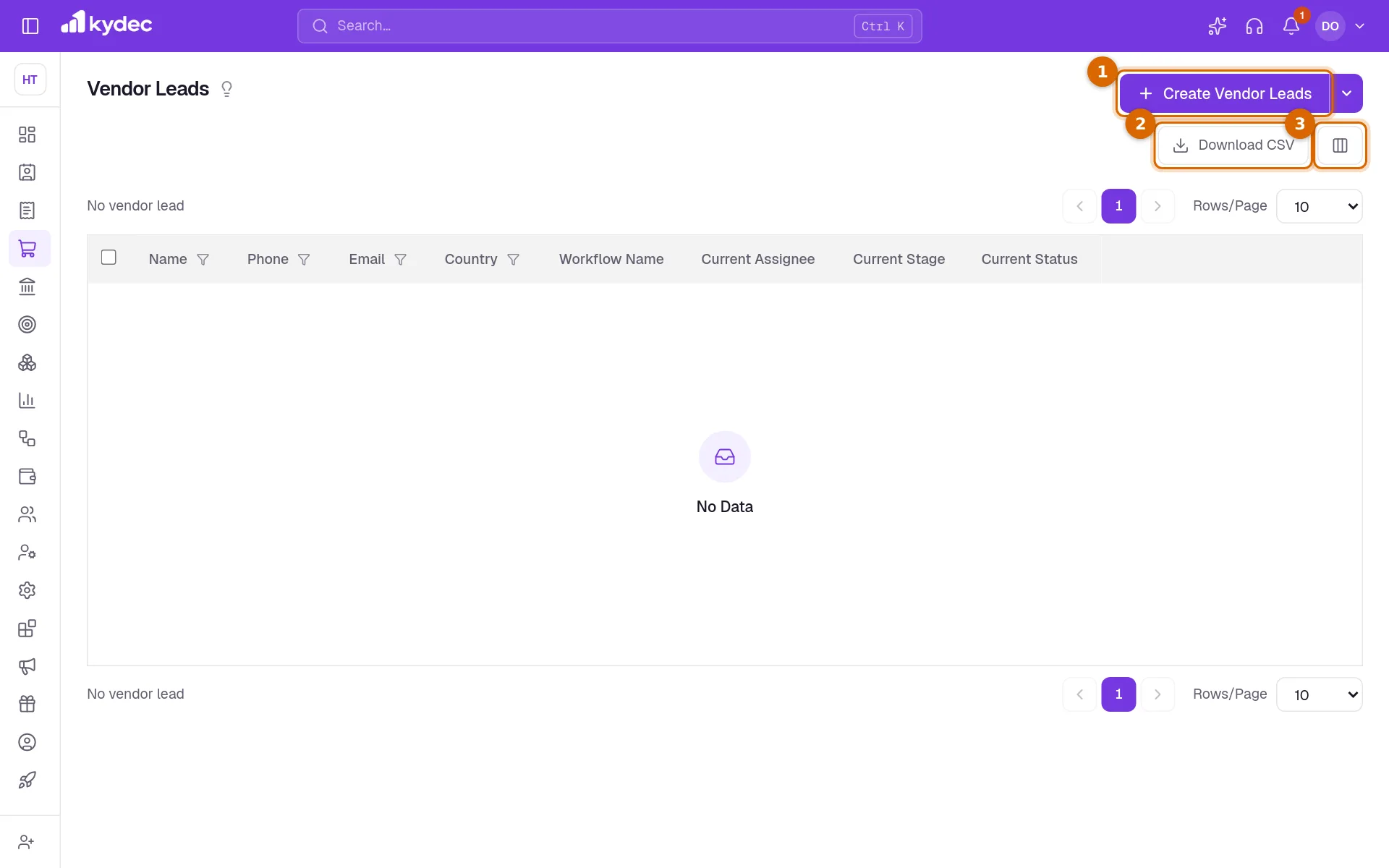
- Each row shows the lead's Name, Phone, Email and Country, and where it stands in approval: Workflow Name, Current Assignee, Current Stage and Current Status.
- The filter under a column heading narrows the list, for example to one country.
- More, at the end of a row, opens Edit and Add to Workflow.
- Tick several rows and open Bulk Actions to use Add to Workflow in Bulk.
Add a vendor lead
Click Create Vendor Leads. The form is headed Add New Vendor Lead.
- 1Enter the Name. It is the only detail you have to type; Country is required too, and starts on your own country.
- 2Add a Phone and an Email so you can reach them.
- 3Choose the Vendor Type, Individual or Company, and fill in their tax number and address if you have them.
- 4Use Subject for a few words on what the lead is about.
- 5Under Bank Account Details, Add Bank Account records the account you would pay them into. This part is optional.
- 6Click Add Vendor Lead. You are taken back to the list.
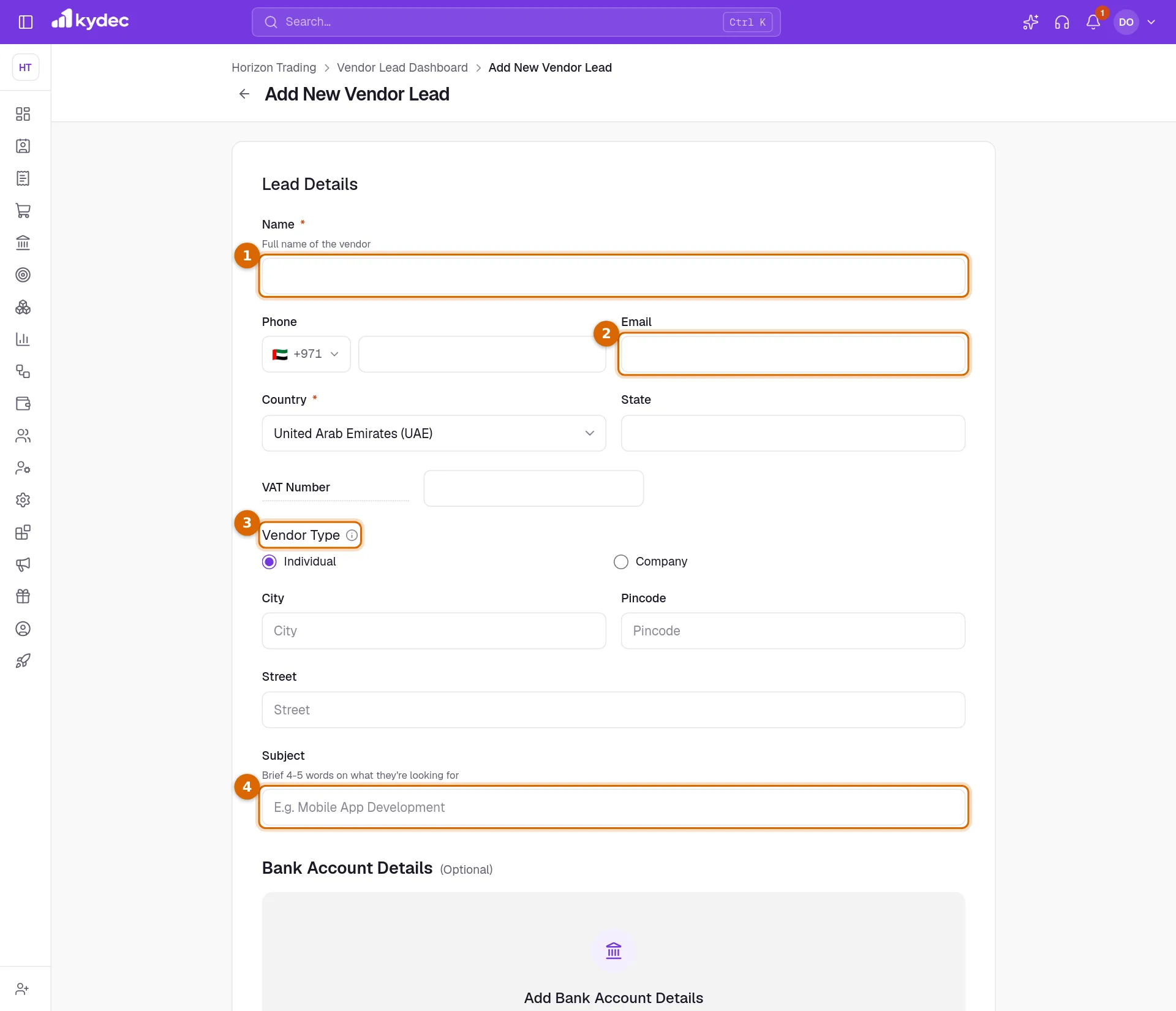
- The label of the tax number, VAT Number, can be changed by typing over it.
- For a vendor in India, GSTIN and PAN take its place.
- Custom fields you add for vendor leads under Custom Fields & Tags in Business Settings appear at the foot of the form and as columns in the list.
Approve a lead and register the vendor
Leads are approved through a vendor workflow. If you have none yet, create one under Workflows & Automations, Vendor Workflows.
- 1On the lead's row, open More and choose Add to Workflow.
- 2Pick the workflow under Select Workflow, then Select Stage and Select Assignee. Select Due Date is optional.
- 3The list now shows the workflow, stage and assignee beside the lead, and its menu offers View In Workflow.
- 4When the lead is approved, KyDec asks Add as Registered Vendor?. Click Create Vendor.
- The vendor is created from the lead's details and appears under Vendors & Suppliers, ready for purchases and purchase orders.
- If you close the question, Add as Registered Vendor stays in the lead's menu on its workflow.
- Once registered, that menu shows View Registered Vendor instead.
Good to know. Registering a vendor from a lead cannot be undone, and a lead can be registered only once.
Leads from forms, editing and bulk upload
- A lead captured by a workflow form arrives in this list by itself. View Leads on the form opens the list showing only the leads that form brought in; Show All Leads returns to the full list.
- Edit reopens the form with everything you entered, including the bank account.
- Bulk Upload Vendor Leads, under Create Vendor Leads, adds many leads from a CSV file.
Common questions
- What is the difference between a vendor lead and a vendor?
- A lead is a supplier you are still assessing. A vendor is one you buy from: only vendors can be chosen on a purchase or a purchase order. A lead becomes a vendor with Add as Registered Vendor.
- Do I have to use a workflow?
- To register a lead as a vendor, yes: that choice is offered on the workflow. If you do not need an approval step, add the supplier directly under Vendors & Suppliers with Add Vendor.
- Can I upload many leads at once?
- Yes. Choose Bulk Upload Vendor Leads under Create Vendor Leads, download the sample file, fill one lead to a row and upload it. Leads can also be captured through a workflow form.
Related guides
Approval workflows
Create customised multi-stage workflows to set up your Approval process for Quotations, Vendors, Reimbursements and more.
Workflow Forms
Create forms to capture vendor leads, collect required details, assign them to workflows, and move them through approval stages without manual follow-ups.
Clients & Prospects
Every business you sell to, and the ones you hope to. A prospect becomes a client the moment you invoice it; archiving keeps old ones out of the way without losing their history.
Custom fields
Add fields your business needs that we do not ship by default, and choose which of them print on your documents.