
Help
Purchases and Expenses
Record, track, manage, and analyze all your purchases and expenses in one place.
Where to find it:Purchases & ExpensesPurchases & Expenses
Purchases and expenses
This is where you record what your business buys and spends. A purchase is a vendor's bill entered line by line, with items, quantities and tax. An expense is a quick entry for one amount, such as rent or a taxi fare.
Both are kept in one list. Each shows what is still owed, and both are paid in the same way.
Find your way round the list
Open Purchases & Expenses in the sidebar, then Purchases & Expenses again.
- 1New Purchase opens the full form for a vendor's bill.
- 2New Expense opens the short form for a single amount.
- 3Scan Invoice reads a PDF or a photo of a vendor's bill into a new purchase for you to check.
- 4The tabs lead to related pages. Manage Vendors is your vendor list, Scanned Documents holds the files you scanned, and Active, Recurring and Deleted are views of this list.
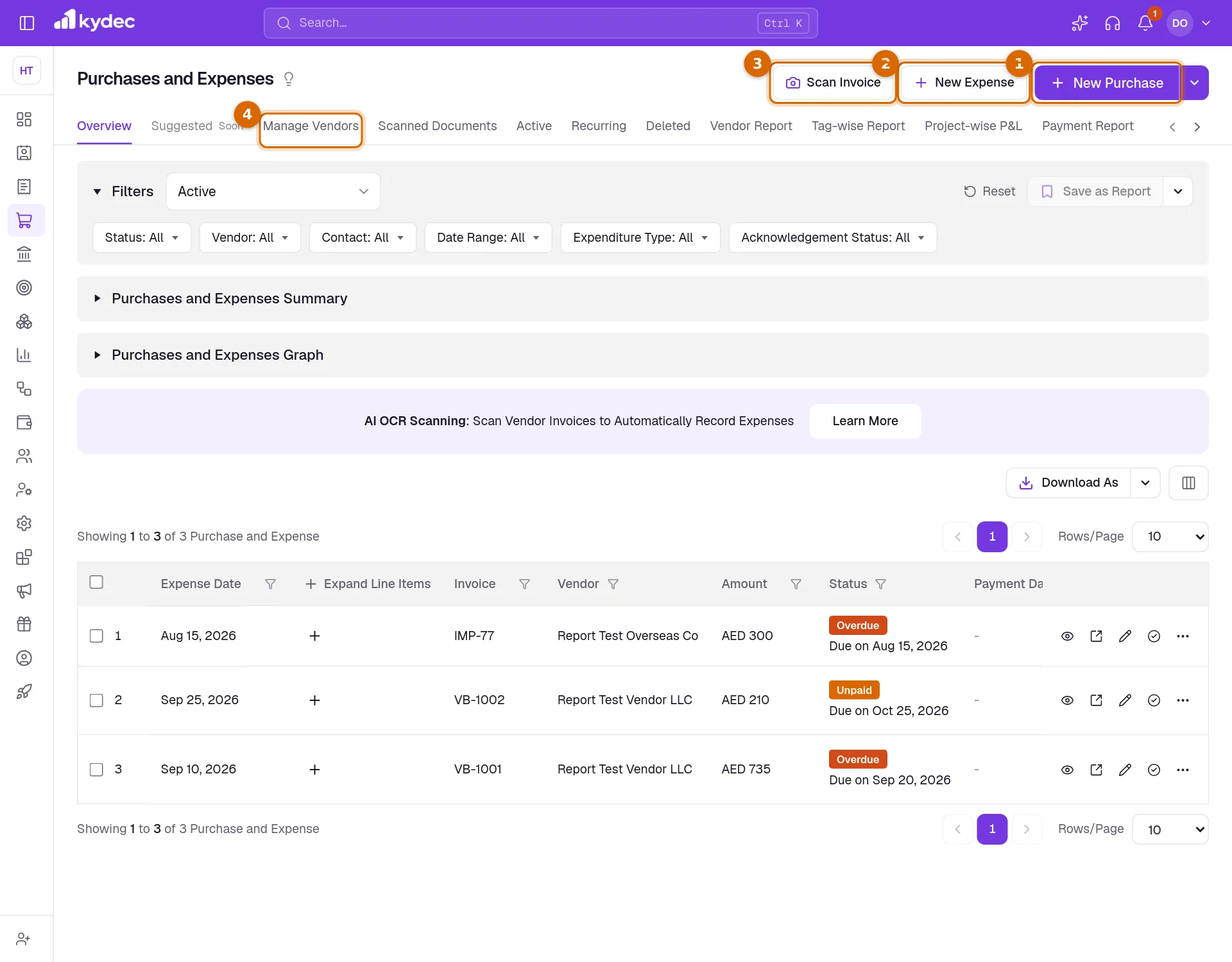
- On Overview, Purchases and Expenses Summary and Purchases and Expenses Graph total what you spent, what you paid and what is still due for the filters you chose.
- The Filters panel narrows the list by Status, Vendor, Contact, Date Range, Expenditure Type and Acknowledgement Status.
- Expenditure Type separates Purchases, Expenditures (quick expenses) and Petty spends.
- Click the + under Expand Line Items to see the lines of a purchase without opening it.
- Download As saves the list as a CSV file. Its arrow also offers Download as CSV with Line Items, which gives one row per line.
- Report tabs such as Vendor Report, Payment Report and Line Item Report open the reports for purchases.
Record a purchase
Click New Purchase.
- 1Check the Purchase No and the Purchase Date, and enter the number printed on the vendor's bill in Invoice No. PO Number and Due Date are optional.
- 2Under Billed By, choose the vendor. If they are not in the list, Add New Vendor creates them without leaving the page.
- 3Enter what you bought. Add New Line adds an item with its quantity, rate and tax.
- 4Use Add Discounts and Add Additional Charges under the totals, and Add Notes or Add Attachments to keep a remark or the vendor's original bill with the record.
- 5Click Save & Continue to save and open the purchase, or Save & Create New to enter another.
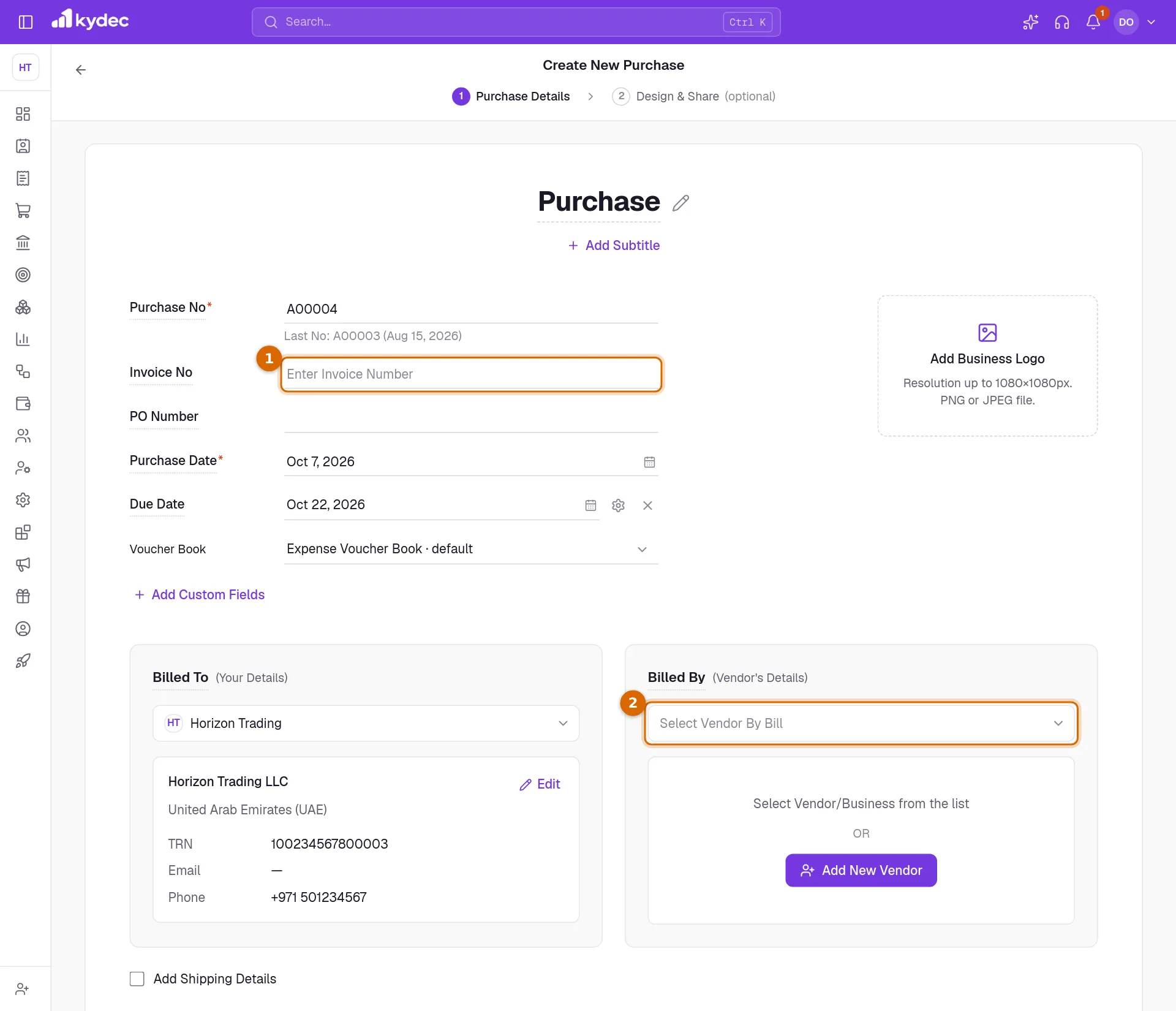
- If you use Advanced Accounting, you also choose the Voucher Book the purchase is filed in and each line's Purchase Ledger.
- Turn on This is a Recurring purchase for a bill that repeats, such as a monthly subscription. KyDec then creates a draft with the same details each period for you to check.
Record a quick expense
Click New Expense. The form is a single card titled Expenditures.
- 1Set the Expense Date and choose who you paid under Select Vendor. For a small cash spend with no vendor, open that list and click Petty Expense.
- 2Enter the Amount Spent. If tax was charged, choose it under Select Tax Type and enter its rate; the tax is worked out on the amount and added to it.
- 3If you use Advanced Accounting, pick the Expense Ledger the cost belongs to, for example rent or travel.
- 4Add Notes, or the bill itself under Attachments, if you want them kept with the expense.
- 5Click Save & Continue, or Save & Mark Payment to save and go straight on to recording the payment.
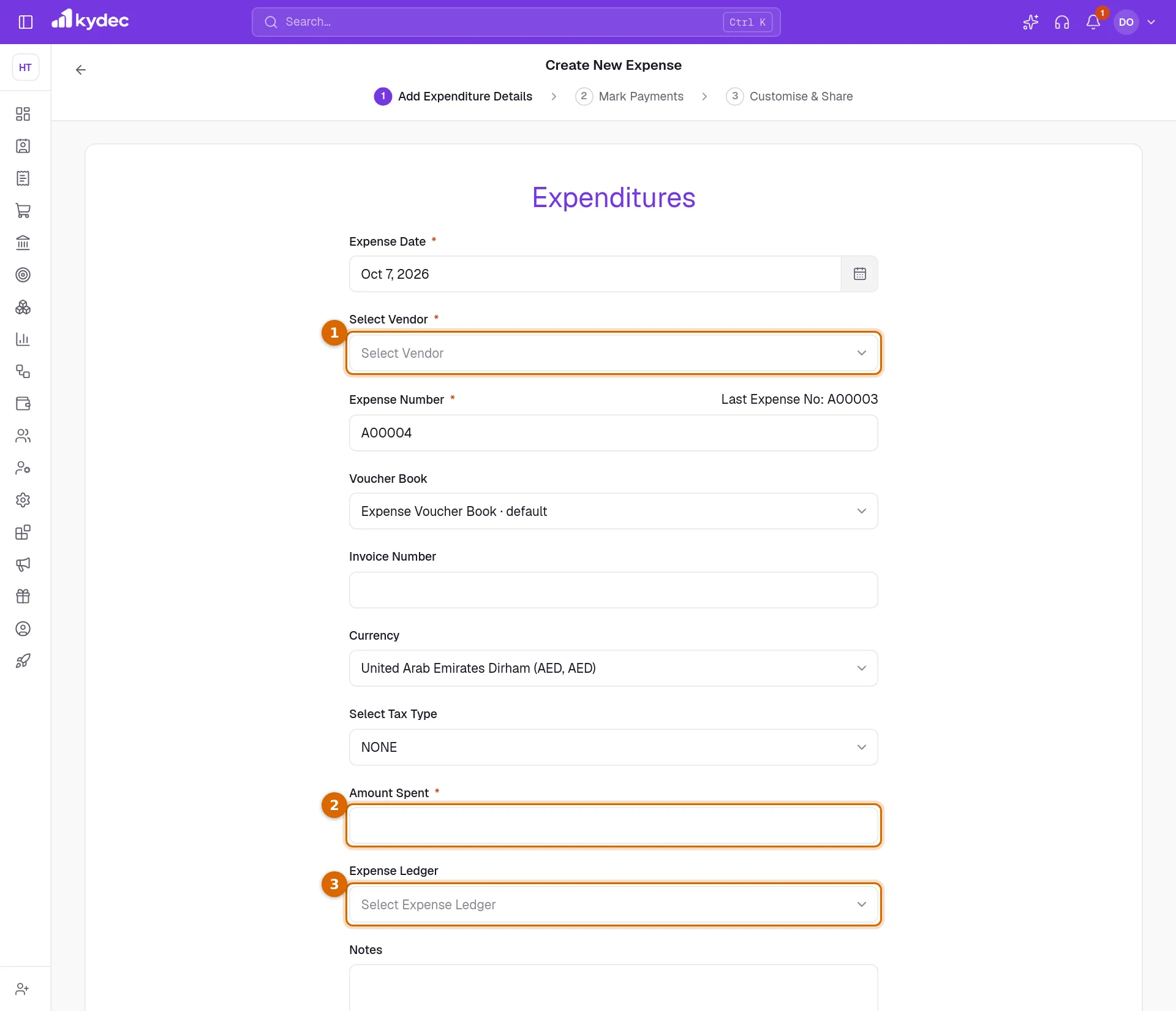
- Expense Number is filled in for you, and the last number used is shown beside it.
- Invoice Number is the number on the vendor's bill, if there is one.
- This is a Recurring expenditure repeats the expense each period as a draft.
Pay a purchase or an expense
- 1Choose Mark Paid on its row, or Record Payment in the header of the purchase's own page.
- 2Amount paid to Vendor (A) starts at the amount still due. Lower it for a part payment.
- 3Set the Payment Date and the Payment Method, and choose the Payment Account you paid from.
- 4Click Save.
- The payment is saved as a payout receipt and listed under Payout Receipts.
- If the vendor holds an advance from you, Available Credits shows it with (Use Credit), so you can pay the purchase from it.
- Will Pay Later, on the purchase's page, sets an email reminder for the day you choose.
- Once something is paid, the row menu gains Send Payment Receipt and Remove Payment.
Good to know. This records a payment you made to the vendor yourself. KyDec does not send the money.
What else you can do from a row
The ⋯ at the end of a row opens the full menu. The icons beside it are shortcuts.
- 1Mark Paid records a payment to the vendor.
- 2Duplicate starts a new purchase with the same details.
- 3Send Email and Send Whatsapp send the purchase to the vendor. Download saves it as a PDF.
- 4Delete moves it to the Deleted tab; Cancel, below it, keeps it in the list as cancelled.
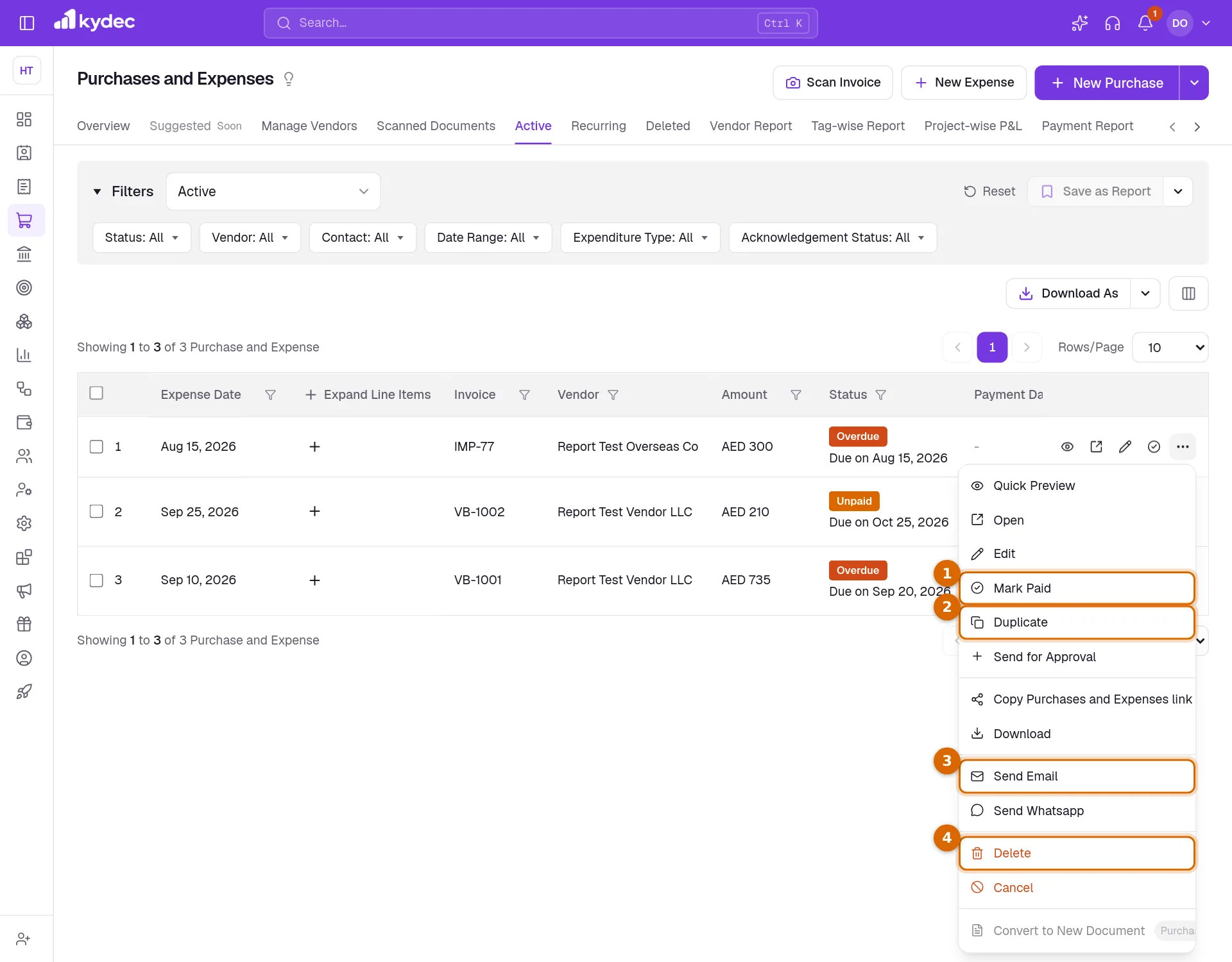
- Quick Preview shows the purchase beside the list. Open and Edit take you to its page and its form.
- Send for Approval puts it on an approval workflow, if you use them.
- Convert to New Document starts another document from a purchase. It is not offered for quick expenses.
Statuses, cancelling and deleting
- A purchase is Unpaid until you record a payment, Part Paid while something is still due, and Paid when nothing is. It reads Overdue once its due date has passed.
- Cancel asks for a reason and marks the purchase Canceled. Payments already recorded on it stay; take them off with Remove Payment if they no longer apply. Revert brings a cancelled purchase back.
- Delete asks for a reason and moves the purchase to the Deleted tab. Any payment on it is deleted with it.
- On the Deleted tab, Restore brings a purchase back and Delete Permanently removes it for good.
Good to know. A cancelled purchase can be reverted and a deleted one restored. Only Delete Permanently cannot be undone.
Common questions
- What is the difference between New Purchase and New Expense?
- New Purchase is for a vendor's bill with items: each line has a quantity, a rate and tax. New Expense records one amount with its tax, for a cost you do not need to break down. Both end up in the same list.
- How do I record small cash spends that have no vendor?
- Use New Expense, open Select Vendor and click Petty Expense. In the list, Expenditure Type set to Petty shows them together.
- Can I upload purchases in bulk?
- Yes. Under the arrow beside New Purchase, Bulk Upload Purchases and Bulk Upload Expenses each take a CSV file. Bulk Scan Expenses, in the same menu, reads up to 20 bills at once into Scanned Documents.
- I marked a purchase as paid by mistake. How do I undo it?
- Open the ⋯ menu on its row and choose Remove Payment. Every payment on the purchase comes off, and it is owed again.
Related guides
Payout Receipts
Record a full or partial refund, automatically update the Credit balance, create a Refund Receipt, and keep your books updated.
Scan Documents
Upload a PDF or a photo of an invoice, a bill or an order, and its details are read into a new document for you to check and save. Every scanned file is listed here, with the document made of it.
Purchase Order
Order goods or services from a vendor, share the order as a PDF or a link, and turn it into a purchase when their bill arrives.
Clients & Prospects
Every business you sell to, and the ones you hope to. A prospect becomes a client the moment you invoice it; archiving keeps old ones out of the way without losing their history.