
Help
Credit Note
Give a client credit back — for returned goods or an overcharge — against an invoice, and track how much of it they have used.
Where to find it:Sales & InvoicesCredit Notes
What a credit note is
A credit note gives a client credit back after you have invoiced them: for goods they returned, a discount agreed later, a fault, or an amount they paid in advance.
It does not change the invoice. It holds an amount of credit, which you then either set against what the client owes or pay back as a refund. KyDec tracks how much of each credit note has been used and how much is left.
Find your way round the list
Open Sales & Invoices in the sidebar and choose Credit Notes. Before your first credit note the page shows a short introduction with a Create First Credit Note button. After that it opens on Overview, with your credit notes listed newest first.
- Create Credit Note opens a blank credit note.
- The tabs are Overview, Active (the list on its own) and Deleted (deleted credit notes, which can be restored). Tag-wise Report opens its own page.
- Filters narrows the page by Status, Client, Contact and Date Range. Credit Note Summary under it shows Credit Notes, Credit Issued and Credit Consumed for what matches, and Credit Note Graph charts them.
- In the table, Credit Issued is the value of each credit note and Credit Consumed is how much of it has been used.
- Each row ends with icons for Quick Preview, Open in New Tab, Edit and Duplicate, and a ⋯ menu with everything else.
- Download As saves the list as a CSV file, with or without line items, and the columns button beside it (Show/Hide Columns) chooses which columns show.
Good to know. The list has no search box. To find one credit note, filter the Credit Note column by its number or Issued To by the client.
Create a credit note
Click Create Credit Note. The page that opens is the credit note itself: you fill it in where it will print.
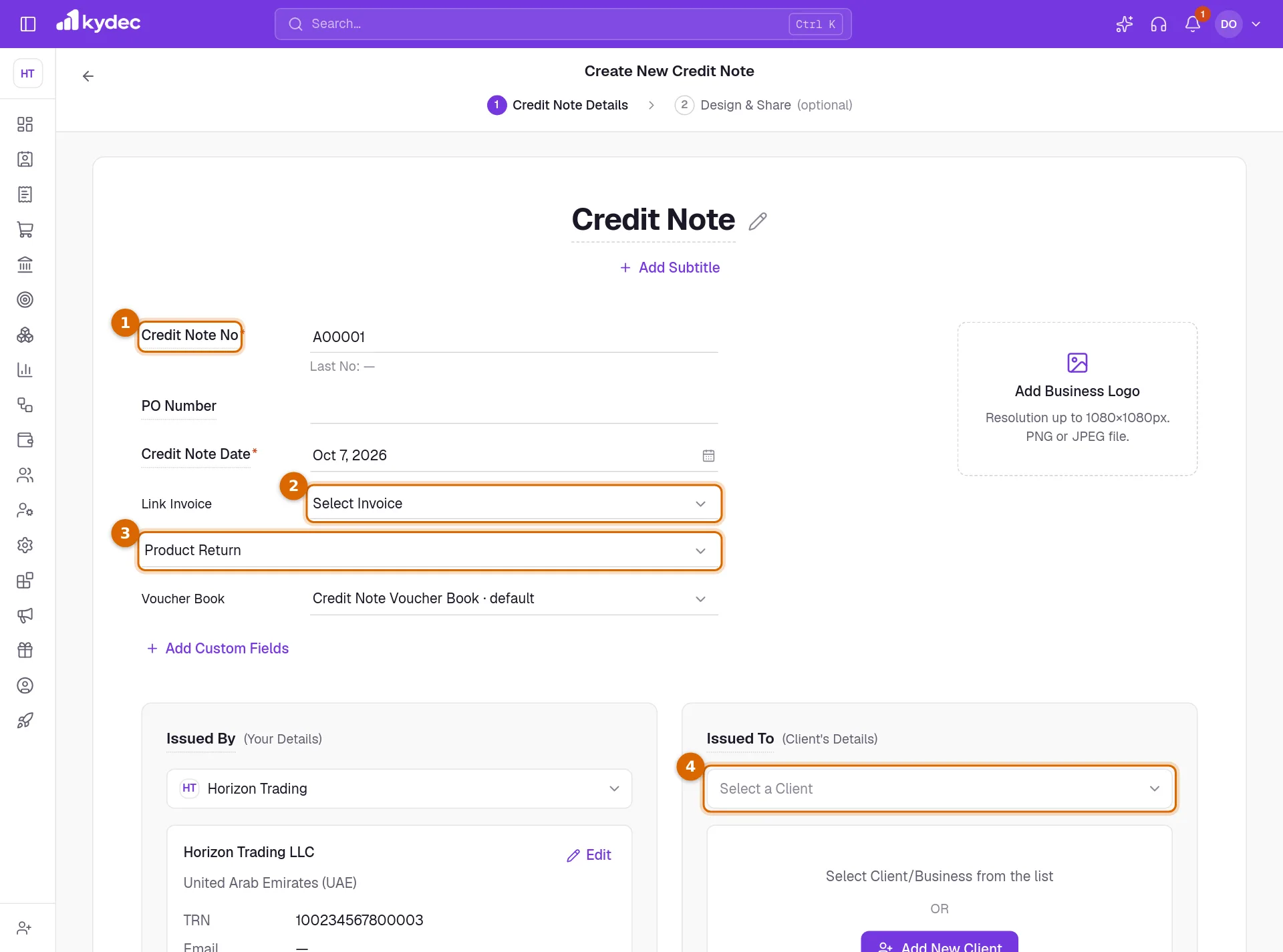
- 1Check the Credit Note No and Credit Note Date. The next number in your series is filled in, with the last one used shown as Last No.
- 2Under Link Invoice, choose the invoice being credited. Each invoice is listed with its date and amount. Leave it empty for credit that is not tied to one invoice.
- 3Choose the reason in the list below it: Product Return, Discount Offered, Fault/Defect in service / product, Advance Paid or Other.
- 4Under Issued To, pick the client from Select a Client, or click Add New Client.
- 5Enter what is being credited as items, with the quantity and rate. Leave Add to Inventory ticked on a line when the goods are coming back into stock, and untick it when they are not.
- 6Add the tax if the original sale was taxed, then click Save & Continue to issue the credit note. Save As Draft keeps it as a draft.
- A credit note needs a number, a date, a client, a currency and at least one named item before it can be saved.
- It has no due date and no bank details. Terms, notes, attachments and a signature are added as on an invoice.
- With Advanced Accounting on, a Voucher Book row can appear under the reason and each line shows the ledger it is booked to.
Good to know. If a line is set to add to inventory and no invoice is linked, KyDec warns you before saving. Continue saves it as it is.
Start from an invoice instead
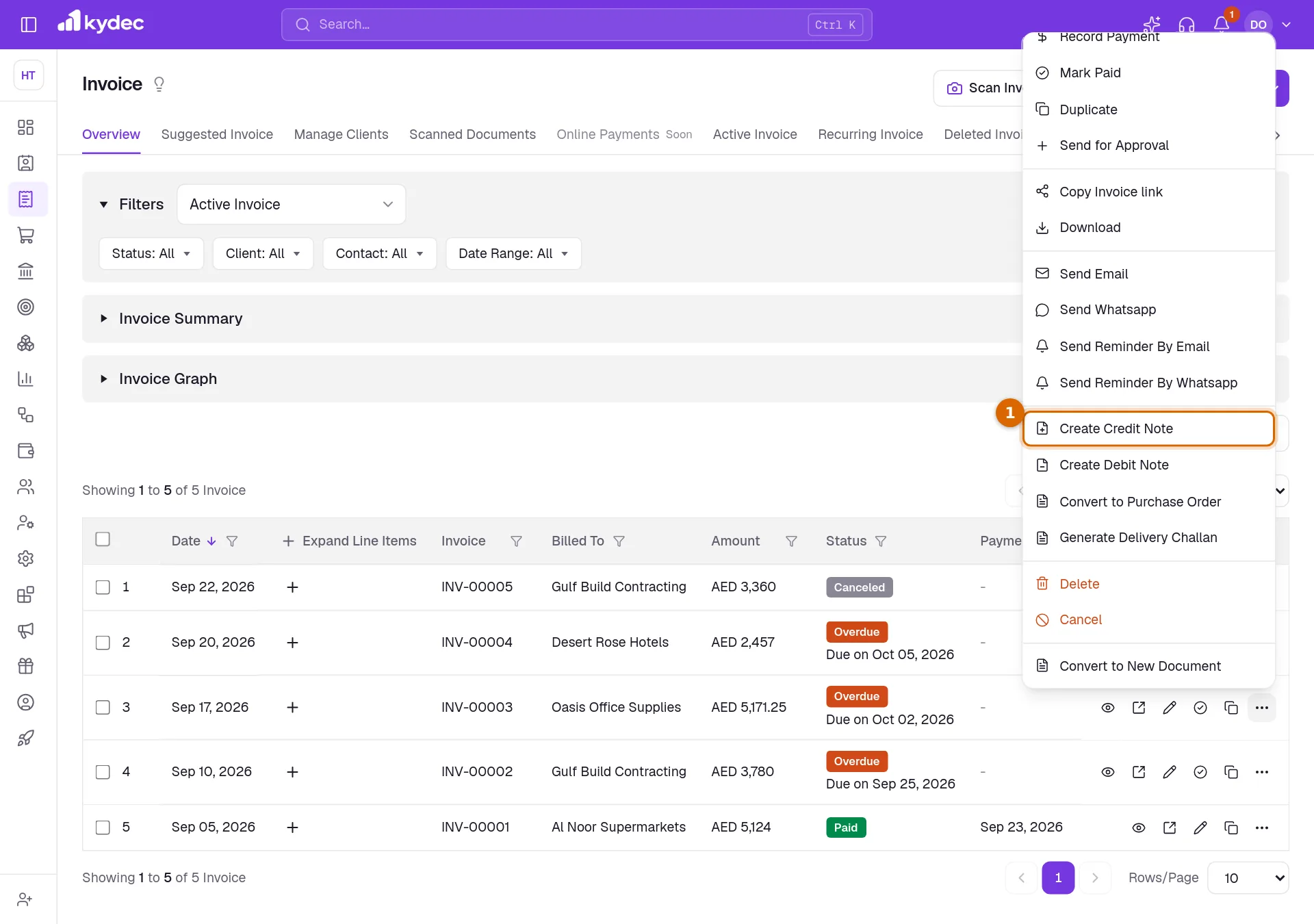
The quickest way to credit an invoice is from the invoice itself.
- 1In Invoices, open the ⋯ menu of the invoice and choose Create Credit Note.
- 2KyDec saves a draft credit note with the same client and items, linked to that invoice, and opens it.
- 3Remove or reduce the lines until they show only what you are crediting, choose the reason, and click Save & Continue.
- A draft or cancelled invoice cannot have a credit note made from it this way.
Send it, then settle or refund the credit
Saving opens the credit note on its own page. Settle Credit and Record Refund sit along the top with the usual sharing actions.
- 1Send it with Share, which holds Send Email, Send WhatsApp and the public link, or save the PDF from Download / Print.
- 2To set the credit against what the client owes, click Settle Credit. Under Select Invoices, enter how much to take off each unpaid invoice of that client, click Review & Confirm, check the figures and click Confirm Adjustment.
- 3To pay the client back instead, click Record Refund. Enter the Refund Amount, the date under Refunded On, the Payment Method and the Payment Account the money left from, then click Save Refund.
- 4Open Credit Usage Details on the same page to see what has been used and what is left, and Refund History for the refunds made.
- You cannot settle or refund more than the credit still available, or settle more against an invoice than it has due.
- A refund is a record of money you paid the client yourself. KyDec does not move the money. Each refund is kept as a payout receipt.
- Settling takes the amount straight off the invoice. No separate journal entry is made for it.
- Tick Mark Credit Note Sent on the page when you have sent it yourself.
Good to know. A draft, cancelled or fully used credit note cannot be settled or refunded.
Statuses and rules worth knowing
- Issued is a saved credit note with all of its credit available. Partially Utilised has had some of it settled or refunded, and Redeemed has had all of it used. Draft is one saved with Save As Draft, and Cancelled is one you have cancelled.
- Only an Issued credit note can be cancelled, and it asks for a reason. A draft is deleted instead. Revert makes a cancelled credit note Issued again.
- Deleting a credit note that has been used also undoes what was paid out of it: its refunds are reversed and the invoices it was settled against are owed again. KyDec shows the amount before you confirm.
- A deleted credit note is kept under Deleted. Restore brings it back with all of its credit available again, and Delete Permanently removes it for good.
Good to know. An invoice cannot be deleted or cancelled while credit from a credit note is settled against it.
Common questions
- What is the difference between settling and refunding?
- Settling uses the credit to reduce what the client still owes on one or more invoices. Refunding pays the money back to the client. You can do some of each on the same credit note until the credit runs out.
- Does a credit note have to be linked to an invoice?
- No. Link Invoice can be left empty. KyDec only asks you to confirm when a credit note with no invoice is also set to add goods back to inventory.
- How do I see how much credit is left?
- The Credit Issued and Credit Consumed columns in the list show it for each credit note, and Credit Usage Details on the credit note page shows what is still available.
Related guides
Invoice
Create invoices from customisable templates, share them as a PDF, a print or a link over WhatsApp or email, and record and track what is paid against each one.
Payout Receipts
Record a full or partial refund, automatically update the Credit balance, create a Refund Receipt, and keep your books updated.
Debit Note
Bill a client more after an invoice — a correction or a change in place of supply — link it to that invoice, and record what they pay against it.
Inventory and units
Track stock from the documents that move it, choose the units you buy and sell in, and set the levels that raise a re-order or over-stock alert.