
Help
Payout Receipts
Record a full or partial refund, automatically update the Credit balance, create a Refund Receipt, and keep your books updated.
Where to find it:Purchases & ExpensesPayout Receipts
What a payout receipt is
A payout receipt records money leaving your business. The Type column tells the two kinds apart: a Payout is a payment to a vendor, and a Refund is money returned to a client against a credit note.
You create payouts on this page. Refunds are recorded on the credit note itself and then appear here on their own, each as a refund receipt.
Good to know. A payout receipt records money you paid yourself, for example by bank transfer. KyDec does not send the money.
Find your way round the list
Open Purchases & Expenses, then Payout Receipts.
- 1Create Payout Receipt records a payment to a vendor.
- 2The tabs are Overview, Active and Deleted. Receipts you delete are kept on Deleted.
- 3The Filters panel narrows the list by Status, Vendor, Contact and Date Range.
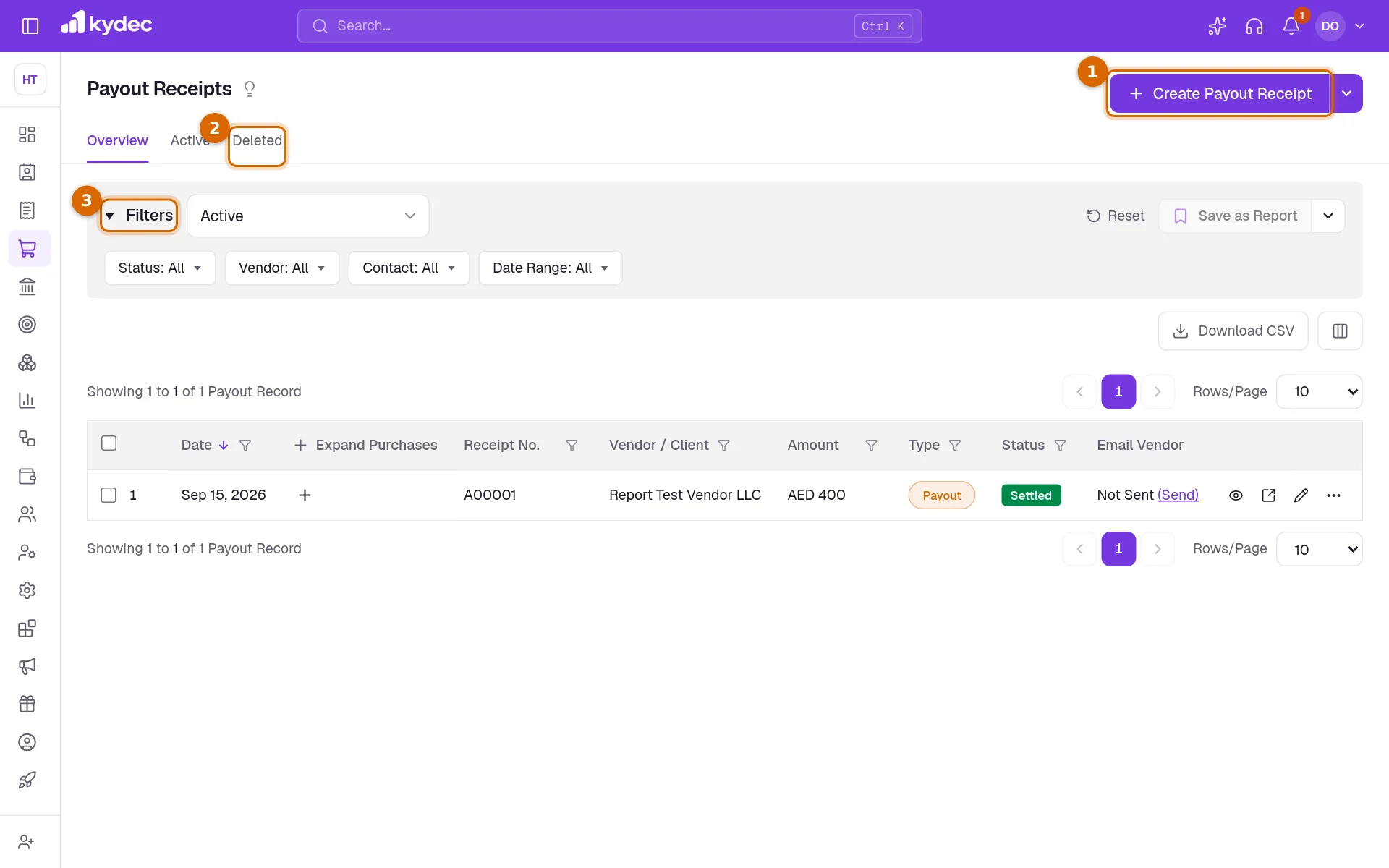
- Click the + under Expand Purchases to see what a receipt settled and how much went to each.
- Status reads Settled, Partially Settled or Advance, as it does for payment receipts.
- Under Email Vendor, (Send) emails a receipt that has not been sent yet.
- Download CSV saves the list as a spreadsheet file, and the columns button beside it chooses the columns.
Choose the kind of payout
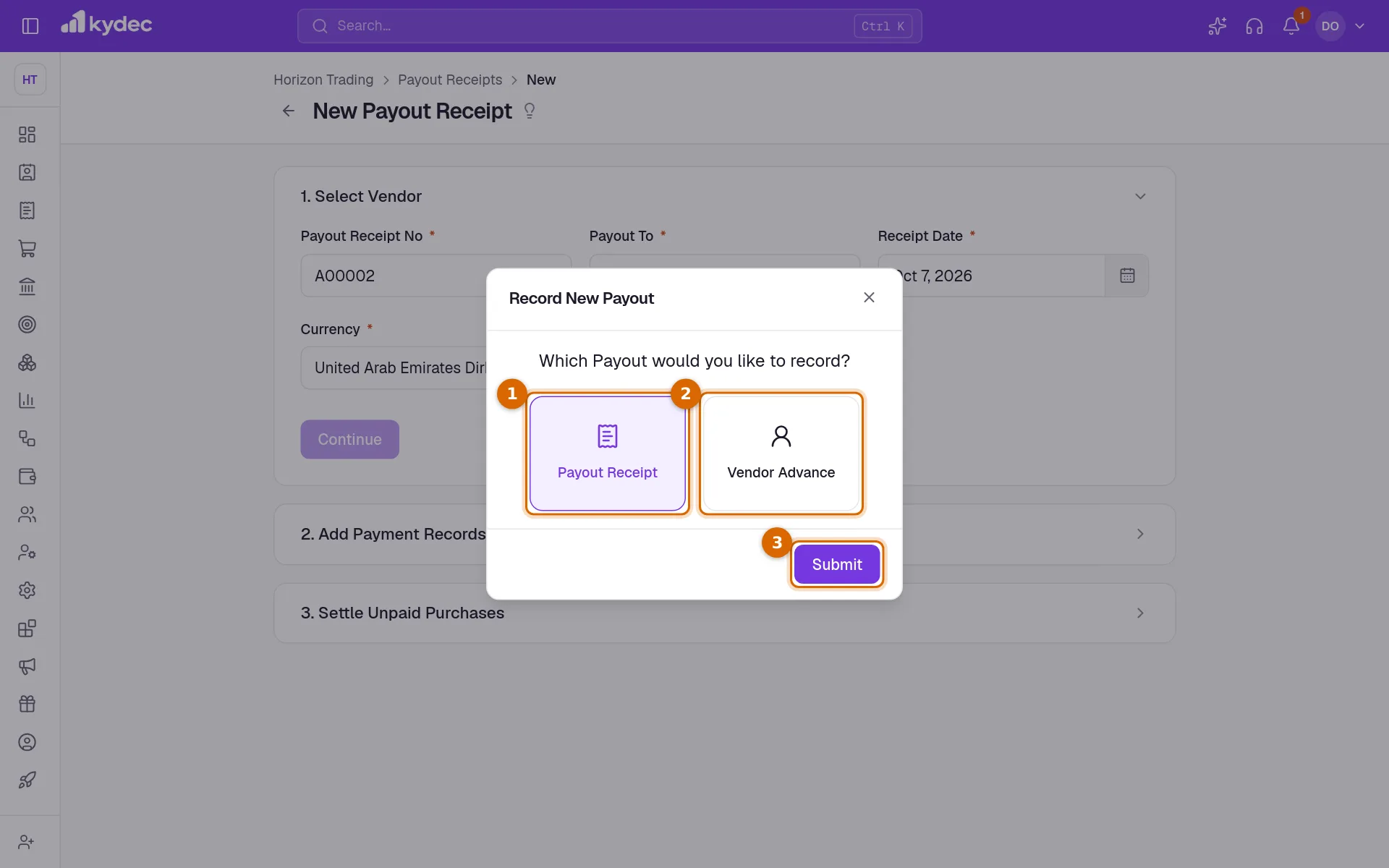
Click Create Payout Receipt. KyDec asks which payout you would like to record.
- 1Payout Receipt pays a vendor for purchases you have already recorded.
- 2Vendor Advance pays a vendor ahead of any purchase. The money is held as their credit until you use it.
- 3Submit opens the form.
Pay a vendor
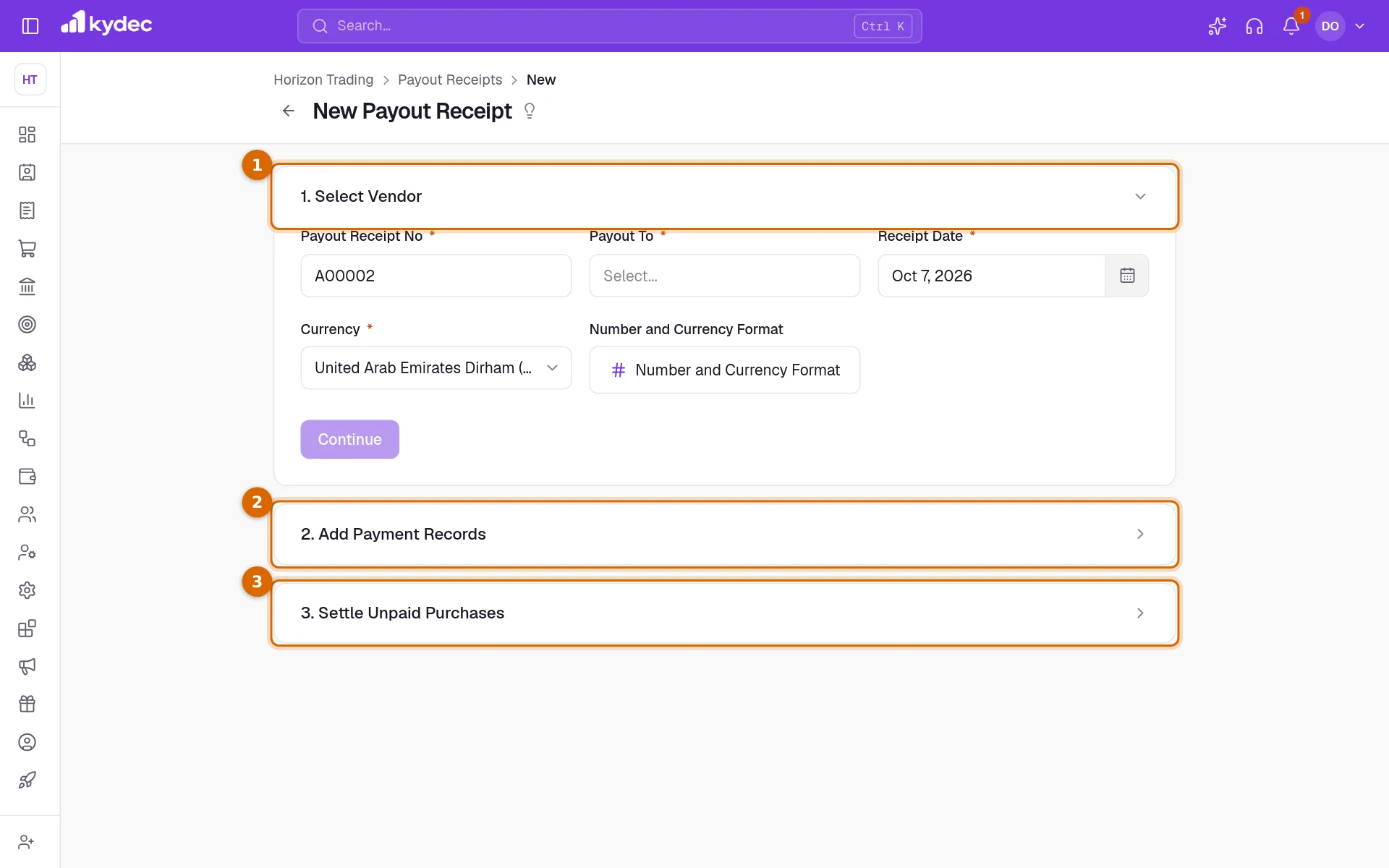
- 1Under Select Vendor, pick the vendor in Payout To. Check the Payout Receipt No, the Receipt Date and the Currency, then click Continue.
- 2Under Add Payment Records, click Add New Payment Record. In Record Payment Made, choose the Payment Method, the account under Paid From and the Amount Paid (A), then click Save & Continue.
- 3Click Continue to open Settle Unpaid Purchases. The money is put against the vendor's unpaid purchases for you, oldest first.
- 4Click Save & Continue to save and open the receipt, or Save & Create New to start another.
- A vendor who is not in the list can be added from the Payout To list with Create New.
- What you pay beyond what the purchases owe stays with the vendor as an advance.
- To use an advance later, open Record Payment on one of that vendor's purchases: it is shown under Available Credits with (Use Credit).
Good to know. A payment you record on a purchase with Mark Paid or Record Payment is saved as a payout receipt too. You do not need to enter it again here.
Refund a client from a credit note
A refund gives a client money back for credit you owe them. It is recorded on the credit note, so the credit and the refund always agree.
- 1Open the credit note under Sales & Invoices, Credit Notes, and click Record Refund in its header.
- 2Check Available to Refund at the top, then enter the Refund Amount: all of the available credit, or part of it.
- 3If the bank charged a fee, enter the Transaction Charge. Leave Deduct from refund amount ticked if the fee came out of what the client received; untick it if you paid it on top.
- 4Set Refunded On, the Payment Method and the Payment Account the money left from.
- 5Click Save Refund.
- The refund is saved as a receipt of type Refund in this list, and the credit note's available credit goes down by the same amount.
- On the credit note, Refund History lists every refund with View Refund Receipt, and shows the Remaining Balance.
- Add Ref. ID, Add Additional Notes and Add Attachments add a reference, a remark or a file to the refund.
- If you use Advanced Accounting, the dialog also shows the Payment Ledger and the Voucher Book the refund is posted to.
Good to know. Record Refund is not available on a credit note that is a draft, cancelled, deleted or fully used. A refund can never be more than the credit still available.
Send, correct and undo
- The ⋯ menu of a row has Download, Send Email, Send Whatsapp, View Vendor Statement, View Ledger Statement and Delete.
- A receipt's own page adds Download / Print, Share, and a settings panel where you customise its design and see its payment records.
- A Payout can be edited. A Refund cannot: its Edit is greyed out.
- To undo a refund, open it and choose Reverse Refund from the ⋯ menu. The credit goes back on the credit note and its entry in your books is reversed.
- To undo a payout, choose Delete on its row, or Delete Payout Record on its page, and give a reason. Its entry in your books is reversed.
- On the Deleted tab, Restore brings a receipt back and Delete Permanently removes it for good.
Common questions
- Why can I not edit a refund?
- A refund changes the balance of a credit note, so it is reversed rather than edited. Use Reverse Refund, then record it again with the right figures.
- Can I refund only part of a credit note?
- Yes. Enter any Refund Amount up to Available to Refund. The rest stays on the credit note, and you can refund it later or leave it as credit.
- Does recording a refund pay the client?
- No. It records a refund you made yourself. The dialog says so: it is not an online refund through KyDec.
- Can I upload payouts in bulk?
- Yes. Choose Bulk Upload under Create Payout Receipt and fill the sample file. Rows with the same payoutReceiptNumber make one payout, each row settling one purchase by its settledAmount; a payout with no purchase is an advance.
Related guides
Credit Note
Give a client credit back — for returned goods or an overcharge — against an invoice, and track how much of it they have used.
Purchases and Expenses
Record, track, manage, and analyze all your purchases and expenses in one place.
Payment accounts
Every account money moves through — bank accounts, the cash box, cards and wallets, and employees you reimburse. What you add here is what a document can be paid into.
Automate Ledger Entries For Payment Records
A recorded payment is posted to its payment account's ledger, so your books show it without a manual entry. Change Ledger links the account to a different one.