
Help
Inventory and units
Track stock from the documents that move it, choose the units you buy and sell in, and set the levels that raise a re-order or over-stock alert.
Where to find it:Business SettingsInventory
What these settings cover
The Inventory tab holds the rules for your stock: whether KyDec keeps count, the units you buy and sell in, what kind of item a new line becomes, and the stock levels that mark an item as running low or overstocked.
The items themselves are kept under Products & Inventory in the sidebar. This article covers the settings, and how they show up there.
Turn inventory on
- 1Open Business Settings and choose Inventory. Manage Inventory & Behavior is already open.
- 2Switch on Manage inventory. This removes the reminder at the top of the All Items list and lets your documents move stock.
- 3On the Inventory auto-update settings row, Configure lists each document type with three choices: Auto Update, Block Only and Do Nothing.
- 4Allow strict control for items lets you mark items as Strict Control (on the item, or in the Strict Control column of All Items). A sale or a stock adjustment that would take such an item below zero is then refused, even for a document type set to Auto Update.
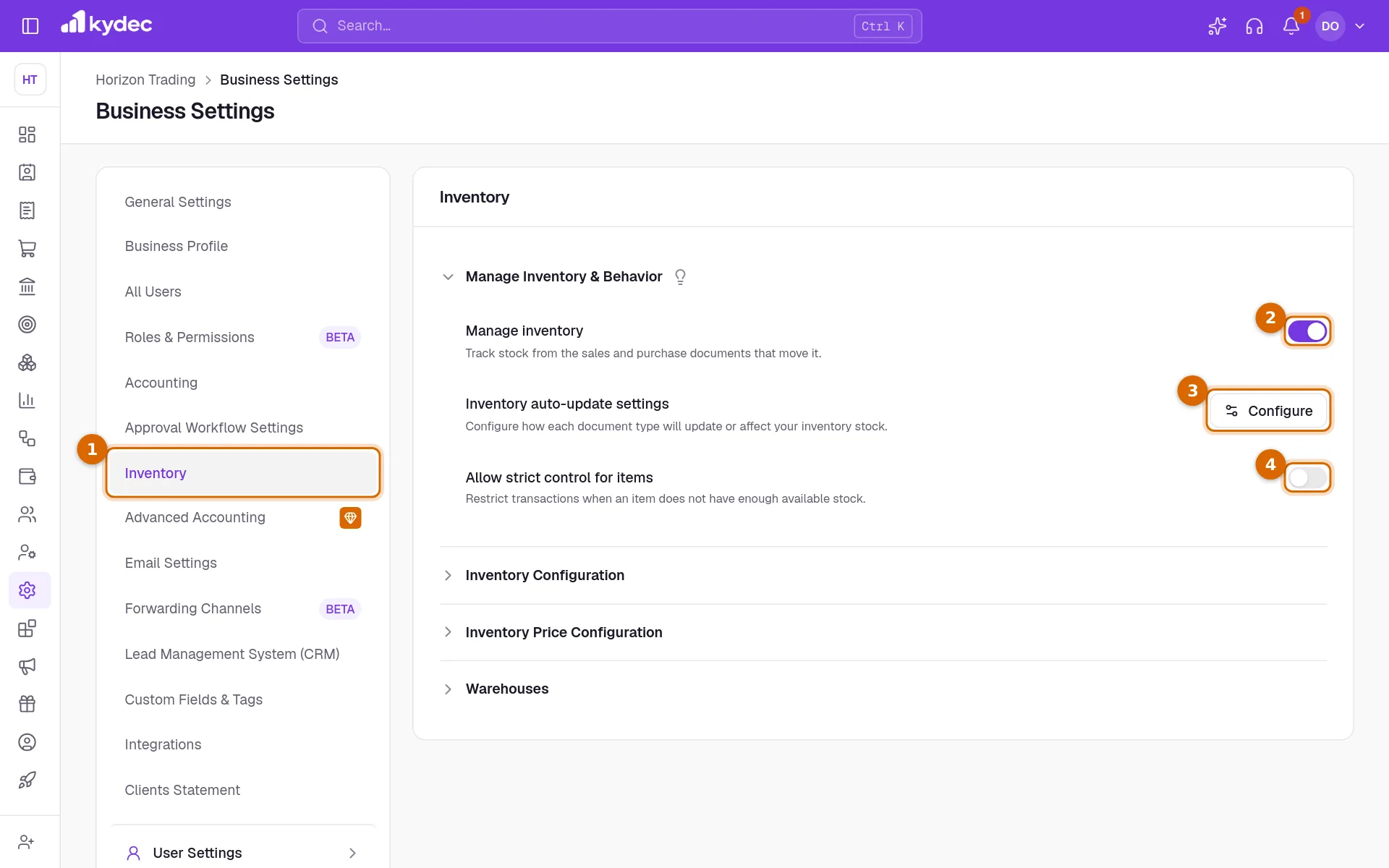
- Turning Manage inventory off asks you to confirm first, and greys out the two rows beneath it.
Good to know. With Manage inventory on, a document moves stock a few seconds after it is saved, as Inventory auto-update settings says: Auto Update moves it, Block Only refuses a sale of more than is in stock, and Do Nothing leaves stock alone. Only items with Manage Stock on are counted, and documents saved before you switched it on are not counted again.
Item types and stock levels
Click Inventory Configuration to open it.
- 1On the Configure units row, Configure opens your list of units. The next part of this article covers it.
- 2Default item type: what a new line on a document is treated as. Choose Product, Service or One Time.
- 3Show item type in documents: when on, each line on a document has its own type to choose. When off, every line takes the default.
- 4On the Configure stock thresholds row, Configure sets the Re-order point and the Over-stock point. The over-stock point must be the higher of the two.
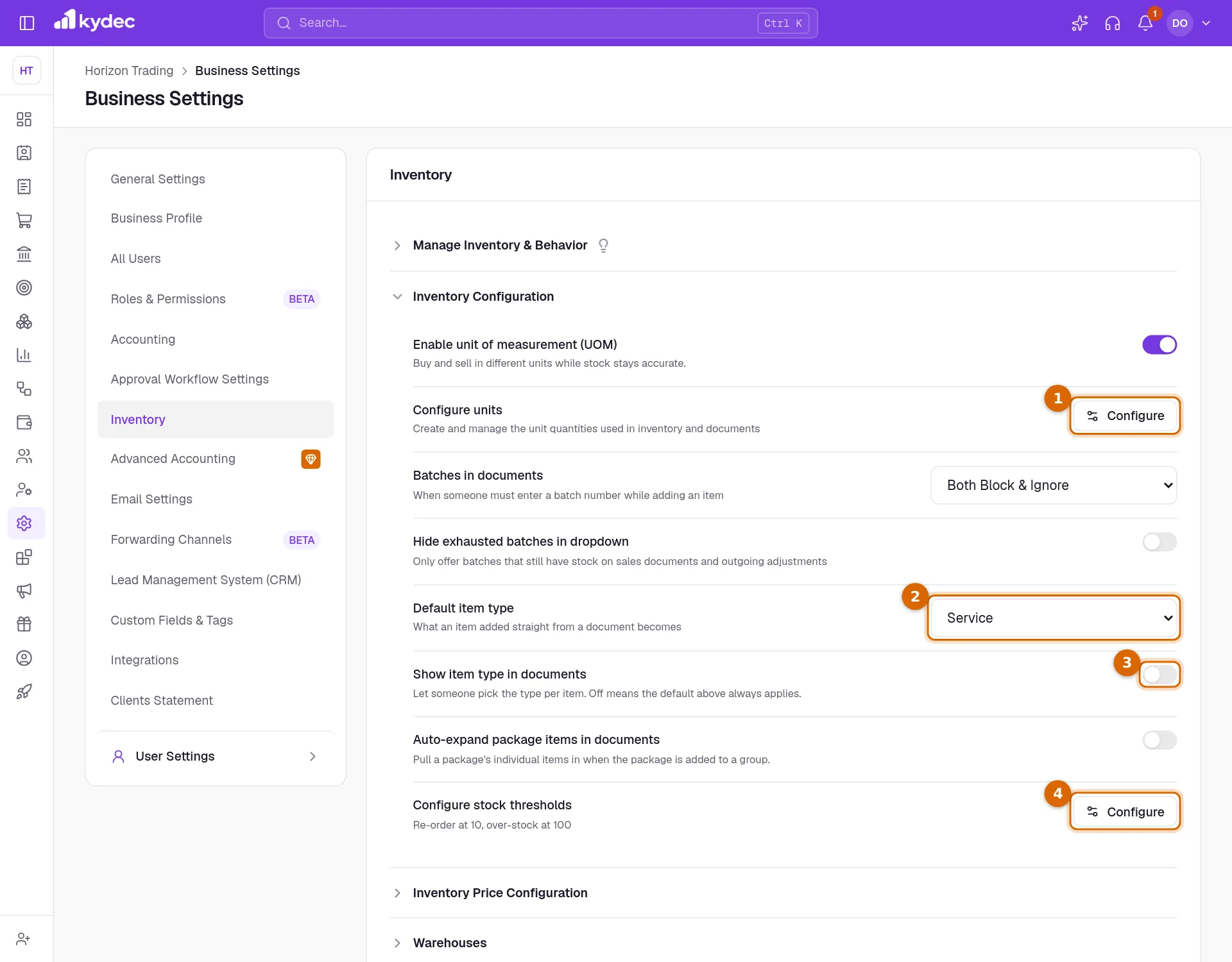
- The thresholds apply to every item that does not set its own. An item sets its own under Reorder & Overstock on the item form.
- Batches in documents decides when a line of an item tracked by batch must name its batches: Block on every document and adjustment that moves or checks stock, Both Block & Ignore only where stock leaves (sales and outgoing adjustments), Ignore never.
- Hide exhausted batches in dropdown leaves batches with no stock out of the list on sales and outgoing adjustments. A batch a line already takes from stays.
- Auto-expand package items in documents turns a package picked on a document into a group with a line for each of its items. Enable unit of measurement (UOM) lets items be bought and sold in their alternate units while stock stays in each item's base unit; once on, it cannot be turned off. The inventory article covers it.
Prices on document lines
Click Inventory Price Configuration to open it. It decides what a line is priced at when it is an item from your list.
- Default price when adding items to new documents, set to Last used price: picking an item on a line fills in what this client paid for it on their latest invoice in the same currency. On a purchase or a purchase order it is what you last paid this vendor on a purchase. With no earlier sale or purchase, the item's own price is used.
- Set to Inventory configured price, a line always starts from the item's own price: its Selling Price on sales documents, and its Buying Price on purchases (the selling price where an item has none).
- Only invoices or purchases you may see are used. If your role shows you only your own, only those count.
- Apply automatic price mapping on document conversion: when a sales document is converted into a purchase order or a purchase, or a purchase into a sales document, the item lines are re-priced at each item's buying or selling price when the new document first opens in the editor. Save it to keep the new prices. Conversions on the same side, such as a quotation into an invoice, keep the agreed prices.
- Lines typed by hand are never re-priced, and you can change any price before saving.
Manage your units
- 1Add new unit puts an empty row at the top of the list.
- 2Type a Unit code of exactly three characters, such as BOX, and a Description. Both are needed.
- 3Untick Active to stop offering a unit without removing it.
- 4Click Save.
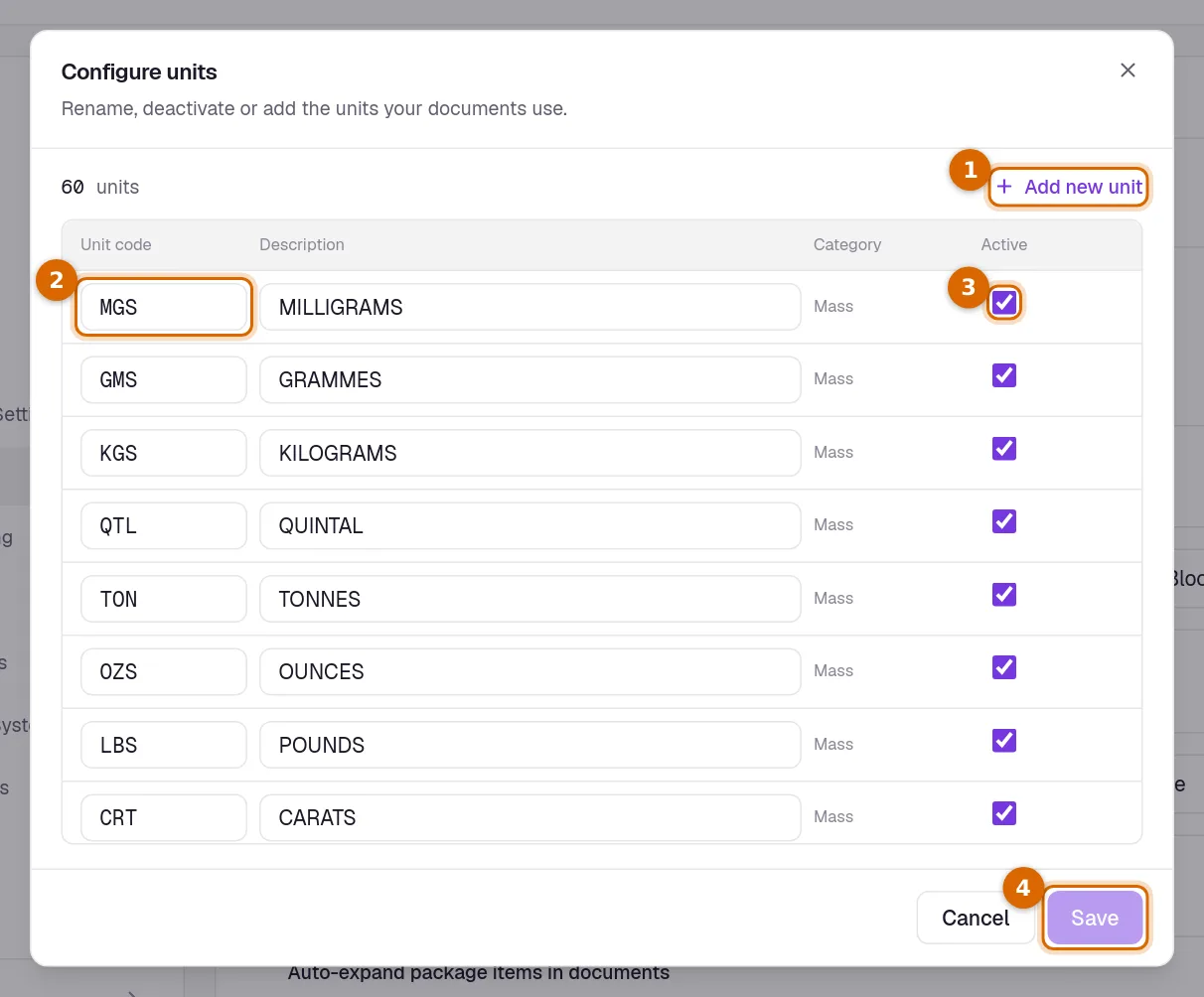
- Active units are the ones offered as the unit of a line on a document, and as the Base Unit of an item.
- Built-in units can be made inactive but not deleted. Units you added yourself can be removed with the bin.
- Two units cannot share a code.
Record stock coming in and going out
Open Products & Inventory, then All Items, and click Adjust Stock on the item’s row.
- 1Choose Incoming for stock you received, or Outgoing for stock that left.
- 2Enter the Adjusted Quantity.
- 3Check the Rate. It starts from the item’s buying price for incoming stock and from its selling price for outgoing stock.
- 4Pick a Reason to adjust — for stock coming in Purchased, Returned by customer, Found in stock count, Opening correction or Received as sample; for stock going out Sold, Damaged, Expired, Lost or stolen, Used internally, Given as sample, Returned to vendor or Short in stock count; or Other — and, if you like, a Note saying what happened (needed with Other). Then click Save Changes.
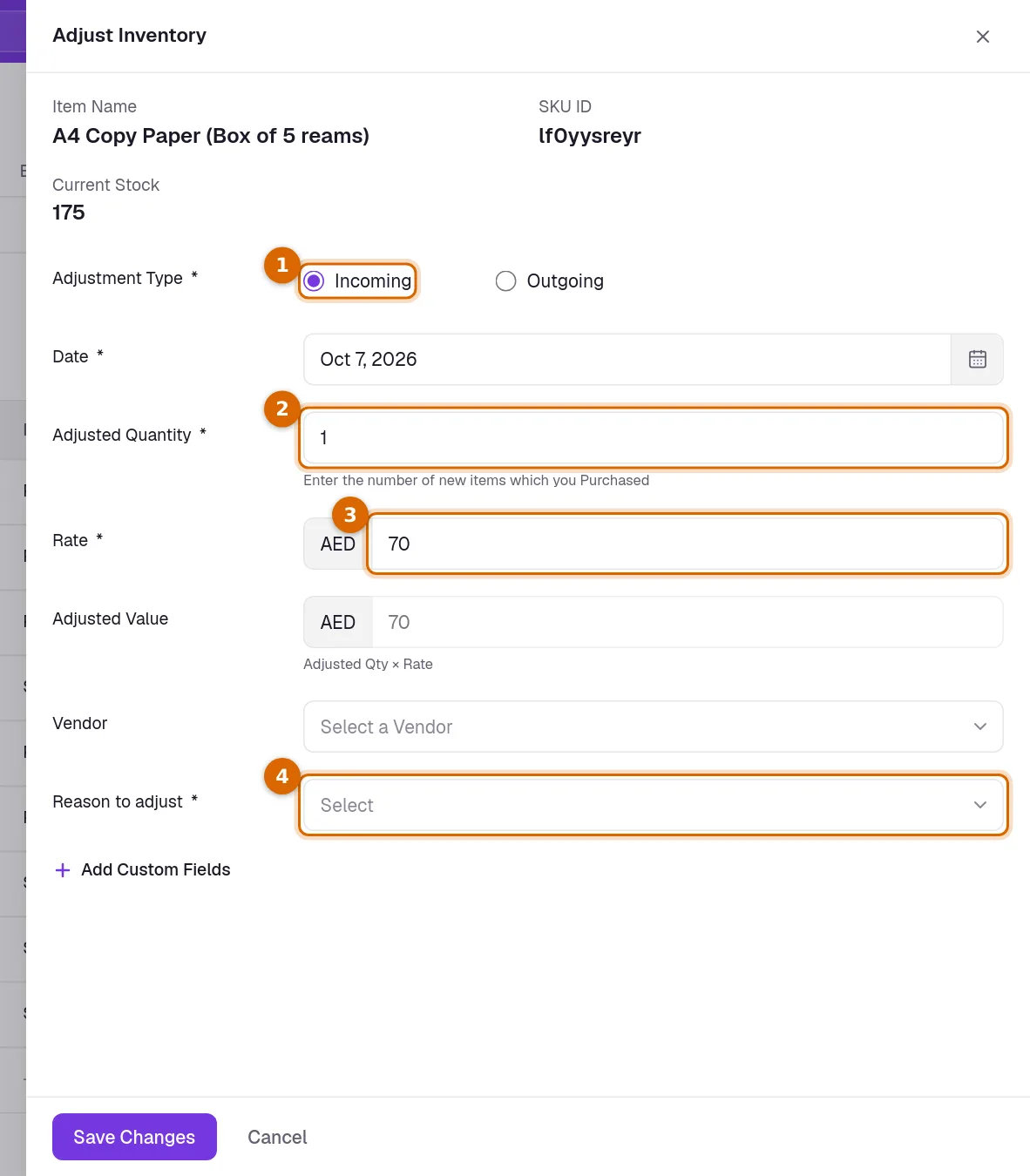
- You can also name the Vendor the stock came from, or the Client it went to.
- With warehouses switched on, Warehouse is required too. Each one in the list shows how much of the item it holds.
- With Strict Control on for an item, an outgoing adjustment that would take its stock below zero is refused, in total and in the warehouse it leaves.
- For an item tracked by batch, choose the Batch too. Batches in documents decides when it is required, and with Strict Control on an outgoing adjustment cannot take a batch below zero.
- Every adjustment is listed in the All Transactions Report.
How stock levels show up
- The Stock Status of an item reads Out of Stock at zero, Critical below the re-order point, Low Stock below the re-order point plus 30% of the way to the over-stock point, Well Stock from there to the over-stock point, and Overstock at the over-stock point or more.
- The Stock Status Report under Products & Inventory uses the same rule.
- Enable Multi Warehouses, under Warehouses on the settings tab, is part of a paid plan and needs Manage inventory on. Until it is on, the Warehouses page shows a reminder to enable it.
Common questions
- Does creating an invoice reduce my stock?
- Yes, while Manage inventory is on and Inventory auto-update settings has Invoices on Auto Update, which is where it starts. The stock moves a few seconds after the invoice is saved, and for an item tracked by batch so do the batches chosen on its line.
- Why is Strict Control greyed out on my items?
- Manage inventory is off. Switch it on under Business Settings, Inventory, and the switch on each item unlocks.
- Can one item have its own re-order level?
- Yes. Set Reordering Point and Overstock Point under Reorder & Overstock on the item form. The levels in settings are used only for items that leave them empty.
- Can I delete a unit I no longer use?
- A unit you added can be removed with the bin in Configure units. A built-in unit cannot be deleted; untick Active to stop it being offered.
Related guides
Custom fields
Add fields your business needs that we do not ship by default, and choose which of them print on your documents.
Batch Expiry Report
See how much of each batch-tracked item expires soon and how much already has, so you can sell, return or write off stock before it is lost.
Purchases and Expenses
Record, track, manage, and analyze all your purchases and expenses in one place.
Invoice
Create invoices from customisable templates, share them as a PDF, a print or a link over WhatsApp or email, and record and track what is paid against each one.