
Help
Sales Order
Record a client's confirmed order before you invoice it, share it as a PDF or a link, and turn it into an invoice when the goods go out.
Where to find it:Sales & InvoicesSales Orders
What a sales order is
A sales order records an order a client has confirmed, before you invoice it. It lists what was ordered and at what price, and carries the client's own order reference as the PO Number.
It is not a bill: it has no due date and takes no payments. When the goods go out or the work is done, you convert it to an invoice.
Find your way round the list
Open Sales & Invoices in the sidebar and choose Sales Orders. Before your first sales order the page shows a short introduction with a Create First Sales Order button. After that it opens on Overview, with your orders listed newest first.
- Create New Sales Order opens a blank order. The arrow beside it also offers Scan Sales Order and Bulk Scan Sales Orders, which read an order in from a file.
- The tabs are Overview, Active (the list on its own) and Deleted (deleted orders, which can be restored). Manage Clients, Scanned Documents and Tag-wise Report open their own pages.
- Filters narrows the page by Status, Client, Contact and Date Range. Sales Order Summary and Sales Order Graph under it follow the same filters.
- The Convert to Invoice column has a button on every order you have raised.
- Each row ends with icons for Quick Preview, Open in New Tab, Edit and Duplicate, and a ⋯ menu with everything else.
- Download As saves the list as a CSV file, with or without line items, and the columns button beside it (Show/Hide Columns) chooses which columns show.
Good to know. The list has no search box. To find one order, filter the Sales Order column by its number, PO Number by the client reference, or Billed To by the client.
Create a sales order
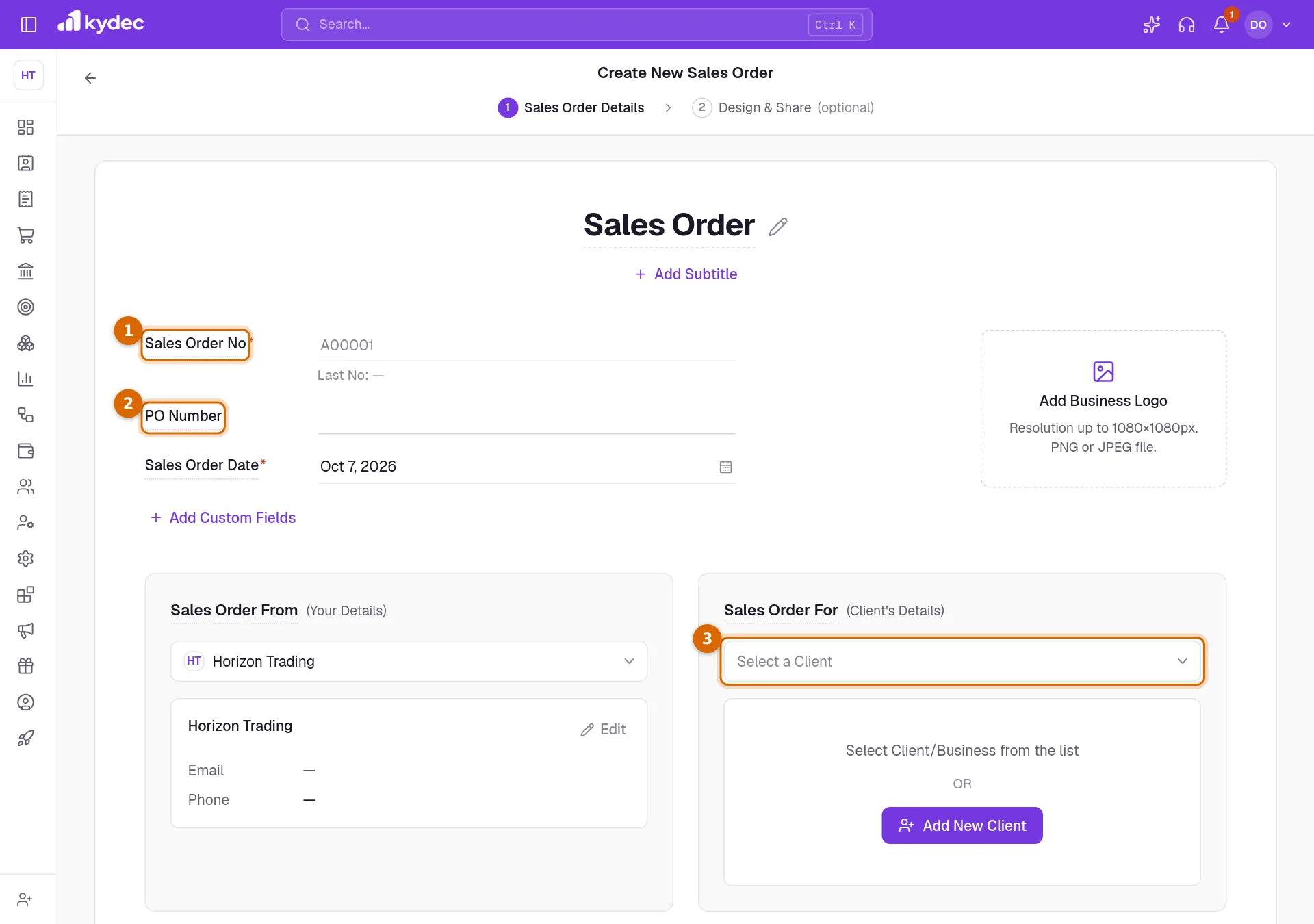
Click Create New Sales Order. The page that opens is the order itself: you fill it in where it will print.
- 1Check the Sales Order No and Sales Order Date. The next number in your series is filled in, with the last one used shown as Last No.
- 2Enter the order reference the client gave you in PO Number, if there is one.
- 3Under Sales Order For, pick the client from Select a Client, or click Add New Client to create one without leaving the page.
- 4Add what was ordered in Item Name / SKU Id, with the quantity and rate. Add New Line adds another item and Add New Group adds a heading.
- 5Click Add VAT above the items to choose the tax, and use Add Discounts and Add Additional Charges in the totals if the order has them.
- 6Click Save & Continue to save the order and open its page. Save & Create New saves it and starts another, and Save As Draft keeps it as a draft.
- An order needs a number, a date, a client, a currency and at least one named item before it can be saved.
- The page is the one used for quotations and invoices, so shipping details, bank details, a signature, terms, notes and attachments are added the same way. The invoice guide describes each part.
Good to know. A sales order has no due date or valid till date.
Start from a quotation instead
If the client is accepting a quotation, there is nothing to retype.
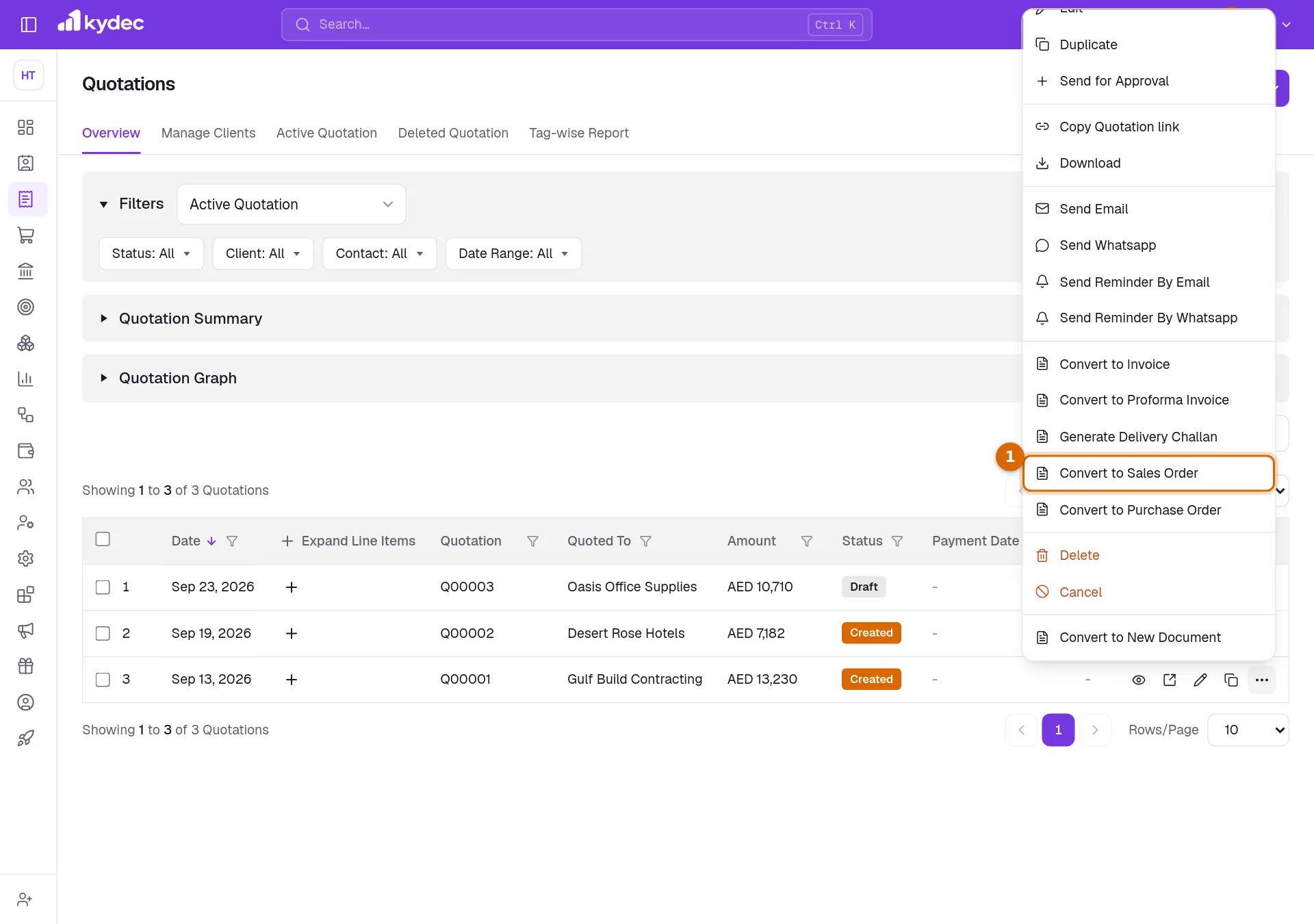
- 1In Quotation & Estimates, open the ⋯ menu of the quotation and choose Convert to Sales Order.
- 2KyDec saves a draft sales order with the same client, items and totals, dated today, and opens it.
- 3Check it, add the PO Number, and click Save & Continue.
- The quotation is marked as converted and stays linked to the order.
- A draft quotation cannot be converted. Save it in full first.
Send it and invoice it
Saving opens the order on its own page, with the printed copy in the middle and the actions along the top.
- On the order page, Share holds Send Email, Send WhatsApp and the public link, and Download / Print holds Print and Download. In the list, the ⋯ menu of a row has Send Email, Send Whatsapp, Copy Sales Order link and Download.
- Convert to Invoice makes a draft invoice from the order and opens it for you to check and save. Convert to Proforma Invoice and Generate Delivery Challan do the same for those documents.
- Once a document has been made from it, the order reads Converted.
- Customize Sales Order Design on the order page changes the template, colour and font, letterhead and footer, page size and watermark.
- If you use approval workflows, Send for Approval puts the order on one.
Good to know. Choosing Convert to Invoice a second time opens the invoice already made. To make another on purpose, use Convert to New Document and choose Invoice.
Statuses and rules worth knowing
- An order is Draft when saved with Save As Draft and Created once saved in full. It becomes Converted when a document is made from it, and Cancelled when you cancel it.
- Only an open order can be cancelled. A draft is deleted instead, and a converted order cannot be cancelled. Revert reopens a cancelled order.
- A deleted order is kept under Deleted, where Restore brings it back and Delete Permanently removes it for good.
- Duplicate starts a new order with the same items, terms, tax and design. The client, number and date are left for you to fill in.
Good to know. A sales order cannot be deleted while a document made from it still exists. KyDec names that document. Delete it first, then the order.
Common questions
- Do I need a sales order before I invoice?
- No. You can create an invoice directly, or convert a quotation straight to an invoice. A sales order is there for when you want the confirmed order on record first.
- Can I invoice the same order twice?
- Convert to Invoice opens the invoice already made from the order rather than making a second. If you do need another, use Convert to New Document and choose Invoice.
- How do I invoice an order in parts?
- Convert it to an invoice and lower the quantities to what you are billing now. The next time you convert the same order into an invoice, the new one opens with only what is still to be invoiced, and lines invoiced in full are left out — change the quantities if you need to. Reports › Order Management Report shows, for each order, how much has been invoiced, the utilisation and what remains, line by line, and the invoices made from it. It works for any pair of documents: quotations into invoices, purchase orders into purchases, and so on.
- Where is the PO Number used?
- It has its own column in the list, which you can filter, and it is carried onto an invoice or delivery challan made from the order.
Related guides
Quotations & Estimates
Create professional quotations from customisable templates, share them in one click as a PDF, a print or a link over WhatsApp or email.
Invoice
Create invoices from customisable templates, share them as a PDF, a print or a link over WhatsApp or email, and record and track what is paid against each one.
Delivery Challan
Send a delivery challan with goods you ship, so the client knows what is coming, and invoice it once they arrive.
Clients & Prospects
Every business you sell to, and the ones you hope to. A prospect becomes a client the moment you invoice it; archiving keeps old ones out of the way without losing their history.