
Help
Quotations & Estimates
Create professional quotations from customisable templates, share them in one click as a PDF, a print or a link over WhatsApp or email.
Where to find it:Sales & InvoicesQuotation & Estimates
What a quotation is
A quotation tells a client what you will supply and what it will cost, before anything is owed. It is an offer, not a bill: it takes no payments and is never overdue.
A new quotation opens with the title Proposal. Click the title to call it a quotation, an estimate or anything else.
When the client agrees you do not type it again. One click turns the quotation into an invoice, a proforma invoice or a sales order.
Find your way round the list
Open Sales & Invoices in the sidebar and choose Quotation & Estimates. The page opens on Overview, with your quotations listed newest first under a Filters panel.
- 1Create New Quotation opens a blank quotation.
- 2The tabs split the list. Active Quotation shows the list on its own and Deleted Quotation holds the ones you have deleted, which can still be restored. Manage Clients and Tag-wise Report open their own pages.
- 3Filters narrows the whole page at once, by Status, Client, Contact and Date Range. Reset clears them.
- 4Each row ends with icons for Quick Preview, Open in New Tab, Edit and Duplicate, and a ⋯ menu with everything else you can do.
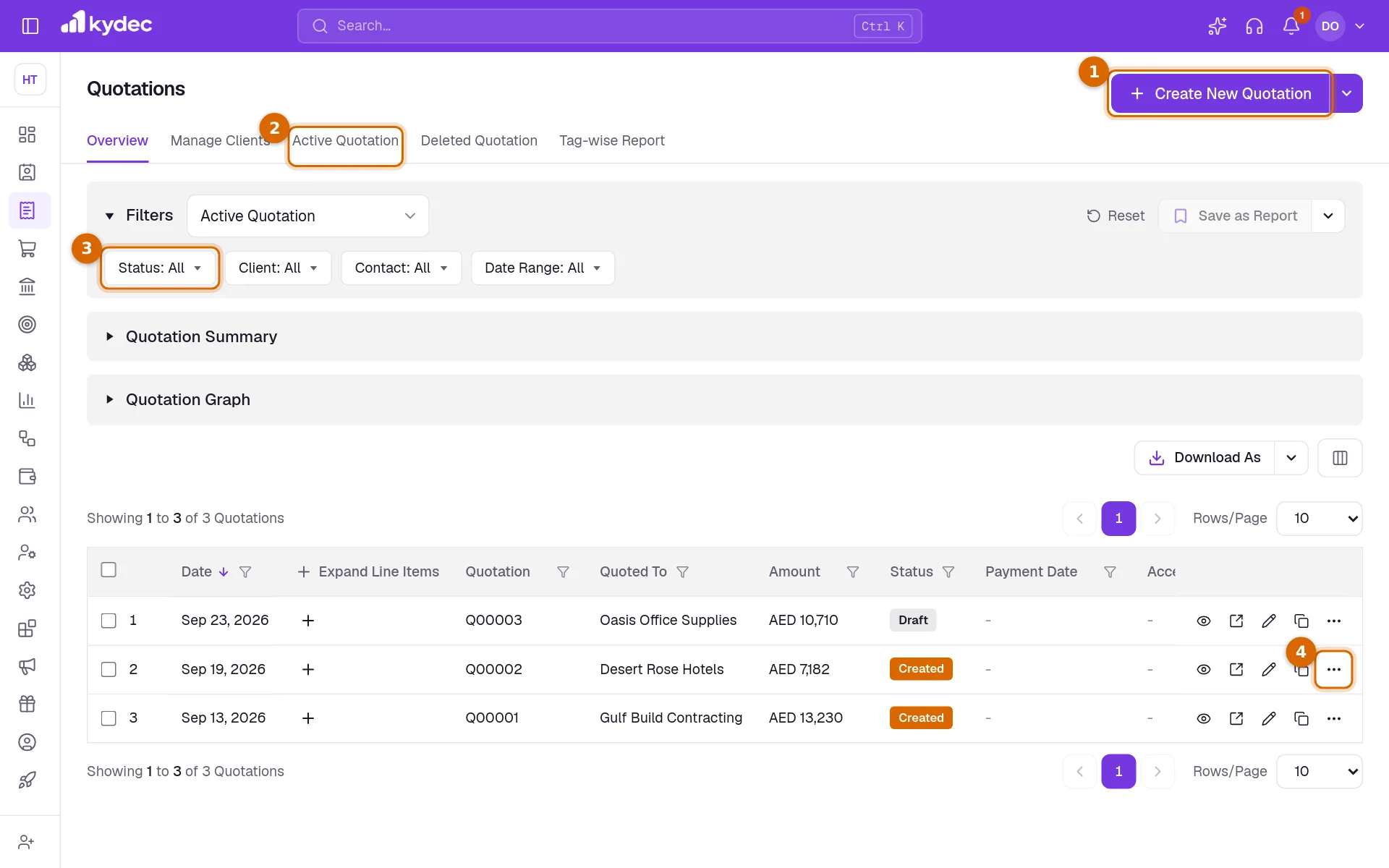
- Quotation Summary and Quotation Graph sit under the filters on Overview. Click a heading to open it. Both follow the filters you have set.
- Quick Preview shows the quotation as it prints, in a panel over the list, with Open, Email / WhatsApp, Duplicate, Download and Edit along the top.
- Expand Line Items opens the items of a quotation inside the list.
- Most columns can be sorted or filtered from their heading. Download As saves the list as a CSV file, with or without line items, and the columns button beside it (Show/Hide Columns) chooses which columns show in the table and in the file.
- In the Tags column, Add Tags labels a quotation so you can filter by that tag later.
Good to know. The list has no search box. To find one quotation, filter the Quotation column by its number or the Quoted To column by the client.
Create a quotation
Click Create New Quotation. The page that opens is the quotation itself: you fill it in where it will print.
- 1Check the Quotation No and Quotation Date. The next number in your series is filled in, with the last one used shown under it as Last No, and the date starts as today.
- 2Valid Till Date is set for you from Default Due Date in Business Settings. Change the date, click the gear beside it to set it as a number of days after the quotation date, or click the × to remove it.
- 3Under Quotation For, pick the client from Select a Client, or click Add New Client to create one without leaving the page. If the client has a main contact, that person is added too. Select contact adds one when none is shown.
- 4Add what you are quoting for, then the tax, discounts and charges. The next section goes through them.
- 5Add anything else the quotation needs, such as terms, notes or a signature.
- 6Click Save & Continue to save the quotation and open its page. Save & Create New saves it and starts another, and Save As Draft keeps it as a draft to finish later.
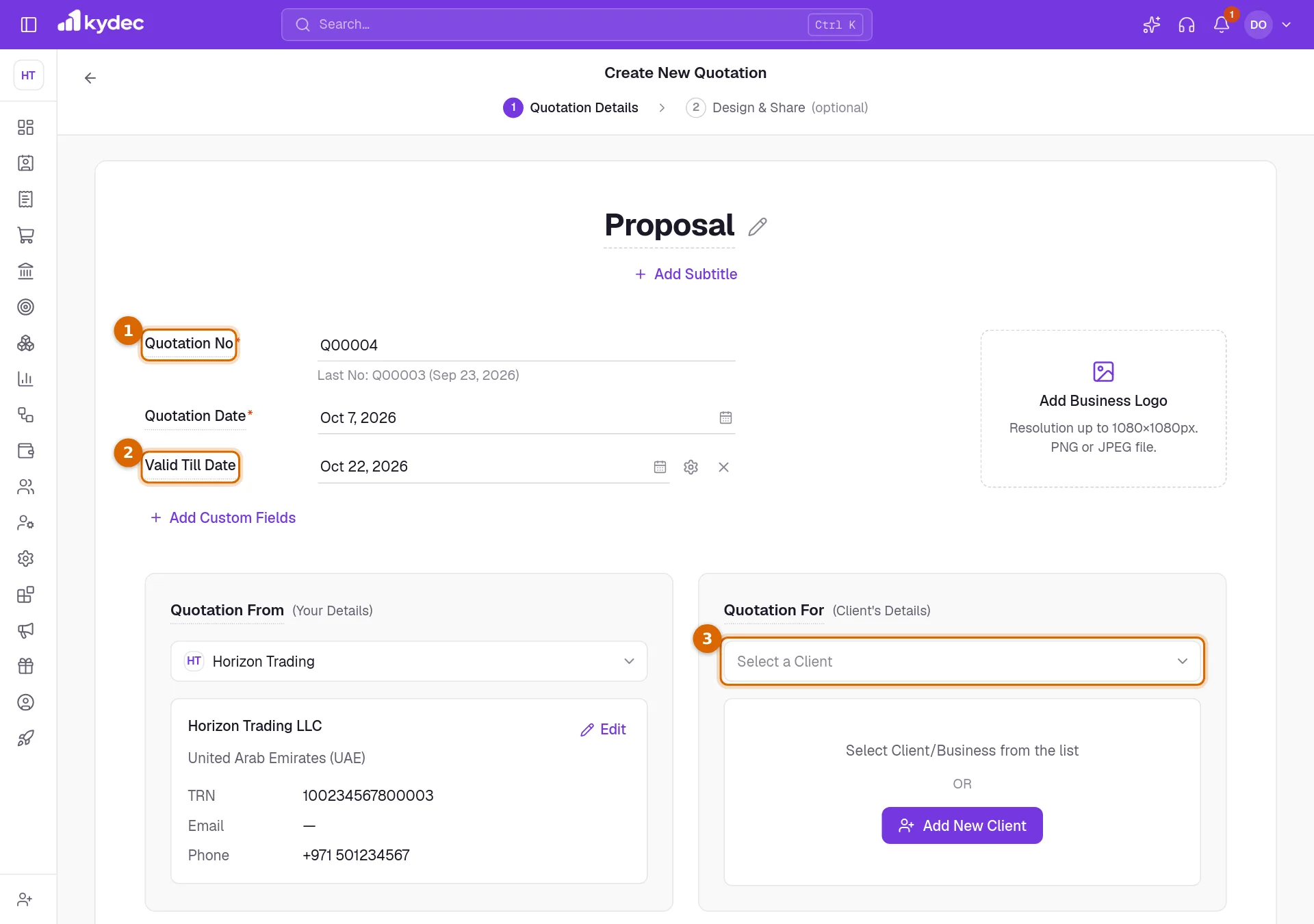
- A quotation needs a number, a date, a client, a currency and at least one named item before it can be saved. Anything missing is listed at the foot of the page.
- Labels with a dotted underline, such as Quotation No, can be clicked and reworded. The new wording is then used on every quotation.
- Add Subtitle puts a line under the title. The logo beside the dates can be changed or removed for this quotation only.
- If you leave with unsaved work KyDec asks first. A new quotation you were part-way through is offered back the next time you open Create New Quotation in the same browser.
Good to know. The Edit links on Quotation From and Quotation For change your business details and the client record themselves, not only this quotation.
Items, tax and totals
The middle of the page lists what you are quoting, with the totals worked out under it as you type. The tax button sits just above the items. On a new quotation it reads Add VAT, and it opens Configure Tax, where you choose the tax type and tick Is Reverse Charge Applicable? if the client accounts for the tax. Once a tax is chosen each line has its own rate.
- 1Type each item in Item Name / SKU Id. Matching items from your catalogue are offered as you type: pick one to bring in its rate and tax, or keep typing to use a new name. Then enter the quantity and rate.
- 2Add New Line adds another item. Add New Group adds a heading to gather lines under.
- 3Add Discounts offers Give Discount on Total, taken off the total after tax, and Give Item Wise Discount, taken off each line before tax.
- 4Add Additional Charges adds a charge such as delivery. Without Tax is added after tax, and With Tax is taxed at its own rate.
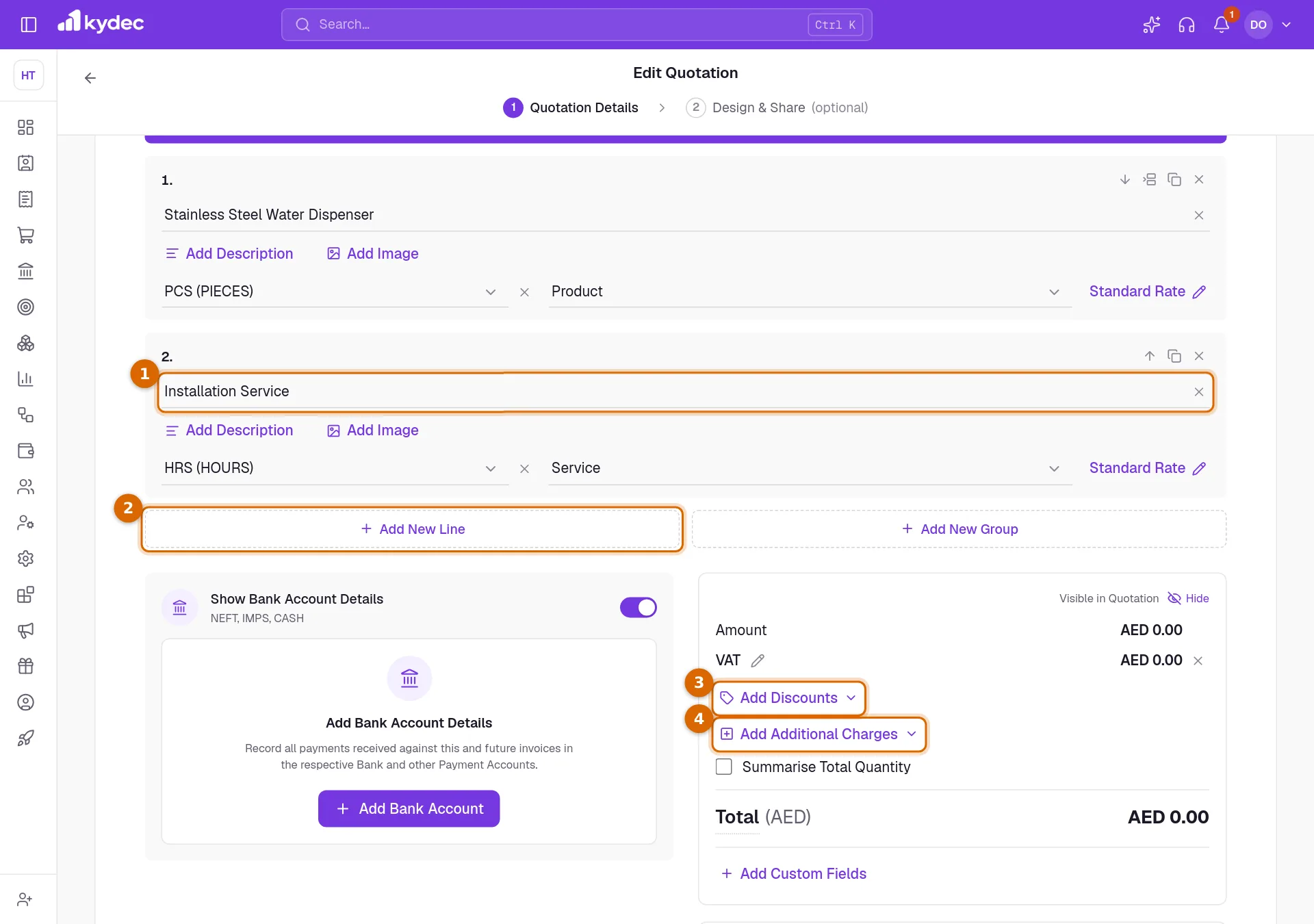
- Under each line, Add Description, Add Image and Add Unit add detail. The icons at the top of a line move it up or down, duplicate it or remove it.
- With a tax chosen, each line also shows its tax category, which you can change.
- The quotation starts in your business currency. Choose another under Currency and an exchange rate field appears, filled in with the rate for the quotation date.
- Round Up and Round Down appear when the total has a fraction to round away. Summarise Total Quantity prints the total quantity.
- The total in words is written out for you. Click it to word it differently.
- Edit Columns/Formulas changes which columns the items have, and Number and Currency Format changes how figures are written.
Good to know. A new item name typed on a line is added to your item catalogue when the quotation is saved.
The rest of the page
Everything else is optional. Each part is added with its own link and taken away again with the × beside it.
- Add Shipping Details adds Shipped From and Shipped To addresses and Transport Details.
- Show Bank Account Details prints one of your payment accounts on the quotation. Select Another Bank Account changes which one.
- Add Signature takes a signature image you upload, or one you draw with Use Signature Pad.
- Add Terms & Conditions adds numbered terms, in groups if you need them. Add Notes adds a free note.
- Add Attachments attaches files of up to 10 MB each. They appear as links in the quotation.
- Add Additional Info adds custom fields, and Add Contact Details prints a line saying how to reach you.
- Advanced options at the foot of the page holds print choices such as Show SKU in Quotation, how units are shown and whether a tax summary is printed.
Send it, then convert it
Saving opens the quotation on its own page, with the printed copy in the middle and the actions along the top. The same actions are in the ⋯ menu of its row in the list.
- 1Send Email and Send Whatsapp send the quotation with its PDF, and the two reminder entries follow up one the client has not answered. Copy Quotation link copies a link the client can open, and Download saves the PDF.
- 2When the client agrees, Convert to Invoice, Convert to Proforma Invoice or Convert to Sales Order makes that document as a draft, filled in from the quotation, and opens it for you to check and save. Generate Delivery Challan and Convert to Purchase Order work the same way.
- 3Delete moves the quotation to Deleted Quotation, and Cancel marks one that will not go ahead. Both ask you to pick a reason.
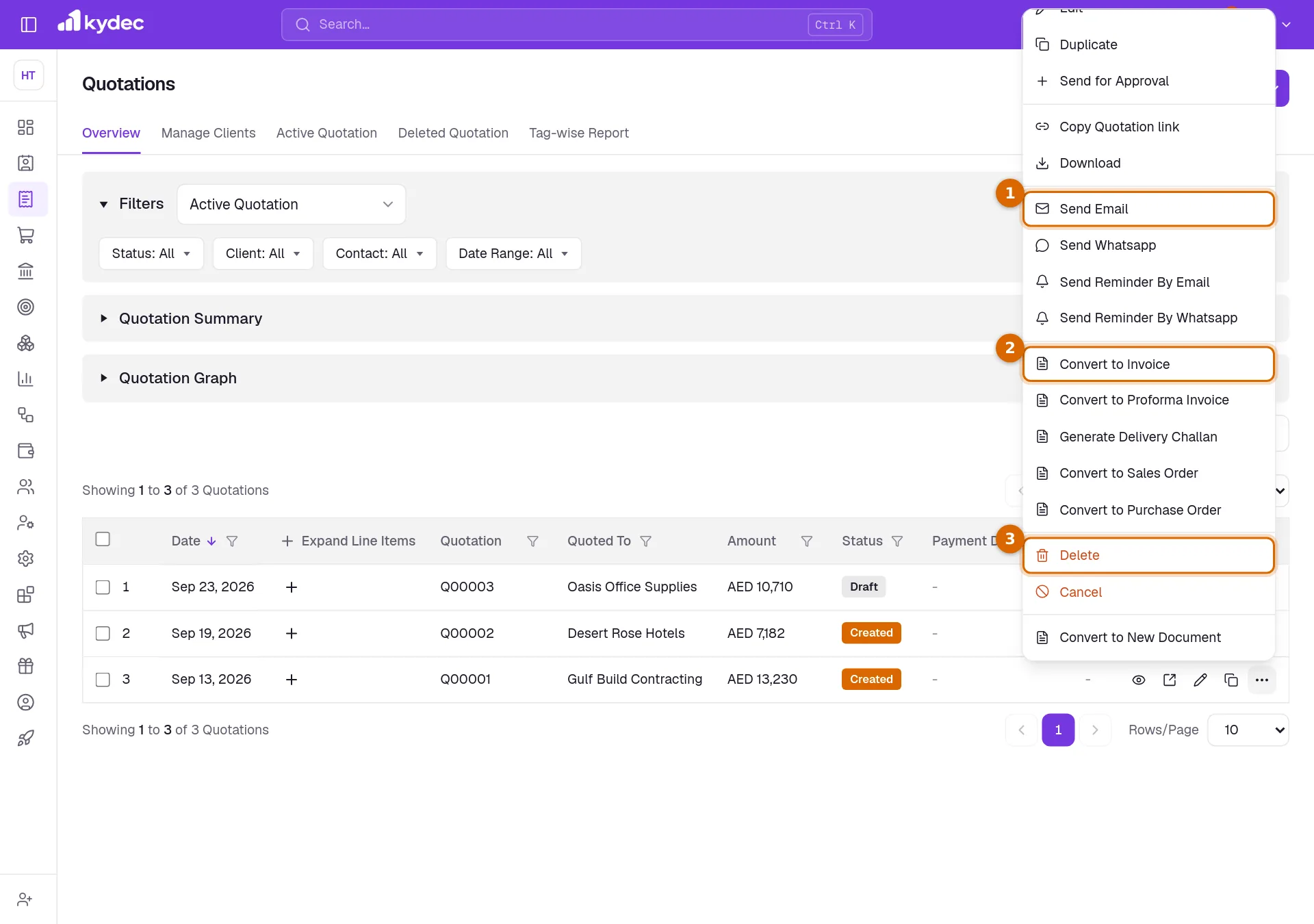
- On the quotation page, Share holds Send Email, Send WhatsApp and the public link, and Download / Print holds Print and Download.
- An email can go now or with Schedule for later, and Setup Auto Reminders sends follow-ups around the valid till date.
- Emails are sent from the sender address connected to your business and WhatsApp messages from your connected WhatsApp Business account. Each form offers the way to connect one if none is set up.
- Emailing a quotation shows Sent in its Quotation Email column. To change its status to Sent, tick Mark Proposal Sent on the quotation page.
- Customize Quotation Design on the quotation page changes the template, colour and font, letterhead and footer, page size and watermark.
- If you use approval workflows, Send for Approval puts the quotation on one.
Good to know. Choosing Convert to Invoice a second time opens the invoice already made instead of making another. To make a second one on purpose, use Convert to New Document.
Statuses and rules worth knowing
- Draft is a quotation saved with Save As Draft. Created is one you have saved in full. Sent is one you have marked as sent, and Cancelled is one you have cancelled.
- A quotation that has been converted is marked as converted, and the document made from it remembers where it came from.
- A draft cannot be converted. Open it with Edit and click Save & Continue first.
- Revert on a cancelled quotation puts it back as it was before.
- A deleted quotation reads Rejected under Deleted Quotation. Restore brings it back, and Delete Permanently removes it for good.
- Duplicate starts a new quotation with the same items, terms, tax and design. The client, number and dates are left for you to fill in.
- With Document Acceptance turned on in Business Settings, the client can accept the quotation from the link you share. Acceptance Status in the list and Acceptance History on the quotation page show the result.
Good to know. A quotation cannot be deleted while a document made from it still exists. KyDec names that document. Delete it first, then the quotation.
Common questions
- How long is a quotation valid?
- Until its Valid Till Date, which is printed on the quotation and used to time automatic reminders. New quotations take the number of days set as Default Due Date in Business Settings. On any one quotation you can change the date, set a different number of days with the gear beside it, or remove the date.
- Can my client accept a quotation online?
- Yes, if Document Acceptance is turned on in Business Settings, which needs a premium plan. Share the quotation by email, WhatsApp or its link and the client can accept it from the page that opens. You see the result in the Acceptance Status column.
- Does converting a quotation change it?
- Its contents stay as they were. It is marked as converted and linked to the new document, which is why it cannot be deleted until that document is deleted.
- Why is Convert to Invoice greyed out?
- The quotation is still a draft. Open it with Edit, click Save & Continue, then convert it.
Related guides
Invoice
Create invoices from customisable templates, share them as a PDF, a print or a link over WhatsApp or email, and record and track what is paid against each one.
Proforma invoice
Create proforma invoices from customisable templates, share them in one click as a PDF, a print or a link over WhatsApp or email, and record and track what is paid against them.
Sales Order
Record a client's confirmed order before you invoice it, share it as a PDF or a link, and turn it into an invoice when the goods go out.
Clients & Prospects
Every business you sell to, and the ones you hope to. A prospect becomes a client the moment you invoice it; archiving keeps old ones out of the way without losing their history.