
Help
Accounts (Ledgers)
Create accounts, view ledger entries, and track all your financial transactions in one place.
Where to find it:AccountingChart of Accounts
What an account is
The Accounting menu opens once Advanced Accounting is switched on in Business Settings. Until then this page explains what it is for and shows an Enable Advanced Accounting button that takes you to the setting.
An account, also called a ledger, is one heading in your books: a bank account, a client who owes you money, sales, rent, the tax you have collected. Every transaction is recorded against two or more accounts, and the chart of accounts is the full list of them.
You start with a set of default accounts. KyDec adds more as you work, such as one for each payment account and for the clients and vendors you deal with. You add your own for anything else you want to follow separately.
Find your way round the list
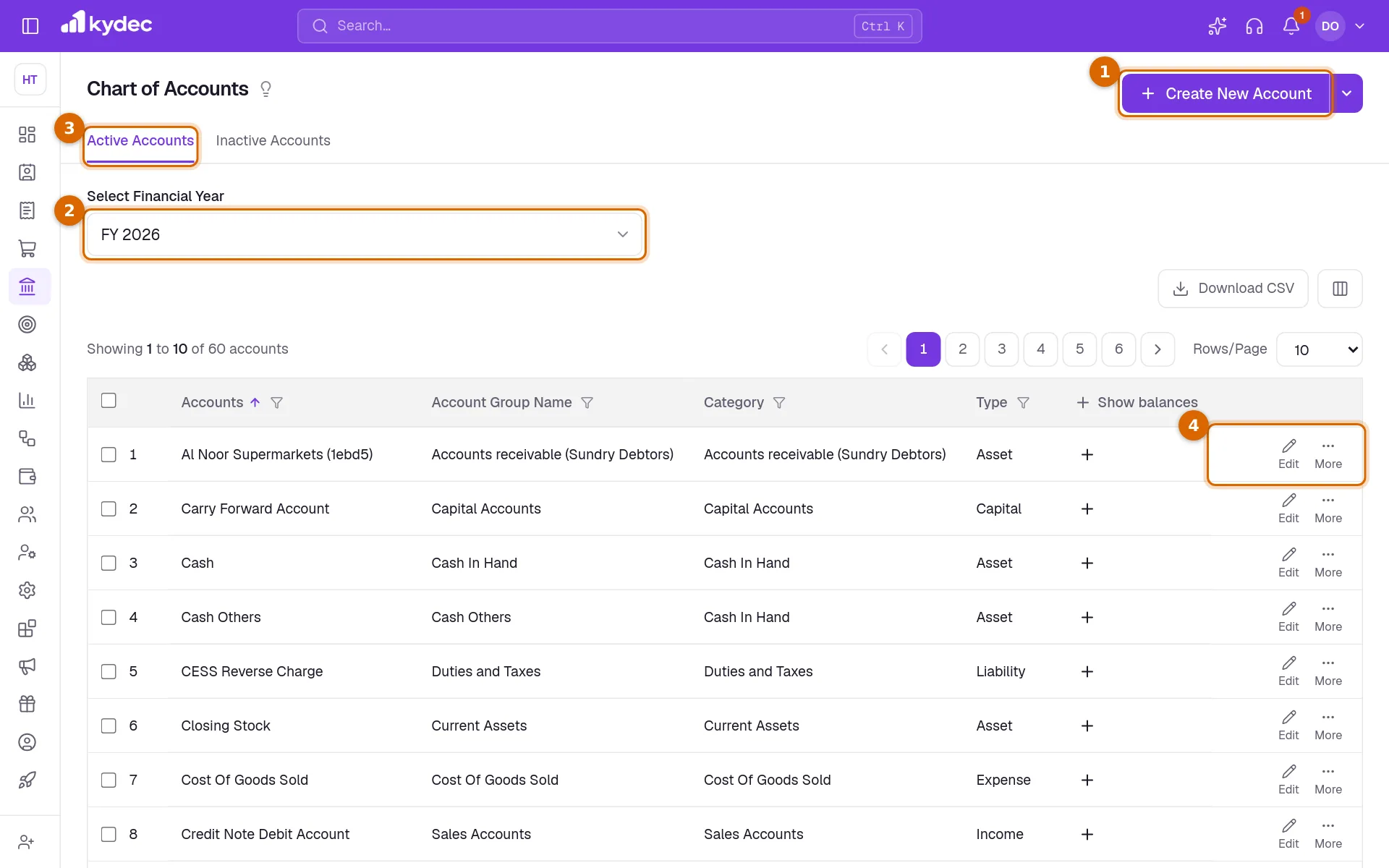
Open Accounting in the sidebar and choose Chart of Accounts.
- 1Create New Account adds an account of your own.
- 2Select Financial Year sets the year the balances are for. Change it and the list is read again for that year.
- 3The tabs split the list: Active Accounts are in use, Inactive Accounts have been set aside.
- 4Edit on a row opens the account for changes. More beside it holds everything else you can do with that account.
- There is no search box on this list. Use the filter beside a column heading instead: Accounts by name, and Account Group Name, Category and Type from a list.
- The + in the Show balances column opens that account's Opening Balance and Current Balance for the chosen year. The + in the column heading opens them for every row on the page.
- Download CSV saves the list as a file you can open in a spreadsheet. The columns button beside it (Show/Hide Columns) can add Is Default, Created By, Currency, Cr and Dr.
Create an account
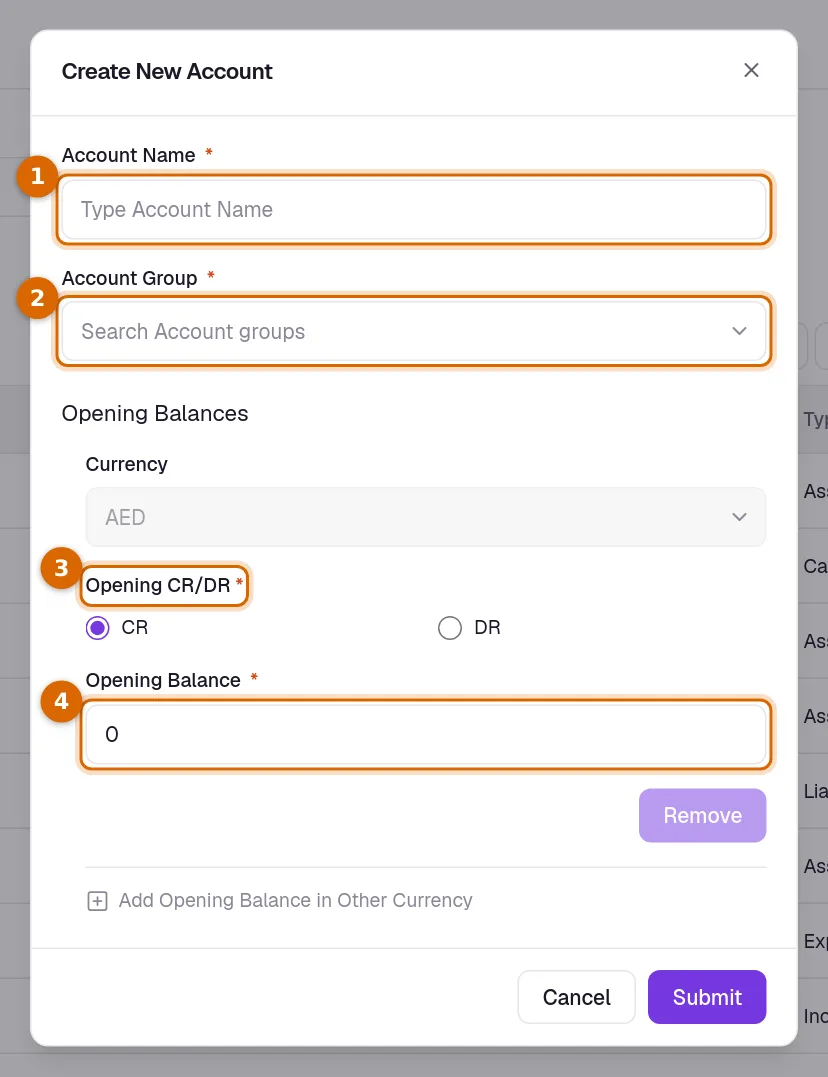
- 1Click Create New Account and enter the Account Name. Two accounts cannot share a name.
- 2Choose the Account Group it is filed under. The category of each group is shown in brackets. If the group does not exist yet, type its name and choose Create New - … to make it on the spot.
- 3Under Opening Balances, choose CR or DR for Opening CR/DR: the side the starting balance sits on. As a rule, what you own or are owed opens on DR and what you owe opens on CR.
- 4Enter the Opening Balance: what the account held before you started recording in KyDec. Leave it at 0 if the account starts empty.
- 5Click Submit. The new account opens on its own page.
Good to know. The opening balance is kept in your business currency. Add Opening Balance in Other Currency is shown as coming soon. To add many accounts at once, use Upload CSV under the arrow beside Create New Account.
Open, set aside and delete
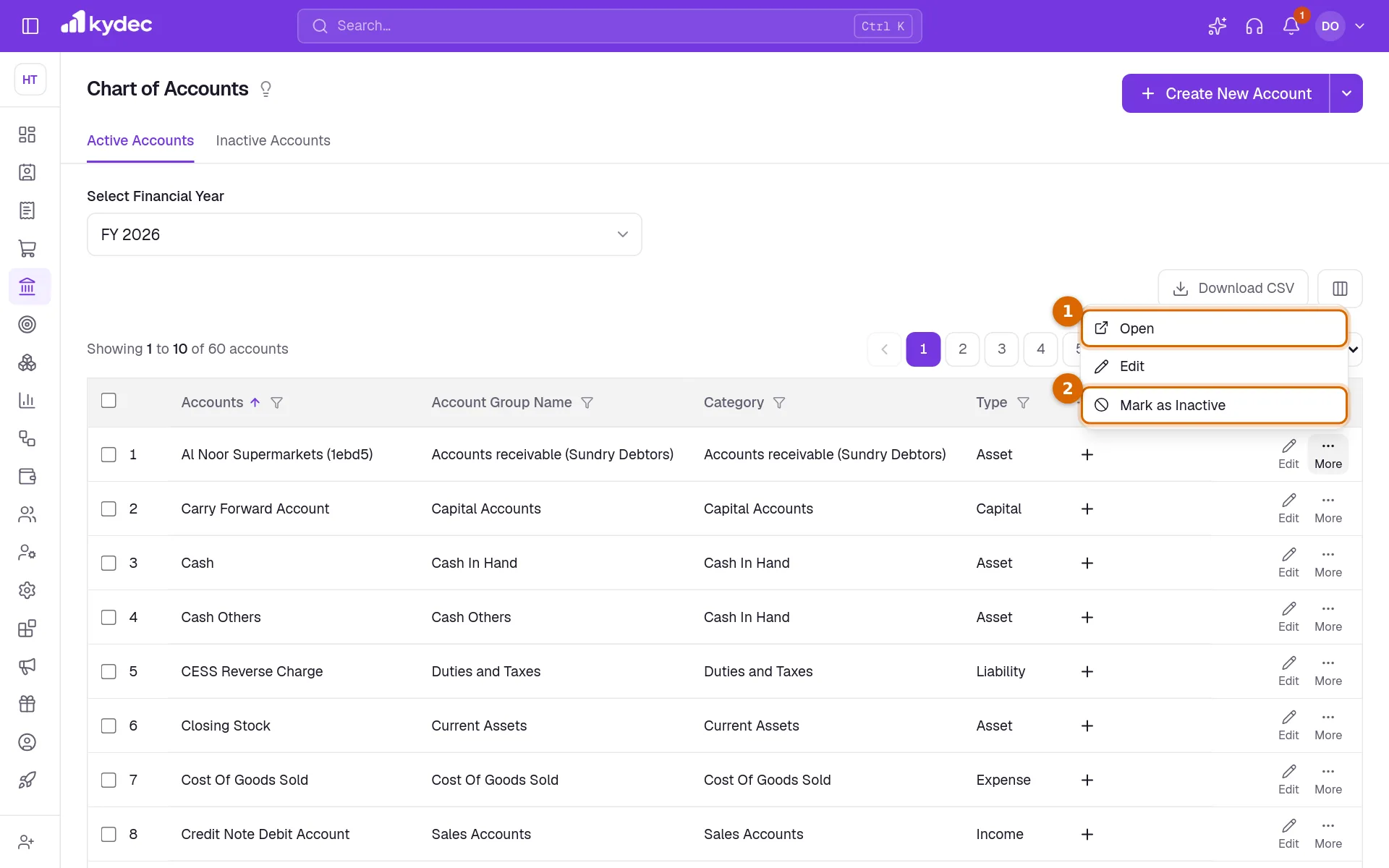
The More menu on a row is where an account is opened or retired.
- 1Open shows the account on its own page, in a new tab: its group, its opening and current balance, and every line posted to it in the chosen financial year.
- 2Mark as Inactive sets the account aside. KyDec checks its balances first and asks you to confirm.
- Edit changes the name, the group or the opening balance.
- An inactive account has Restore in its menu. It also has Delete if it is an account you created and nothing has used it.
Good to know. An account can be marked inactive only when its closing balance is zero in both the current and the previous financial year. Once inactive it cannot be picked for manual voucher entries or linked to a payment account, client or vendor. If an invoice or another document posts to it again, it becomes active again.
Read an account statement
On an account's page, View Statement opens its statement: the balance it opened the period with, each transaction with a running balance, and the balance it closed with.
- Pick a year under Select Financial Year, or narrow it with Select Date Range, and click Apply.
- Summary shows the Opening Balance and Closing Balance for the period, each marked CR or DR.
- Download PDF opens your browser's print window, where you choose to save as a PDF. Download CSV is under the arrow beside it.
- The columns button above the table hides or shows Date, Transaction, Remarks, Credit, Debit and Balance.
Rules worth knowing
- Default accounts cannot be deleted.
- An account you created can be deleted only after it is marked inactive, and only if no voucher entry, document, payment account, client or item uses it.
- Balances are always shown for one financial year. An account that looks empty may simply have its entries in another year.
- You do not type amounts into an account. Its lines come from voucher entries, whether you write them in a voucher book or KyDec creates them from your documents.
Common questions
- What is the difference between an account and an account group?
- An account holds the entries. A group is the heading accounts are filed under, such as Bank Accounts or Indirect Expenses, and it gives the account its type and category. Every account belongs to exactly one group.
- Why can I not mark an account as inactive?
- It still has a balance. KyDec shows Unable to Mark Account as Inactive when the closing balance is not zero in the current or the previous financial year.
- Can I upload my accounts from a spreadsheet?
- Yes. Click the arrow beside Create New Account and choose Upload CSV. Download the sample file, fill one account to a row with the name of the account group it belongs to, and upload it. An account name you already have is reported as an error, so nothing is added twice.
- An account shows no entries. Where are they?
- Check Select Financial Year first. If the year is right, the documents behind the account may not be synced yet: see Sync Documents in Business Settings under Advanced Accounting.
Related guides
Account Groups
Organize your financial data with account groups, categories, and types.
Voucher Books
Group your voucher entries into books by type, and see how many entries each book holds in a financial year.
Advanced accounting
Manual ledgers and voucher entries, plus the back-fills that populate them: carry closing balances into a new financial year, and generate vouchers for documents you have already raised.
Sync Accounting Documents & Payment Records
System will automatically create ledger accounts & vouchers, and pass journal entries for all the synced documents.