
Help
Voucher Books
Group your voucher entries into books by type, and see how many entries each book holds in a financial year.
Where to find it:AccountingVoucher Books
What a voucher book is
The Accounting menu opens once Advanced Accounting is switched on in Business Settings. Until then this page explains what it is for and shows an Enable Advanced Accounting button that takes you to the setting.
A voucher entry is one transaction written into your books: the accounts that are debited, the accounts that are credited, and a total that is the same on both sides. A voucher book keeps entries of one kind together, numbered in order: sales in one book, receipts in another, journal entries in a third.
You start with a set of default books, such as Invoice Voucher Book, Receipt Voucher Book, Payment Voucher Book and Journal. KyDec files the entries it creates from your documents in them, and you write entries by hand where there is no document.
Find your way round the list
Open Accounting in the sidebar and choose Voucher Books.
- 1New Voucher Book creates a book of your own.
- 2Select Financial Year sets the year the counts are for.
- 3Each row has Open for the book's page, Edit to rename it and New Entry to write an entry straight into it. More repeats these, and adds Delete where a book can be deleted.
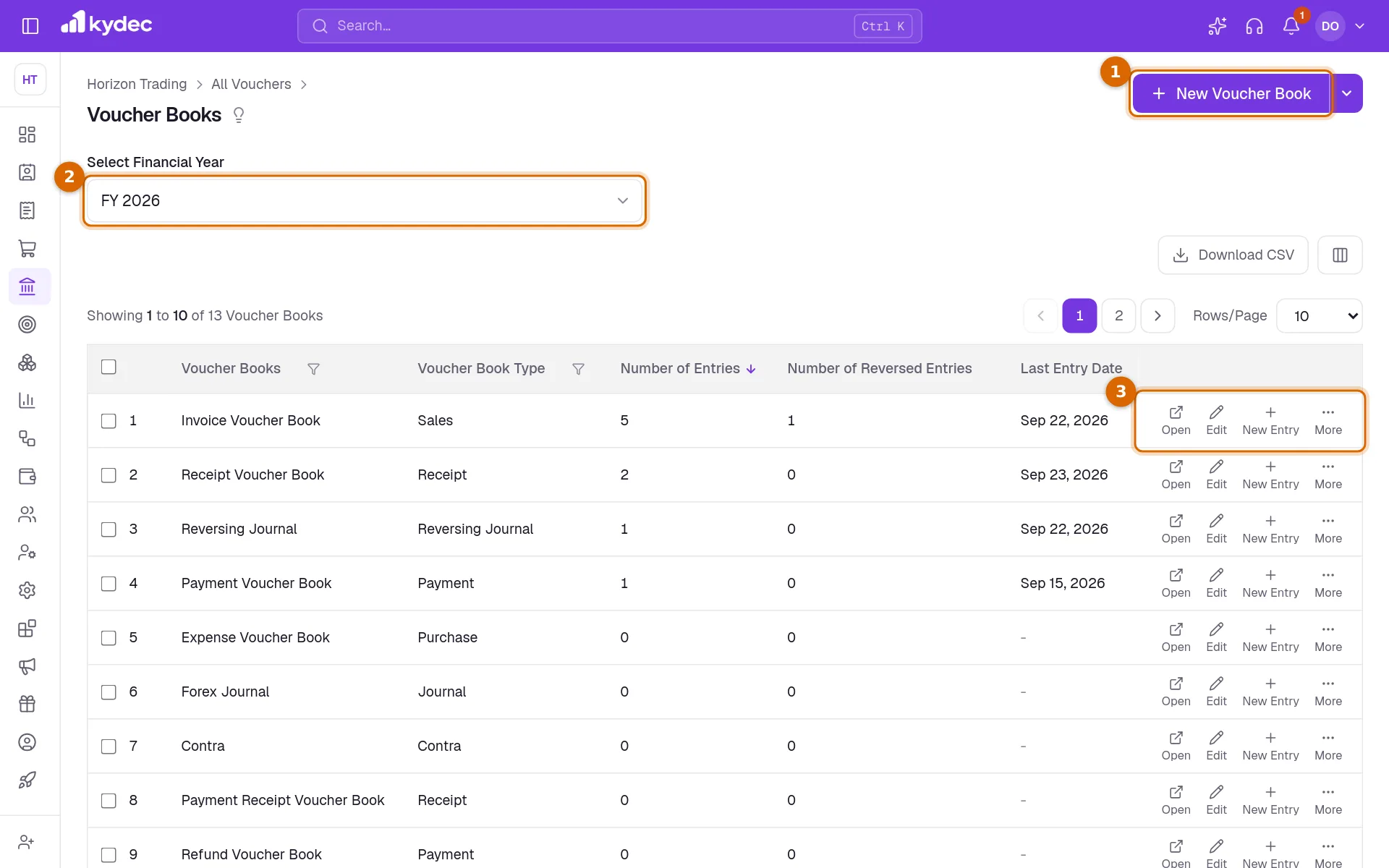
- Number of Entries, Number of Reversed Entries and Last Entry Date are for the chosen year. The list opens with the busiest book first.
- There is no search box on this list. Filter by Voucher Books (the name) or by Voucher Book Type instead.
- Download CSV saves the list as a file you can open in a spreadsheet.
Create a voucher book
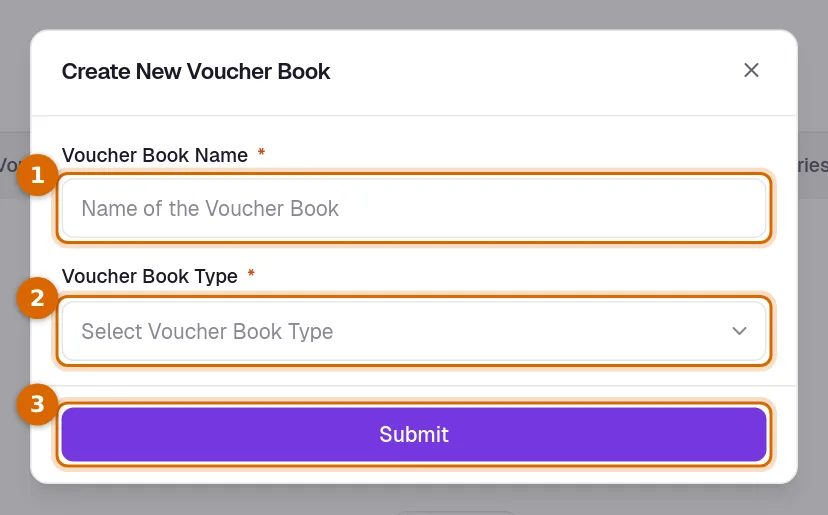
- 1Click New Voucher Book and enter the Voucher Book Name.
- 2Choose the Voucher Book Type: Contra, Journal, Reversing Journal, Payment, Receipt, Debit Note, Credit Note, Sales, Purchase or Reimbursement.
- 3Click Submit. The new book opens on its own page, ready for its first entry.
- A Contra book records cash-to-bank, bank-to-cash and bank-to-bank transfers. Payment records payments made and Receipt records money received.
- A Journal book is the usual place for entries that fit none of the others.
Good to know. The type is chosen once. Edit changes only the name.
Read the entries in a book
Open shows the book on its own page, in a new tab: its name and type, the number of entries, and every entry for the chosen financial year, newest first.
- 1Create New Entry writes a new entry into this book.
- 2Select Financial Year changes the year shown.
- 3On each row, Open shows the entry in a panel: the total, the date, and the accounts credited and debited. An entry that came from a document also has a link to it, such as View Invoice.
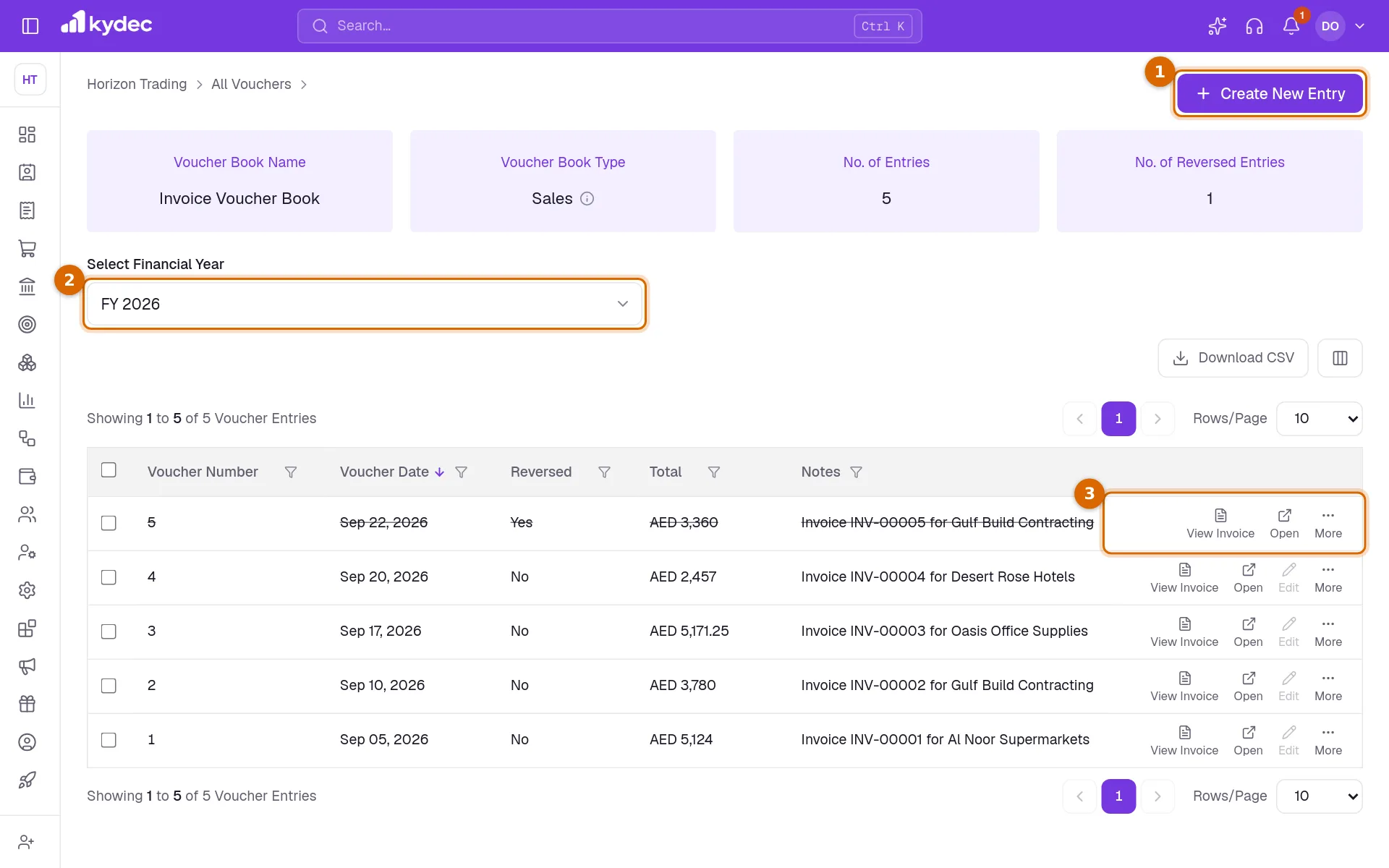
- In the panel, each account links to its statement, Open goes to the entry's own page and Reverse cancels the entry.
- Filter the entries by Voucher Number, Voucher Date, Reversed, Total or Notes.
Write a voucher entry by hand
Debit and credit are the two sides of an entry. What goes into one account comes out of another, so the two sides always add up to the same amount.
- 1Choose New Entry on a book, or Create New Entry on its page, and check Select FY: the financial year the entry belongs to.
- 2Set the Voucher Date. It must fall inside the year you chose. Add a Note if you want one.
- 3Under Debit Accounts, pick an Account, enter the Amount and, if it helps, a Remark. Add More adds another line.
- 4Do the same under Credit Accounts. The two totals must be equal before the entry can be saved.
- 5Click Save & Preview to save and go back to the book, or Save & Create New to save and start the next entry with the same year and date.
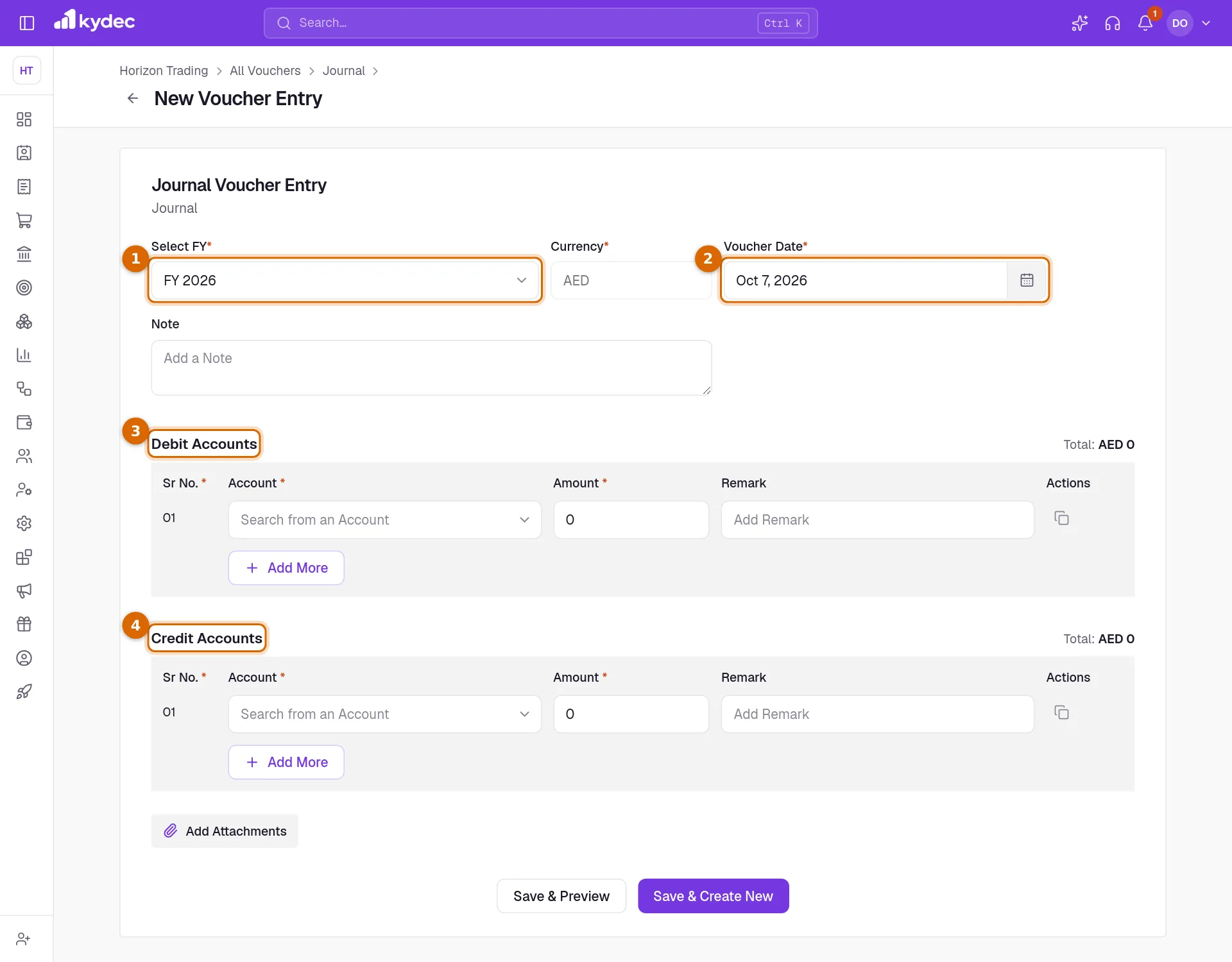
- The Currency is your business currency and cannot be changed on an entry.
- Each side takes up to 50 lines. The icons at the end of a line duplicate it or delete it.
- Add Attachments keeps files with the entry: up to 10 files of 10 MB each.
Good to know. Only active accounts from the Chart of Accounts can be picked.
Correct or reverse an entry
A saved entry is never deleted. To take one back you reverse it: KyDec writes a second entry in the Reversing Journal book with the same amounts on the opposite sides, and the two cancel out.
- Choose Create Reverse Entry in the More menu of an entry, or Reverse in its panel, and confirm with Yes, Proceed.
- An entry created from an invoice, a credit note, a debit note, a payment or a payout receipt cannot be reversed by hand. Cancel or delete the document and KyDec reverses the entry for you.
- An entry you wrote by hand can be changed from its own page with Edit, but only while Allow Editing Voucher Entries is switched on in Business Settings under Advanced Accounting, and only if it has not been reversed or matched in a bank reconciliation.
- On an entry's page, Change FY under the arrow beside Create Reversal Entry moves it to another financial year. The voucher date must fall inside the year you choose.
- Whether reversed entries are listed, and whether they are struck through, is set under Reversal record configuration in the same settings.
Good to know. A reversal cannot be undone, and a reverse entry cannot itself be reversed.
Common questions
- Do I have to write an entry for every invoice?
- No. Once a document type is synced under Sync Documents in Business Settings, KyDec writes the entry for each document and keeps it up to date. You write entries by hand only for things that have no document, such as depreciation or a transfer between two of your accounts.
- Why can I not delete a voucher book?
- A default book cannot be deleted, and a book of your own can be deleted only while it has no entries. Delete appears in the More menu when it is allowed.
- Why is Edit greyed out on an entry?
- In a book's list, Edit is not available. An entry that came from a document is corrected by changing the document. For an entry you wrote by hand, open it, then choose Open in the panel to reach its own page: Edit works there once Allow Editing Voucher Entries is switched on.
- Can I upload many voucher entries at once?
- Yes. Choose Bulk Upload Vouchers under New Voucher Book. Each row of the file is one debit or credit; rows that share a Voucher Ref make one entry, and its debits and credits must add up to the same total.
Related guides
Accounts (Ledgers)
Create accounts, view ledger entries, and track all your financial transactions in one place.
Account Groups
Organize your financial data with account groups, categories, and types.
Sync Accounting Documents & Payment Records
System will automatically create ledger accounts & vouchers, and pass journal entries for all the synced documents.
Advanced accounting
Manual ledgers and voucher entries, plus the back-fills that populate them: carry closing balances into a new financial year, and generate vouchers for documents you have already raised.