
Help
Document approvals
Route documents for sign-off before they are issued. Turn on auto-add for a document type and every new one joins the approval queue automatically.
Where to find it:Business SettingsApproval Workflow Settings
What document approvals are
Some documents should be checked by a second person before they go out: a large quotation, a purchase order, an expense. In KyDec that check is an approval workflow, and a document is put on one with Send for Approval.
Document Approval Configurations is where you choose which types of document should always go for approval.
Good to know. With a type switched on, each new document of that type joins the workflow you chose the moment it is raised — from its editor, a bulk upload or a conversion. Documents raised before are not added; send those with Send for Approval, as described below.
Choose the document types
- 1Open Business Settings and choose Approval Workflow Settings.
- 2Document Approval Configurations lists seven types: Vendor Leads, Expenditures, Quotations, Invoices, Purchase Order, Proforma Invoice and Sales Orders.
- 3Turn on the switch under Enable auto-add. A dialog asks which workflow, stage and assignee new documents of that type join; choose them and click Save Changes.
- 4The choice shows under the type’s name; click it to change it. Turning the switch off stops adding new documents.
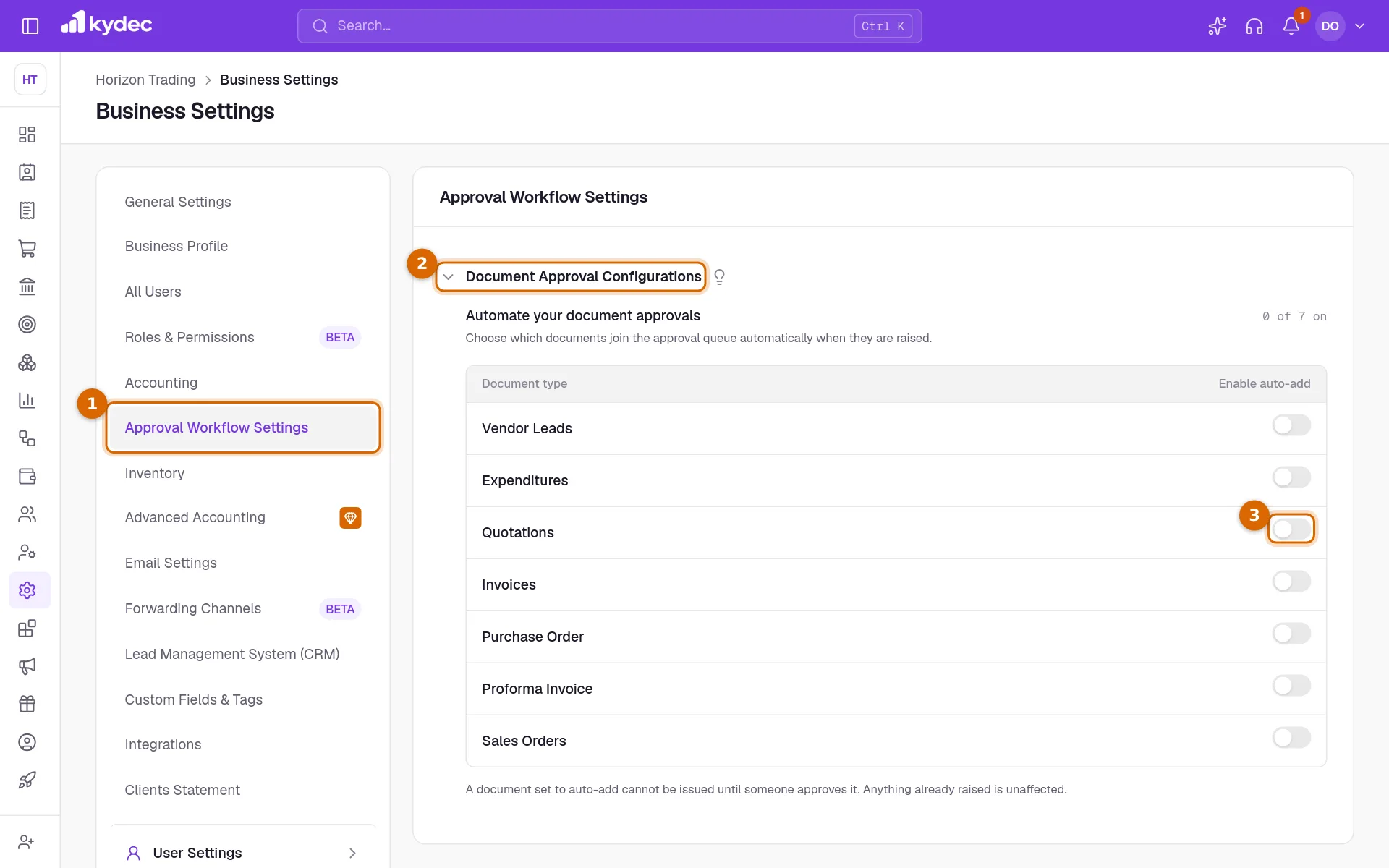
- Every type starts switched off. Create a workflow of the type first: the dialog lists only workflows of that type.
- A switch is saved as soon as you change it. The count at the top right of the section shows how many types are on.
Create a workflow for each type first
A document can only be sent for approval if a workflow of its own type exists. A quotation goes on a Quotations workflow, an invoice on an Invoices workflow, and so on.
- 1Open Workflows & Automations › All Workflows and click Create New.
- 2Choose the Workflow Type that matches the document.
- 3Add the stages and their approvers, and click Create Workflow.
- If you have none yet, + Create New Workflow at the foot of the Select Workflow list takes you straight there.
Send a document for approval
On the list of quotations, invoices, proforma invoices, sales orders, purchase orders or purchases and expenses, open the ⋯ menu on a row and choose Send for Approval. The Edit Workflow dialog opens.
- 1Select Workflow: the workflow this document should follow. Only workflows of the type of the document are listed.
- 2Select Stage: where it starts. The first stage is chosen for you.
- 3Select Assignee: one of the approvers of that stage.
- 4Select Due Date: optional. It is filled in for you when the workflow has a default deadline.
- 5Click Save Changes.
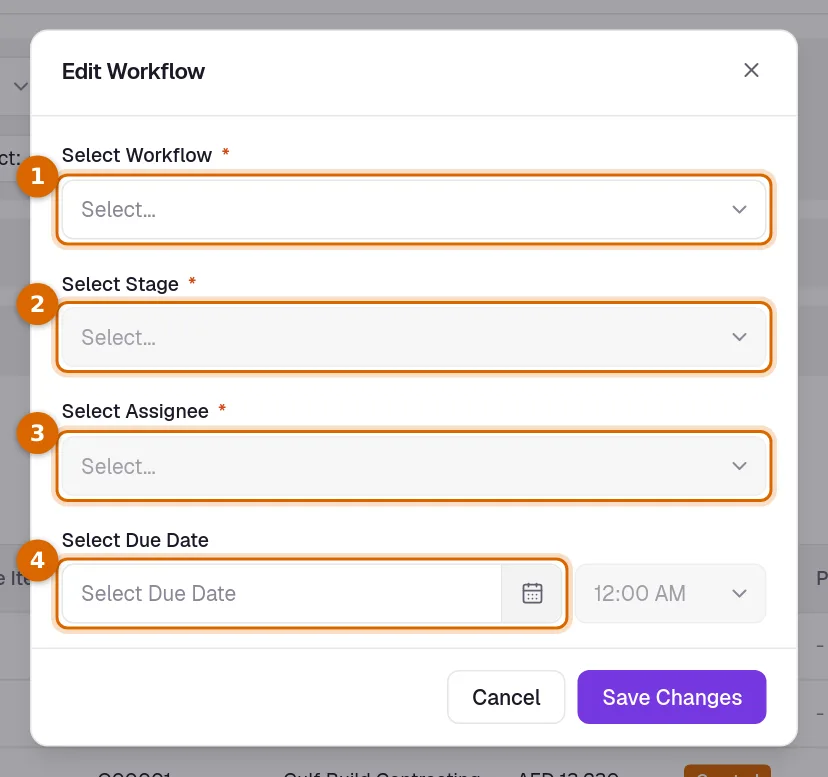
- The same entry is in the More menu on the page of the document itself.
What happens next
- The assignee is notified, and the menu entry on the document changes to View In Workflow.
- The Workflow Name column of the list shows which workflow a document is on.
- The approver opens the item, reads the document and approves or rejects it with remarks. You are notified of the decision.
- On the page of the document, View Approval History shows the trail.
Good to know. A document can be on one workflow at a time, and deleted or cancelled documents cannot be sent. Approval records who agreed and when; it does not stop the document being edited or sent in the meantime.
Common questions
- I switched a type on. Why are new documents not going for approval on their own?
- Adding documents automatically is not live yet. The switch keeps your choice; for now, open the menu of the document and choose Send for Approval.
- Do I need a workflow before I can send a document for approval?
- Yes, one of the same type as the document. If there is none, the Select Workflow list is empty and offers + Create New Workflow.
- Which records can be sent for approval?
- Vendor leads, purchases and expenses, quotations, invoices, purchase orders, proforma invoices and sales orders.
Related guides
Approval workflows
Create customised multi-stage workflows to set up your Approval process for Quotations, Vendors, Reimbursements and more.
Workflow Forms
Create forms to capture vendor leads, collect required details, assign them to workflows, and move them through approval stages without manual follow-ups.
Quotations & Estimates
Create professional quotations from customisable templates, share them in one click as a PDF, a print or a link over WhatsApp or email.
Invoice
Create invoices from customisable templates, share them as a PDF, a print or a link over WhatsApp or email, and record and track what is paid against each one.