
Help
Approval workflows
Create customised multi-stage workflows to set up your Approval process for Quotations, Vendors, Reimbursements and more.
Where to find it:Workflows & AutomationsAll Workflows
What an approval workflow is
A workflow is your sign-off process written down: the stages a record passes through, who may approve at each stage and how long they have. Instead of chasing a manager by message, you send the record for approval and KyDec keeps track of where it is and who has it.
A workflow is made for one type of record: Vendor Leads, Expenditures, Invoices, Quotations, Purchase Orders, Proforma Invoices or Sales Orders. You can have several workflows of the same type, for example one for small quotations and one for large ones.
Find your way round
Open Workflows & Automations › All Workflows. The sidebar also has an entry for each type, such as Quotation Workflows; each one opens the same page on the tab of that type.
- 1Create New starts a new workflow. Opened from the tab of a type, the Workflow Type is already chosen for you.
- 2The tabs show All Workflows or one type at a time.
- 3A type with no workflow yet shows Create Workflow, which does the same as Create New.
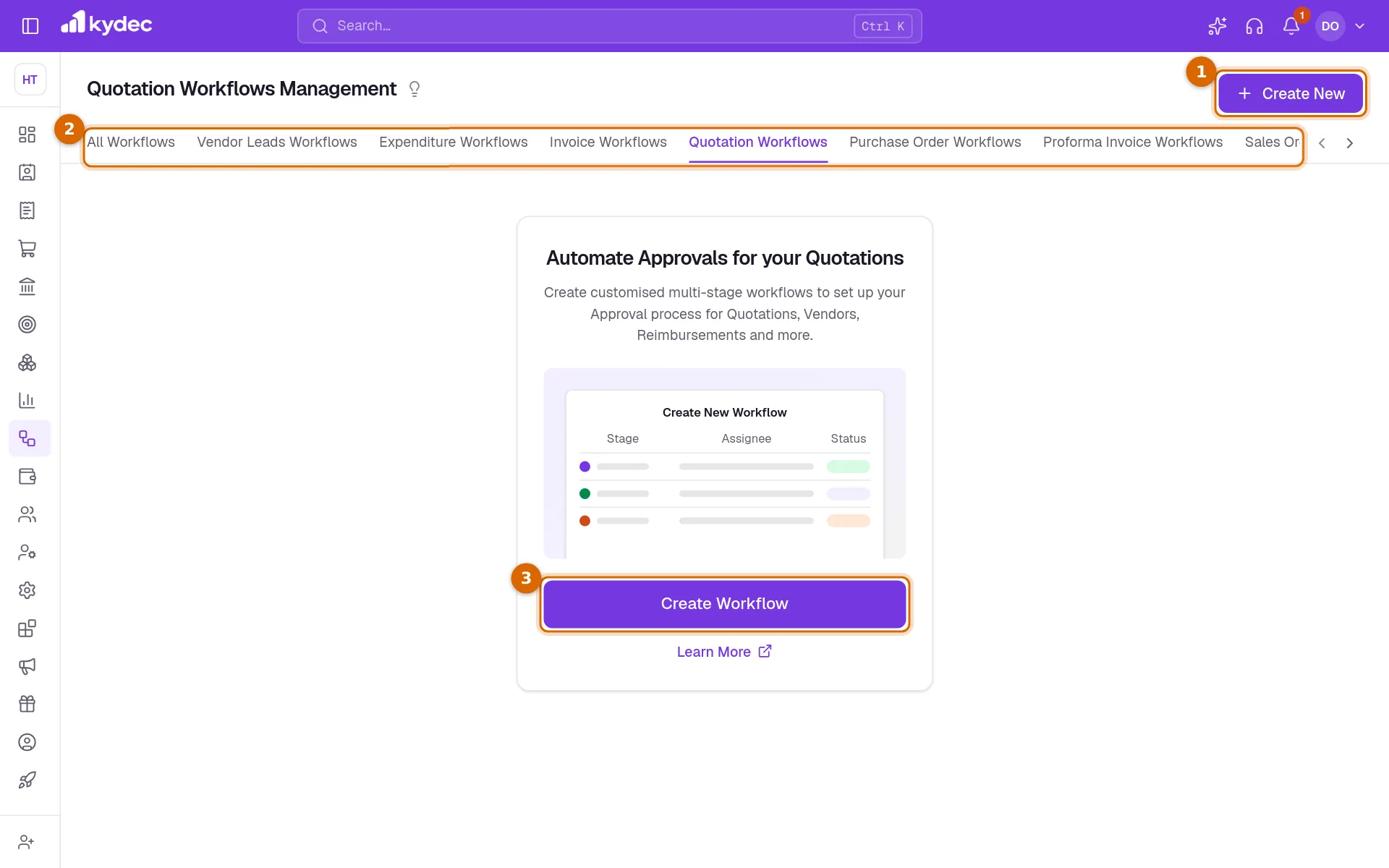
- Once a workflow exists, More on its row has Edit Workflow and a link to its items, such as View Quotations: everything that has been sent for approval on that workflow, with its stage, assignee and status.
Create a workflow
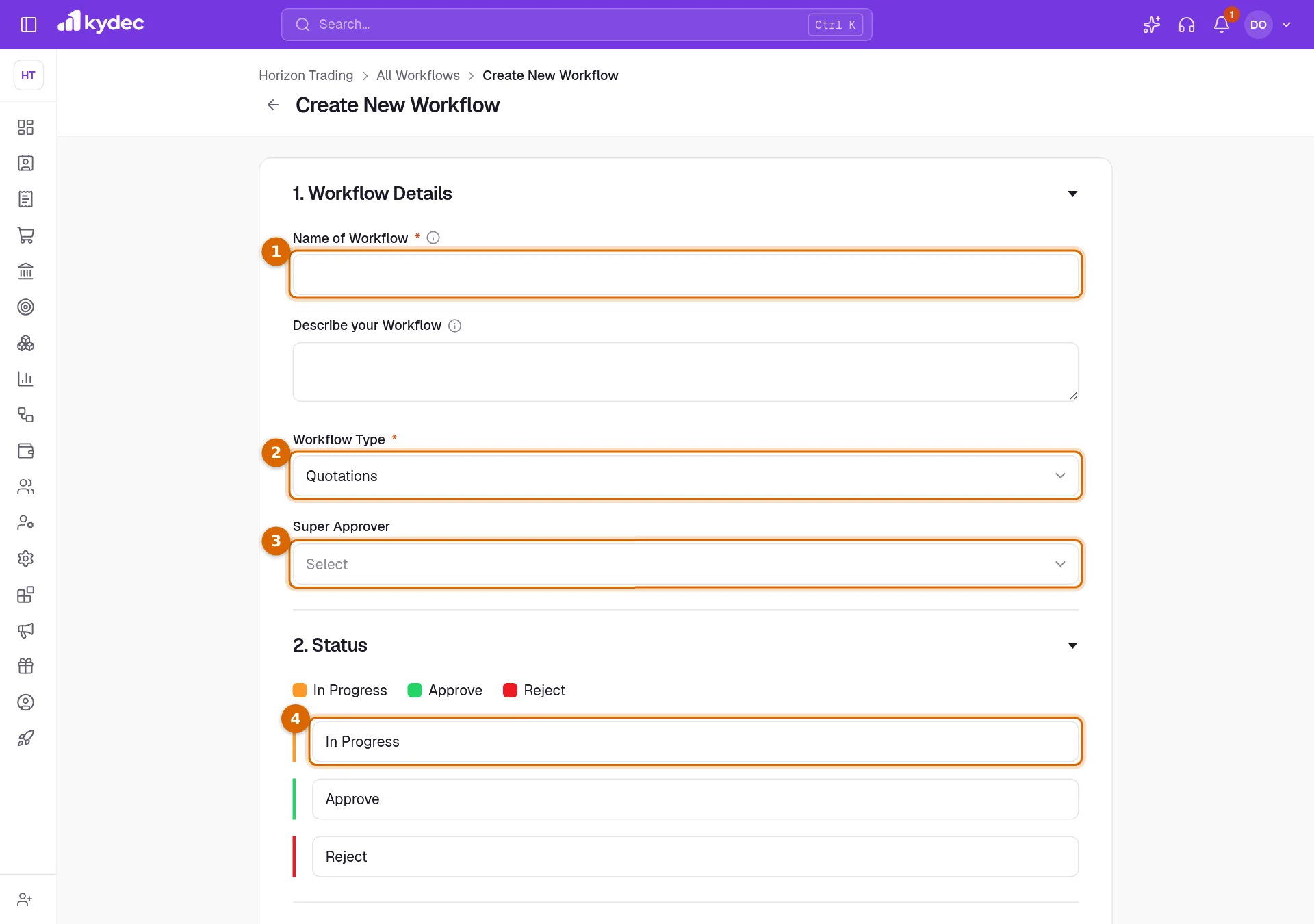
Click Create New. The form has four numbered parts.
- 1Enter the Name of Workflow, and describe it if you wish.
- 2Choose the Workflow Type: the kind of record this workflow approves. It cannot be changed after the workflow is created.
- 3If you wish, choose a Super Approver: one person who may approve or reject at every stage.
- 4Under 2. Status, rename the three statuses if your business uses other words. They start as In Progress, Approve and Reject.
Good to know. Two workflows of the same type cannot share a name.
Add stages and approvers
Stages are the steps of your sign-off, in order. A new workflow starts with one stage, In Progress, with you as its approver. To add another, click Add New Stage under 3. Stages; the Add New Stage Details dialog opens.
- 1Enter the Stage Name, for example "Manager review".
- 2Choose the Approvers: the teammates a record at this stage can be assigned to, and who may approve or reject it there. Pick at least one.
- 3Click Save. The stage joins the list; drag it by its handle to change the order.
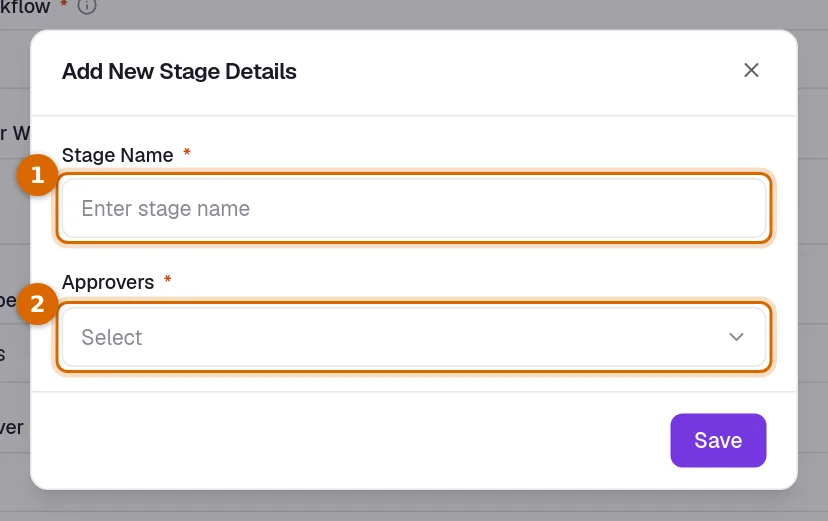
- The pencil on a stage opens the same dialog, to rename the stage or change its approvers.
- Every stage needs at least one approver before the workflow can be saved.
- A workflow keeps at least one stage. A stage that still has records at it cannot be removed: move them to another stage first.
Set deadlines, reminders and escalation
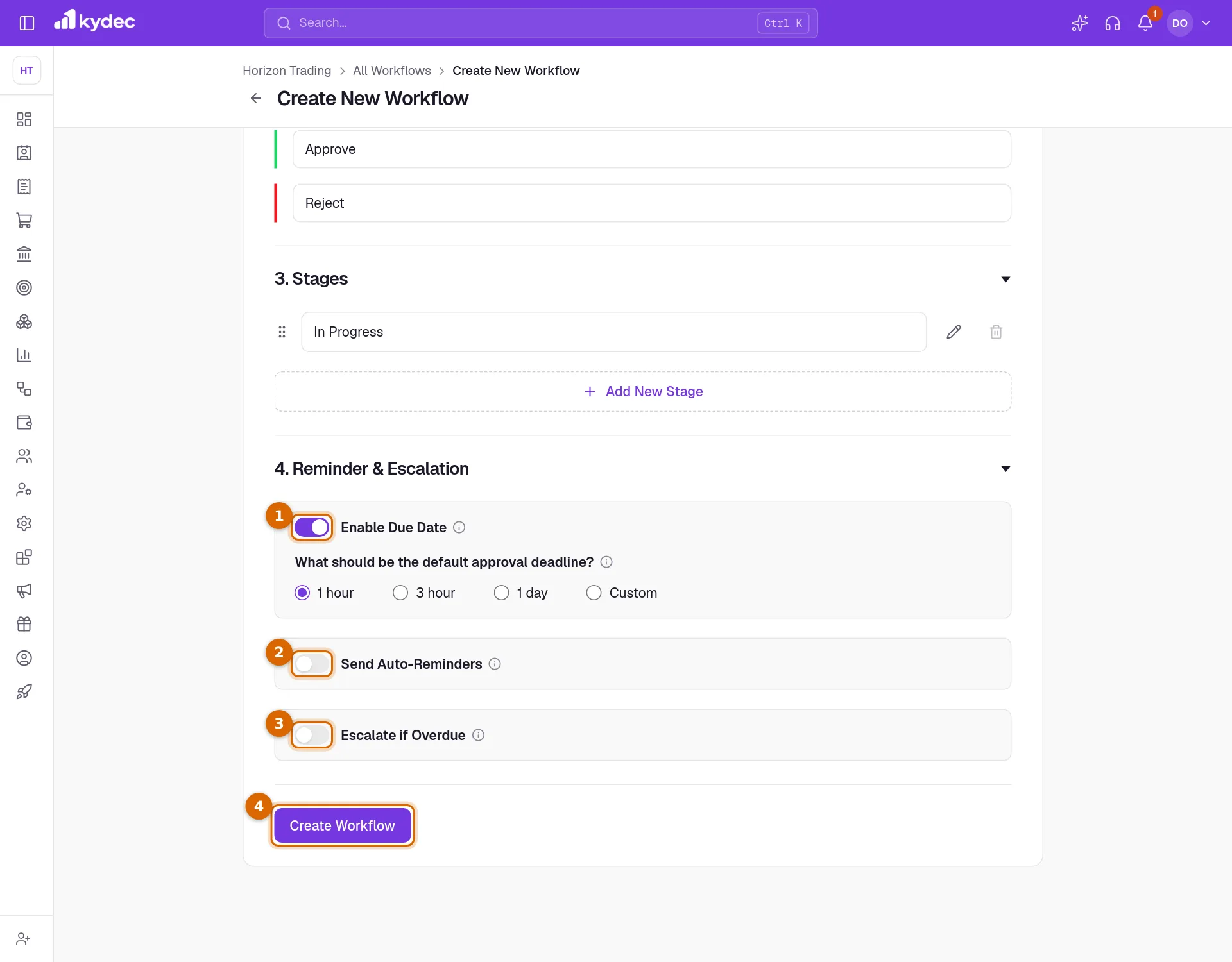
Part 4. Reminder & Escalation is optional. Reminders and escalations are counted from the due date, so their two switches stay off until Enable Due Date is on.
- 1Switch on Enable Due Date and choose the default approval deadline: 1 hour, 3 hour, 1 day or Custom. It is counted from the moment a record is added to the workflow.
- 2Switch on Send Auto-Reminders to remind people before the deadline. Set how long before, and tick who should be told: Assignee, Approvers or Super Approver.
- 3Switch on Escalate if Overdue to tell people once the deadline has passed, set up in the same way.
- 4Click Create Workflow.
- A workflow can have up to five reminders and five escalations, each a number of hours or days.
- Reminders and escalations arrive as KyDec notifications, under the bell.
Good to know. The default deadline is only a starting point. A record can be given its own due date when it is sent for approval, or later with Set Due Date.
Send a record for approval
- 1Open the list for that kind of record, for example Quotation & Estimates, and open the ⋯ menu on a row.
- 2Choose Send for Approval. On Vendor Leads the entry is under More and reads Add to Workflow.
- 3In the Edit Workflow dialog, pick the workflow under Select Workflow, then Select Stage and Select Assignee. The assignee is one of the approvers of that stage.
- 4Change Select Due Date if you need to, and click Save Changes.
- The assignee is notified. From then on the same menu entry reads View In Workflow.
- The same entry is in the More menu on the page of the record itself.
- Vendor leads can be added several at a time: tick the rows and choose Add to Workflow in Bulk.
- Deleted and cancelled records cannot be sent for approval.
Good to know. A record can be on only one workflow at a time.
Approve, reject and follow progress
- View In Workflow opens the item in a panel with two tabs, Details and Activity History. View in Full Page opens it on a page of its own, with the record shown beneath.
- The assignee, every approver of the current stage and the super approver see the approve and reject buttons, named as your workflow names its statuses. Either decision asks for Remarks, and whoever sent the record is notified of it.
- Approving does not move a record to the next stage. On the full page, Change under Assignee, Current Stage and Due Date hands the item to someone else, moves it to another stage or resets its deadline.
- A decided item can be taken back to in progress by the people who may decide it: click its status, which sits where the two buttons were.
- Anyone who can see the item can add a comment under Activity History with Add Remarks.
- When a vendor lead is approved, KyDec offers to add it to your registered vendors straight away.
Good to know. A workflow records who agreed and when. By default it does not lock the record. Turn on Block until approved in the workflow to hold records back.
Hold records back until they are approved
Open the workflow with Edit Workflow and turn on Block until approved. It is off unless you turn it on.
- A record on that workflow cannot be sent to the client, converted into another document or paid until it is approved. A rejected one stays blocked until it is reopened and approved.
- It moves no stock until it is approved, where its type updates stock: while it waits, or once rejected, its stock stays in hand and is free for other documents. When it is approved its stock moves, and approving is refused, as its save would be, if there is no longer enough stock under Strict Control or Block Only. Reopened, its stock comes back until it is approved again; taken off the workflow, it moves.
- Once approved, the record cannot be edited. Reopen it in the workflow to change it.
- Records on no workflow, and records on a workflow without the switch, are not held back.
Tidy up
- Remove from Workflow, on an item's full page, takes the record off the workflow. It can then be sent for approval again. Whoever sent it, its approvers and anyone who can edit workflows may do this.
- Tick several items in a workflow's list and choose the approve action to approve them together. Each one that is still in progress and yours to decide is approved with the remark "Approved in bulk".
- Delete Workflow, in a workflow's row menu, deletes a workflow with nothing on it. Take its items off first, and point any form that uses it at another workflow.
- Creating workflows, Send for Approval and auto-add are part of a paid plan. On the Basic plan what you already have stays readable.
- An item's number, party and amount show to the people who have a part in it. Anyone else needs to be able to see that kind of record.
Automations: rules that do the routine work
Open Workflows & Automations › Automations. A rule has three parts: When something happens, Only if the record matches (optional), Then do one or more things. Rules are for whoever holds Can manage automations, and they run on a paid plan or the trial.
- 1Click Create Rule and give it a name.
- 2Under When, choose what sets it off: a lead is created, a lead moves to a stage, an invoice is fully paid, an invoice is overdue (on its due date or some days after), a document is approved or rejected, or a quotation is accepted.
- 3Under Only if, narrow it if you wish: an amount, or the lead's pipeline, source, label or assignee.
- 4Under Then, add what should happen, in order: send an email, send a WhatsApp message, notify a teammate, assign the lead, move the lead to a stage, add a label, or set the lead's follow-up date.
- 5Leave the switch at the foot on to start it at once, and click Save Rule.
- A rule runs within a minute of what sets it off, once for each record and occasion.
- In a subject or message, {{client.name}}, {{business.name}}, {{document.number}}, {{document.amount}}, {{lead.name}} and {{lead.subject}} are filled in from the record.
- On an invoice or quotation rule, the lead actions act on the lead the document was raised for; failing that, on the client's lead if they have exactly one open. With no lead, that step is skipped.
- Run History, in a rule's ⋯ menu, lists its last runs: the record, and how each action went, with the reason where one could not be done.
- Two ready-made rules wait switched off: one moves a lead to Deal Done when its invoice is fully paid, the other reminds the client and tells the owner when an invoice is 7 days overdue. Edit them, switch them on, or delete them.
- What a rule changes never sets off another rule, and a rule stops sending messages once it has run 200 times in a day.
- Emails go from the sender connected under Email Settings; WhatsApp needs a connected WhatsApp account.
Common questions
- Who can approve or reject an item?
- The person it is assigned to, any approver of the stage it is at, and the super approver of the workflow.
- How are people told that something is waiting for them?
- By a KyDec notification under the bell: when an item is assigned to them, when it is moved to a stage and handed to them, and when a reminder or an escalation falls due. Whoever sent the record is told when it is approved or rejected.
- Can I change a workflow after records have been sent on it?
- Yes. Edit Workflow changes its name, statuses, stages, approvers and reminders. The type stays as it is, and a stage with records at it cannot be removed until they are moved.
- Can a record be on two workflows?
- No. A record is on one workflow at a time. Once it is on one, its menu shows View In Workflow instead of Send for Approval.
Related guides
Document approvals
Route documents for sign-off before they are issued. Turn on auto-add for a document type and every new one joins the approval queue automatically.
Workflow Forms
Create forms to capture vendor leads, collect required details, assign them to workflows, and move them through approval stages without manual follow-ups.
Manage Vendor Leads
Add and manage vendor leads for seamless vendor onboarding.
Emails and notifications
Control what your clients receive automatically — receipts, quotations, testimonial requests — and what your team is alerted about.