
Help
Experimental settings
Behaviour we are still trialling — performance options for long documents, extra download formats, and how tax identifiers and QR codes are placed. Each is safe to leave off.
Where to find it:Business SettingsAccountingExperimental
What experimental settings are
Experimental settings are options we are still trialling. Each one has a standard setting that suits most businesses, and each is safe to leave alone.
Some of them already change your documents. Others only record your choice ahead of the feature behind them. This article says which is which.
Where to find them
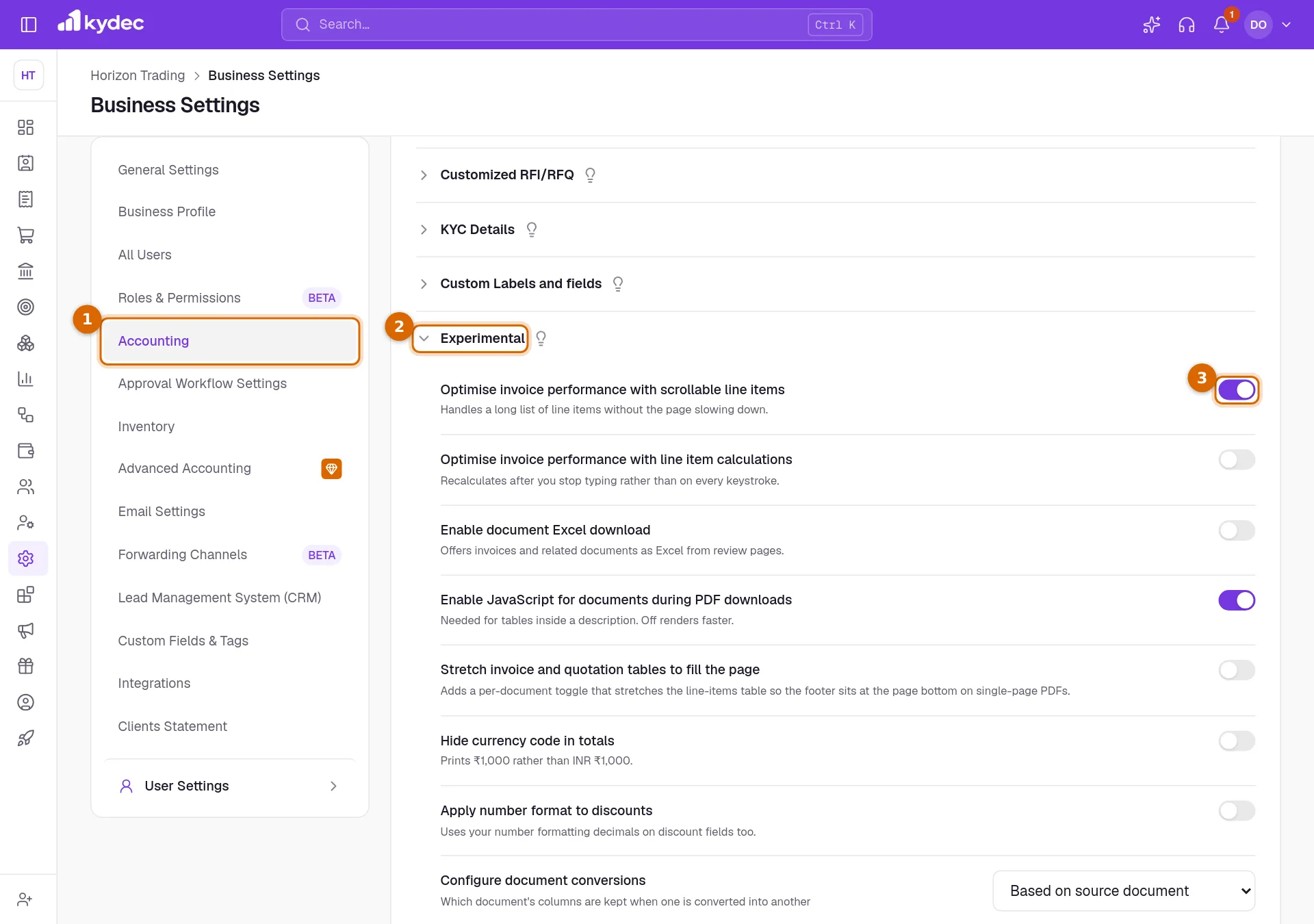
- 1Open Business Settings and choose Accounting.
- 2Scroll down and click Experimental to open it.
- 3Each row has a switch or a list on its right. A change is saved the moment you make it; there is no Save button.
Settings that work today
- 1Apply number format to discounts: a discount typed on a line is kept to the decimal places of your number format, the same way a quantity or a rate can be.
- 2Configure e-invoice & QR code placement: choose In document details or Beside document title to decide where the QR code sits on a document.
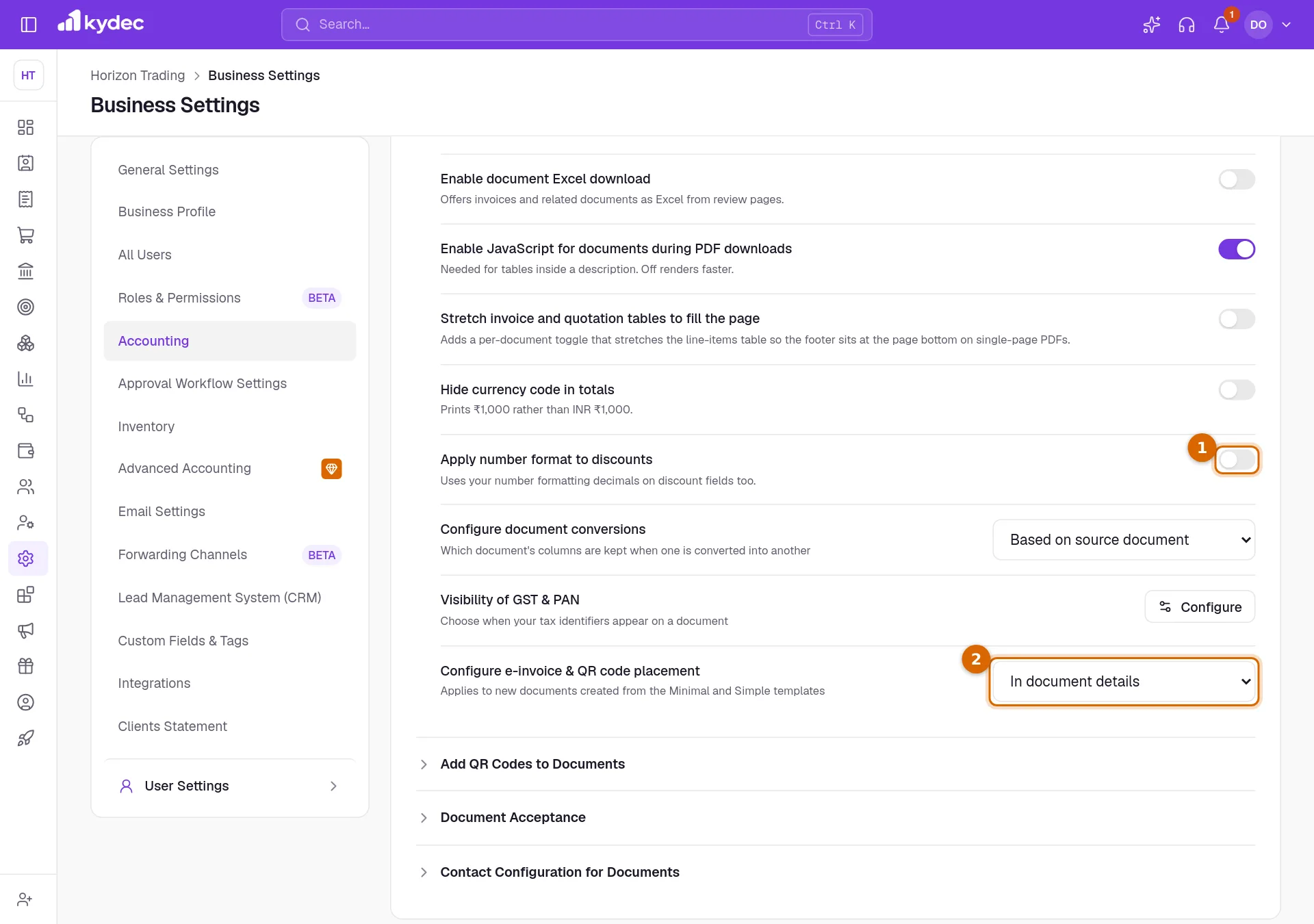
Good to know. The placement only matters once QR codes are switched on, under Add QR Codes to Documents on the same tab. QR codes are part of a paid plan.
Faster editing and Excel
- Optimise invoice performance with scrollable line items: on a long document, the line items scroll in their own box while you edit, and lines out of view are not drawn, so typing stays quick.
- Optimise invoice performance with line item calculations: amounts and totals catch up a moment after you type rather than on every key, which keeps a document with many lines responsive.
- Enable document Excel download: Download / Print on an invoice, quotation or any other document gets Download Excel — its number, both parties, every line with its columns and the totals, as the PDF has them, with figures as numbers you can add up.
What prints on documents
These two apply to documents saved after you change them, as every printed detail does. Open a document and save it again to bring it up to date.
- Hide currency code in totals: amounts print with the currency's symbol (₹1,050.00) and the total as Total, rather than INR 1,050.00 and Total (INR).
- Visibility of GST & PAN: choose whether your GSTIN (or TRN) and PAN print under Billed By, and whether each prints even when it is blank.
Not active yet
- Enable JavaScript for documents during PDF downloads, and Stretch invoice and quotation tables to fill the page, which depends on it.
- Configure document conversions.
Common questions
- Is it safe to turn these on?
- Yes. None of them deletes or rewrites anything, and each can be switched back at any time.
- I switched a setting on and nothing changed. Why?
- Hide currency code in totals and Visibility of GST & PAN show on documents saved after the change: open a document and save it again. The two settings under Not active yet do nothing for now.
- Why is one of the switches greyed out?
- Stretch invoice and quotation tables to fill the page needs Enable JavaScript for documents during PDF downloads to be on first.
Related guides
Custom labels and fields
Rename the fields printed on your documents to match your own vocabulary, control how serial numbers look, and set the filename a downloaded PDF is saved under.
Taxation and billing
Set your tax system, default rate, due dates and financial year once. Every document you raise afterwards inherits them.
Invoice
Create invoices from customisable templates, share them as a PDF, a print or a link over WhatsApp or email, and record and track what is paid against each one.