
Help
Taxation and billing
Set your tax system, default rate, due dates and financial year once. Every document you raise afterwards inherits them.
Where to find it:Business SettingsAccountingTaxation and Billing
What taxation and billing sets
This part of settings holds the few rules every document starts from: how long a client has to pay, what your tax is called, the rate a line starts at, and when your financial year begins.
You set them once. A new document begins with them, and you can still change any one document without touching the rule.
Set your due date, tax and rate
- 1Open Business Settings and choose Accounting. Taxation and Billing is the first part and is already open.
- 2Default Due Date: type a number of days from 0 to 365 and click away. A new invoice is due that many days after its date, and a new quotation is valid for the same number of days.
- 3Select Tax Type: choose the tax system your region uses, from GST (India), VAT, PPN, SST, HST and TAX. If yours is not listed, choose CUSTOM (Add a Tax Type), type its name under Tax Name and click Submit.
- 4Add Default Tax Rate ( in % ): enter the rate you charge most often, between 0 and 100. Leave it empty if no single rate fits.
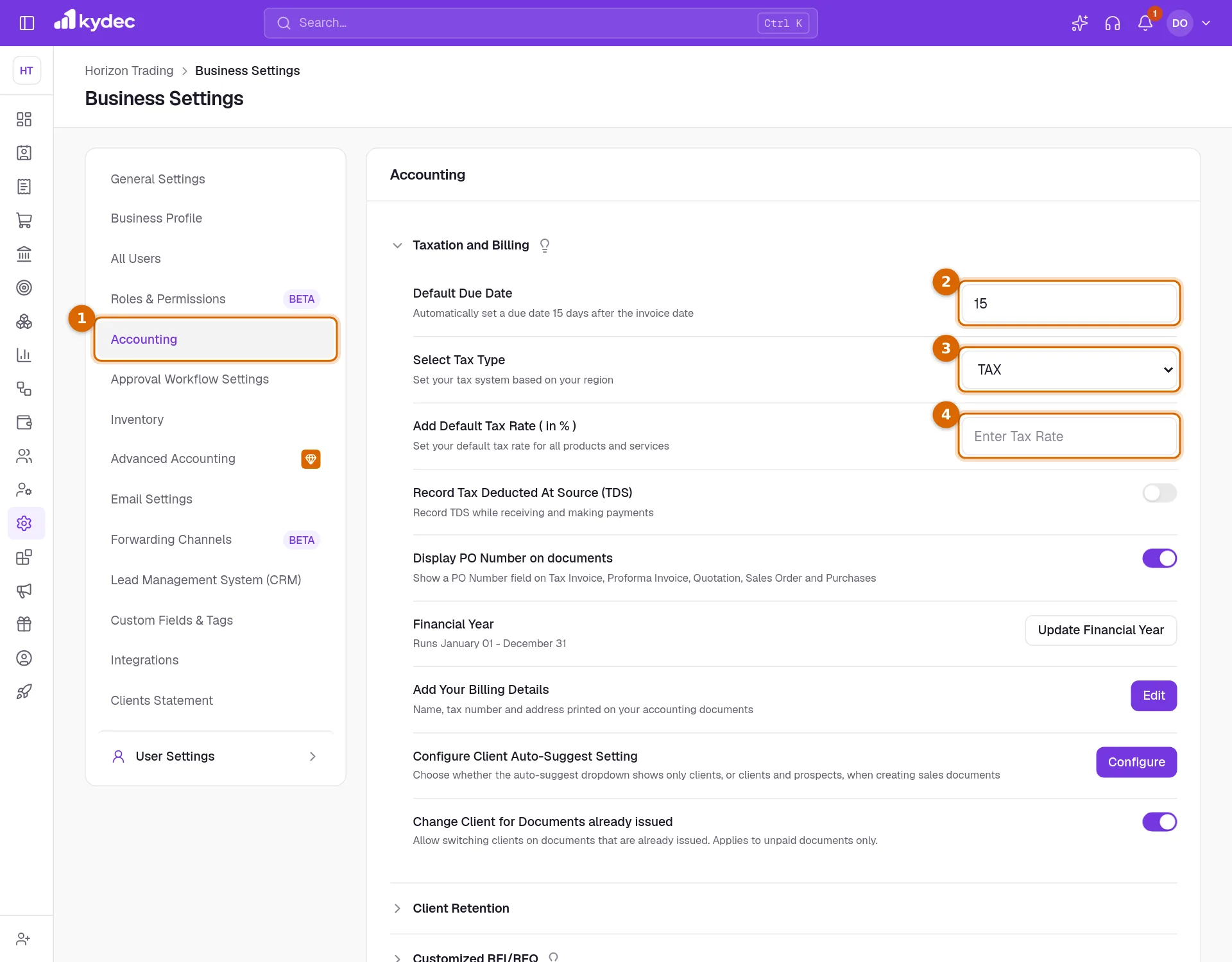
Good to know. There is no Save button in this part. A change is saved as soon as you make it; for the two number boxes, that is when you click or tab away.
Set your financial year
The Financial Year row shows the year you run now, for example "Runs April 01 - March 31". To change it, click Update Financial Year.
- 1Click the date under New financial year and pick the day your year starts. You choose a month and a day only, because the year repeats.
- 2Read the notice that appears with the new dates, then click Update.
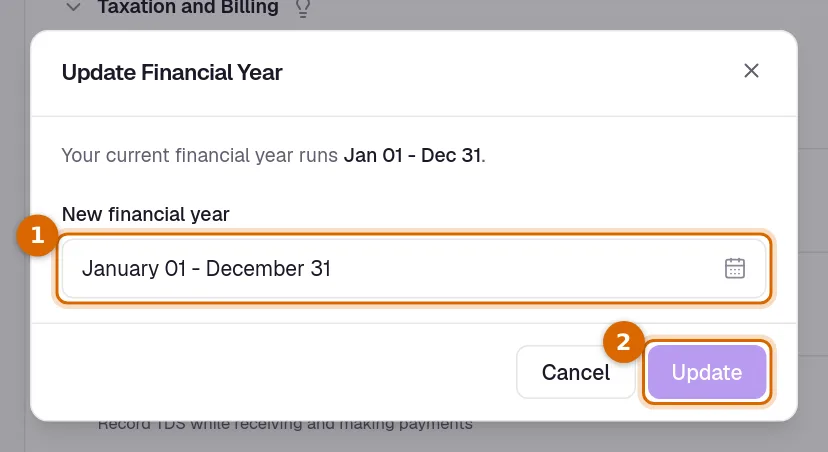
- The last day is worked out for you. It is always the day before the start date.
- 29 February cannot be chosen as a start date.
Good to know. Reports, the accounting statements and the financial-year periods offered on your lists follow the new dates as soon as you update. No document is changed.
The other rows
- Add Your Billing Details: Edit takes you to Business Profile, where the name, tax number and address printed on your documents are kept.
- Record Tax Deducted At Source (TDS): when you record a payment from a client (on an invoice, a proforma invoice, a debit note, or in a payment receipt), you are asked for the TDS Withheld. It settles the invoice together with the money, and is kept as TDS Receivable in your books and on the TDS report. TDS you deduct when paying vendors is not asked for yet.
- Display PO Number on documents: invoices, proforma invoices and quotations get a PO Number field for the client's purchase order number. It prints on the document, can be shown as a column in their lists, and is carried over when one document is converted into another. Sales orders and purchases always have one. A document that already has a PO number keeps showing it even if you switch this off.
- Configure Client Auto-Suggest Setting: for each kind of sales document (invoices, proforma invoices, quotations, sales orders, delivery challans, credit notes and payment receipts), choose whether the client list offers Only Clients or Both Clients and Prospects. A prospect becomes a client once you invoice them or take a payment from them. A document already made out to a prospect keeps showing it.
- Change Client for Documents already issued: on, the client of an issued document can be changed while nothing has been paid, credited or used against it; off, only a draft's client can change. Either way, a document registered on the GST e-invoice portal keeps its buyer until its IRN is cancelled.
What changes on your documents
- A new document gets its due date, or its valid-till date, from Default Due Date. You can change the date on the document itself.
- A new document starts with no tax. Click Add TAX on the document to choose one. A tax name of your own is offered there beside the standard ones.
- Once a document has a tax, each new line starts at your default rate. Type a different rate on a line to override it.
- The tax name titles your tax report. With VAT selected, the report tab on your invoices reads VAT Report.
Good to know. These are starting values for new documents. Documents you have already saved are not changed.
Common questions
- Can one invoice have a different due date or tax rate?
- Yes. The settings only fill in a new document. Change the due date or the rate on the document and it applies to that document alone.
- My tax is not in the list. What do I do?
- Choose CUSTOM (Add a Tax Type) and enter the name, up to 32 characters. It then appears in the list with (Custom) after it, and is offered when you add tax to a document.
- What happens to my reports if I change the financial year?
- They are grouped by the new dates from then on. Nothing is deleted and no document is changed.
- Where do I enter my tax registration number?
- In Business Profile, under Tax Information. Edit on the Add Your Billing Details row takes you there.
Related guides
Business profile
The name, tax registration and address printed on everything you issue. Getting these right once keeps every document compliant.
Custom labels and fields
Rename the fields printed on your documents to match your own vocabulary, control how serial numbers look, and set the filename a downloaded PDF is saved under.
Invoice
Create invoices from customisable templates, share them as a PDF, a print or a link over WhatsApp or email, and record and track what is paid against each one.
Prepare Your VAT Return
See your sales and supplies, purchases and other inputs, and the net VAT due for a reporting period, ready to file your VAT return.