
Help
Custom labels and fields
Rename the fields printed on your documents to match your own vocabulary, control how serial numbers look, and set the filename a downloaded PDF is saved under.
Where to find it:Business SettingsAccountingCustom Labels and fields
What you can customise
Every document KyDec prints uses standard wording: "Invoice No", "Billed To", "Terms and Conditions". If your trade says it differently, such as "Bill No" or "Customer", you can rename each label, one document type at a time.
The same part of settings also decides the file name a document gets when it is downloaded as a PDF.
Where to find it
- 1Open Business Settings, choose Accounting, and click Custom Labels and fields to open it.
- 2On the Manage document labels row, Manage opens the list of labels you can rename.
- 3On the Customise PDF download filename row, Manage opens the file name builder. The line under the row title shows the name in use now.
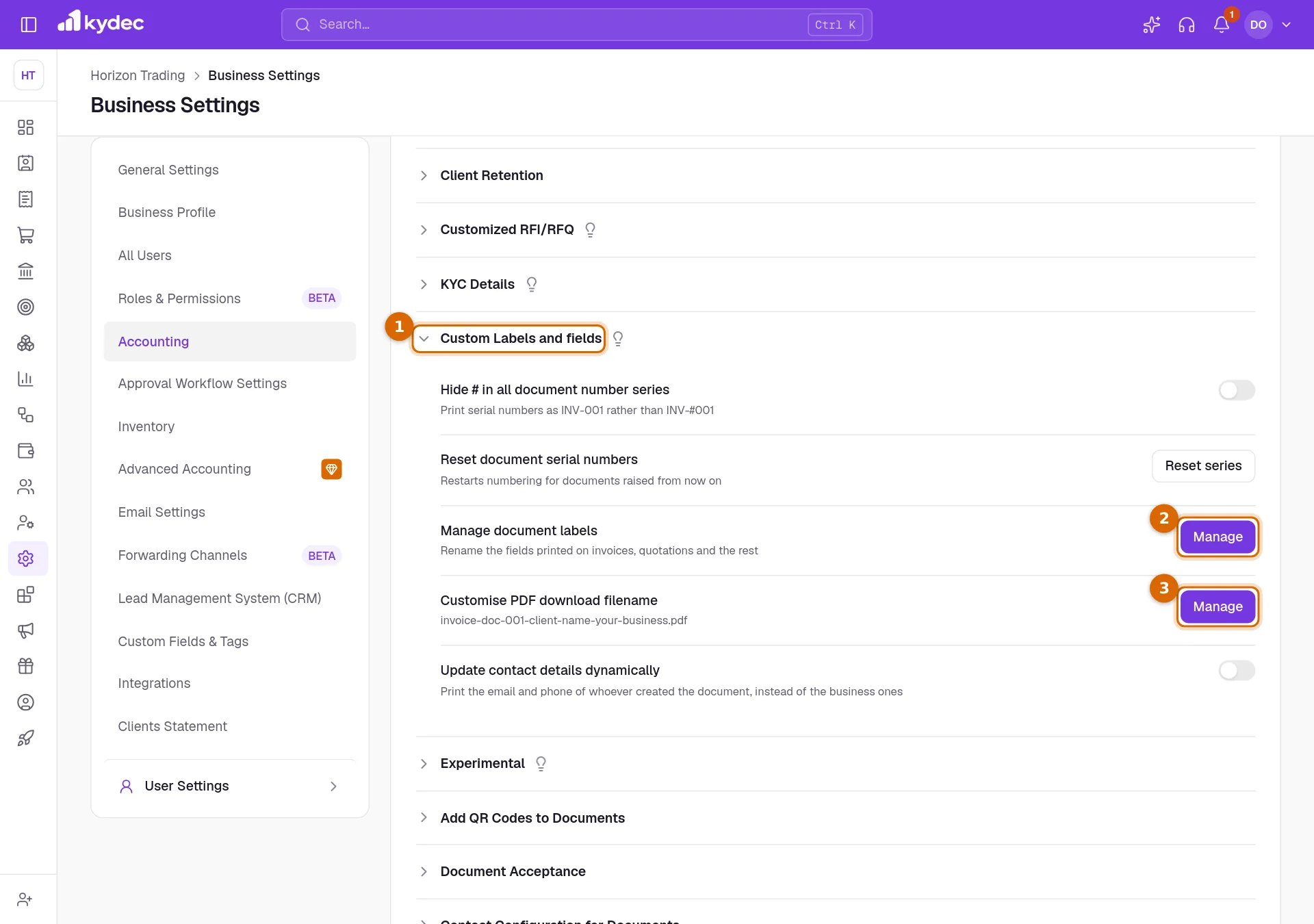
Rename the labels on a document
- 1Under Select document, choose the document type: Invoice, Quotation, Purchase Order and so on. Each type has its own labels.
- 2The left column, Default label, is the standard wording. Type your own beside it under Current label, up to 60 characters.
- 3Click Save labels. The button stays grey until you have changed something.
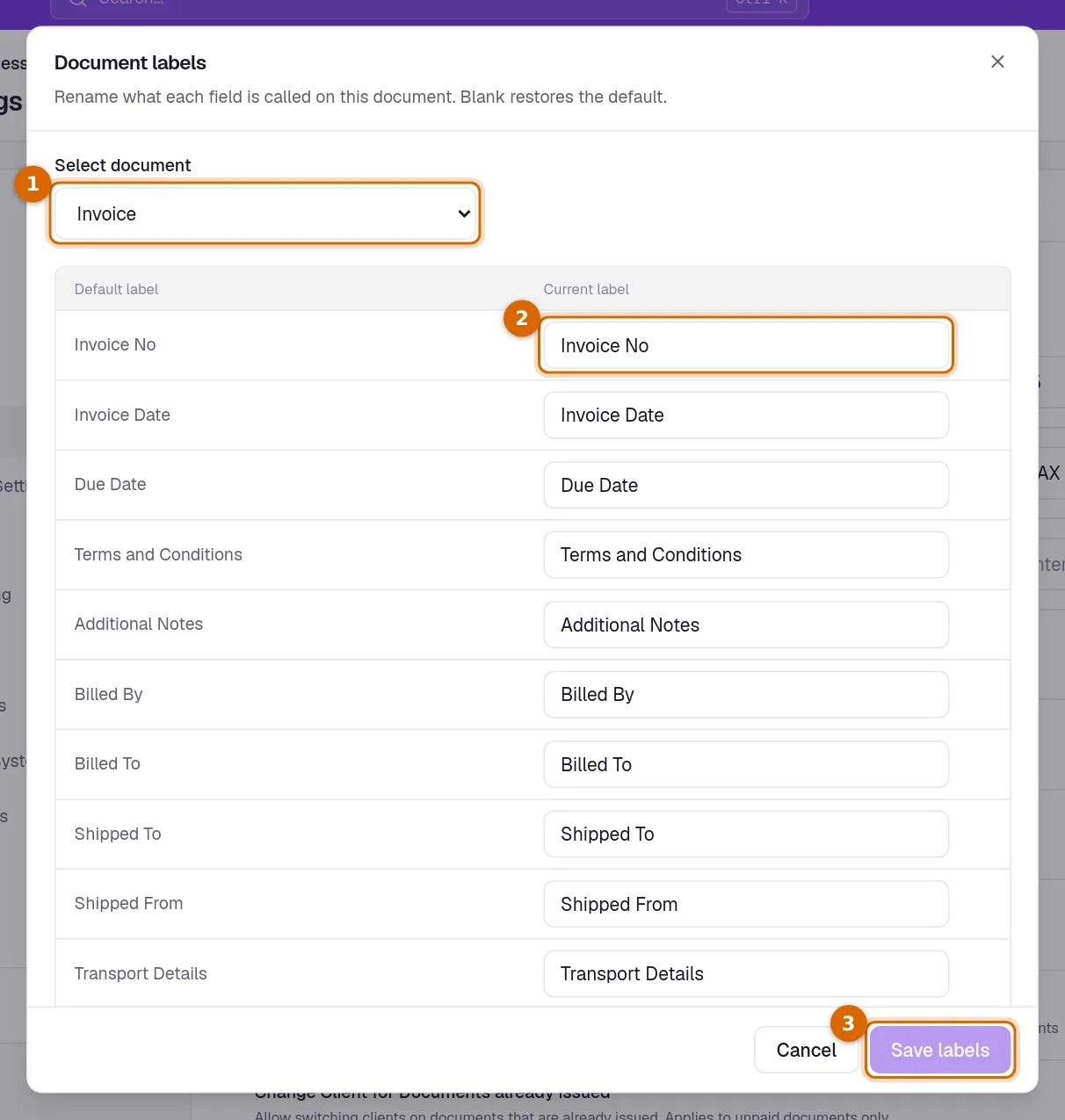
- The round arrow beside a label puts the standard wording back. Emptying the box and saving does the same.
- You can rename the number and date, the two parties (Billed By and Billed To on an invoice), shipping, totals, terms, notes and the signature line.
Good to know. Changing the document type in this dialog discards changes you have not saved. Save one type before moving to the next.
Rename a label from the document itself
You do not have to come to settings. On a document form, click a label with a dotted underline, such as Invoice No, and type the new wording.
It is the same setting. The label changes for every document of that type, not only the one in front of you.
Good to know. A document keeps the wording it was saved with. A renamed label shows on documents you create, or edit and save again, from then on.
Set the PDF file name
- 1Under 1. Choose fields, build the name from the parts you want. Drag a part to move it, click its × to remove it, and click a part under Available fields to add it. A name can have up to five parts.
- 2Under 2. Separator, choose what goes between the parts: Hyphen (-) or Underscore (_).
- 3Check the Preview at the top of the dialog, then click Save changes.
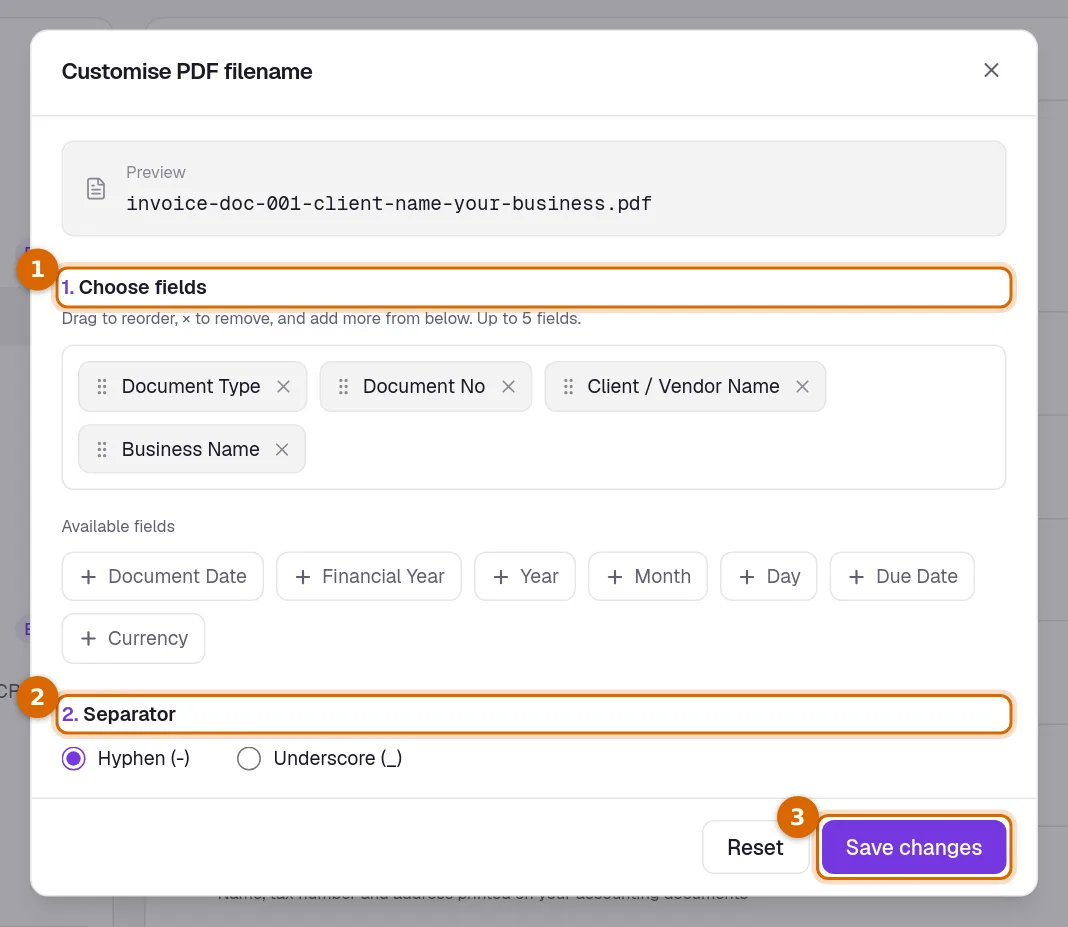
- The parts on offer are Document Type, Document No, Client / Vendor Name, Business Name, Document Date, Financial Year, Year, Month, Day, Due Date and Currency.
- Reset puts back the standard name: document type, number, client and business name, joined by hyphens.
- File names are written in lower case, and spaces or symbols inside a part become the separator. A part with nothing to show, such as the due date on a document that has none, is left out.
Good to know. A file name needs at least one part.
Other rows in this part
- Hide # in all document number series: documents print Invoice No (or your own label) rather than Invoice No # beside the number. It applies to every document at once, old ones included, on screen, in the PDF and on the shared link.
- Reset document serial numbers: every series starts again at 1 for the financial year from the next document, with the year written into the number so it never repeats one already used.
- Update contact details dynamically: the "For any enquiry, reach out via…" line on a new document uses the email and phone of the person creating it, from their User Settings, rather than the business's. You can still change it on the document, and documents already made keep theirs.
- To add extra fields to a document form, such as a header line, a footer detail or an extra charge, go to Custom Fields & Tags, open Accounting Documents and click Manage.
Common questions
- Can I use different wording on invoices and on quotations?
- Yes. Labels are kept per document type. Choose each type under Select document and rename its labels separately.
- How do I get the original label back?
- Click the round arrow beside the label, or empty the box, then click Save labels.
- Does renaming a label change documents I have already sent?
- No. A document keeps the wording it was saved with until you edit and save it again.
- How are my document numbers decided?
- A new document continues from the last one you issued: the digits at the end go up by one and anything before them stays. You can type a different number on the document before you save it.
Related guides
Custom fields
Add fields your business needs that we do not ship by default, and choose which of them print on your documents.
Taxation and billing
Set your tax system, default rate, due dates and financial year once. Every document you raise afterwards inherits them.
Invoice
Create invoices from customisable templates, share them as a PDF, a print or a link over WhatsApp or email, and record and track what is paid against each one.
Quotations & Estimates
Create professional quotations from customisable templates, share them in one click as a PDF, a print or a link over WhatsApp or email.