
Help
WhatsApp Business
Send quotations, invoices and campaigns from your own WhatsApp Business number, so clients see your business rather than an unknown sender.
Where to find it:Business SettingsIntegrations
What connecting does today
Connecting links your own WhatsApp Business account to this business, so a message reaches your client from your number and not from an unknown sender.
- Send documents: on a quotation, an invoice or another document, Share and then Send WhatsApp sends the PDF with a message to the client. You can send it now, schedule it for later, and set reminders.
- Write templates: under WhatsApp Templates in Marketing CRM, your connected numbers are the ones a template can be written for.
- Not available yet: sending documents through an AiSensy connection, submitting a template to WhatsApp for approval, and campaigns. A template you write stays a draft for now.
Choose how to connect
The connect dialog offers two routes under Connect through. Pick the one you already have an account with.
- WhatsApp Cloud API (direct): your own WhatsApp Business Account through Meta, with nothing in between. You need a Meta app with the WhatsApp product, your WhatsApp Business Account ID and a Permanent access token. This is the route that can send documents today.
- AiSensy: your AiSensy account. You need its Project ID and API Key. It connects and lists your numbers for templates, but documents cannot be sent through it yet.
Good to know. You need a role that includes Edit business profile to connect, sync or disconnect.
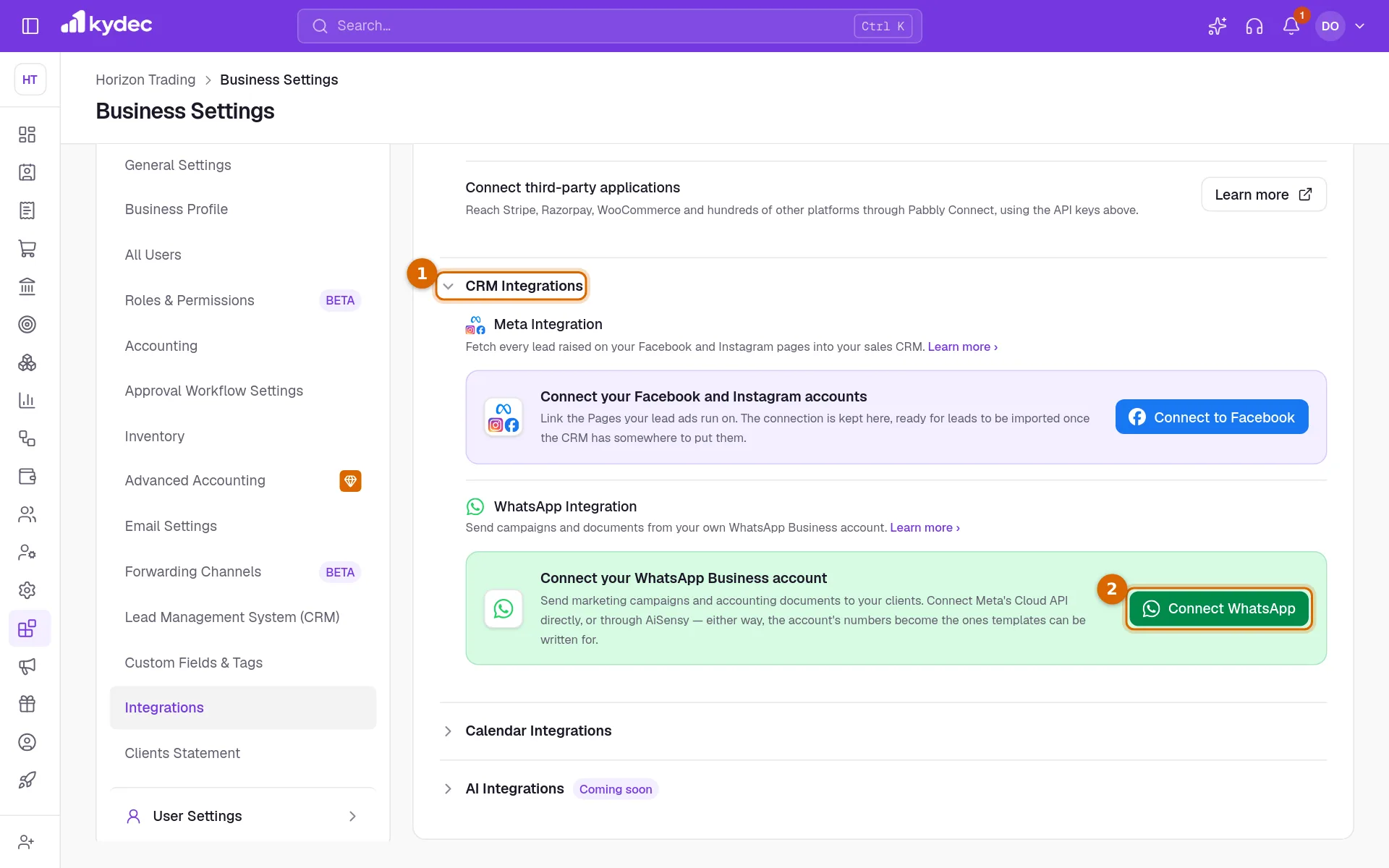
Find the WhatsApp connection
- 1Open Business Settings, choose the Integrations tab, and click CRM Integrations to open the section.
- 2Under WhatsApp Integration, click Connect WhatsApp.
Enter your details and connect
- 1Choose the route under Connect through. The two fields below it change to match.
- 2Enter the account: WhatsApp Business Account ID for Meta, or Project ID for AiSensy.
- 3Paste the key: Permanent access token for Meta, or API Key for AiSensy.
- 4Click Connect. KyDec uses the details to read the numbers on the account and tells you how many it found.
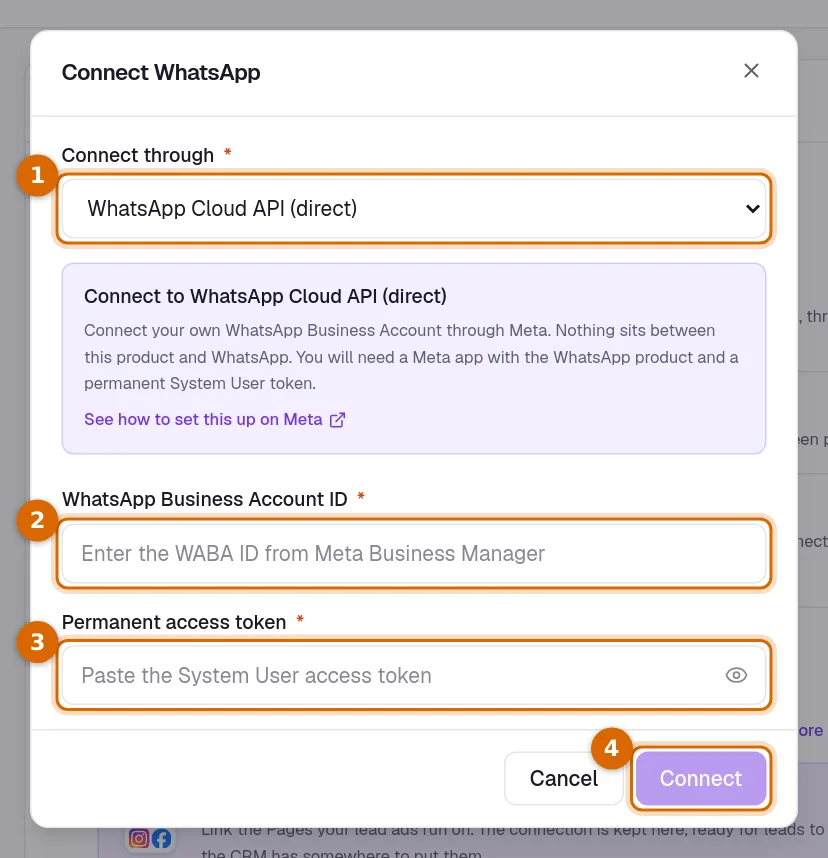
Good to know. The details are saved only if they work. With a wrong ID or key nothing is connected, and you are told why.
After you are connected
- The card shows the route, the account and how many numbers were found.
- Sync numbers reads the numbers again. Use it after you add a number to the account.
- Disconnect removes the connection and the stored key. Your templates are kept.
- Documents are sent from the first number on the account. If the account has several numbers, you cannot choose between them yet.
Write a template for your number
- 1Open WhatsApp Templates under Marketing CRM and click New Template. WhatsApp Integration lists your connected numbers; choose the one the template is for.
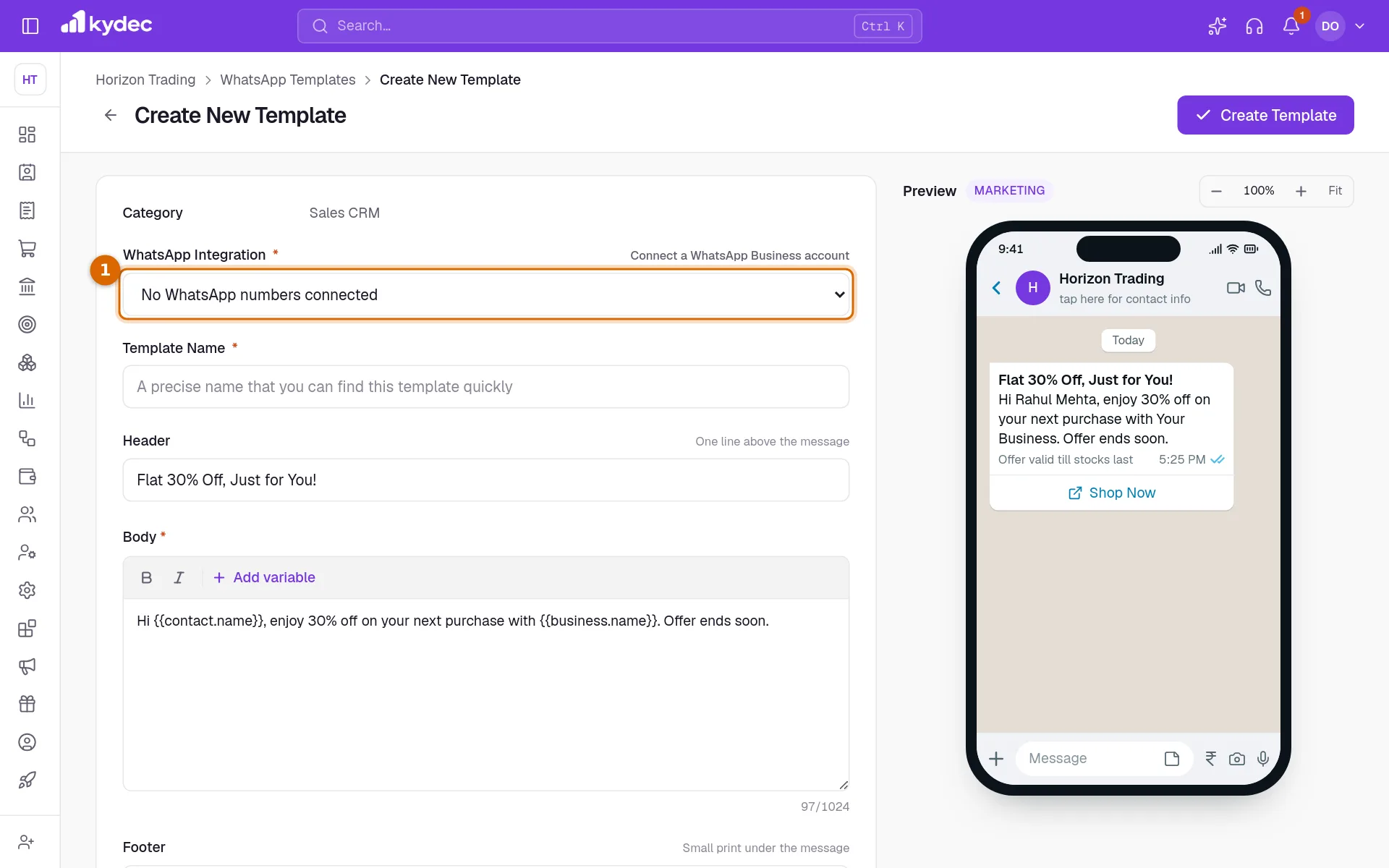
- With nothing connected the list reads No WhatsApp numbers connected, and Connect a WhatsApp Business account under it takes you to Integrations.
Common questions
- Can I send an invoice on WhatsApp without connecting?
- No. Send WhatsApp sends from your own WhatsApp Business account, so one has to be connected. Until then the form shows Connect Now, which opens Integrations.
- I connected through AiSensy and my documents will not send. Why?
- Documents can be sent through WhatsApp Cloud API (direct) only for now. An AiSensy connection lists your numbers for templates, but sending through it is not available yet.
- Which number do my clients see?
- The first number on the connected account.
- Does disconnecting delete my templates?
- No. Templates are kept, and they are there again when you reconnect the same account.
Related guides
Quotations & Estimates
Create professional quotations from customisable templates, share them in one click as a PDF, a print or a link over WhatsApp or email.
Invoice
Create invoices from customisable templates, share them as a PDF, a print or a link over WhatsApp or email, and record and track what is paid against each one.
Facebook and Instagram leads
Connect your Meta pages so every lead from a form or message arrives in your CRM, with its source recorded, instead of being copied over by hand.
Send emails from your domain
Connect your personal or work email so invoices, quotations and other documents arrive from your own address rather than ours.