
Help
Send emails from your domain
Connect your personal or work email so invoices, quotations and other documents arrive from your own address rather than ours.
Where to find it:Business SettingsEmail SettingsEmail Settings
Why connect your own email
When you email an invoice or a quotation from KyDec, it has to leave from some address. Until you connect one of your own it leaves from KyDec’s address, with the sender shown as your business name followed by "via KyDec", and replies directed to your business email.
Connect your mailbox and the same emails leave from your own address, in your own name. Your client sees a sender they recognise.
Choose how to connect
- 1Open Business Settings, choose Email Settings, and click the part that is also named Email Settings to open it.
- 2Connect To Gmail or Connect To Outlook takes you to that provider’s own sign-in screen. Approve the request and you are brought back with the mailbox connected.
- 3Custom Domain is for any other mailbox. You enter your mail server’s details yourself.
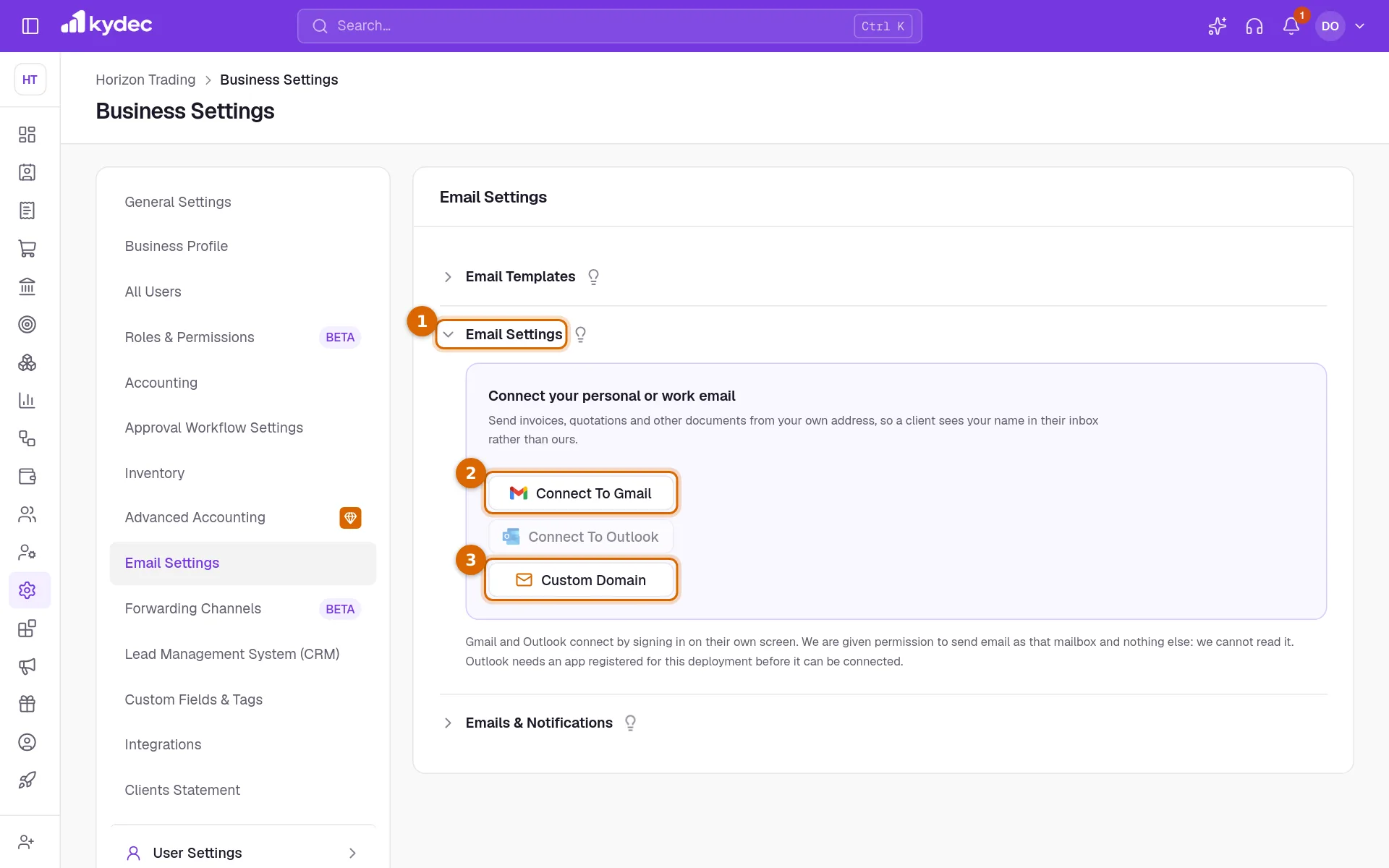
- With Gmail and Outlook, KyDec is given permission to send email as that mailbox and nothing else. It cannot read your mail.
- If Connect To Gmail or Connect To Outlook is greyed out, that provider has not been switched on for your KyDec yet, and a line under the box says so. Use Custom Domain in the meantime.
Connect a custom domain (SMTP)
- 1SMTP host and SMTP port: the address of your mail server and its port, usually 587 for TLS or 465 for SSL. Your email provider lists both in its help pages.
- 2SMTP username and SMTP password: usually your email address and its password. Use an app password if your provider offers one.
- 3From email address is the address your clients will see. From name is optional; without it your business name is used.
- 4Click Save changes. KyDec checks the details with your mail server first, and tells you which one is wrong if it cannot sign in.
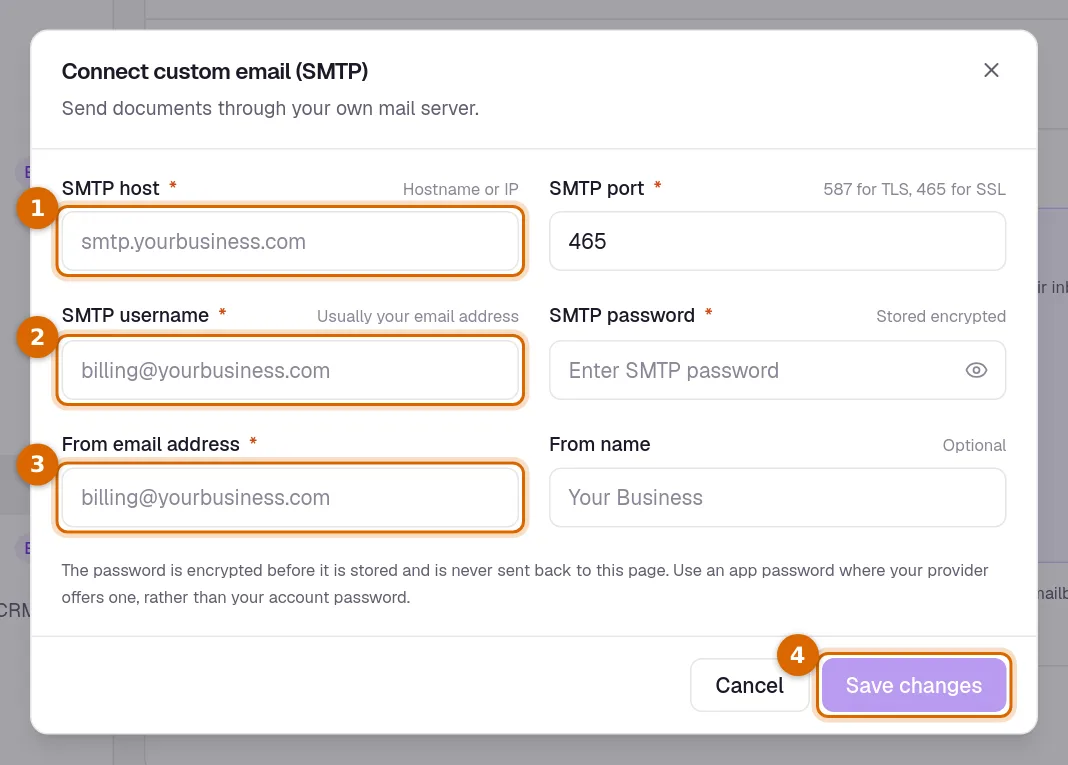
Good to know. The password is encrypted before it is stored and is never shown again. When you edit the connection later, leave the password empty to keep the saved one.
Once you are connected
- The box shows the name and address you send as, and how you are connected: Gmail, Outlook or Your own domain.
- The buttons change to Reconnect Gmail, Reconnect Outlook or Edit SMTP, for when a password or a permission changes.
- Disconnect removes the connection. Emails go back to leaving from KyDec’s address.
- One mailbox is connected for the whole business. Connecting another replaces it.
Common questions
- What address do my emails come from if I connect nothing?
- They leave from KyDec’s address, with your business name followed by "via KyDec" as the sender. Replies go to the business email on your profile.
- Can KyDec read my inbox?
- No. Gmail and Outlook give permission to send as your mailbox only. A custom domain connection signs in to your mail server to send, and nothing else.
- My SMTP details are refused. What should I check?
- The message says whether the server or the sign-in failed. For the server, check the host and the port (587 or 465). For the sign-in, check the username, and use an app password if your provider requires one.
- Can each team member send from their own address?
- No. One mailbox is connected for the business, and the emails your business sends from KyDec all leave from it.
Related guides
Email templates
Write the emails you send to leads, clients and vendors once, with variables that fill in the contact, company and document details when it goes out.
Emails and notifications
Control what your clients receive automatically — receipts, quotations, testimonial requests — and what your team is alerted about.
Invoice
Create invoices from customisable templates, share them as a PDF, a print or a link over WhatsApp or email, and record and track what is paid against each one.
Quotations & Estimates
Create professional quotations from customisable templates, share them in one click as a PDF, a print or a link over WhatsApp or email.