
Help
Forms
Lead capture, contact us, survey and all types of forms. Add them to your website, ads, or social media profile. Automatically capture all the data directly on KyDec.
Where to find it:Sales CRM & LeadsForms
What a form is for
A form collects an enquiry and turns it into a lead with no typing on your side. You build it in KyDec, publish it, and put it on your website or share its link. Every response becomes a lead in the sales pipeline you chose.
The same builder makes a contact-us form, a lead capture form for an advert or a short survey: you choose the fields, the wording and the look.
Good to know. These are the Sales CRM forms. Forms that collect the details of a vendor for approval are separate: see Workflow Forms under Workflows & Automations.
Find your way round the list
Open Sales CRM & Leads › Forms. The page is headed All Forms.
- 1Create Form starts a new form.
- 2The tabs split the list into All, Active, Inactive and Deleted.
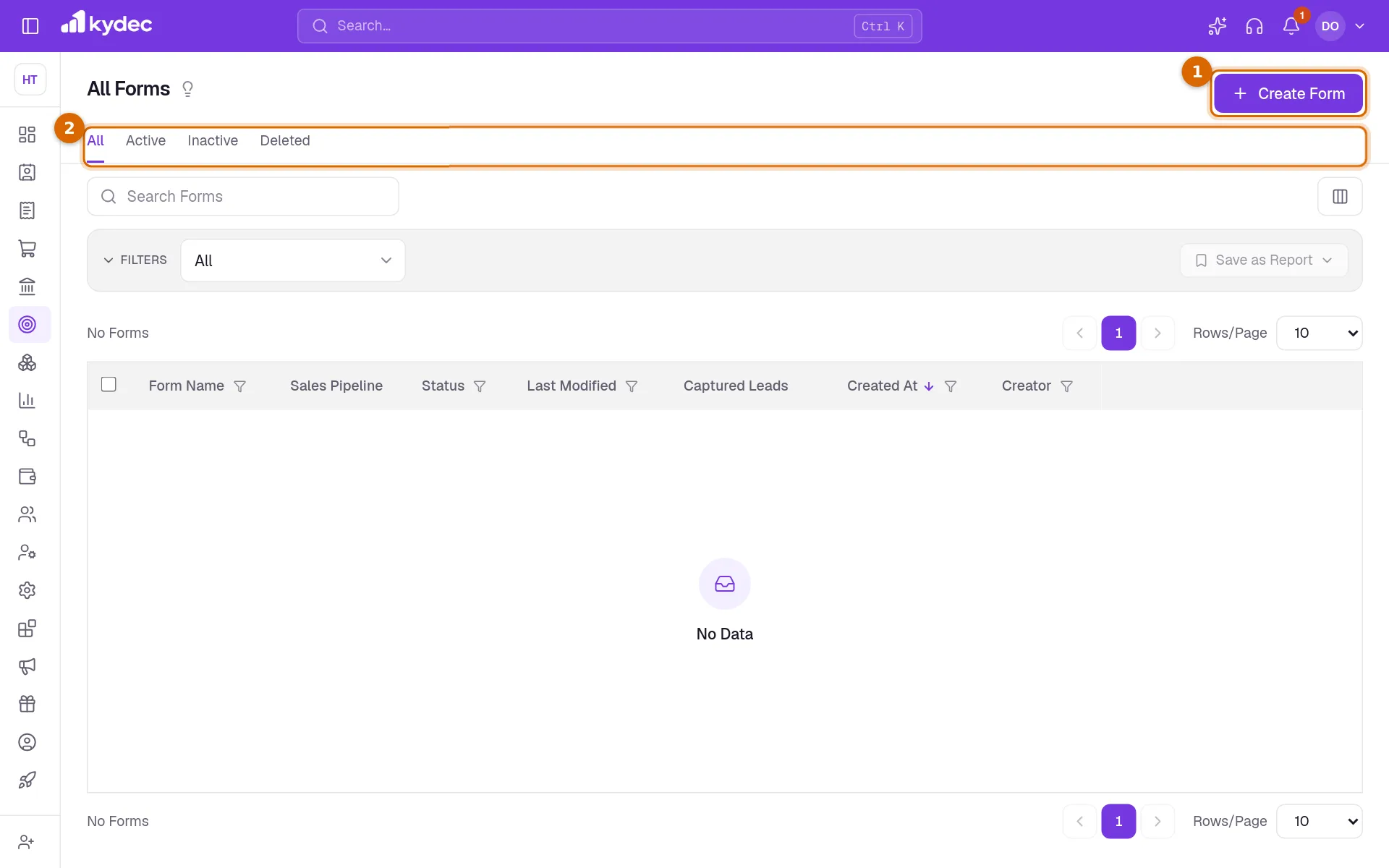
- The Status of a form reads Draft until it is published, then Active.
- Sales Pipeline shows where the leads of a form go, and Captured Leads counts the responses it has brought in.
Build a form
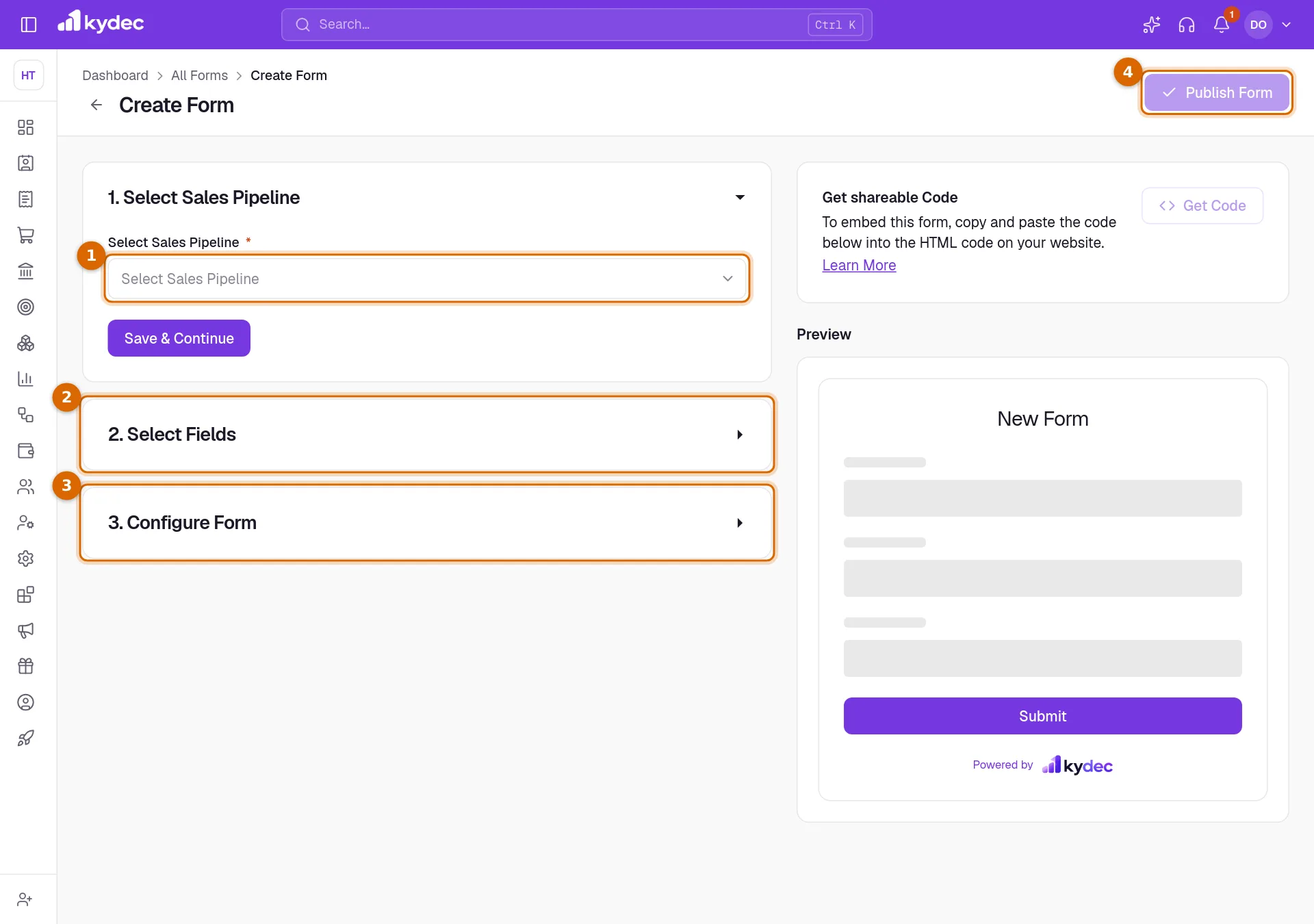
Click Create Form. The page has three numbered parts on the left and a Preview of the form on the right. Each part is saved on its own.
- 1Under Select Sales Pipeline, choose the pipeline the leads should go to and click Save & Continue. This creates the form as a draft.
- 2Under Select Fields, switch on the fields you want, drag them into order and click Save & Continue.
- 3Under Configure Form, fill in the Form Title, the Form Name and the Reply-to Email, set the rest as you like and click Save Changes.
- 4Click Publish Form. The button becomes available once all three parts are saved.
Good to know. The pipeline cannot be changed once the form has been created. To send leads to a different pipeline, create another form.
Choose the fields
- A form starts with Full Name, Email, Phone number, Organisation Name and Message, all switched on. Switch off any you do not need.
- The cog on a field opens Edit Fields, where you make the field mandatory or hidden and change its Label, Placeholder Text and Help Text.
- Add New Custom Field adds a question of your own, such as a dropdown or a date. It is saved as a lead custom field, so the answer is kept on the lead, and it counts towards your custom field limit.
- Add Your Calendar opens Calendar Meeting Setup. Letting people book a meeting from the form itself is coming soon.
Good to know. Keep Full Name and Email switched on and mandatory if you want to email the person who filled in the form. The email goes to the address they enter.
Set how it looks and what happens
- The look: Add Business Logo, Form Title, Add Form Description, Submit Button Text, Button Color, Theme and Layout (Single Column, Two Columns or Auto (Full Width)).
- Form Name is for your own lists. The people filling in the form never see it.
- Submit Message is what a person reads after sending the form. Redirect on successful completion then takes them on to a web page of yours; it applies only to forms opened by their link.
- Send Email to respondents on form submission sends an automatic reply. You choose one of your live Sales CRM email templates and, if you wish, people to copy in. Replies to that email go to the Reply-to Email.
- Lead Assignee gives every lead from this form to one teammate. Left empty, the leads go to whoever created the form.
- Automatically assign leads based on duplicates gives a lead that matches an existing one to the teammate who already holds that lead. It follows your Lead Duplication settings.
- Enable Captcha Verification protects the form from spam, and Show KyDec Branding shows or hides the KyDec line under the form.
What happens to a response
- Each response becomes a lead at the first stage of the pipeline of the form, with Website Form as its source.
- The Organisation Name is matched to a client or prospect of the same name. If there is none, a new prospect is created.
- The Message becomes the subject of the lead, and every answer is kept in its description.
- View Leads on the row of a form opens All Leads narrowed to the leads that form captured. In All Leads you can also filter by the Form Name column.
- More on a row has Copy Link, Edit, Mark as Inactive and Delete. An inactive form stops taking responses, on its link and wherever it is embedded, until you choose Mark as Active.
- Delete moves the form to the Deleted tab, and its link and embedded copies stop working. The leads it captured are kept.
Common questions
- Why is Publish Form greyed out?
- All three parts must be saved first. Publishing also needs a Form Title and a Reply-to Email in Configure Form.
- Can I change a form after it is published?
- Yes. Choose Edit on its row, change the fields or the settings, save, and click Publish Changes. Until then, people keep seeing the version you published last. The pipeline is the one thing that cannot be changed.
- Does the person who fills in the form get a confirmation?
- They always see your Submit Message. They also get an email if Send Email to respondents on form submission is on, an email template is chosen and they entered an email address.
- Where do I find the leads a form has captured?
- Click View Leads on the row of the form, or filter All Leads by Form Name. Each of those leads has Website Form as its source.
Related guides
Streamline Lead Management
Automate lead capture with Forms & third-party integrations, manage leads across multiple pipelines, communicate over email/WhatsApp, track deal progress, track team performance, and more.
Email templates
Write the emails you send to leads, clients and vendors once, with variables that fill in the contact, company and document details when it goes out.
Custom fields
Add fields your business needs that we do not ship by default, and choose which of them print on your documents.
Workflow Forms
Create forms to capture vendor leads, collect required details, assign them to workflows, and move them through approval stages without manual follow-ups.