
Help
Email templates
Write the emails you send to leads, clients and vendors once, with variables that fill in the contact, company and document details when it goes out.
Where to find it:Business SettingsEmail SettingsEmail Templates
What an email template is
A template is an email written once and reused: the subject, the body and the signature, with placeholders where the client’s name or the document number should go. When the email is sent, the placeholders are filled in for you.
A new business starts with a set of ready-made templates, so there is something to send on day one. You can change them or add your own.
Find your templates
- 1Open Business Settings and choose Email Settings. Email Templates is open at the top.
- 2Create new template opens the editor for a new one.
- 3The pencil on a row opens that template for editing.
- 4The ⋯ beside it holds Duplicate, Mark as inactive or Mark as live, and Remove.
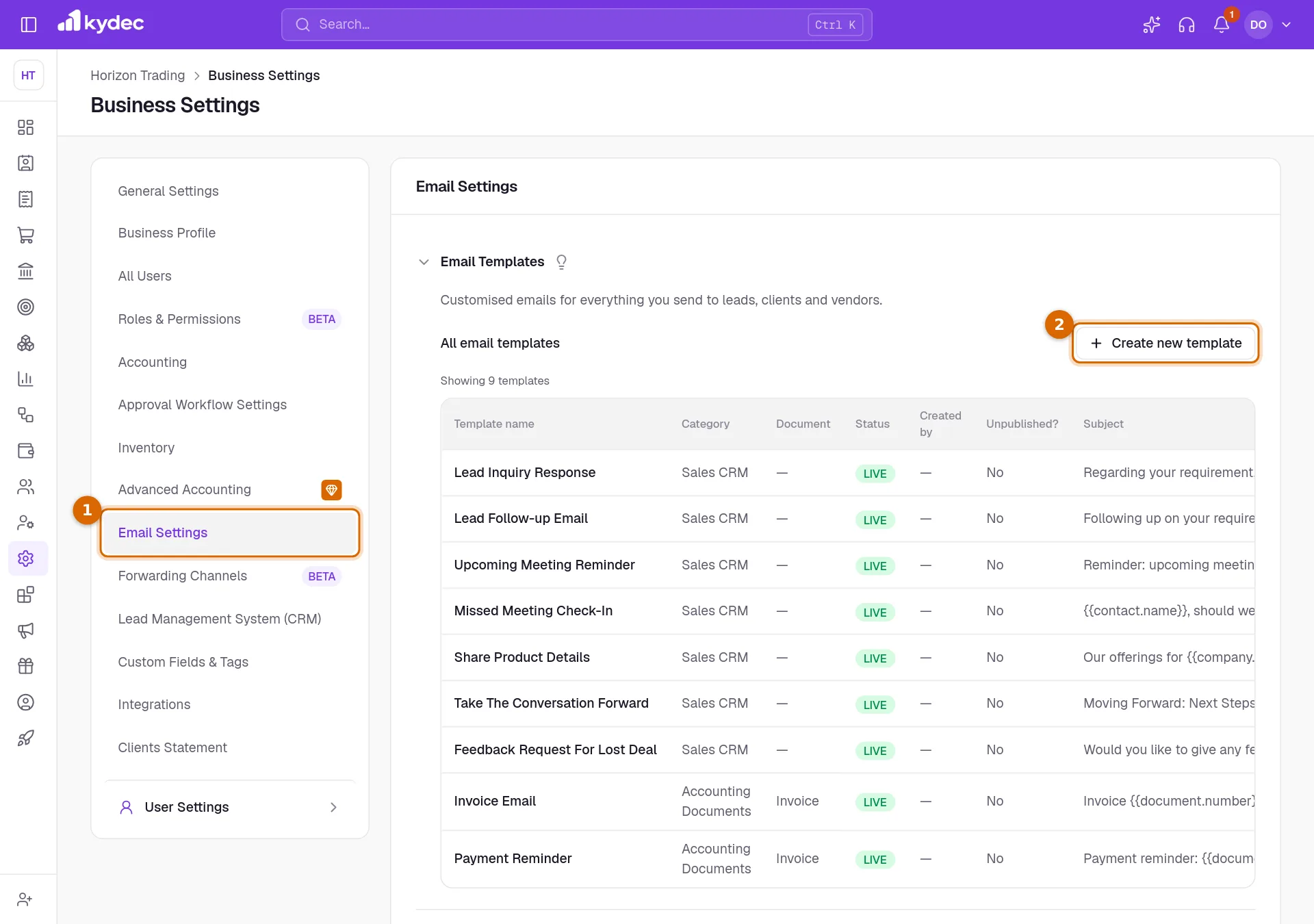
- The table shows each template’s Category, the Document it is for, its Status, and whether it has changes that are not published yet.
Write a template
- 1Category decides where the template is offered: Accounting Documents for emails that go out with a document, Sales CRM for emails to leads. For Accounting Documents, also choose the Document subtype, such as Invoice or Quotation.
- 2Template name is for you. It is what you pick the template by.
- 3Email subject is the subject line your client reads.
- 4Add variable inserts a placeholder: where the cursor is in the subject, or at the end of the body or the signature.
- 5Write the Email body, and change the Email signature if you want something other than the standard one.
- 6Click Publish template to make it available for sending. Or open the arrow beside it and choose Save as draft to finish it later.
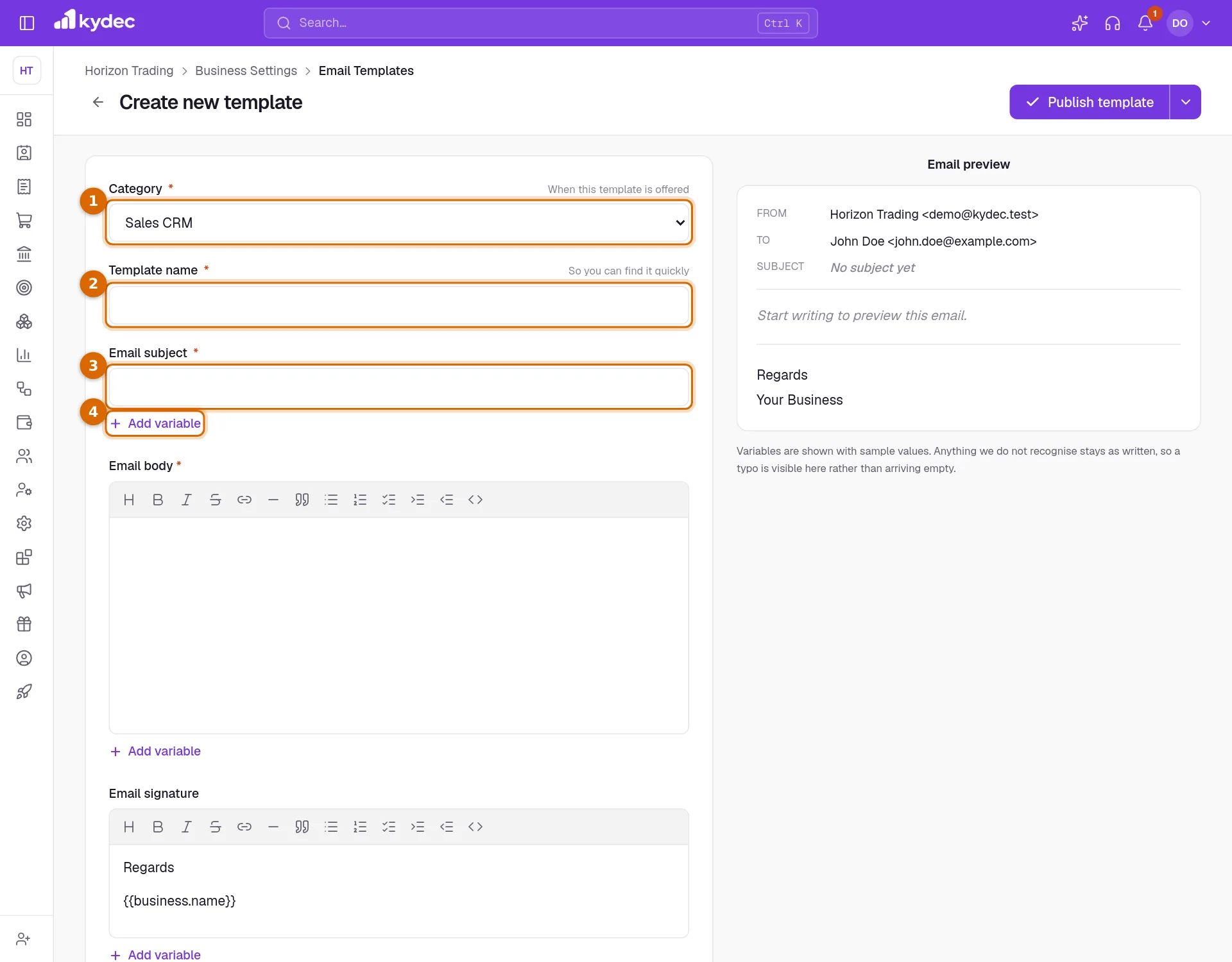
- The Email preview on the right shows the email as you type, with sample values in place of the variables.
Good to know. The name, the subject and the body are required. An Accounting Documents template also needs its document subtype.
Use variables
A variable is a placeholder written in double curly brackets, such as {{contact.name}}. When the email is sent, KyDec replaces it with the real value.
- 1Click Add variable.
- 2Pick from the list, for example Contact Name. The placeholder is inserted for you.
- 3Check the Email preview to see it filled with a sample value.
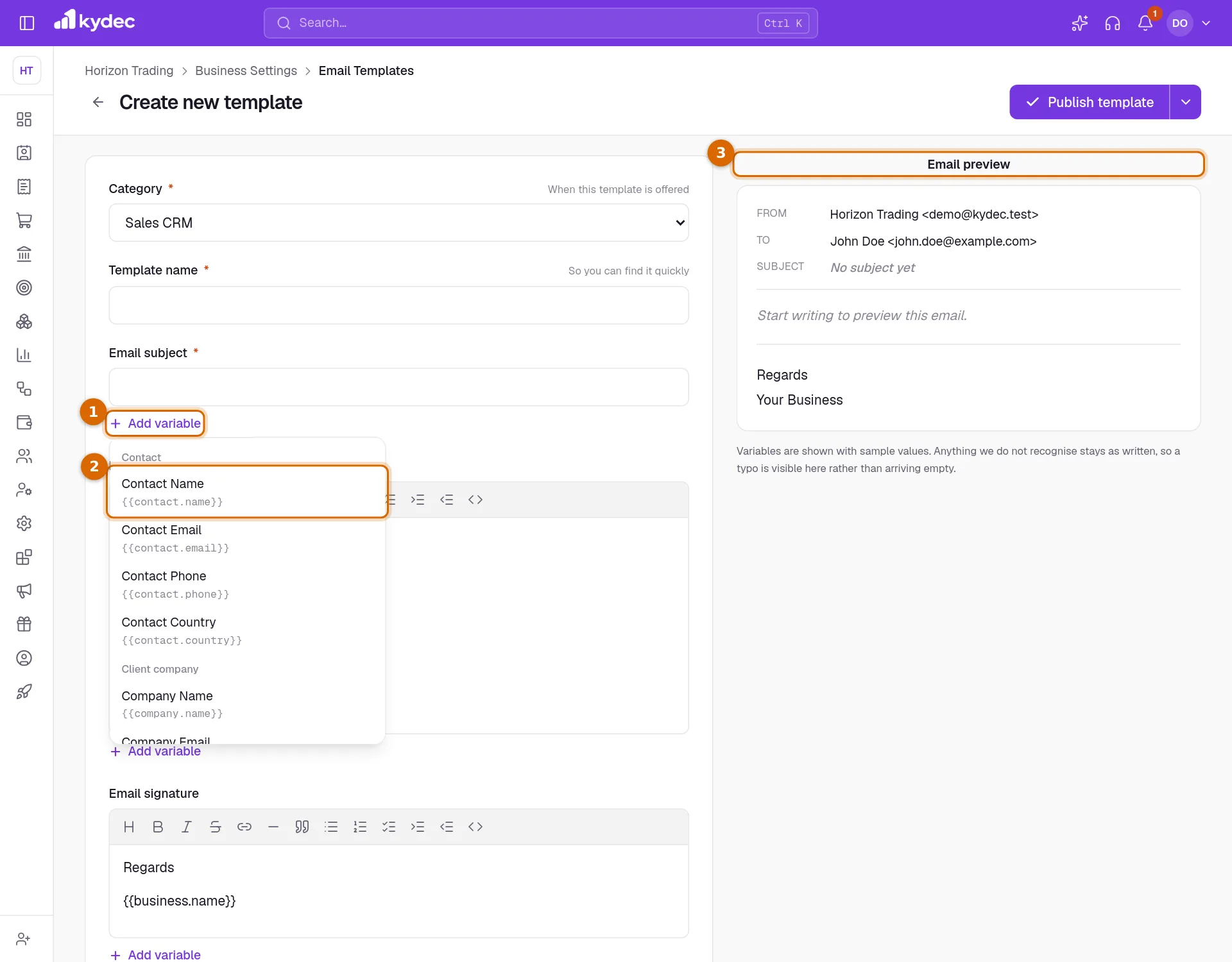
- Contact: Contact Name, Contact Email, Contact Phone and Contact Country.
- Client company: Company Name, Company Email and Company Phone.
- Your business: Your Business Name, Your Business Email, Your Business Phone and Your Website.
- Sender: Your Name and Your Email.
- Document: Document Number, Document Date, Document Due Date, Document Amount and Document Link.
Good to know. A placeholder KyDec does not recognise is left exactly as you typed it. A spelling mistake therefore shows up in the preview, instead of leaving a gap in the email.
Live, draft and inactive
Every template has a status. The same templates are also listed under Marketing CRM, then Email Templates, in the sidebar, where each status has its own tab.
- 1New Template opens the same editor as Create new template in settings.
- 2The tabs All Templates, Live, Drafts and Inactive show the templates in each status.
- 3Edit on a row opens the template. Duplicate, Remove and Mark as Inactive sit beside it.
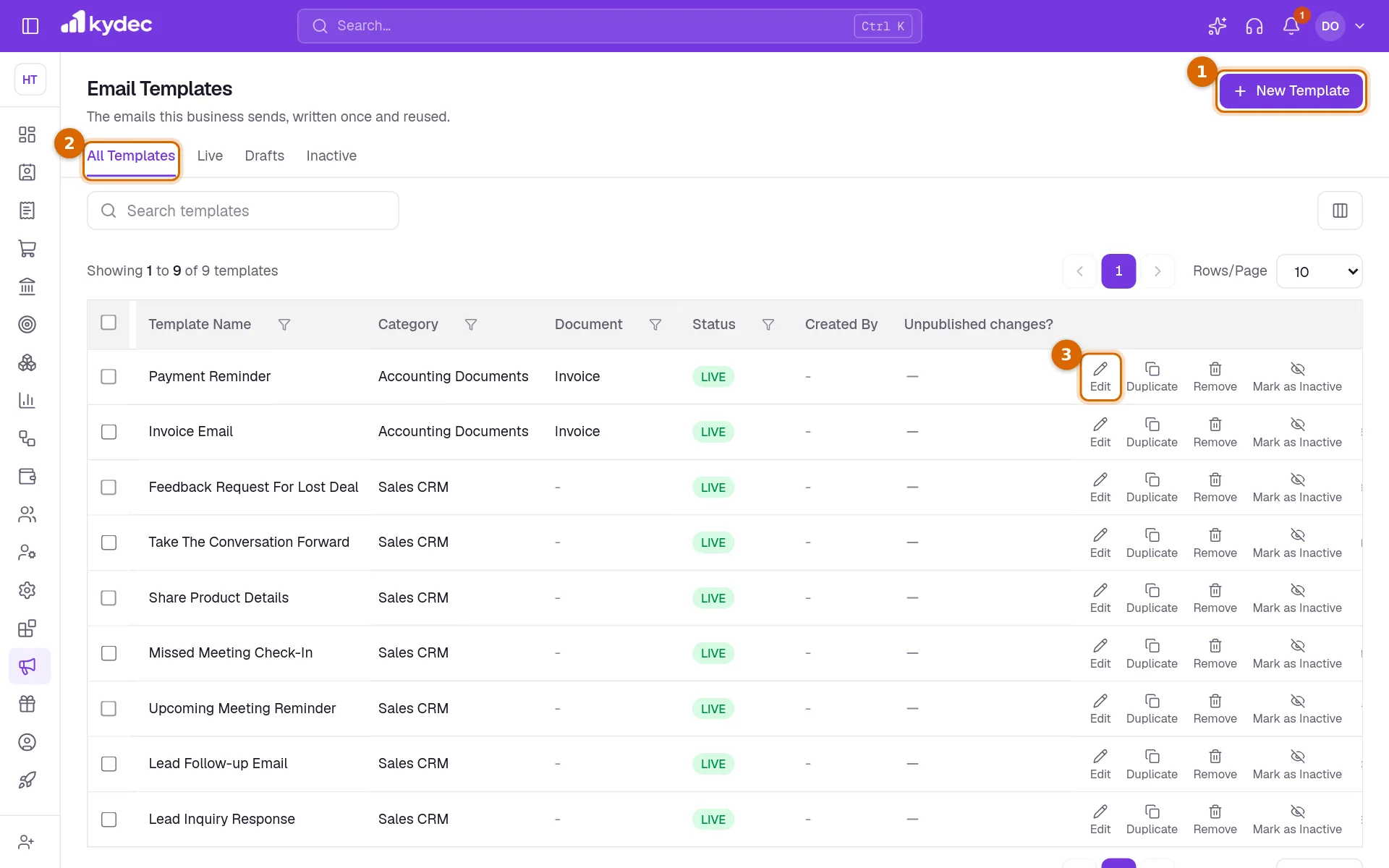
- Live: published, and offered when you send.
- Draft: saved but never published. It is not offered until you publish it.
- Inactive: set aside. It is kept but not offered, and Mark as Live brings it back.
- Editing a live template and choosing Save as draft keeps the published wording in use. The list shows that the template has unpublished changes until you publish them.
Good to know. Publishing changes to an inactive template keeps it inactive. Mark it as live when you want it offered again.
Rules worth knowing
- When you email a document, Email Template offers only the live Accounting Documents templates for that kind of document.
- On a ready-made template the Category and Document subtype are fixed. Duplicate it to get a copy you can change.
- A duplicate opens in the editor named "[DUPLICATE]" followed by the original name. Nothing is saved until you publish it or save it as a draft.
- Remove asks for your password. A removed template is no longer offered; emails already sent from it are not affected.
Common questions
- Why is my template not offered when I email an invoice?
- It must be Live, its Category must be Accounting Documents, and its Document subtype must be Invoice. A draft, an inactive template or one for another document is not offered.
- Can I change a ready-made template?
- Yes. You can change its name, subject, body and signature. Only its category and document subtype are fixed; duplicate it if you need those to be different.
- What happens to emails I already sent if I edit or remove a template?
- Nothing. An email that has been sent keeps the wording it went out with.
- Can I add my own variables?
- No. The list under Add variable is the full set. Anything else in curly brackets is sent as plain text.
Related guides
Send emails from your domain
Connect your personal or work email so invoices, quotations and other documents arrive from your own address rather than ours.
Emails and notifications
Control what your clients receive automatically — receipts, quotations, testimonial requests — and what your team is alerted about.
Quotations & Estimates
Create professional quotations from customisable templates, share them in one click as a PDF, a print or a link over WhatsApp or email.
Forms
Lead capture, contact us, survey and all types of forms. Add them to your website, ads, or social media profile. Automatically capture all the data directly on KyDec.