
Help
Custom fields
Add fields your business needs that we do not ship by default, and choose which of them print on your documents.
Where to find it:Business SettingsCustom Fields & Tags
What custom fields are
KyDec ships with the fields most businesses need. A custom field is one you add yourself: a licence number on your business, a region on a client, a shelf number on an item.
You define a field once, for one kind of record. From then on it is offered on every record of that kind, and you fill it in like any other field.
Where custom fields are kept
- 1Open Business Settings and choose Custom Fields & Tags.
- 2Open the part for the kind of record the field belongs to, for example Private Custom Fields for documents or Clients Custom Fields for clients.
- 3For Private Custom Fields, first pick the document type from the list, such as Invoice. Each document type has its own fields.
- 4Click Add Additional Field to define a new field.
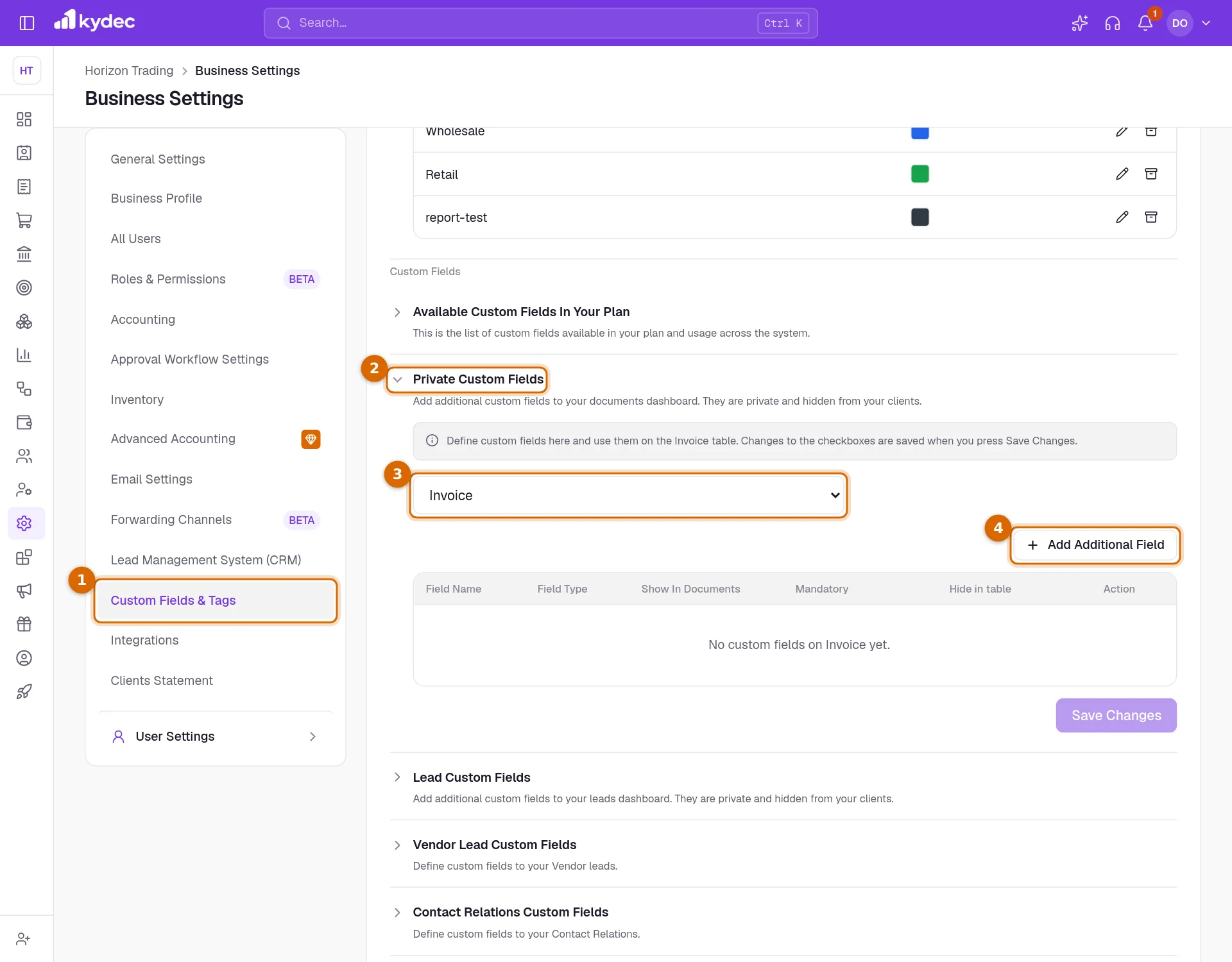
- Private Custom Fields: asked for on the form of the chosen document type. They are kept with the document for your own records and are not printed on it.
- Lead Custom Fields, Vendor Lead Custom Fields and Clients Custom Fields: offered on the lead, vendor lead and client forms.
- Contact Relations Custom Fields: offered when you link a contact to a client.
- Inventory Management, Inventory Transactions and Batches Custom Fields: offered on items, on stock adjustments and on batches.
- Available Custom Fields In Your Plan: a table of how many fields each area uses, against what your plan allows.
Define a field
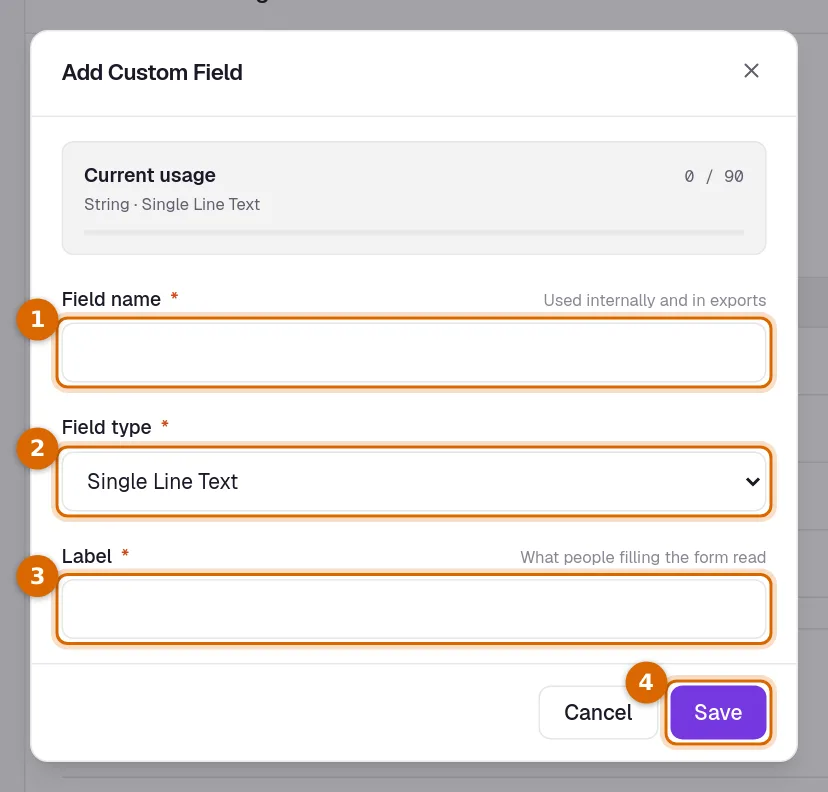
- 1Field name: a name for your own use. It is shown in the settings table and in exports, and no two custom fields in your business can share one.
- 2Field type: the kind of answer the field takes. Choose from Single Line Text, Multi Line Text, Email, Phone, URL, Single-select: Radio, Single Select Dropdown and Number.
- 3Label: the wording people read on the form.
- 4Click Save. The field joins the table and is ready to use.
- For a radio or dropdown field, list the choices under Customise Options. Add New Option adds one, and you need at least two. Radio buttons take up to four choices; use a dropdown for more.
- For a Number field, tick Enable decimal values for numbers (e.g. 10.50) if it should accept decimals. Otherwise it takes whole numbers only.
Good to know. The field type cannot be changed once the field is saved, because the answers already recorded were stored as that type. Edit on the row changes the label.
Choose how each field behaves
Each field in the table has tick boxes beside it. Which ones you see depends on the kind of record.
- Show In Documents: on Private Custom Fields, the field is asked for on the form of that document type. A new field starts unticked, so tick it to start using it.
- Mandatory: the document cannot be saved while the field is empty.
- Hide in table: the field is left out of the columns of the list page. It stays on the record itself.
Good to know. Tick boxes are not saved one by one. Click Save Changes under the table when you have finished.
Fill a custom field in
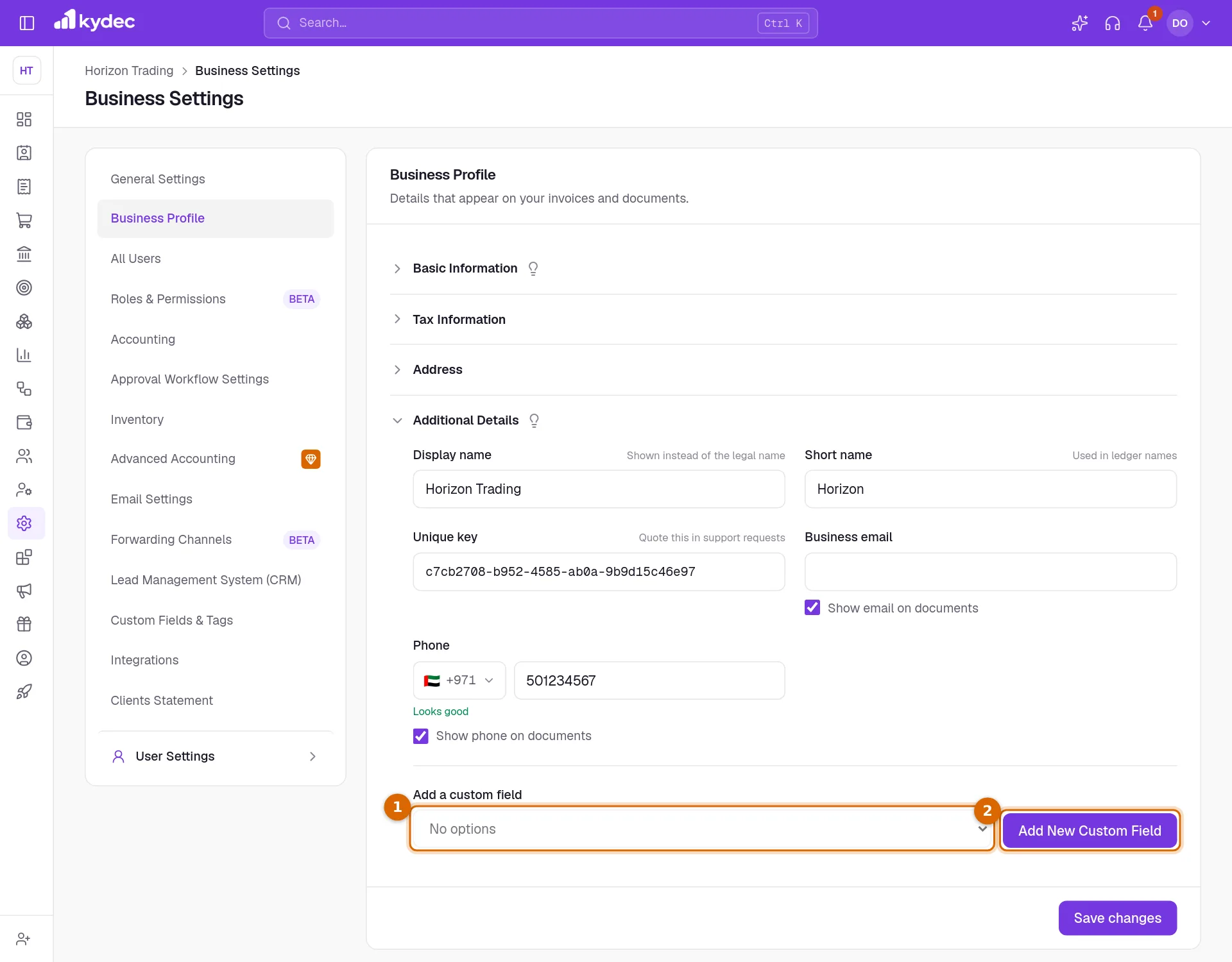
- 1For your own business, open Business Profile, then Additional Details, and pick a field under Add a custom field.
- 2Or click Add New Custom Field to define one on the spot. It is added to the form straight away.
- 3Type the value and click Save changes.
- On a client, lead, vendor lead or item form, click Add Custom Fields, pick the field from Select any custom field and type its value. Add New Custom Field at the bottom of that list defines a new one without leaving the form.
- Private custom fields need no picking. Once Show In Documents is ticked they appear on the document form by themselves.
Extra fields your client sees
Private custom fields are for your eyes only. To add a line that is printed on the document, use the document custom fields instead: open Accounting Documents on the same tab and click Manage.
- Choose the document under Select Document, then the part of the form the field belongs to: Header, Footer, Additional Charges or Total.
- Add New Fields adds a row. Give it a Field Name and, if you like, a starting value under Field Values. Drag rows to put them in order.
- Hide in Form stops a field being offered on new documents without deleting it.
- Click Save Changes. On the document, the field is offered under Add Custom Fields, and what you type there is printed.
Common questions
- Do custom fields print on my invoices?
- Private custom fields do not; they stay with the document for your own use. Fields you add under Accounting Documents, then Manage, are printed when they are filled in.
- Can I delete a custom field?
- Yes, with Delete on its row, or Manage or delete on the business profile. A field that still holds a value on your business profile, a client or a client contact cannot be deleted until those values are cleared. Otherwise the field and anything recorded in it are removed.
- How many custom fields can I add?
- Open Available Custom Fields In Your Plan on the Custom Fields & Tags tab. The Totals row shows how many you have used against what your plan allows, counted separately for text and for number fields.
Related guides
Business profile
The name, tax registration and address printed on everything you issue. Getting these right once keeps every document compliant.
Custom labels and fields
Rename the fields printed on your documents to match your own vocabulary, control how serial numbers look, and set the filename a downloaded PDF is saved under.
Clients & Prospects
Every business you sell to, and the ones you hope to. A prospect becomes a client the moment you invoice it; archiving keeps old ones out of the way without losing their history.
Inventory and units
Track stock from the documents that move it, choose the units you buy and sell in, and set the levels that raise a re-order or over-stock alert.