
Help
Streamline Lead Management
Automate lead capture with Forms & third-party integrations, manage leads across multiple pipelines, communicate over email/WhatsApp, track deal progress, track team performance, and more.
Where to find it:Sales CRM & LeadsAll Pipelines
What the Sales CRM does
A lead is an enquiry you hope to turn into a sale: who asked, which organisation they are from and what they want. The Sales CRM keeps every lead in one place, shows how far each one has got and records what your team did about it.
Every lead sits in a sales pipeline, at one of its stages. A new business starts with one pipeline, Sales Pipeline, with the stages Open, Contacted, Proposal Sent, Deal Done, Lost and Not Serviceable. You can change those stages or add pipelines of your own.
Leads reach KyDec in two ways today: someone on your team adds one by hand, or a form you have published captures it for you.
Good to know. Sending an email or a WhatsApp message to a lead from inside KyDec is not available yet: the two buttons on a lead are marked Soon. Importing leads from Facebook and Instagram is not available yet either. You can already connect those accounts under Integrations in Business Settings.
Find your way round All Pipelines
Open Sales CRM & Leads › All Pipelines. Each pipeline is a card showing how many leads stand at every stage.
- 1Add New opens the form for a new lead. The arrow beside it holds New Sales Pipeline.
- 2The strip under the heading moves between All Sales Pipelines and the reports about your leads: Leads Summary, Team Sales Report, Client Performance Report and Leads Source Report.
- 3View Leads opens the list of leads, narrowed to that pipeline.
- 4Edit Pipeline changes the name, description and stages of the pipeline.
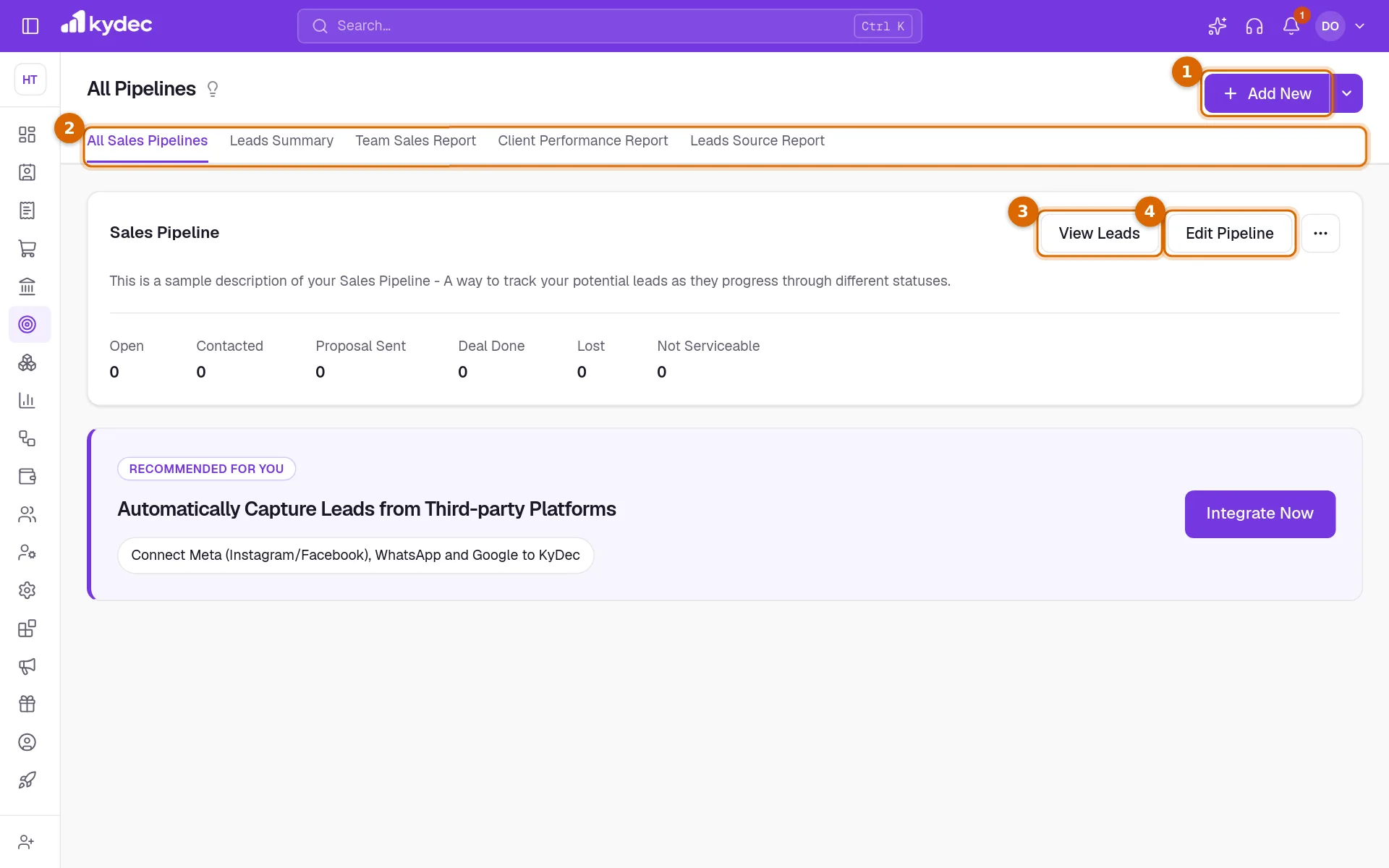
- The ⋯ on a card has Team Access Rights. It opens Roles & Permissions in Business Settings, where you decide what each role may see and do with leads. Roles & Permissions needs a paid plan or an active trial.
Leads made from quotations
- With Auto Lead Generation from Quotation on, under Business Settings, Lead Management System (CRM), Lead Configurations, a quotation you raise (not a draft) adds a lead for its client, assigned to you, with the quotation's title as its subject and its total as the budget.
- No lead is added when the client already has an open lead, or when the quotation was started from a lead's Create Quotation.
- Configure Default Pipeline & Stage chooses where these leads land. Until you choose, they go to your first pipeline at its first stage.
Leads from IndiaMART
If you sell on IndiaMART, its enquiries can arrive in KyDec as leads by themselves. This is part of a paid plan.
- 1In IndiaMART, open Lead Manager, then the ⋮ menu, Import/Export Leads and Pull API, and generate your CRM key.
- 2In KyDec, open Business Settings, Integrations, CRM Integrations and click Connect IndiaMART.
- 3Paste the key, choose the pipeline the leads should go to, and click Connect.
- New enquiries are read every 15 minutes. Sync now reads at once, at most once every five minutes.
- Each enquiry becomes a lead at the first stage of the pipeline, with the buyer's name, company, phone, email and city, and the product and message in its description. The same enquiry is never added twice.
- The Source of Lead says what kind of enquiry it was: IndiaMart Direct, IndiaMart Consumed Buy Lead, IndiaMart Preferred Number Service or IndiaMart Catalogue View.
- IndiaMART stops a key that is not used for seven days, or when you generate a new one. The card then says so: disconnect and connect again with the new key.
Add a lead
Click Add New on All Pipelines, Add Lead on All Leads, or the + beside All Leads in the sidebar. The form is in three parts; click a heading to open or close its part.
- 1Enter the Contact Name. If the person is already one of your contacts, click Link Contact and pick them: their email and phone are filled in where you have left them empty.
- 2Choose the Prospect Organisation, the client or prospect the lead belongs to. Create New at the foot of that list adds a new prospect without leaving the form.
- 3Open Lead Details and write the Lead Subject: a few words on what they are looking for.
- 4Check Select Sales Pipeline and Select Stage. A new lead starts in your first pipeline, at its first stage, unless you choose otherwise.
- 5Click Add Lead. The lead opens on its own page.
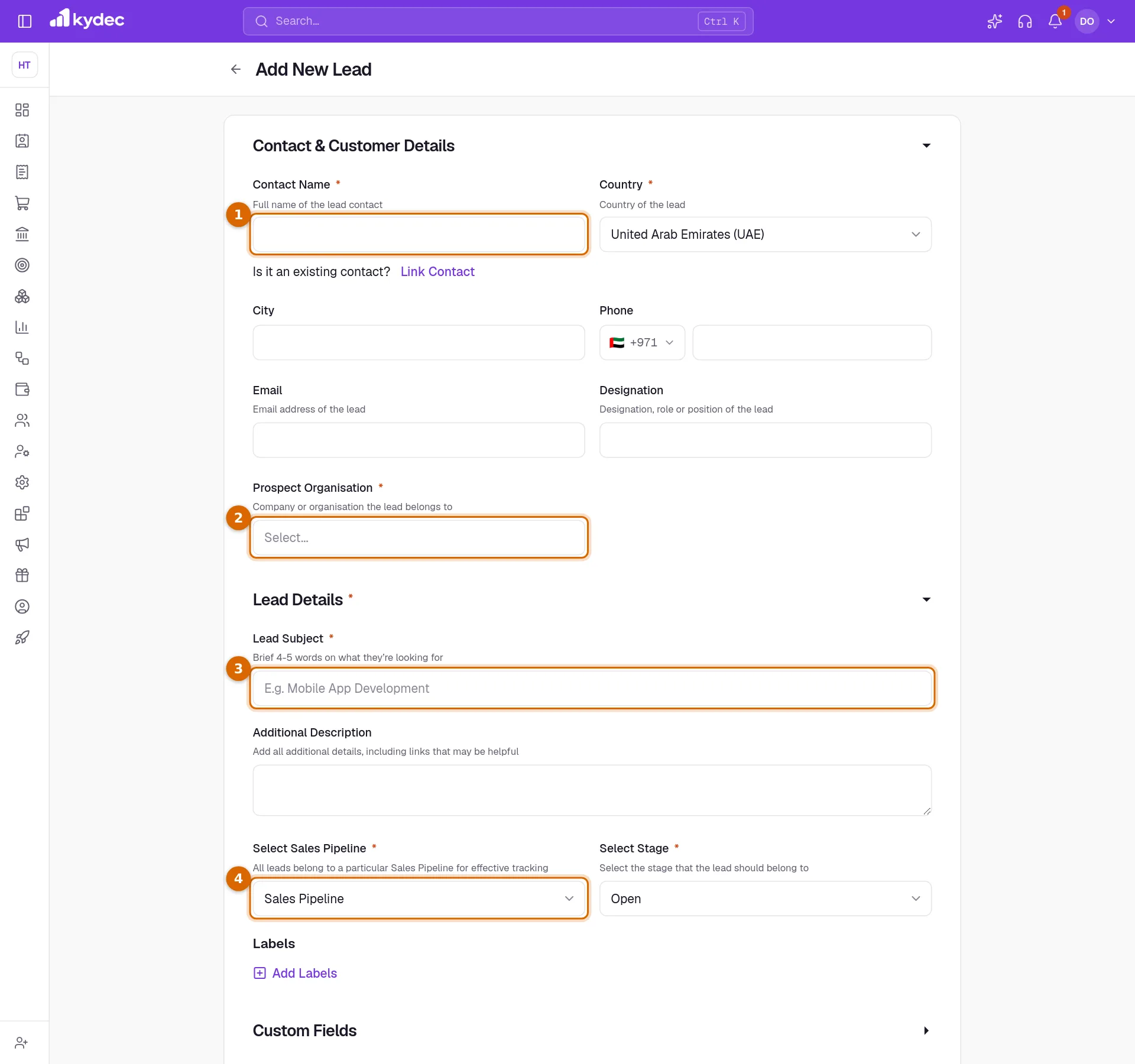
- Contact Name, Country, Prospect Organisation, Lead Subject, the pipeline and the stage are required. Everything else is optional.
- Labels tag a lead so that you can filter by them later. Custom Fields holds any lead fields your business has added.
- A lead you add yourself is assigned to you, and its source is recorded as Self Lead. Both can be changed on the lead afterwards.
Good to know. Once a lead exists, Edit Lead has one more part, Product/Service Details: the item the lead is about, how often it recurs, the industry of the client and keywords.
Work a lead
The page of a lead is where the selling is recorded. The stages of its pipeline run across the top. The cards below hold who the lead is, what you know and what has happened so far.
- Click a stage in the strip across the top to move the lead there. To move it to a Lost or Not Serviceable stage, or to record why it is where it is, use the pencil beside Lead Stage: Change Lead Stage lets you pick any stage and tick its reasons. The reasons are saved as an internal note.
- The other pencils in Lead Information change the Lead assignee, the Follow up on date, the Source of Lead, the Budget and the Lead Pipeline.
- Internal Notes are seen by you and your team only. A note can carry up to 10 files of up to 10 MB each (no videos). Every file is also listed under Attachments.
- Activity History lists every change made to the lead. The box under it adds a reply of your own to that history. With Notify client on lead comments on in Business Settings, Email Settings, a ticked Also email this to … sits under the box and the reply goes to the lead by email as well; untick it to keep the reply inside your team.
- Send Email and Send WhatsApp, the two icons in the heading, send one message to the lead: an email from your connected sender, or a WhatsApp message from your connected WhatsApp number. Each is written into Activity History.
- Schedule a Meeting records a meeting with the lead: its title, type, start time, duration, who is invited and your notes. With Schedule via Google Calendar switched on, the meeting is added to the Google Calendar connected under Integrations in Business Settings, and the calendar sends the invites.
- Create Quotation in the heading starts a quotation for the organisation of the lead. The arrow beside it has Create Proforma and Create Invoice. A document started here stays linked to the lead, and the lead's Activity History says when it was raised.
Good to know. A lead at a Deal Done, Lost or Not Serviceable stage is closed. It can no longer be edited, its follow-up date and budget are locked and no labels can be added. Move it back to an open stage with Lead Stage to work on it again.
Keep track in All Leads
Open Sales CRM & Leads › All Leads to see every lead in one table.
- 1Add Lead opens the form for a new lead.
- 2The tabs split the list. Today’s Activity shows the open leads whose follow-up is due today or earlier, together with the open leads that have no follow-up set. All shows every lead, and Open, Deal Done, Lost and Not Serviceable show one status each.
- 3Download CSV saves the list as a file you can open in a spreadsheet.
- 4The columns button chooses which columns show. Some, such as Designation, Status and Lead Description, start hidden.
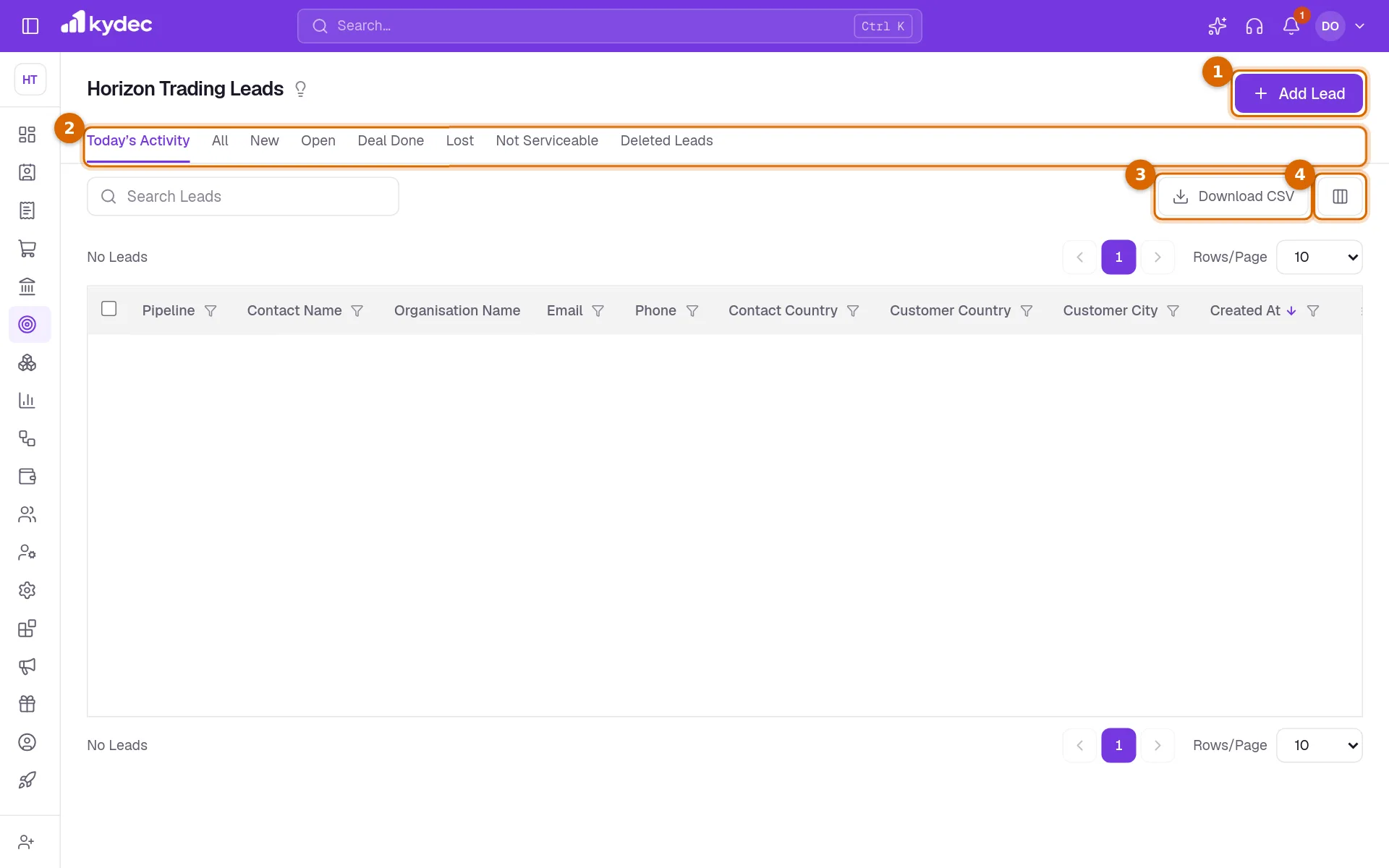
- Search looks in the contact name, subject, email, phone and organisation. The filter under a column heading narrows the list by pipeline, country, source, assignee, labels, dates and more.
- The eye on a row opens Quick View: the whole lead in a panel, without leaving the list.
- The ⋯ on a row has Schedule Meeting, Duplicate Lead, Edit Lead, Change Pipeline and Delete Lead. Duplicate Lead makes a copy of the lead as a new one.
- Delete Lead asks you to confirm, then moves the lead to the Deleted Leads tab: it leaves every list, count and report. Restore on a deleted lead brings it back. Tick several leads and choose Delete Leads to delete them together.
- First Response Time shows how long it took from the lead being added to the first reply under its Activity History.
- Everyone in a meeting is reminded of it within the hour before it starts.
- In the Whatsapp Link column, Open chat opens WhatsApp with the phone number of the lead. The chat itself happens in WhatsApp, not in KyDec.
Meetings and reports
- All Meetings lists every meeting scheduled with a lead, soonest first, with its status. Meetings are created, edited and cancelled on the lead itself; View Lead takes you there.
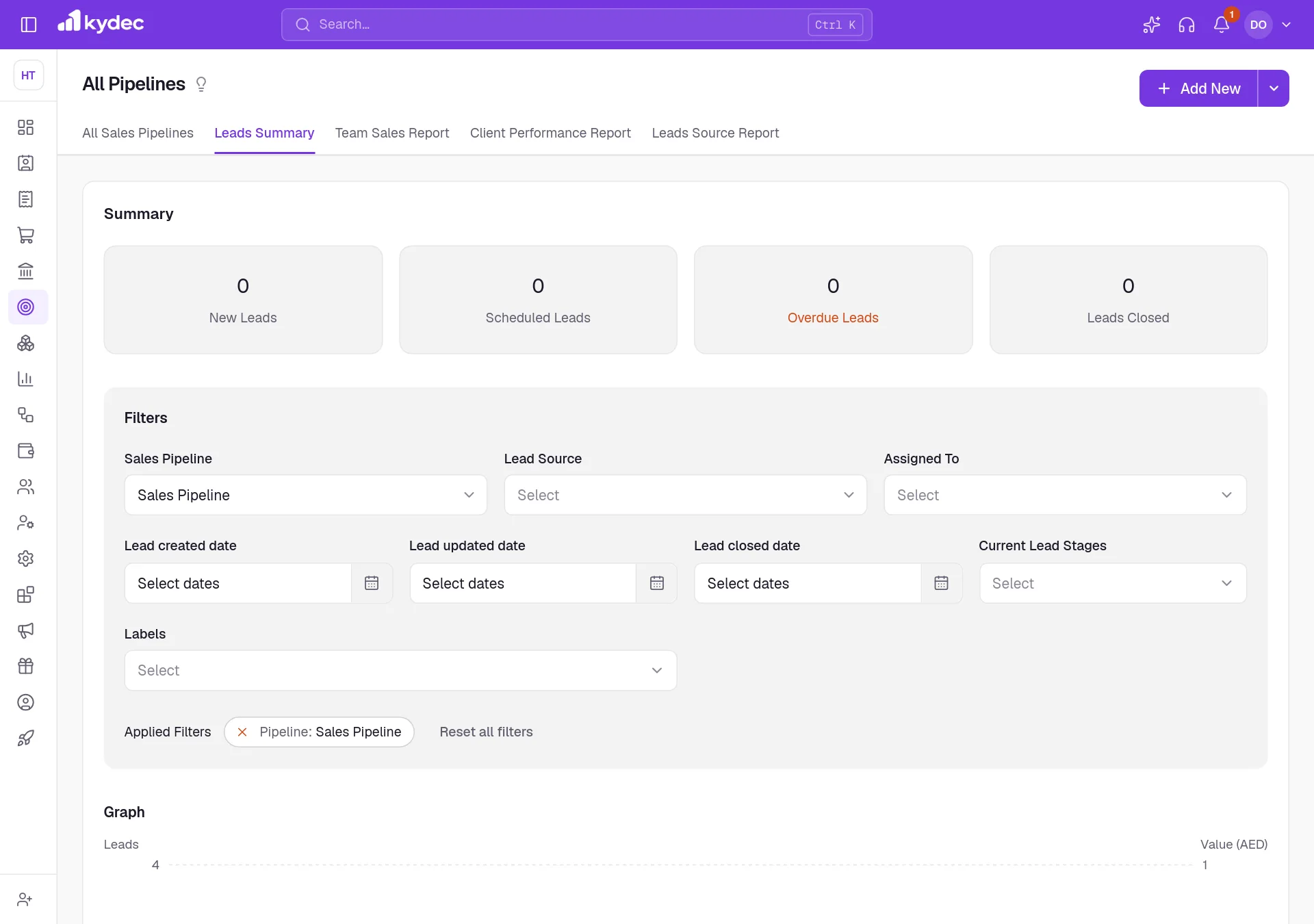
- Leads Summary looks at one pipeline at a time. Its tiles count New Leads, Scheduled Leads, Overdue Leads and Leads Closed, and its graph shows the number of leads and their value at each stage. Weighted Value is the total budget of the leads at a stage multiplied by the Closure % of that stage.
- Team Sales Report, Client Performance Report and Lead Source Report compare your salespeople, your clients and your lead sources by leads, conversion rate and revenue from the leads won.
Good to know. Money totals add up budgets in the currency of your business only. A lead budgeted in another currency is still counted as a lead, but its budget is left out of the totals.
Common questions
- Can I upload many leads at once?
- Yes. Click the arrow beside Add Lead and choose Bulk Upload Leads. Fill the sample file with one lead to a row: contact.name, subject, budget.amount, budget.currency, leadStage and openOn are needed, and a lead at a won, lost or not-serviceable stage needs its closedOn, lostOn or notServiceableOn too. Stages, labels, sources and assignees must be ones you already have.
- Can I email or WhatsApp a lead from KyDec?
- Not yet. The email and WhatsApp buttons on a lead are marked Soon. For now, Open chat in the Whatsapp Link column of All Leads opens WhatsApp with the number of the lead, and meeting invites go out through Google Calendar when it is connected.
- Can leads from Facebook or Instagram arrive on their own?
- Not yet. You can connect those accounts under Integrations in Business Settings, but leads are not imported from them today. Leads do arrive on their own through the forms you publish under Sales CRM & Leads › Forms.
- Why can I not edit a lead?
- It is at a closed stage: Deal Done, Lost or Not Serviceable. Use the pencil beside Lead Stage to move it back to an open stage, and Edit Lead works again.
- Who on my team can see the leads?
- That follows the role of each teammate. Roles are set under Roles & Permissions in Business Settings, which you can also reach from Team Access Rights on a pipeline card.
Related guides
Sales Pipelines
Create different sales pipelines for different products/services.
Forms
Lead capture, contact us, survey and all types of forms. Add them to your website, ads, or social media profile. Automatically capture all the data directly on KyDec.
Duplicate leads
We check a new lead against the ones you already have and flag a likely match, so two people do not end up working the same enquiry.
Google Calendar
Link your calendar so a meeting booked against a lead appears there, and a clash is visible before you promise a time.