
Help
Proforma invoice
Create proforma invoices from customisable templates, share them in one click as a PDF, a print or a link over WhatsApp or email, and record and track what is paid against them.
Where to find it:Sales & InvoicesProforma Invoices
What a proforma invoice is
A proforma invoice is a bill sent ahead of the final one. It shows the client exactly what they will be charged, so they can approve the figures or pay in advance.
In KyDec it works much like an invoice: it has a due date, takes payments and shows what is still owed. It is kept in its own list with its own numbers, and when the sale is final you convert it to an invoice.
Find your way round the list
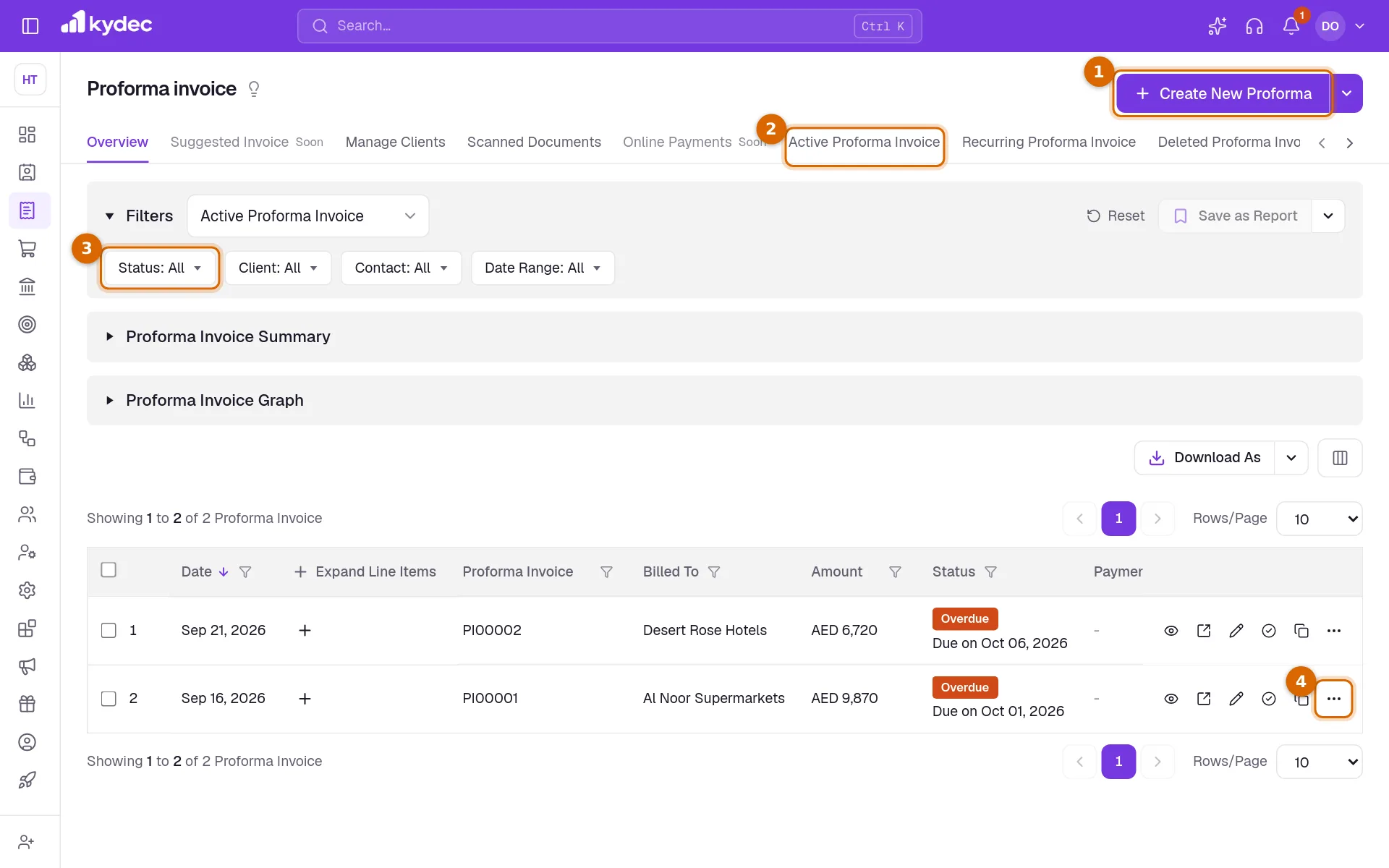
Open Sales & Invoices in the sidebar and choose Proforma Invoices. The page opens on Overview, with your proforma invoices listed newest first under a Filters panel.
- 1Create New Proforma opens a blank proforma invoice.
- 2The tabs split the list. Active Proforma Invoice shows the list on its own, Recurring Proforma Invoice shows the ones set to repeat, and Deleted Proforma Invoice holds deleted ones, which can still be restored. The report tabs open their own pages.
- 3Filters narrows the whole page at once, by Status, Client, Contact and Date Range. Reset clears them.
- 4Each row ends with icons for Quick Preview, Open in New Tab, Edit, Mark Paid and Duplicate, and a ⋯ menu with everything else.
- Proforma Invoice Summary and Proforma Invoice Graph sit under the filters on Overview. Click a heading to open it. Both follow the filters you have set.
- The Status column shows where each one stands, with its due date underneath while money is still owed.
- Expand Line Items opens the items of a proforma invoice inside the list.
- Download As saves the list as a CSV file, with or without line items, and the columns button beside it (Show/Hide Columns) chooses which columns show.
Good to know. The list has no search box. To find one proforma invoice, filter the Proforma Invoice column by its number or Billed To by the client.
Create a proforma invoice
Click Create New Proforma. The page that opens is the proforma invoice itself: you fill it in where it will print. It is the same page used for invoices, and the invoice guide describes every part of it.
- 1Check the Invoice No and Invoice Date. The next number in your proforma series is filled in, with the last one used shown as Last No.
- 2Due Date is set for you from Default Due Date in Business Settings. Change it, click the gear beside it to set it as a number of days after the date, or remove it with the ×.
- 3Under Billed To, pick the client from Select a Client, or click Add New Client to create one without leaving the page.
- 4Add what you are billing in Item Name / SKU Id, with the quantity and rate. Add New Line adds another item and Add New Group adds a heading.
- 5Click Add VAT above the items to choose the tax in Configure Tax. In the totals, Add Discounts and Add Additional Charges take money off or add it on.
- 6Add what else it needs: Add Shipping Details, Show Bank Account Details, Add Signature, Add Terms & Conditions, Add Notes or Add Attachments.
- 7Click Save & Continue to save it and open its page. Save & Create New saves it and starts another, and Save As Draft keeps it as a draft.
- It needs a number, a date, a client, a currency and at least one named item before it can be saved.
- A new item name typed on a line is added to your item catalogue when you save.
Send it and record what is paid
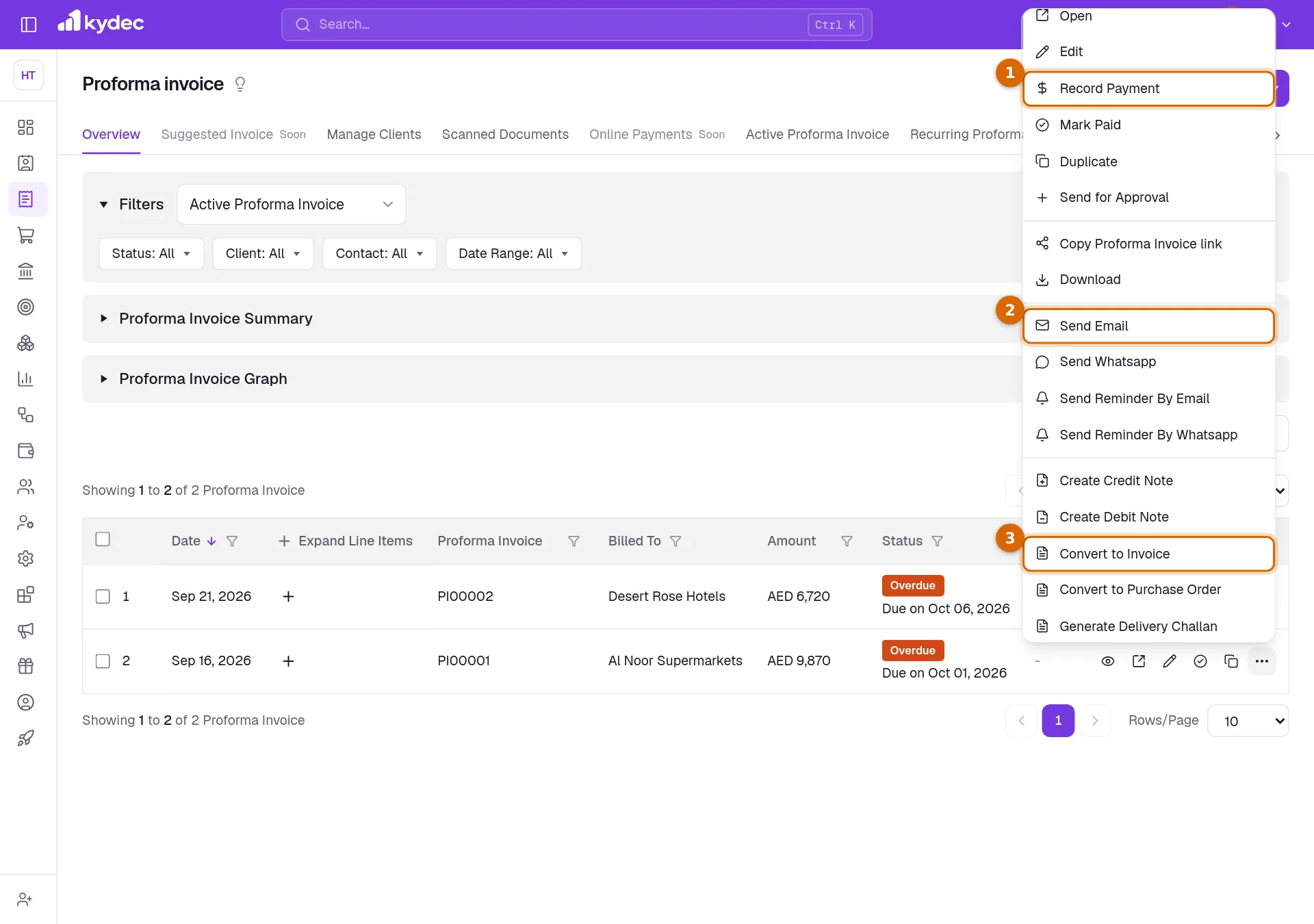
Saving opens the proforma invoice on its own page, with the actions along the top. The same actions are in the ⋯ menu of its row in the list.
- 1Record Payment records an advance or a payment from the client: the amount, the date, the method and the Payment Account it went into. Mark Paid opens the same form.
- 2Send Email and Send Whatsapp send it with its PDF, and the reminder entries chase one that is still unpaid. Copy Proforma Invoice link copies a link the client can open, and Download saves the PDF.
- 3Convert to Invoice makes the final invoice as a draft, filled in from the proforma invoice, and opens it for you to check and save.
- 4Cancel withdraws a proforma invoice that is still owed, and Delete moves it to Deleted Proforma Invoice. Both ask for a reason.
- On the page, Share holds Send Email, Send WhatsApp and the public link, and Download / Print holds Print and Download.
- Payments are listed under Invoice Payment Records on the page. A payment is deleted there if it was recorded by mistake.
- Create Credit Note, Create Debit Note, Convert to Purchase Order and Generate Delivery Challan are in the same menu.
- If you use approval workflows, Send for Approval puts the proforma invoice on one.
Good to know. A draft cannot take a payment or be converted. Open it with Edit and click Save & Continue first.
Repeat it on a schedule
A proforma invoice you send regularly, such as a monthly retainer, can raise itself.
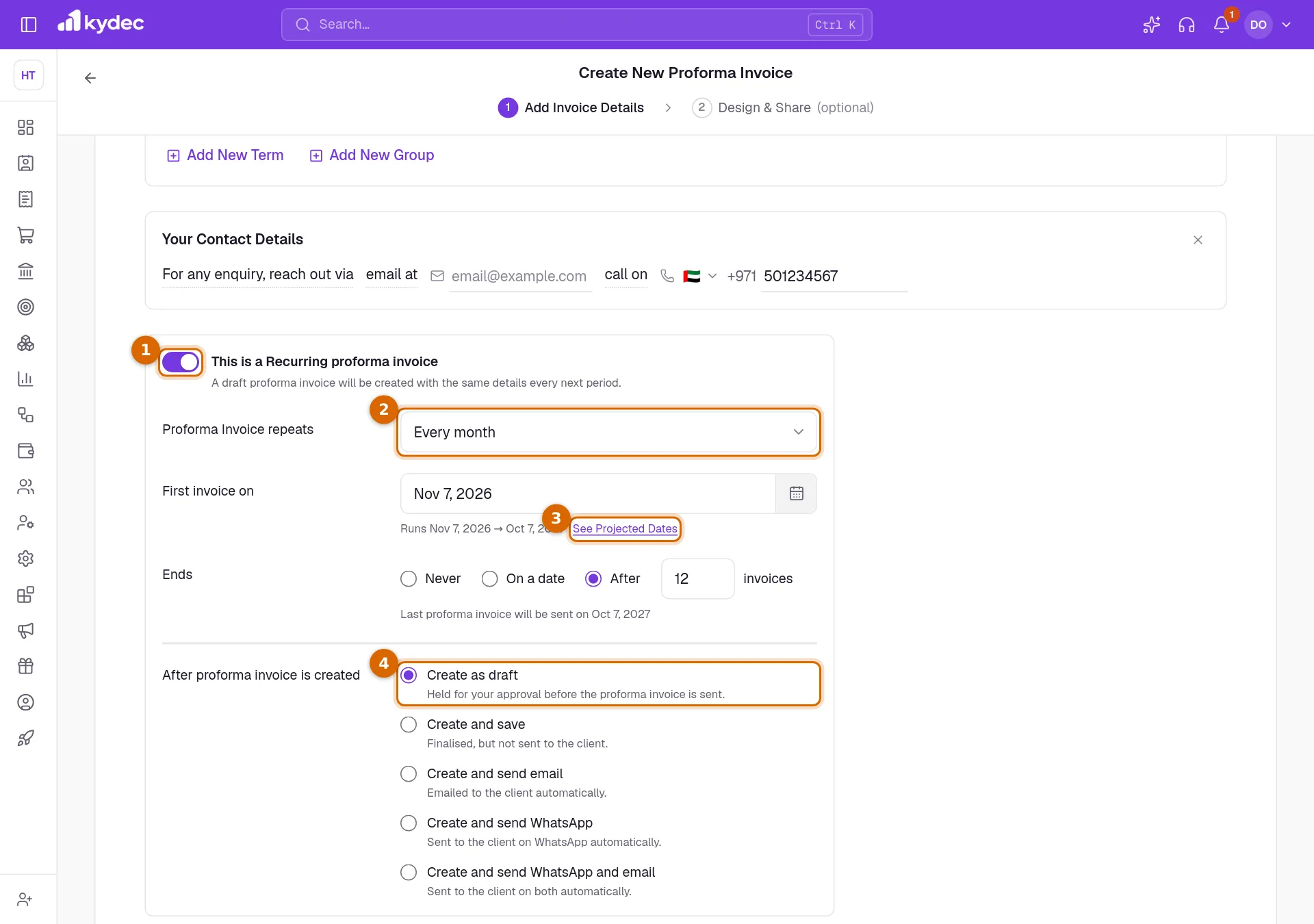
- 1Near the foot of the editor, turn on This is a Recurring proforma invoice. On one that is already saved, choose Set as Recurring from the ⋯ menu on its page instead.
- 2Choose how often under Proforma Invoice repeats, from Every week to Every year.
- 3Set First invoice on, then how it Ends: Never, On a date or After a number of invoices. See Projected Dates lists the dates it will run on.
- 4Choose what happens to each new one: Create as draft, Create and save, Create and send email, Create and send WhatsApp, or both. The send options ask who to send to.
- 5Save. The proforma invoice now appears under Recurring Proforma Invoice.
- Each new proforma invoice is raised with the same details on its scheduled date.
- If KyDec cannot raise one, it notifies you and tries again. A schedule that keeps failing is paused until you turn it back on.
- To stop a schedule, open Set as Recurring, turn the switch off and click Save settings.
Good to know. A schedule with an end switches itself off after its last date.
Statuses and rules worth knowing
- Draft is saved but not raised. Unpaid is raised with nothing received. Part Paid has some received, and Paid is settled in full. Overdue is unpaid past its due date, and Canceled is withdrawn.
- Only a proforma invoice that is still owed can be cancelled. A draft is deleted instead, and a paid one cannot be cancelled. Revert brings a cancelled one back.
- A deleted one is kept under Deleted Proforma Invoice, where Restore brings it back and Delete Permanently removes it for good.
- Duplicate starts a new one with the same items, terms, tax and design. The client, number and dates are left for you to fill in.
Good to know. A proforma invoice cannot be deleted while payments are recorded against it or while a document made from it still exists. Remove those first.
Common questions
- What is the difference between a proforma invoice and an invoice?
- A proforma invoice is sent before the sale is final, to show the client what the invoice will say or to ask for payment in advance. The invoice is the final bill. KyDec keeps them in separate lists with separate numbers, and Convert to Invoice makes the invoice from the proforma invoice.
- Can I take a part payment?
- Yes. In Record Payment, change Amount Received (A) to what was paid. The status becomes Part Paid and the rest stays due.
- How do I stop a recurring proforma invoice?
- Open it, choose Set as Recurring from the ⋯ menu, turn off This is a Recurring proforma invoice and click Save settings. The ones already raised are not affected.
Related guides
Invoice
Create invoices from customisable templates, share them as a PDF, a print or a link over WhatsApp or email, and record and track what is paid against each one.
Quotations & Estimates
Create professional quotations from customisable templates, share them in one click as a PDF, a print or a link over WhatsApp or email.
Payment Receipt
Every payment a client has made you, whether it was recorded against an invoice or matched from a bank statement. Money that settles no document yet stands here as an advance.
Clients & Prospects
Every business you sell to, and the ones you hope to. A prospect becomes a client the moment you invoice it; archiving keeps old ones out of the way without losing their history.