
Help
Payment Receipt
Every payment a client has made you, whether it was recorded against an invoice or matched from a bank statement. Money that settles no document yet stands here as an advance.
Where to find it:Sales & InvoicesPayment Receipts
What a payment receipt is
A payment receipt is your record of money a client has paid you: who paid, how much, into which of your accounts, and which invoices the money settles.
Receipts reach this list in three ways. You create one here, you record a payment against an invoice, or a payment is matched during bank reconciliation. However it arrives, it is numbered in the same series and can be sent to the client as a PDF.
Good to know. A receipt records money the client paid you directly. It does not collect a payment online.
Find your way round the list
Open Sales & Invoices, then Payment Receipts. Receipts are listed newest first.
- 1Create Payment Receipt starts a new receipt.
- 2The tabs choose what is listed. Active Payment Receipt shows the receipts that count; Deleted Payment Receipt keeps the ones you deleted, each with its reason.
- 3Click the + under Expand Invoices to see which invoices a receipt settled and how much went to each.
- 4The ⋯ at the end of a row opens everything you can do with that receipt. The icons beside it are shortcuts to Quick Preview, Open in New Tab and Edit.
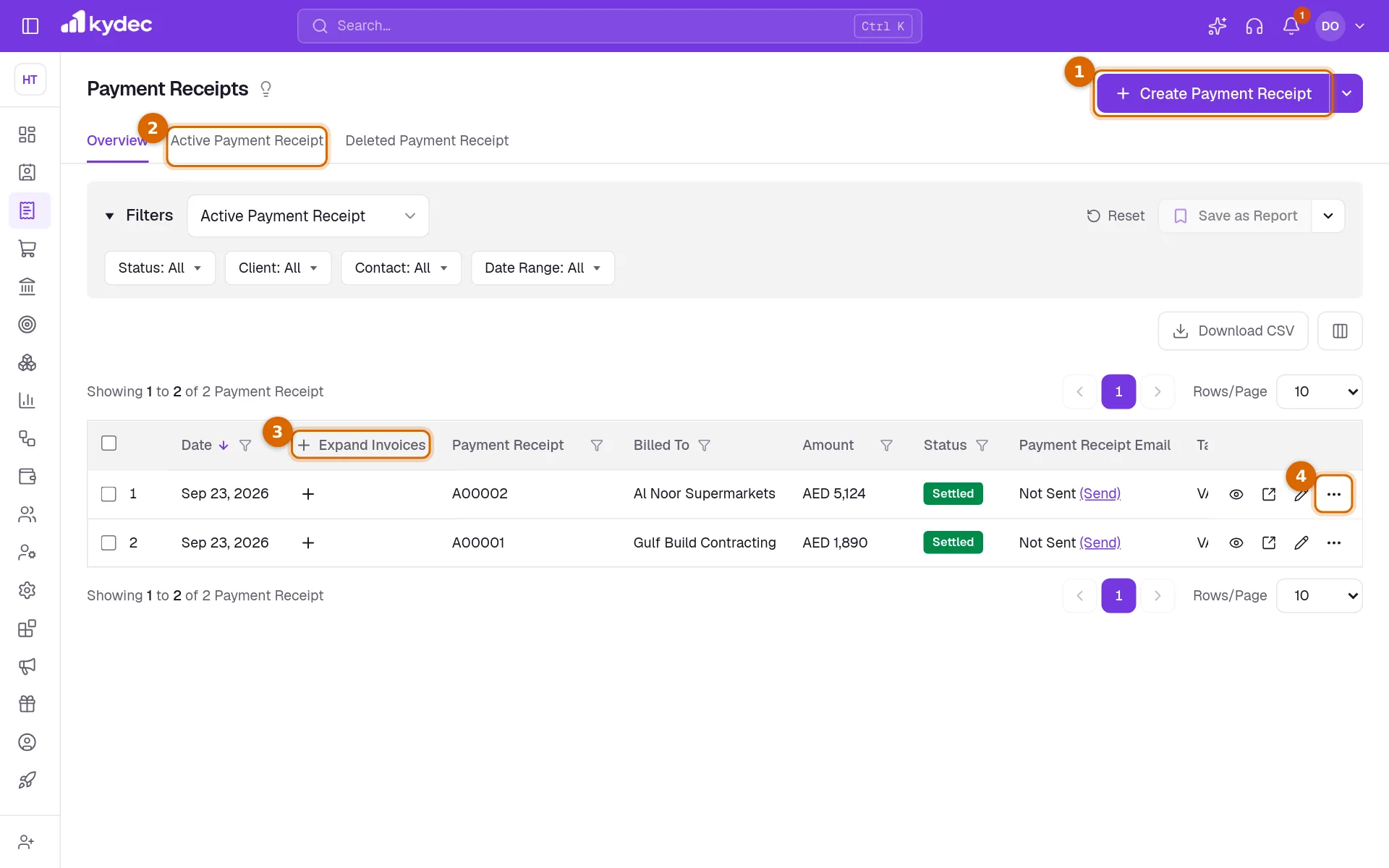
- The Filters panel narrows the list by Status, Client, Contact and Date Range. Reset clears them.
- Status reads Settled when all of the money is against invoices, Partially Settled when only some of it is, and Advance when none of it is yet.
- Under Payment Receipt Email, (Send) emails a receipt that has not been sent to the client.
- Download CSV saves the list as a file you can open in a spreadsheet. The columns button beside it chooses which columns show in the table and in the file.
Create a payment receipt
Click Create Payment Receipt. KyDec first asks which payment you are recording. Choose Payment Receipt for money paid against invoices, or Client Advance for money you are holding for a client, and click Submit. The receipt is then filled in over three steps.
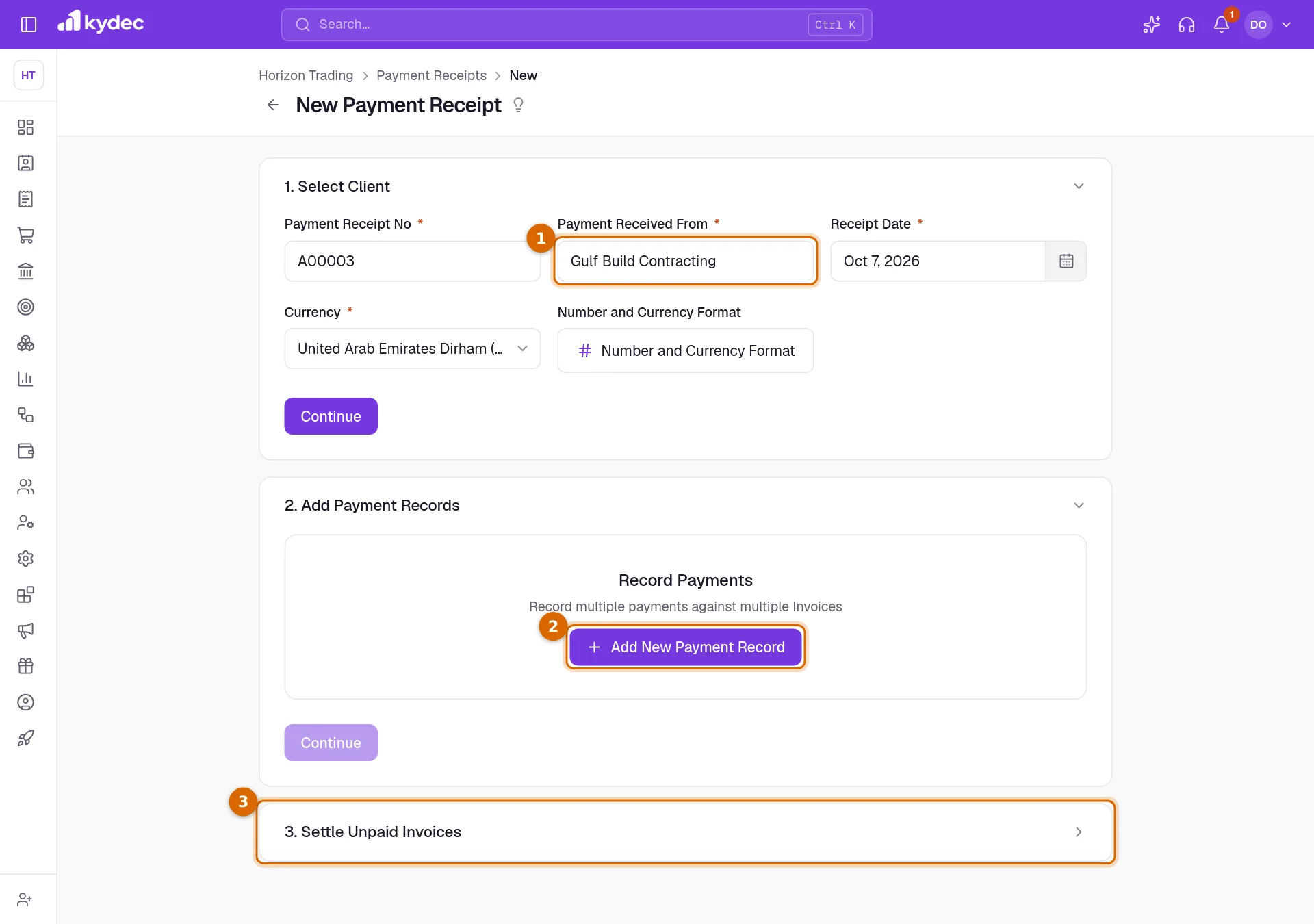
- 1Under Select Client, pick who paid in Payment Received From. Check the Payment Receipt No, the Receipt Date and the Currency, then click Continue.
- 2Under Add Payment Records, click Add New Payment Record and enter what came in. Add More puts another payment on the same receipt.
- 3Click Continue to open Settle Unpaid Invoices. The money is put against the client's unpaid invoices for you, oldest first, and the table shows what each invoice still owes.
- 4Add anything else the receipt should carry with Add Notes, Add Contact Details, Add Additional Info, Add Signature or Add Attachments.
- 5Click Save & Continue to save and open the receipt, or Save & Create New to save it and start another.
- If more came in than the invoices owe, the rest stays on the receipt as an advance. KyDec shows the amount before you save.
- A Client Advance has no invoices to settle, so its third step is Add Additional Details.
- For a receipt in another currency, an Exchange Rate field appears beside Currency.
Good to know. A receipt needs at least one payment record. Once it is saved, the client it was received from cannot be changed.
Add a payment record
Each payment on a receipt is entered in the Record Payment Received dialog. It is headed with the receipt date, because every payment on a receipt carries that date.
- 1Choose how the money arrived in Payment Method, for example Account Transfer, Cash Payment or Cheque.
- 2Choose the account it was paid into under Deposited To. Add New Payment Account, at the foot of that list, creates one on the spot.
- 3Enter the Amount Received (A), and a Transaction Charge (C) if the bank or gateway kept a fee.
- 4Click Save & Continue. The payment joins the receipt; nothing is kept until you save the receipt itself.
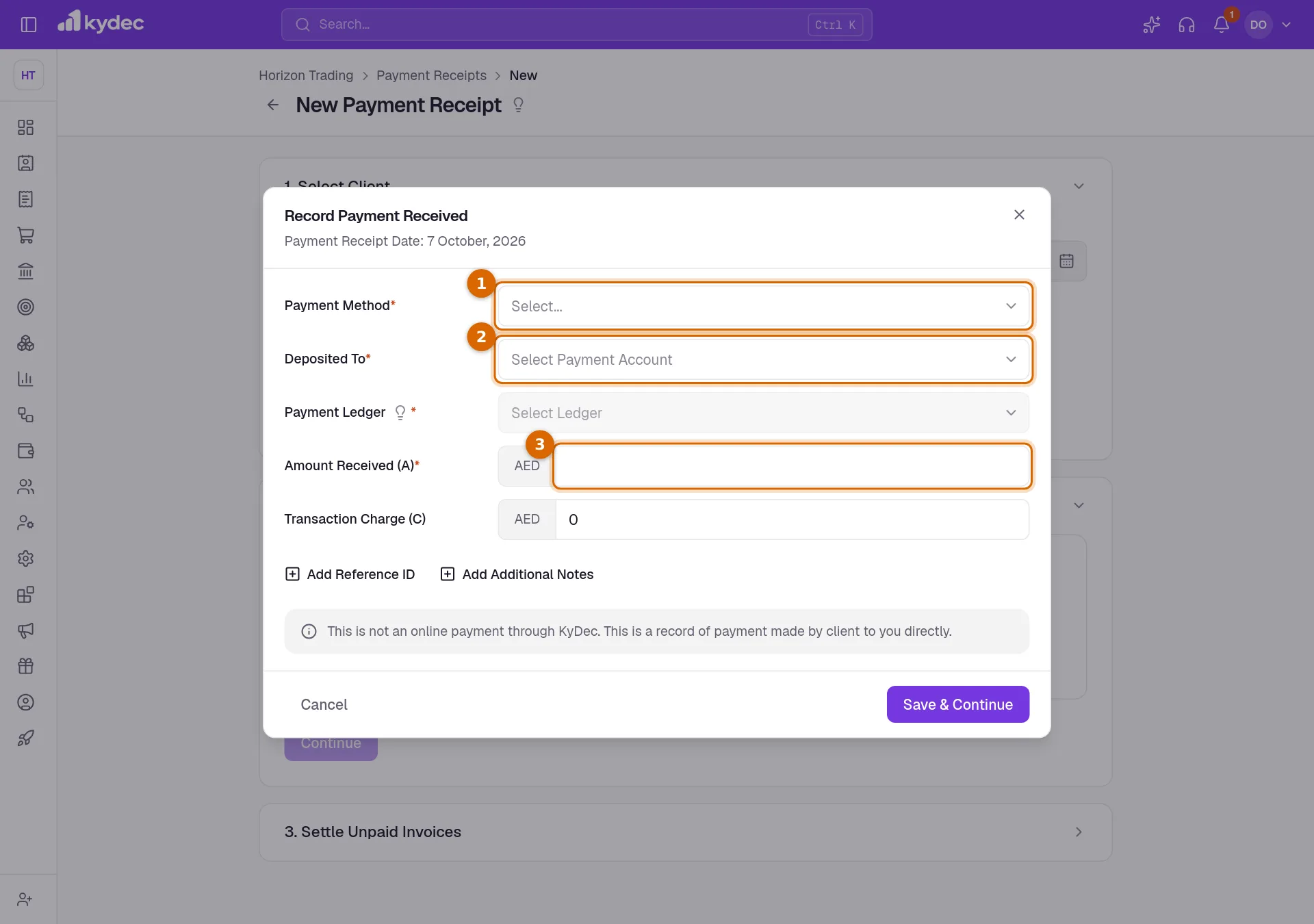
- Add Reference ID and Add Additional Notes add a field for a bank reference or a remark.
- If you use Advanced Accounting, the dialog also shows Payment Ledger: the ledger the money will be posted to.
Good to know. A transaction charge is recorded on the receipt but is not put against the invoices.
Send, print and customise
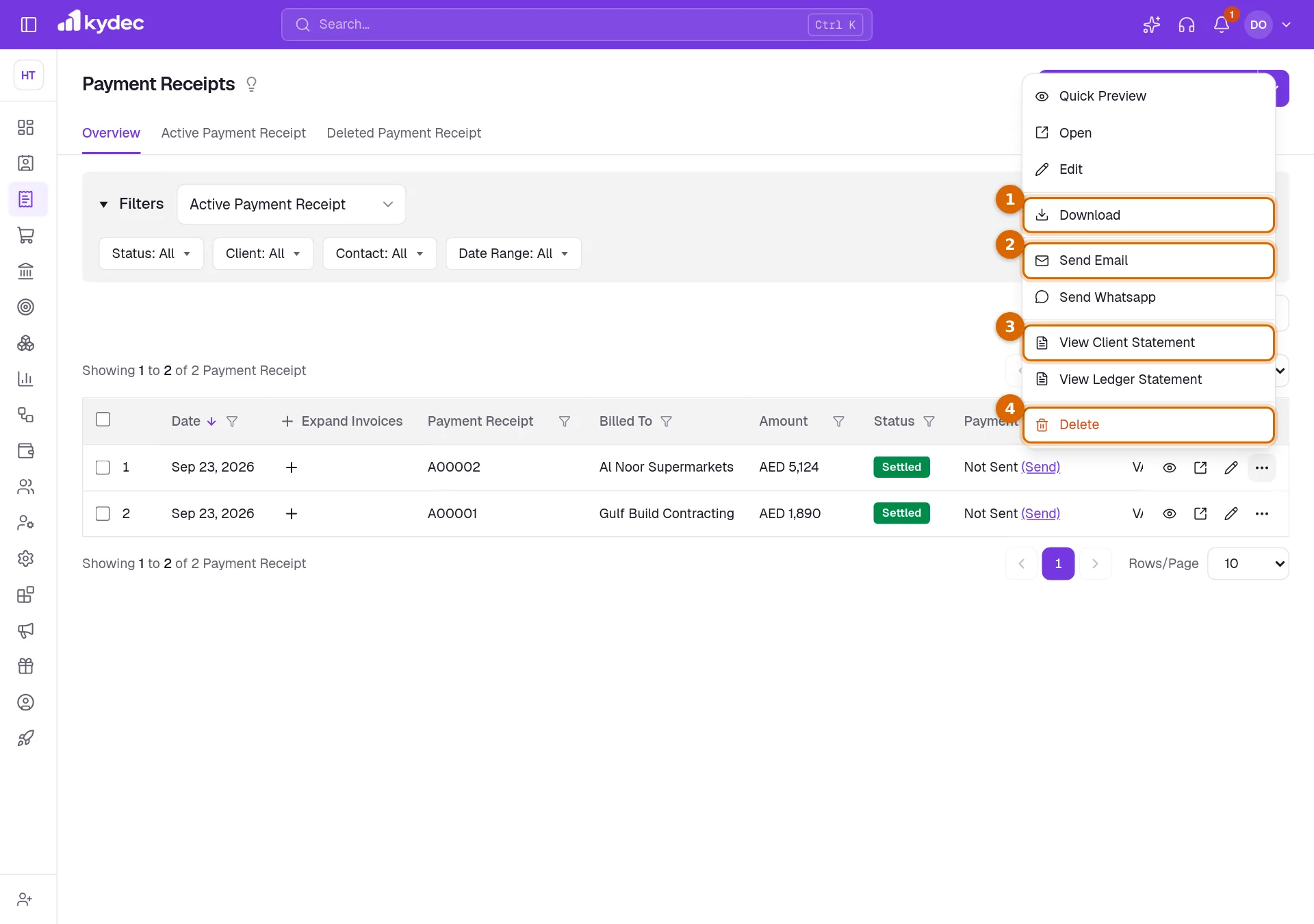
Saving opens the receipt as it will print, with Payment Receipt Settings beside it. From the list, the ⋯ menu of a row does the same jobs without opening the receipt.
- 1Download saves the receipt as a PDF.
- 2Send Email and Send Whatsapp send it to the client.
- 3View Client Statement and View Ledger Statement open the ledger statements the payment appears in. They are greyed out when there is no ledger.
- 4Delete removes the receipt after asking for a reason.
- On the receipt's own page, Download / Print prints it or saves the PDF, and Share offers Send Email, Send WhatsApp and a link you can copy.
- Customize Payment Receipt Design changes the logo, colour and font, letterhead and footer, page size, watermark and script of that receipt.
- Payment Records, in the same panel, lists each payment with its method, account, reference and notes.
Edit and delete
- Edit reopens the three steps. You can change the payment records and the settlement, but not the client.
- Delete asks for a reason. The payments come off the invoices they settled, so those invoices are owed again, and the entries leave your ledgers.
- A deleted receipt moves to Deleted Payment Receipt, where the Deleted Reason column shows why. Delete Permanently removes it from there for good.
- Re-sync Payment Receipt, in the ⋯ menu on the receipt's page, works out its totals and the invoices it settled again.
Good to know. A deleted payment receipt cannot be restored. If you deleted one by mistake, record the payment again.
Common questions
- I recorded a payment from the invoice. Do I also create a receipt here?
- No. Record Payment on an invoice creates the receipt for you, and it appears in this list. Creating another would count the same money twice.
- A client paid more than they owe. What happens to the extra?
- It stays on the receipt as an advance, and the receipt reads Partially Settled. If the client had no unpaid invoices at all, the whole receipt reads Advance.
- Can one receipt cover several payments or several invoices?
- Yes. Add as many payment records as you need with Add More. Their total is spread across the client's unpaid invoices, oldest first.
- Can I upload receipts in bulk or save one as a draft?
- Bulk Upload, under the arrow beside Create Payment Receipt, takes a CSV file in the sample’s format. Rows with the same paymentReceiptNumber make one receipt, each row settling one invoice by its settledAmount; a receipt with no invoice is an advance. Save as draft is shown as coming soon.
Related guides
Invoice
Create invoices from customisable templates, share them as a PDF, a print or a link over WhatsApp or email, and record and track what is paid against each one.
Automate Ledger Entries For Payment Records
A recorded payment is posted to its payment account's ledger, so your books show it without a manual entry. Change Ledger links the account to a different one.
Payment accounts
Every account money moves through — bank accounts, the cash box, cards and wallets, and employees you reimburse. What you add here is what a document can be paid into.
Bank reconciliation
Upload your account statements to check them against what this business recorded, so a payment the bank shows and your books do not is found rather than discovered at year end.