
Help
Sales Pipelines
Create different sales pipelines for different products/services.
Where to find it:Sales CRM & LeadsAll Pipelines
What a sales pipeline is
A sales pipeline is the route a lead takes from first enquiry to a decision, written as a list of stages. Different things you sell often move differently: a product order may close in two steps, a service contract in six. Giving each its own pipeline keeps their leads, stages and reports apart.
Every business starts with one pipeline called Sales Pipeline. You can edit it and add more.
- Every stage is one of four kinds, shown by its colour: Open, Deal Done, Lost or Not Serviceable. A lead at an Open stage is still being worked. The other three close it.
Create a pipeline
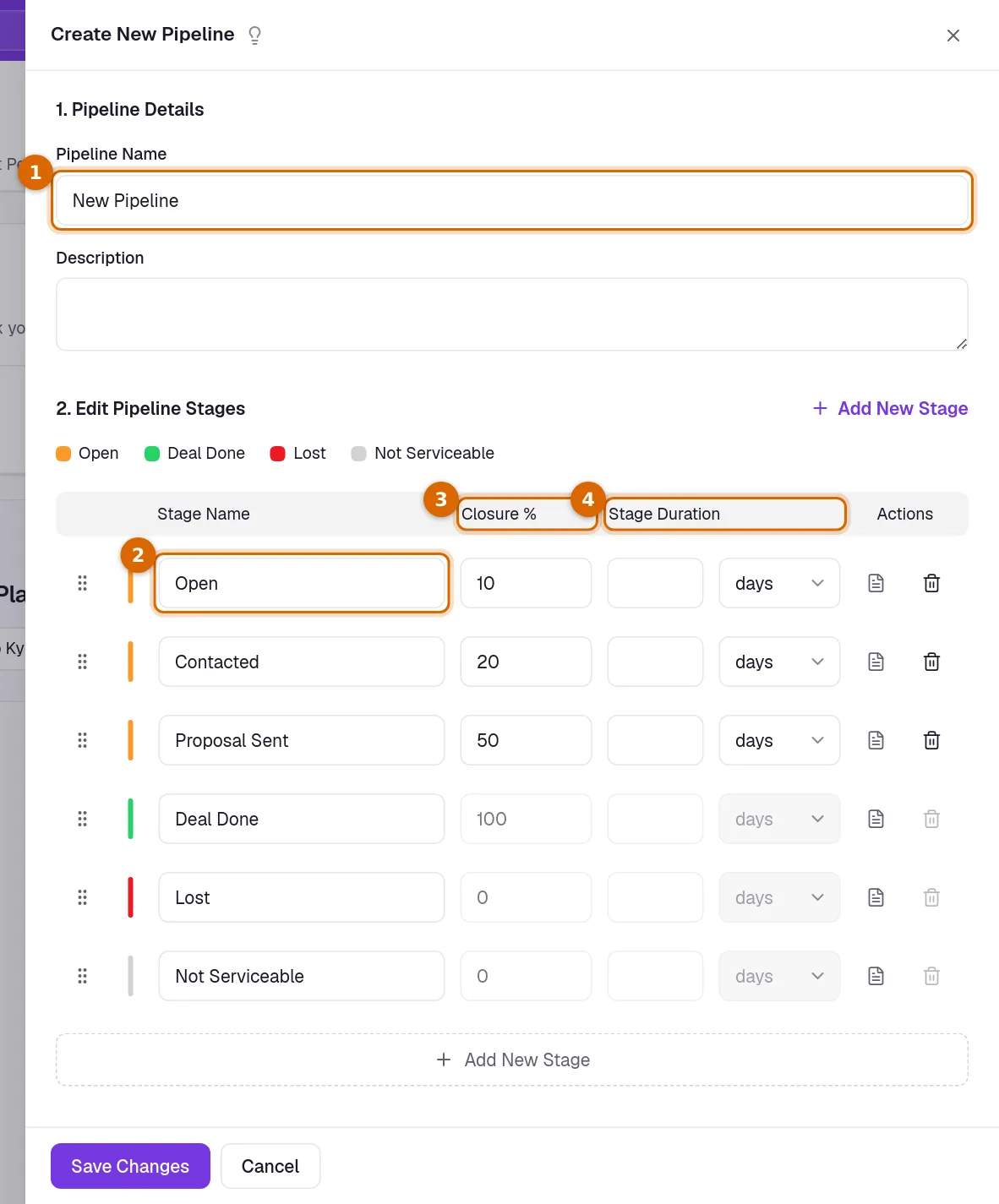
Open Sales CRM & Leads › All Pipelines, click the arrow beside Add New and choose New Sales Pipeline. The Create New Pipeline panel opens, already filled with the six starting stages.
- 1Give it a Pipeline Name, and a Description if you want one. The description shows on the card of the pipeline.
- 2Type over a Stage Name to rename a stage, and drag the handle at the start of a row to change the order. Leads move through the stages in this order.
- 3Set the Closure % of each open stage: how likely a lead at that stage is to become a deal, from 0 to 100.
- 4If you wish, set a Stage Duration in hours or days: how long a lead is expected to stay at that stage.
- 5Click Save Changes. The new pipeline appears as a card on All Pipelines.
Good to know. The stage duration is recorded with the stage for your own reference. It does not move leads or send reminders.
Add, change and remove stages
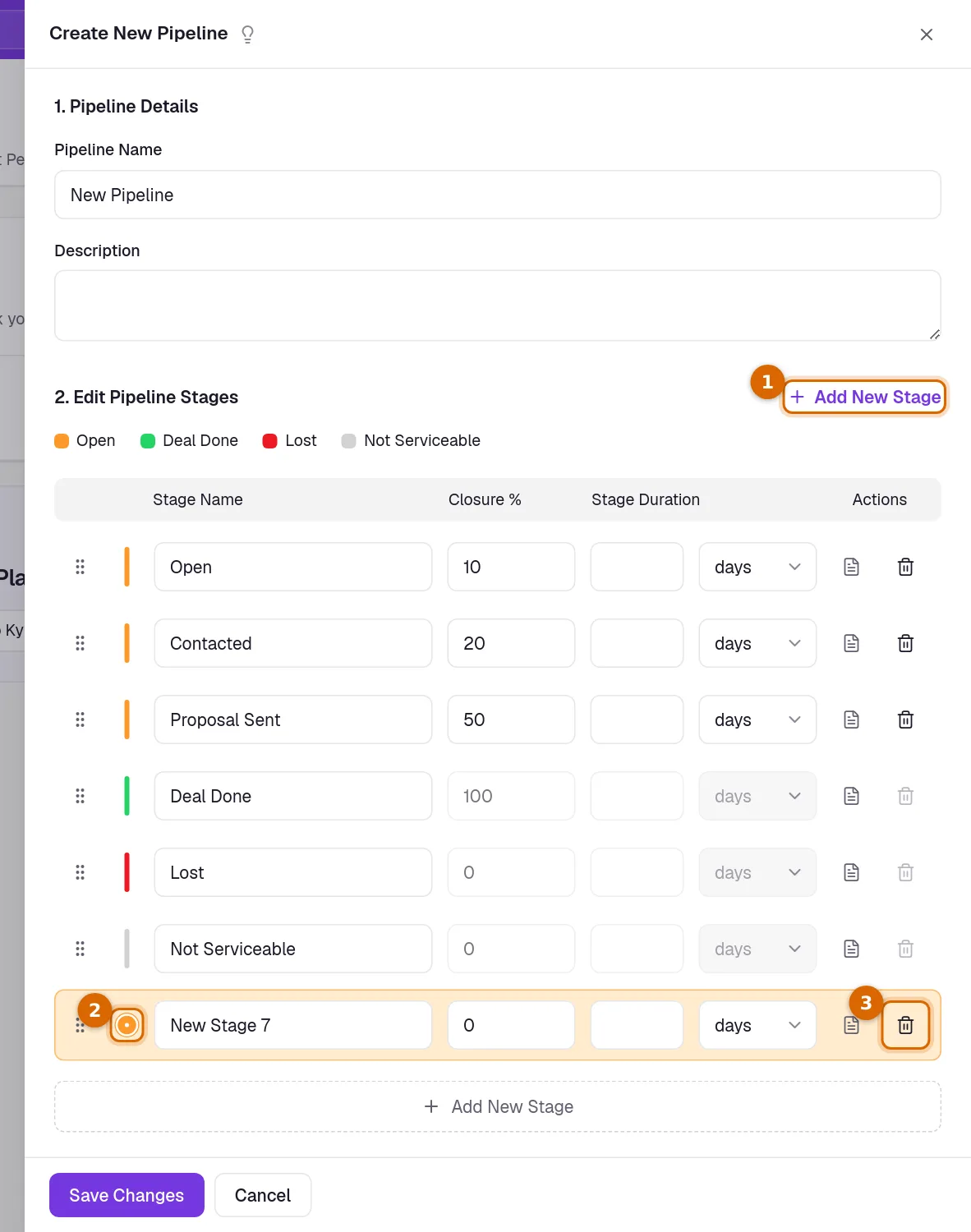
- 1Click Add New Stage. A new row is added at the end of the list and stays highlighted until you save.
- 2Click the coloured dot on the new row to choose its kind: Open, Lost or Not Serviceable. A pipeline has only one Deal Done stage, so that kind is not offered.
- 3To remove a stage, click its bin. If the bin is greyed out, hover over it to read why that stage cannot be deleted.
- The kind of a stage is chosen when the stage is added and cannot be changed afterwards. The starting stages keep the kind they came with.
- Closure % is fixed at 100 for the Deal Done stage and at 0 for Lost and Not Serviceable stages. Those stages have no duration.
- A pipeline can have up to 30 stages, and no two stages may share a name.
Good to know. A stage with leads in it cannot be deleted: move its leads to another stage first. The last stage of a kind cannot be deleted either, only renamed, because every pipeline needs at least one Open, one Deal Done, one Lost and one Not Serviceable stage.
Set the reasons for each stage
Reasons say why a lead is at a stage: "Waiting for reply", "Chose competitor". Each stage has its own list, and your team ticks from it when they change the stage of a lead.
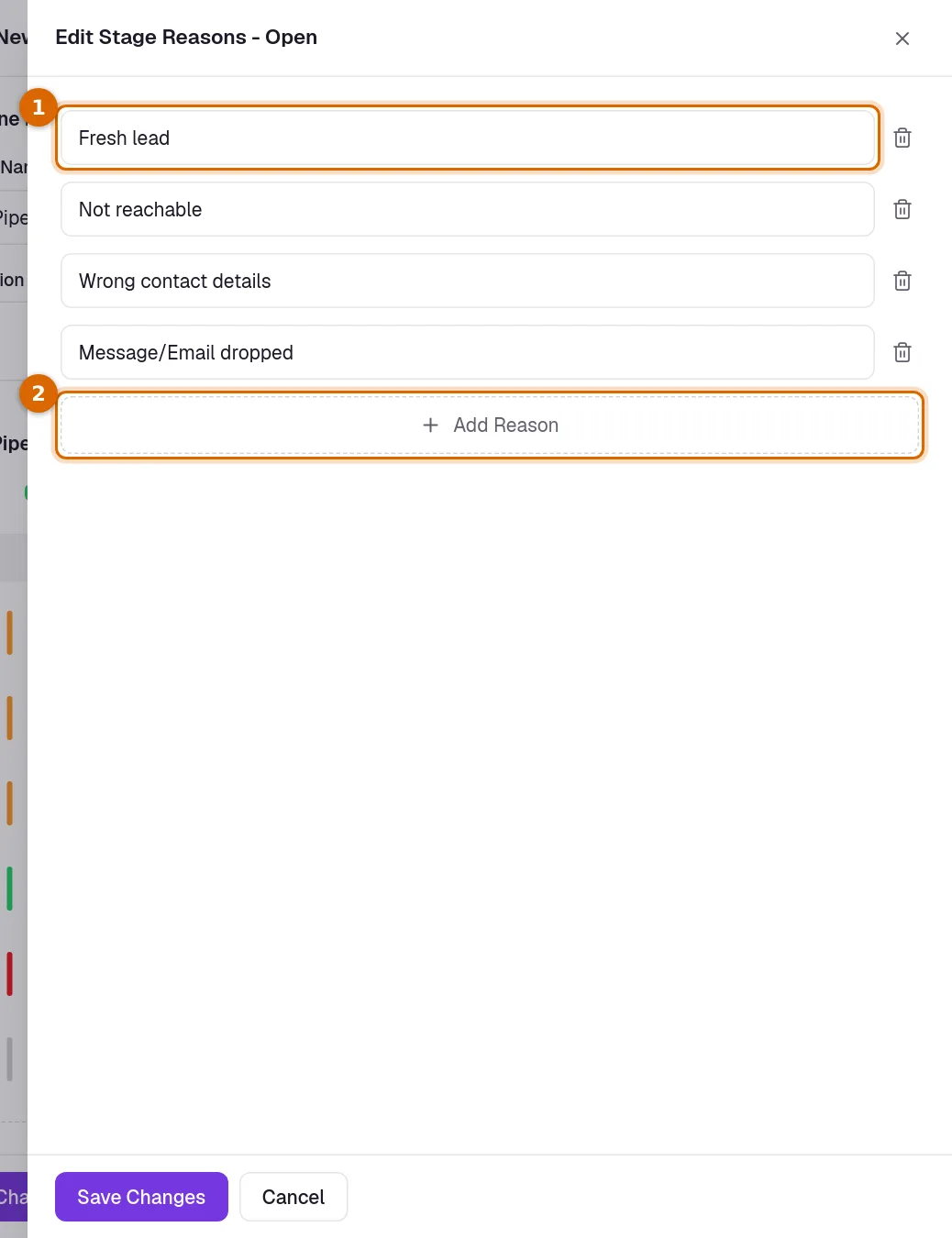
In the pipeline panel, click the page icon on the row of a stage (Edit Reasons). The Edit Stage Reasons panel opens.
- 1Type over a reason to reword it, or click the bin beside it to remove it.
- 2Add Reason adds an empty line for a new one.
- 3Click Save Changes in this panel, then Save Changes on the pipeline itself. The reasons are stored when the pipeline is saved.
- Reasons can also be added, renamed and removed in the Change Lead Stage dialog on a lead, with Add New Reason. Those changes are saved straight away.
- A stage holds up to 30 reasons, and no two may read the same.
- The reasons ticked on a lead show in the Stage Reasons column of All Leads, where you can filter by them.
Change a pipeline later
- Delete Pipeline, in the ⋯ menu of a pipeline's card, removes a pipeline that has no leads in it, deleted ones included. A business always keeps at least one pipeline.
- Edit Pipeline on the card of a pipeline opens the same panel. Rename the pipeline, reorder its stages, add new ones or change the reasons, then click Save Changes.
- Renaming a stage renames it for every lead already standing there.
- To move a lead to another pipeline, use the pencil beside Lead Pipeline on the lead, or Change Pipeline in its row menu on All Leads. You choose the new pipeline and the stage the lead lands on.
- Leads Summary and the three sales reports look at one pipeline at a time, so each pipeline has its own figures.
Good to know. Two pipelines cannot share a name, and a pipeline cannot be deleted once it has been created.
Common questions
- When should I add a second pipeline?
- When something you sell goes through different steps from the rest, or you want its figures kept apart. Each pipeline has its own stages, reasons and reports, and a lead can be moved between pipelines with Change Pipeline.
- Why is the bin on a stage greyed out?
- Either the stage still has leads in it, or it is the last stage of its kind in the pipeline. Move the leads to another stage first; the last stage of a kind can only be renamed.
- What is Closure % used for?
- It weights the value of your leads in Leads Summary. The Weighted Value of a stage is the total budget of the leads at that stage multiplied by its Closure %.
Related guides
Streamline Lead Management
Automate lead capture with Forms & third-party integrations, manage leads across multiple pipelines, communicate over email/WhatsApp, track deal progress, track team performance, and more.
Forms
Lead capture, contact us, survey and all types of forms. Add them to your website, ads, or social media profile. Automatically capture all the data directly on KyDec.
Duplicate leads
We check a new lead against the ones you already have and flag a likely match, so two people do not end up working the same enquiry.