
Help
WhatsApp templates
Draft the WhatsApp messages you plan to send to leads and clients, with variables and a live phone preview.
Where to find it:Marketing CRMWhatsApp Templates
What a WhatsApp template is, and what it does today
A WhatsApp template is a message written in advance for your WhatsApp Business number: a header, the message itself, a footer and a button, with placeholders where a name or a document number should go.
In KyDec you can write templates and keep them. The steps that would follow are not available yet, so it is worth knowing where things stand before you spend time here.
- A template you save is kept as a draft. KyDec does not submit it to WhatsApp for approval yet.
- Templates are not used for sending yet. Send WhatsApp on a document does not offer them.
- There are no campaigns. The Linked Campaign column in the list stays empty.
Good to know. You need a connected WhatsApp Business number before a template can be saved. Connect one under Business Settings, Integrations.
Find your way round the list
Open Marketing CRM, then WhatsApp Templates.
- 1New Template opens the editor for a new template.
- 2The tabs show templates by approval status: All Templates, Drafts, In Review and Approved. Because nothing is submitted yet, every template is under Drafts.
- 3Edit on a row opens the template. Remove beside it takes it off the list once you confirm.
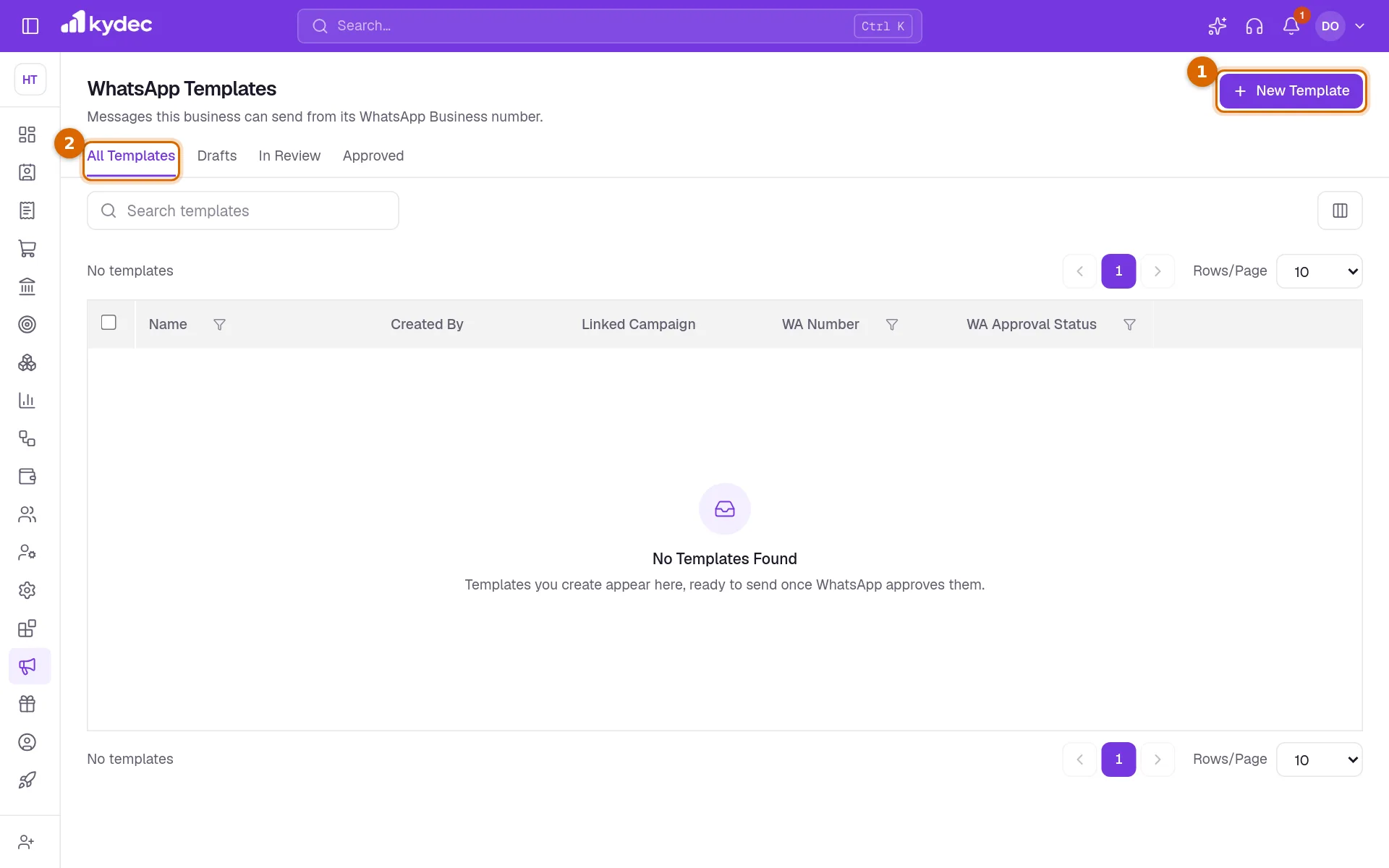
- The columns show the Name, who it was Created By, the WA Number it was written for and its WA Approval Status.
- Search finds a template by its name, its wording or its number. Name, WA Number and WA Approval Status can be filtered and sorted.
Write a template
Click New Template. The page is headed Create New Template, with the form on the left and a phone on the right. A new template opens on a sample message, so you can see how the parts fit before you write your own.
- 1Choose your number under WhatsApp Integration. If you have connected only one, it is already chosen.
- 2Enter a Template Name. It is for you: it is how you find the template in the list.
- 3Header is one optional line above the message, up to 60 characters.
- 4Write the message in Body. It is required and can be up to 1,024 characters; the counter under it shows how many you have used.
- 5Footer is optional small print under the message, up to 60 characters. Button is optional too: a label of up to 25 characters and the link it opens.
- 6Choose the WhatsApp Category and the Language.
- 7Click Create Template. The template is saved and stays open, and later changes are kept with Save changes.
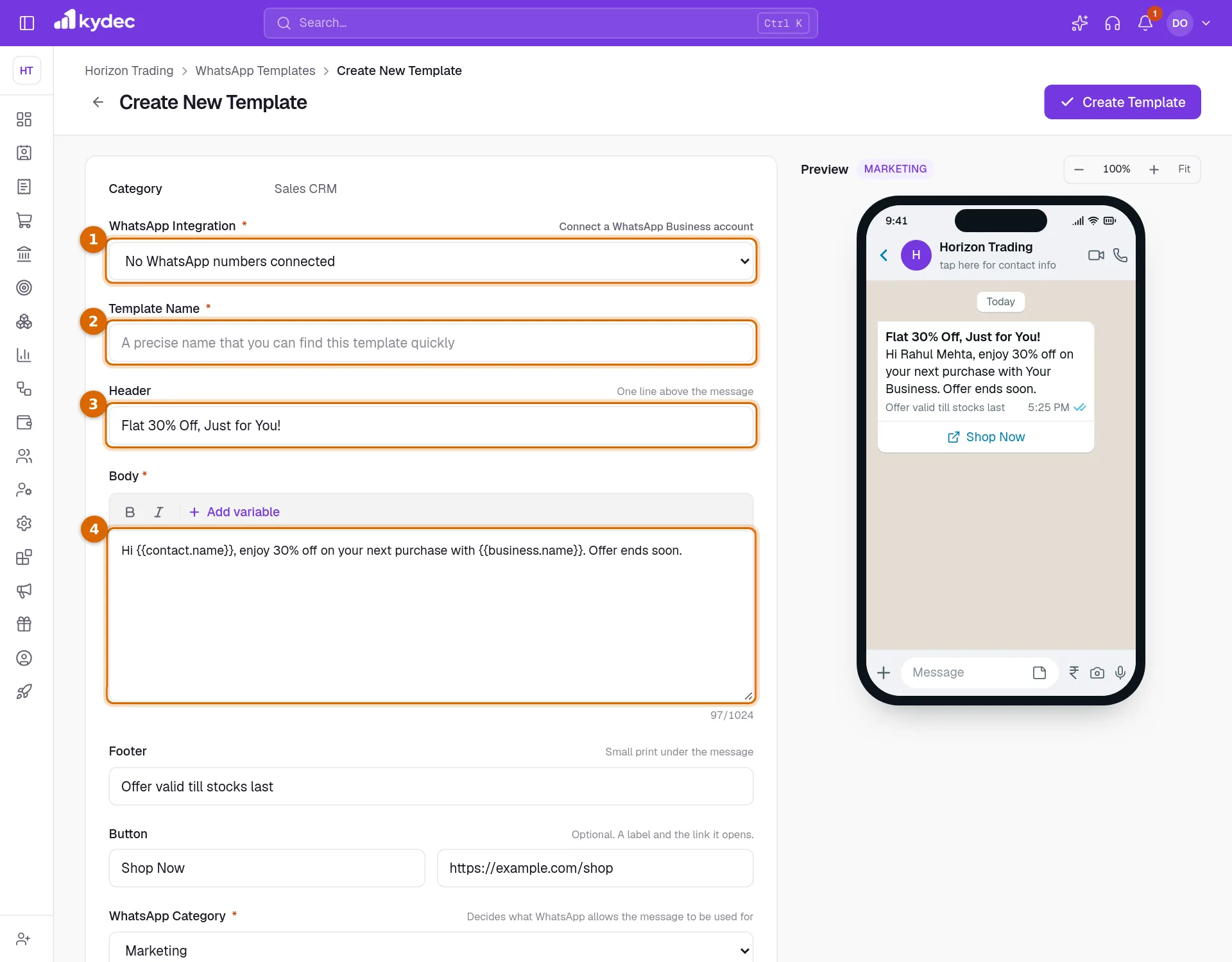
- The bold and italic buttons above the body wrap the words you selected in WhatsApp's own marks: asterisks for bold, underscores for italic.
- The Category line at the top reads Sales CRM for every template. There is nothing to choose there.
Good to know. A button needs both its label and its link, and the link must start with http:// or https://. With only one of the two filled in, the template is not saved.
Categories and languages
WhatsApp Category says what kind of message the template is. There are three, and each has its own sample.
- Marketing: offers and promotions. The sample is a discount offer.
- Utility: news about something the customer has already done. The sample confirms an order.
- Authentication: one-time codes. The sample has no header and no button.
- Changing the category swaps the sample for that category's sample, but only while the message is still an untouched sample. Once you have typed your own wording it is left alone.
- Language offers 15 languages, among them English, English (UK), Arabic, Hindi, French and Spanish.
Use variables and check the preview
A variable is a placeholder written in double curly brackets, such as {{contact.name}}. It stands for a value that differs from one message to the next.
- 1Click in the Body where the value should go, then click Add variable.
- 2Pick from the list, for example Contact Name. The placeholder is inserted where your cursor was.
- 3Look at the phone under Preview. It shows the message as it will read, with a sample value in place of each variable.
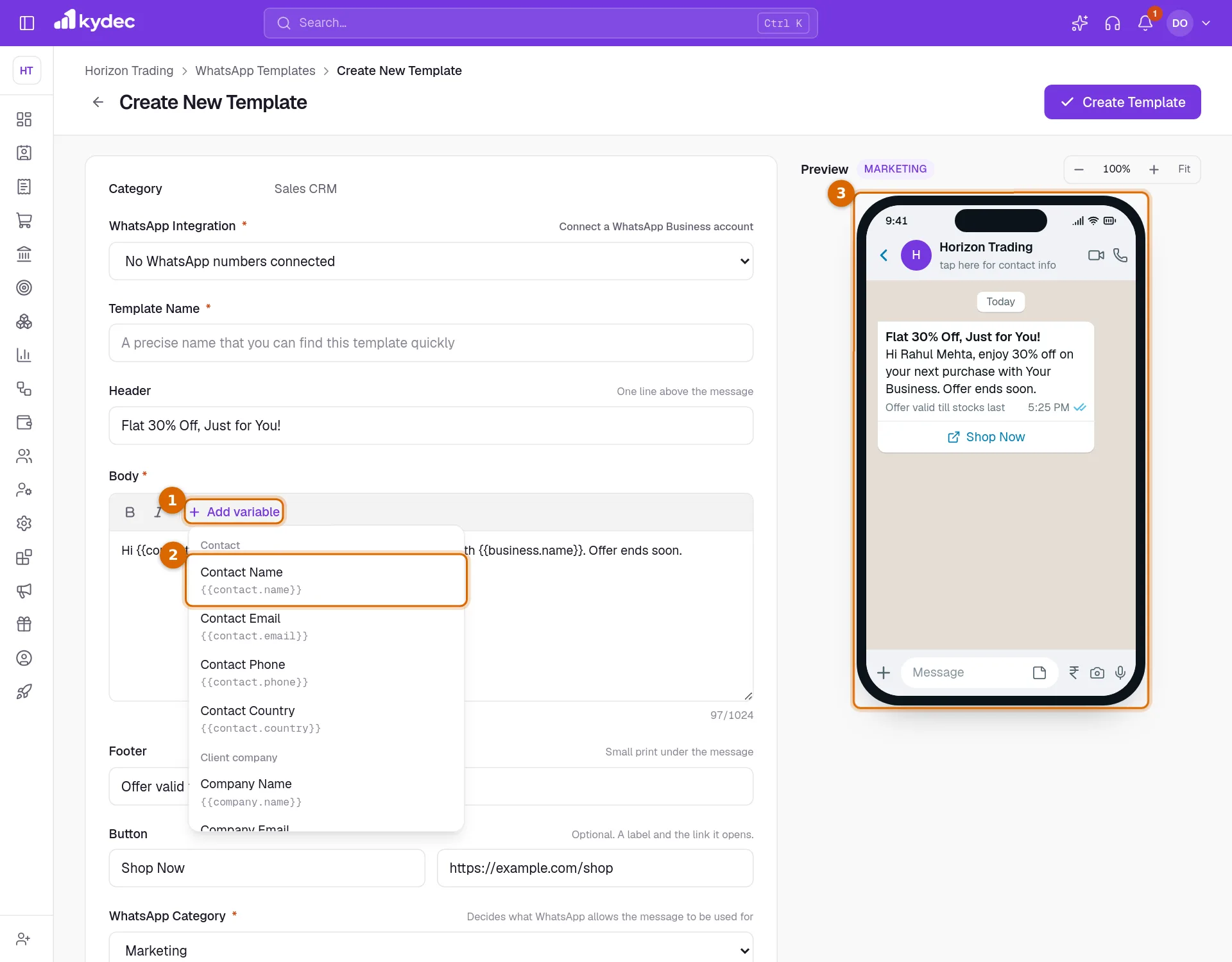
- The variables are the same as for email templates, in five groups: Contact, Client company, Your business, Sender and Document.
- Add variable inserts into the body. In the header or the footer you can type a placeholder by hand.
- The phone also shows bold and italic, the footer, and the button under the message. The minus and plus buttons beside Preview change its size, and Fit sizes the phone to your screen.
- The label beside Preview names the WhatsApp category you chose.
Good to know. A placeholder KyDec does not recognise stops the template being saved, and you are told which one it is. Check the spelling, or pick it from Add variable.
Status, editing and removing
- Every template is saved as a draft, and saving a change to one makes it a draft again.
- The list already has tabs for In Review and Approved, and a filter for rejected templates, ready for when templates can be submitted to WhatsApp. Today they stay empty.
- Remove takes a template off the list for good. You are asked to confirm first, and it cannot be brought back from the list.
- To create, change or remove a template your role needs Create, edit and share templates and greetings under Marketing CRM, or Edit business profile. With View templates and greetings alone you can only look.
Common questions
- Why can I not save my template?
- The usual reason is that no WhatsApp Business number is connected, so WhatsApp Integration reads No WhatsApp numbers connected and has nothing to choose. Click Connect a WhatsApp Business account beside it, connect your number under Integrations, then come back. The Template Name and the Body are required as well.
- When will WhatsApp approve my template?
- It will not, for now. KyDec does not submit templates to WhatsApp yet, so a template stays a draft however long you wait.
- Can I send a template to my clients, or run a campaign?
- Not yet. Templates are not used for sending and there are no campaigns. To send a quotation or an invoice on WhatsApp, open the document and use Share, then Send WhatsApp.
- Can I add my own variables?
- No. The list under Add variable is the full set, and a placeholder that is not on it is refused when you save.
Related guides
WhatsApp Business
Send quotations, invoices and campaigns from your own WhatsApp Business number, so clients see your business rather than an unknown sender.
Email templates
Write the emails you send to leads, clients and vendors once, with variables that fill in the contact, company and document details when it goes out.
Roles and permissions
Decide what each role can see and do, module by module, down to seeing only their own records.