
Help
Roles and permissions
Decide what each role can see and do, module by module, down to seeing only their own records.
Where to find it:Business SettingsRoles & Permissions
How roles work
A role is a named set of permissions. Give a person a role and they can do everything that role allows, in this business only.
A person can hold more than one role. They then get the most generous answer of all their roles for each permission: Yes beats Self, and Self beats No.
The four roles every business starts with
These are the roles you can pick from the day a business is created. The role list in Add user shows them.
- 1Super Admin can do everything. It cannot be edited or archived, and it cannot be combined with another role. Whoever creates a business is its first Super Admin.
- 2Accountant is for the books: invoices, proforma invoices, credit and debit notes, purchases and expenses, purchase orders, receipts, reports, accounting, banking, GST and income tax, with clients, vendors and contacts. It has no access to leads, quotations, sales orders, delivery challans, inventory, workflows, the team or the business settings.
- 3Manager runs the day-to-day work: leads, inventory, every sales and purchase document, clients, vendors, contacts, reports, accounting, workflows and marketing. A manager can see the team but not change it, and has no access to the business settings, banking, GST or income tax.
- 4Sales Executive can create leads, quotations, sales orders, invoices and proforma invoices, and sees only the ones they created. It also covers clients, contacts and the order reports, and nothing else.
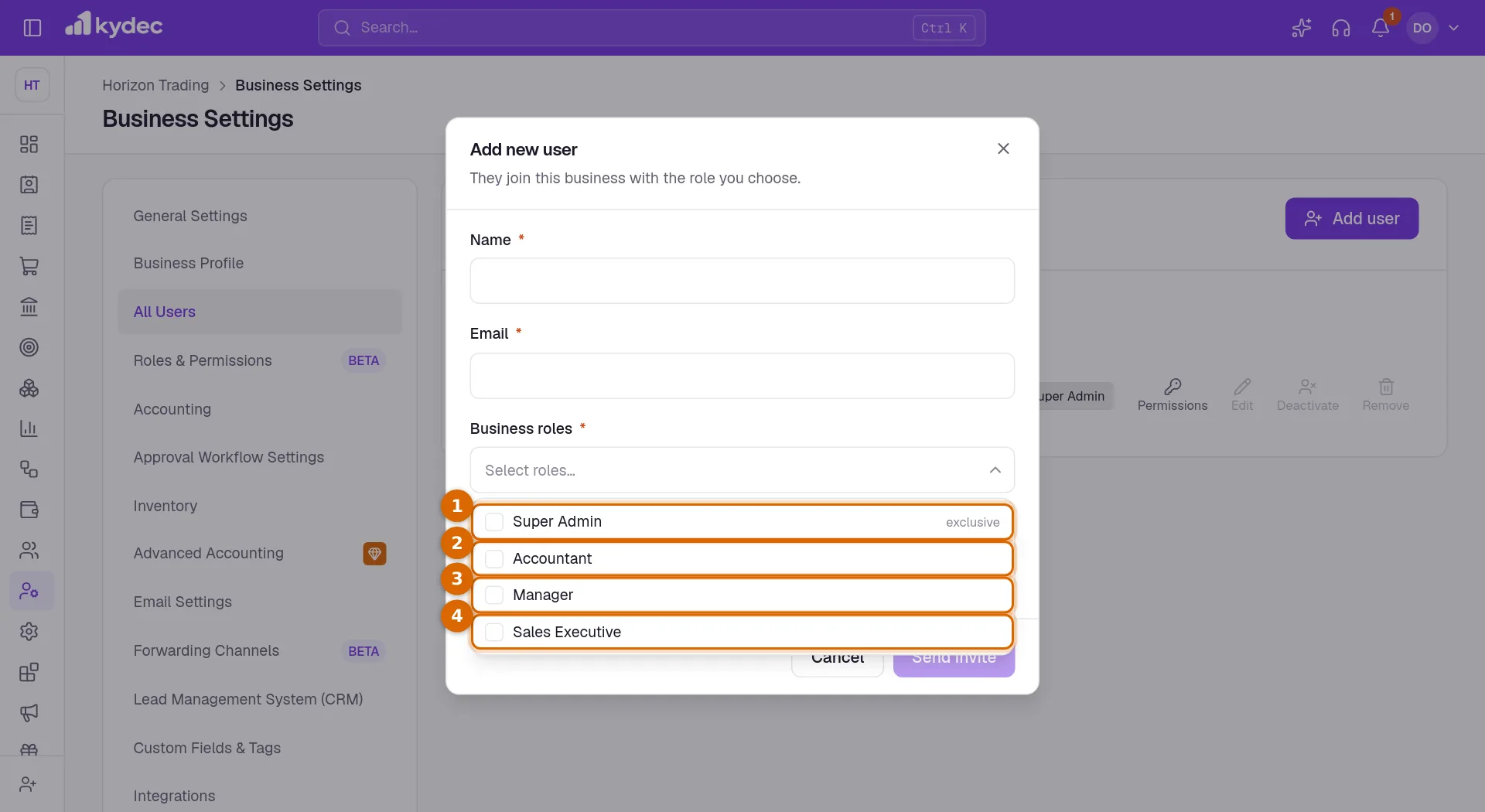
Good to know. Only Super Admin is fixed. The other three are starting points that a business on a paid plan can change.
Open Roles & Permissions
Open Business Settings and choose Roles & Permissions, or use Manage Team and then Manage Team Roles in the sidebar. The tab carries a BETA label.
- 1The tab is shown to people whose role includes Can manage roles and permissions.
- 2Managing roles is part of a paid plan. On the Basic plan, with no free trial running, the tab shows the upgrade offer in place of the list of roles.
- 3Upgrade opens the pricing page for this business. While the free trial has not been used, the button reads Start my free trial! instead.
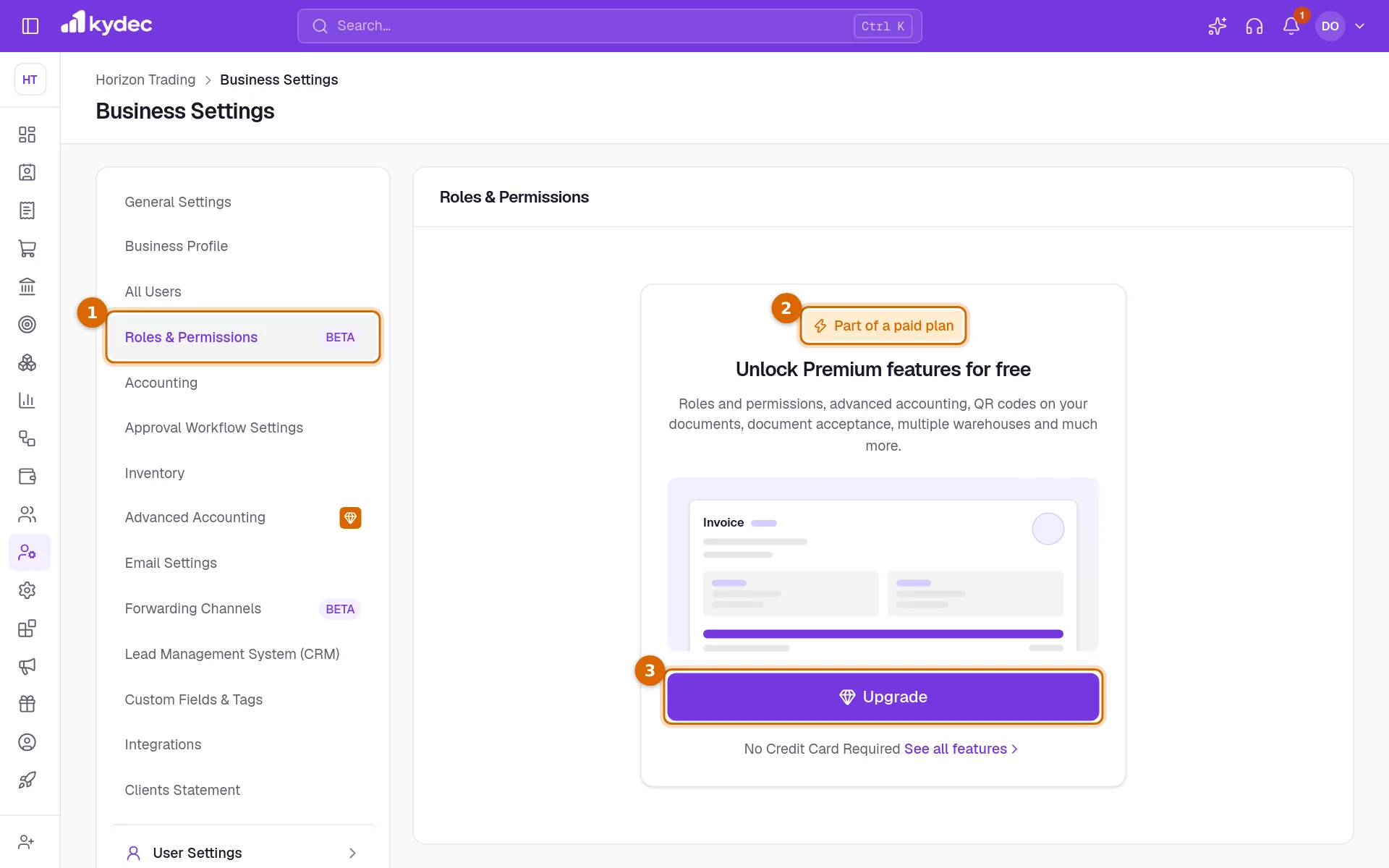
- On a paid plan or during the free trial, the tab lists every role with its description and the number of users who hold it, and Add new role sits at the top.
- Without a plan, the four built-in roles keep working and can still be given to people under All Users. Changing one person there with Permissions does not need a plan either.
- Only a Super Admin can start the trial or upgrade. Anyone else is told to ask their Super Admin.
Create or change a role
- 1Click Add new role.
- 2Enter a Role name. A Description is optional and is shown under the name in the list.
- 3Set what the role may do in the grid.
- 4Click Create role.
- View permissions opens a role to read. Update opens it to change, and ends with Update role.
- Duplicate, in the ⋯ menu, opens a copy named after the original with "- Copy" added. Nothing is saved until you click Create role.
- Archive puts a role away so it can no longer be given to anyone. It is refused while someone still holds the role; move them to another role first. Restore brings it back.
- Delete permanently is offered only for an archived role that your business created. The built-in roles cannot be deleted.
Good to know. A change to a role reaches everyone who holds it.
Read the permission grid
The same grid is used for a role and for one person. Each row is an area of KyDec, with one choice for the whole area.
- 1Click the name of an area, such as Invoices or Leads, to open the single abilities under it: create, delete, edit, view and so on. Each can be set on its own.
- 2Yes allows everything in the area.
- 3No allows nothing. The area disappears from that person.
- 4Self means own records only. The person can create records, and in lists, summaries and downloads they see only the ones they created.
- 5Custom cannot be clicked. It lights up by itself when the abilities under the row are not all set the same way.
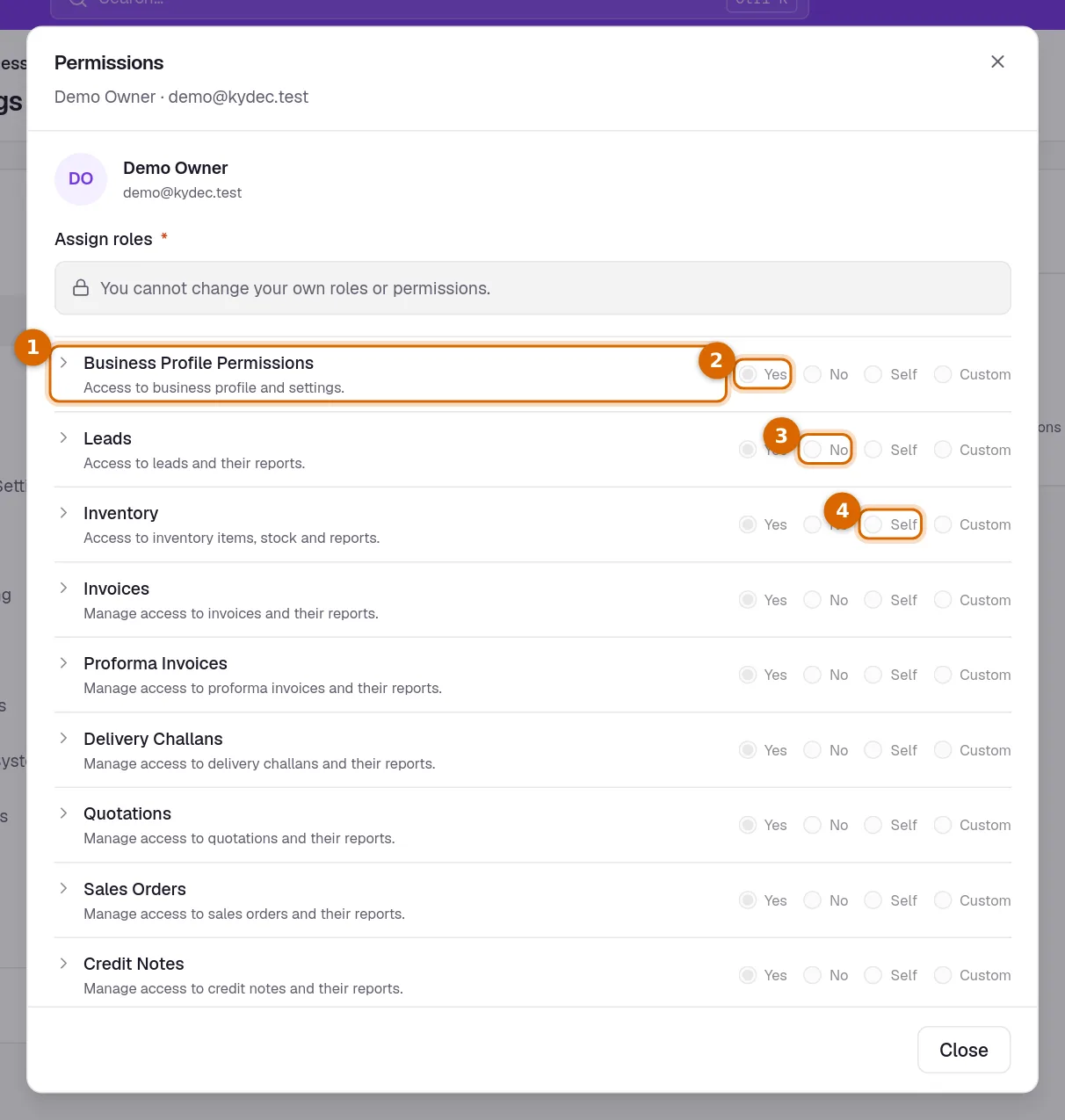
- Self is offered only where KyDec records who created each record: leads, the sales and purchase documents, and workflows. Elsewhere it is greyed out, and choosing Self for the whole area gives Yes.
- Creating and deleting have no Self: with Self chosen for an area they are allowed in full.
- An ability marked Soon belongs to a feature that is not available yet. It stays off and cannot be changed.
What a person sees without a permission
- The sidebar leaves out the pages they cannot open. A group with nothing left in it disappears, and the + beside a page shows only where they may create.
- Search in the top bar offers only what they can open or create.
- Business Settings shows only the tabs their role allows.
- The dashboard shows only the figures and cards of the areas they can see.
- Buttons to create, edit and delete follow the same permissions. Where a button is still shown, KyDec refuses the action and says so.
- A page opened from an old link or a typed address shows a message that they do not have access, with Go to Dashboard and Go Back.
Good to know. A person whose roles or permissions you change is told by a notification and an email. Their menu catches up the next time they load KyDec.
Common questions
- Why does Roles & Permissions show an upgrade offer?
- Creating and changing roles is part of a paid plan. On the Basic plan the tab shows the offer instead. The built-in roles still work, and you can still give them to people under All Users.
- Can I change what a Super Admin can do?
- No. Super Admin always holds every permission, including ones added later, and cannot be edited or archived. That is what stops a business locking itself out. You can Duplicate it and change the copy.
- Someone has two roles. Which one counts?
- Both. For each permission the person gets the most generous answer of their roles, so adding a role never takes access away.
- What does Self mean?
- Own records only. With Self on invoices, for example, a person can create invoices and their list shows only the invoices they created.
Related guides
Team and users
Add the people who work in this business, choose what each can do, and remove someone who has left.
Plans and billing
Each business has its own plan. See yours, start the free trial, upgrade, and find out what is premium.
Document approvals
Route documents for sign-off before they are issued. Turn on auto-add for a document type and every new one joins the approval queue automatically.