
Help
Contacts
Store and manage the people behind your clients, vendors and leads. One record per person, reused on every document — so a changed phone number is changed everywhere.
Where to find it:Contacts
What a contact is
A contact is a person: the accounts manager you email invoices to, the buyer who signs a purchase order, the owner of a business you hope to sell to. A client or a vendor is the business; a contact is someone who works there.
You keep one record per person and link it to every client they act for. Change their phone number once and it is changed everywhere that contact is used.
Find your way round the list
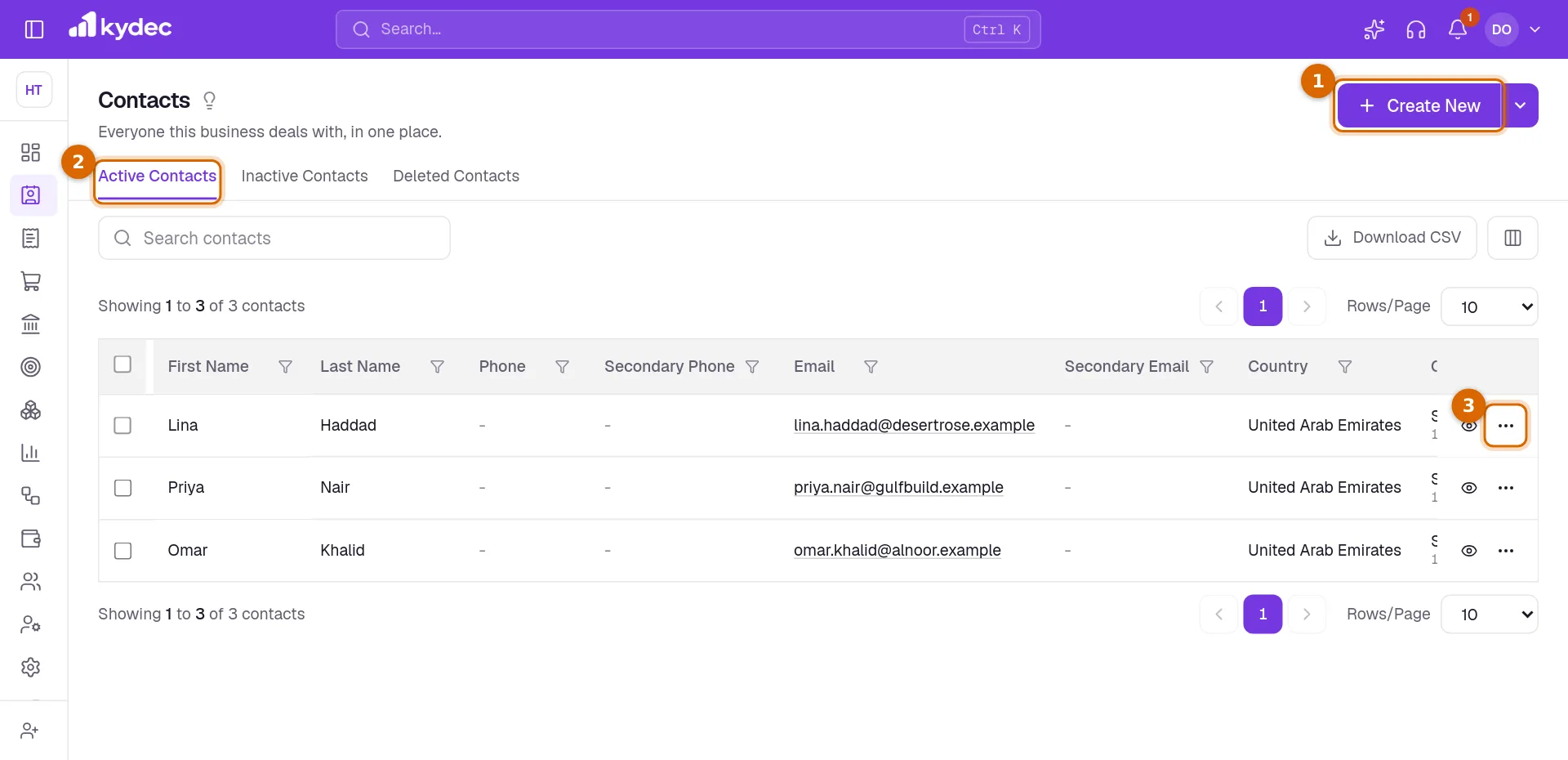
Open Contacts in the sidebar. Everyone you have added is listed here, newest first.
- 1Create New opens the form for a new contact.
- 2The tabs split the list: Active Contacts are the people you deal with today, Inactive Contacts are kept but set aside, and Deleted Contacts can still be restored.
- 3The ⋯ at the end of a row opens everything you can do with that contact. The eye beside it opens a quick view without leaving the list.
- Search, the filter under each column heading and the sort arrows all work together, so you can narrow the list to one country or to contacts added this month.
- Download CSV saves the list as a file you can open in a spreadsheet. The columns button beside it (Show/Hide Columns) chooses which columns show in the table and in the CSV.
- The Linked Clients column shows which clients each person belongs to.
Add a contact
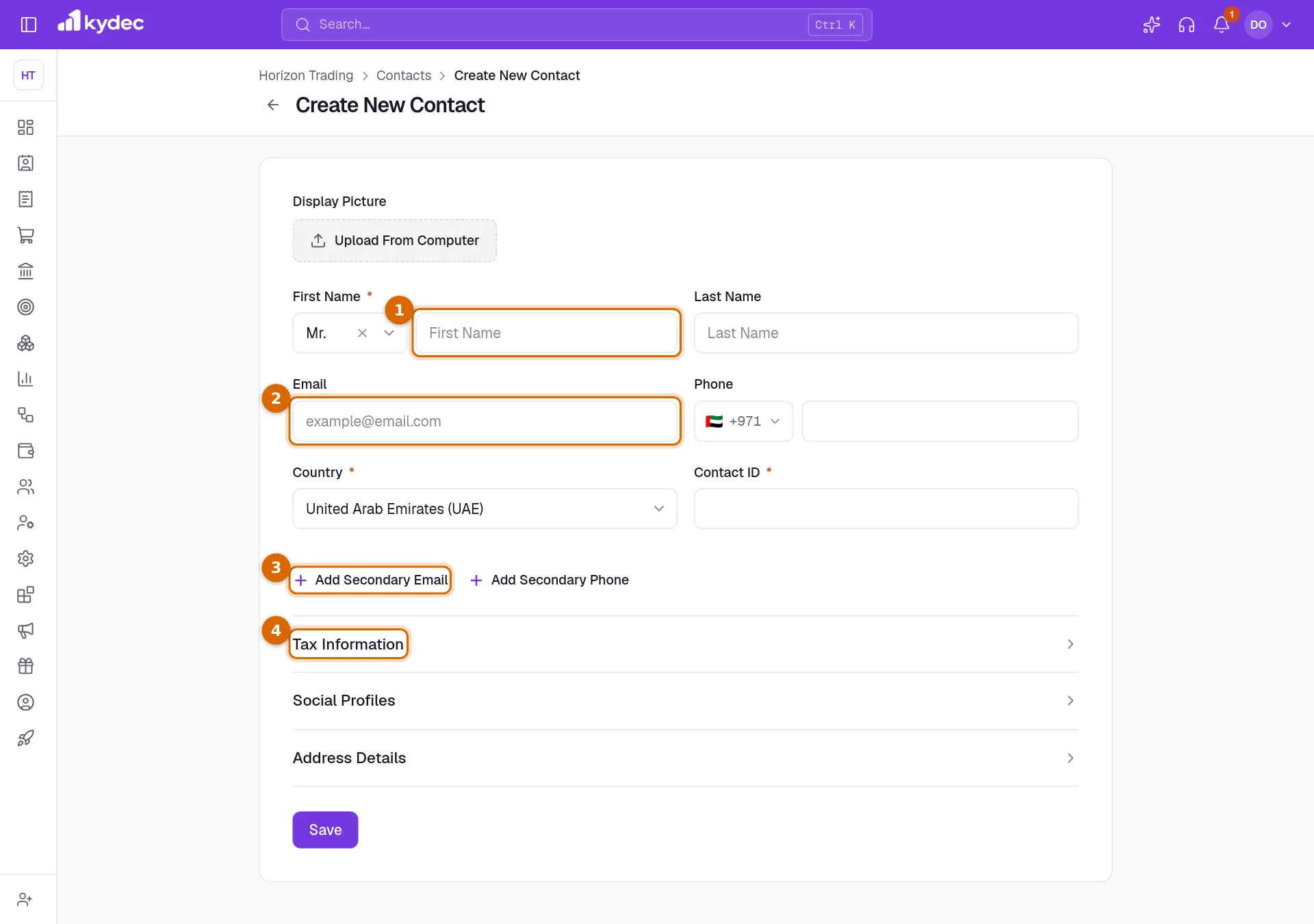
- 1Enter the First Name. It is the only name that is required; the title and Last Name are optional.
- 2Add an Email and a Phone so documents and reminders can reach them. Country and Contact ID are required, and the contact ID must be unique in your business.
- 3Someone with more than one address or number? Add Secondary Email and Add Secondary Phone give you a second, and then an alternate, of each.
- 4Open Tax Information, Social Profiles or Address Details for the rest. These sections are optional and stay closed until you need them.
- 5Click Save. You are taken back to the list with the new contact at the top.
Good to know. You can also add a picture. After you choose a file you crop it before it is saved.
Link a contact to a client
Linking is what makes a contact useful on documents: it tells KyDec who to address at that client.
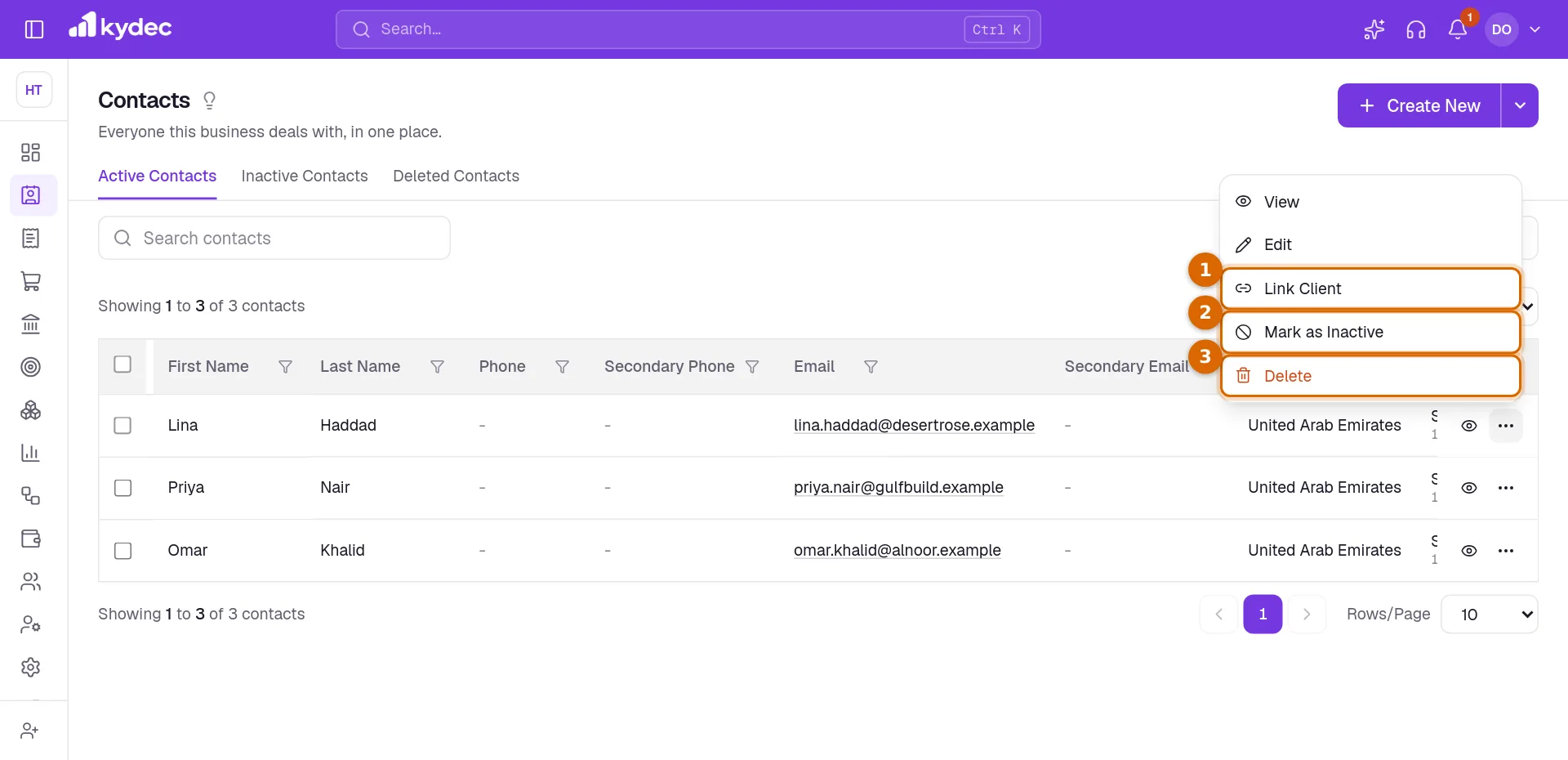
- 1Open the ⋯ menu on the contact and choose Link Client.
- 2Pick the client under Client Name, then add their Role and Department there if you want them recorded.
- 3Tick Mark as Primary if this is the main person at that client, and save.
- One person can be linked to several clients, with a different role at each.
- The same link can be made from the client side. Both write the same record, so it never has to be done twice.
- To see who someone is linked to, open their quick view and choose the Clients tab.
Set aside, delete and restore
- 1Mark as Inactive moves a contact to the Inactive tab. Nothing is lost; Mark as Active brings them back.
- 2Delete moves a contact to the Deleted tab. You are asked to confirm first.
- 3On the Deleted tab, Restore returns a contact to the active list.
Good to know. A contact that is still in use cannot be deleted. KyDec tells you what is holding it, so you can unlink it first. Documents that already name the contact are never changed by deleting them.
Common questions
- What is the difference between a contact and a client?
- A client is the business you invoice. A contact is a person at that business. One client can have many contacts, and one contact can belong to many clients.
- Can I upload many contacts at once?
- Yes. Choose Bulk Upload under Create New, download the sample file, fill one contact to a row and upload it. Only First Name is required. To link a contact to a client, put that client’s Unique Key in the Client (Unique Key) column.
Related guides
Clients & Prospects
Every business you sell to, and the ones you hope to. A prospect becomes a client the moment you invoice it; archiving keeps old ones out of the way without losing their history.
Manage Vendor Leads
Add and manage vendor leads for seamless vendor onboarding.
Custom fields
Add fields your business needs that we do not ship by default, and choose which of them print on your documents.