
Help
Automate Ledger Entries For Payment Records
A recorded payment is posted to its payment account's ledger, so your books show it without a manual entry. Change Ledger links the account to a different one.
Where to find it:Sales & InvoicesInvoices
What happens when you record a payment
When a client pays an invoice, you record the payment in KyDec. That one step marks the invoice as paid, creates a payment receipt and, if you use Advanced Accounting, writes the entry in your books.
Every payment account, whether a bank account, the cash box, a card or a wallet, is linked to a ledger. A payment is posted to the ledger of the account it was paid into, so you never pass that entry by hand.
Good to know. Payment Ledger is shown only when Advanced Accounting is turned on in Business Settings. Advanced Accounting is a premium feature. Without it you can still record payments; there are no ledgers to post them to.
Open Record Payment
Open Sales & Invoices, then Invoices, and find the invoice that was paid.
- 1Open the ⋯ menu at the end of its row and choose Record Payment.
- 2Mark Paid opens the same dialog. Use whichever you find first.
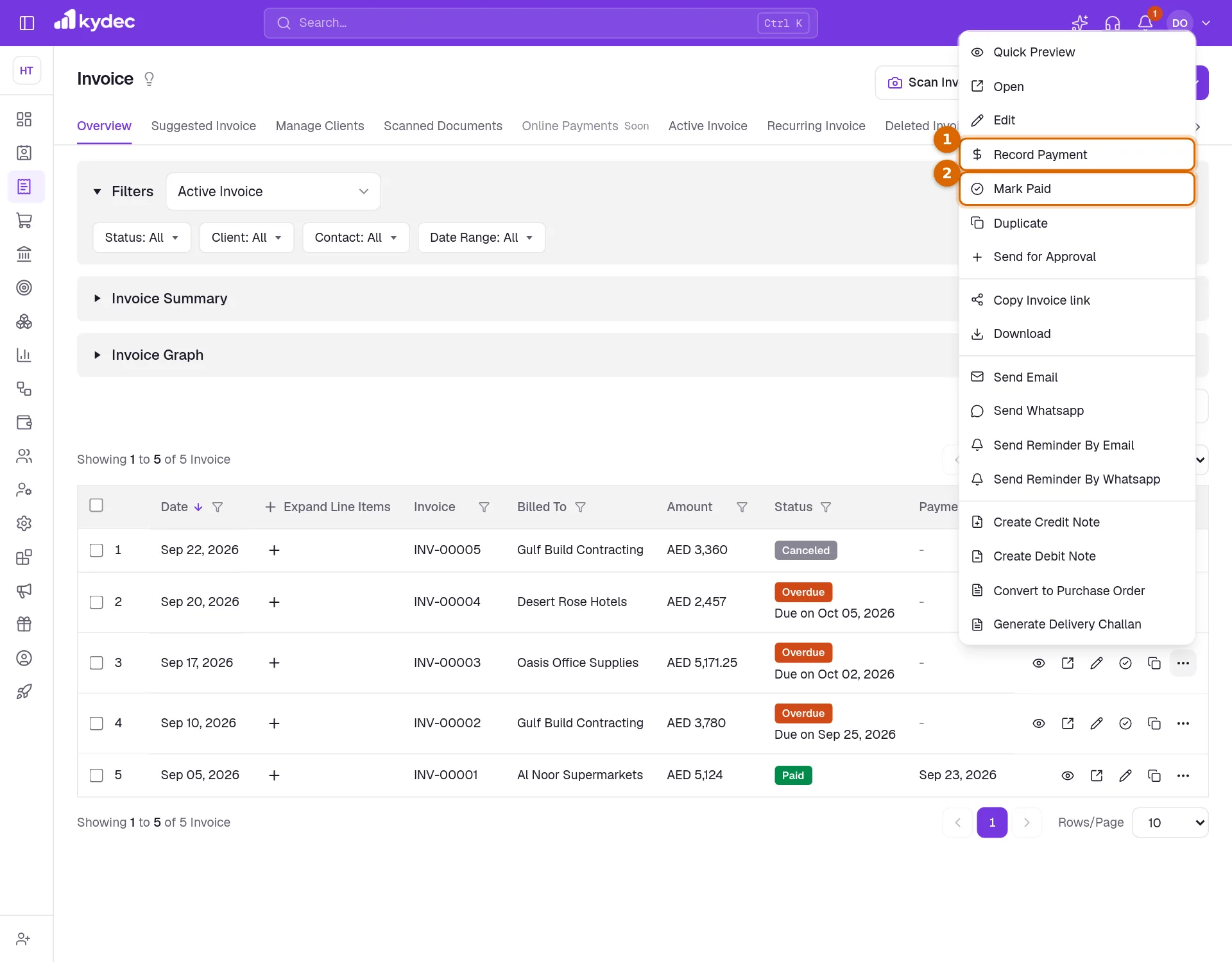
- The invoice's own page has Record Payment in its header.
- Both are greyed out for a draft. An invoice that is fully paid no longer offers them.
Fill in the payment
- 1Amount Received (A) starts at the amount still due. Lower it for a part payment.
- 2Enter a Transaction Charge (B) if the bank or gateway kept a fee. Amount to Settle (A+B) adds the two: that is what comes off the invoice.
- 3Set the Payment Date and the Payment Method, then choose the Payment Account the money was paid into.
- 4Payment Ledger fills in with the ledger that account is linked to. This is where the payment will be posted.
- 5Click Save.
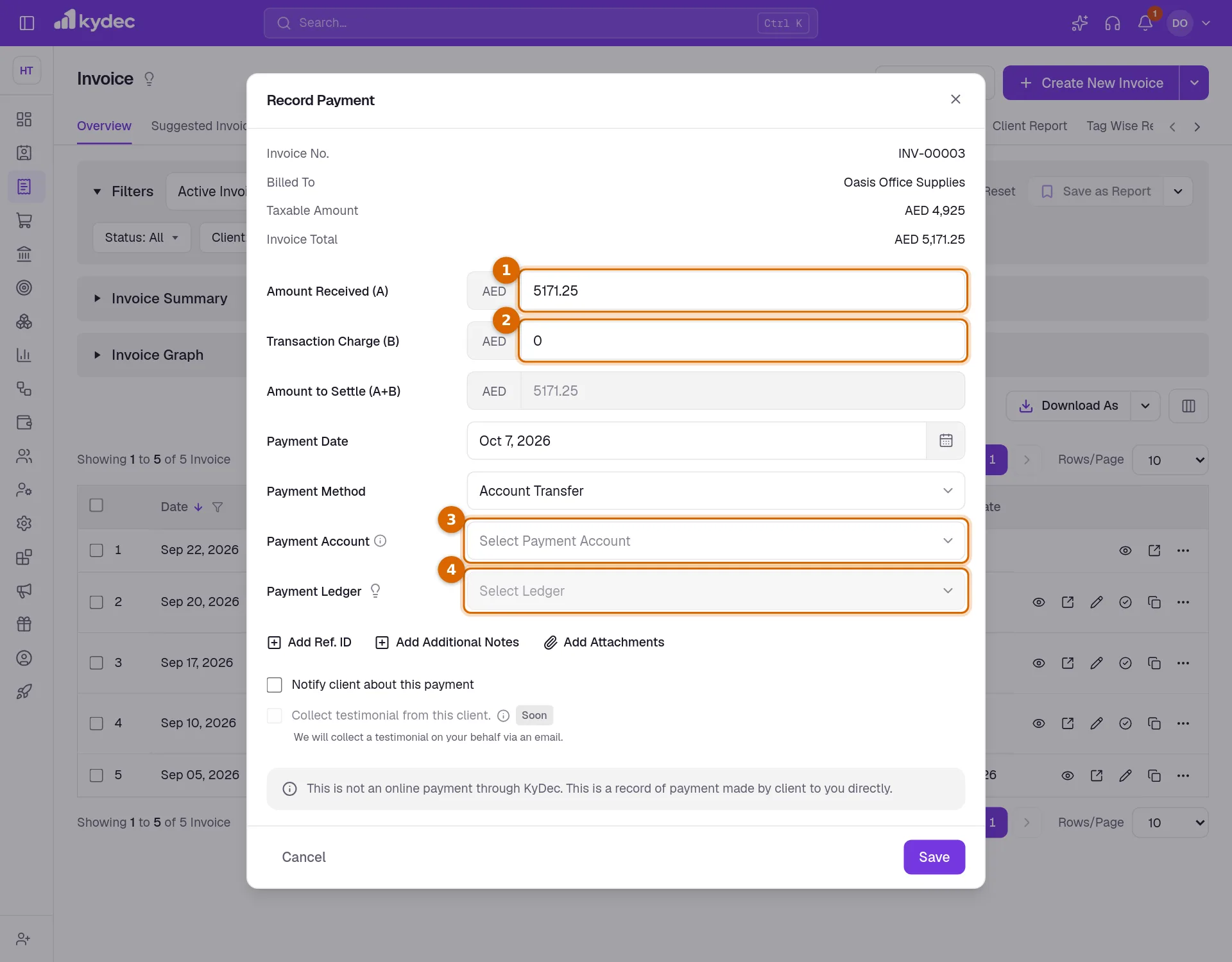
- Add Ref. ID, Add Additional Notes and Add Attachments add a bank reference, a remark or a file such as the payment advice.
- Tick Notify client about this payment to email the client. They need an email address on their record.
- The amount to settle cannot be more than what is due on the invoice.
- The account chosen for you is the Default Payment Account set under Configure Payment Accounts in Business Settings, Integrations.
What goes into your books
- The payment is saved as a payment receipt and listed under Sales & Invoices, Payment Receipts.
- The invoice becomes Paid, or Part Paid if something is still due.
- With Advanced Accounting on, an entry is written in the Receipt Voucher Book: the payment account's ledger is debited with the amount received and the client's ledger is credited.
- A transaction charge is debited to the Transaction Fee ledger, so the client is credited with the full amount settled.
- The same Payment Ledger field is on every payment dialog: proforma invoices, debit notes, purchases, payment receipts and refunds.
Good to know. Entries are written in the background, so a payment can take a moment to show in the ledger.
Post to a different ledger
- 1In the payment dialog, click Change Ledger under Payment Ledger.
- 2KyDec warns that the linked ledger will be changed for the selected payment account. Click Yes, Continue.
- 3Pick the ledger you want from the list, then save the payment.
Good to know. Change Ledger re-links the payment account itself, so later payments into that account post to the new ledger too. It is greyed out for an account that is part of bank reconciliation.
Check or undo a payment
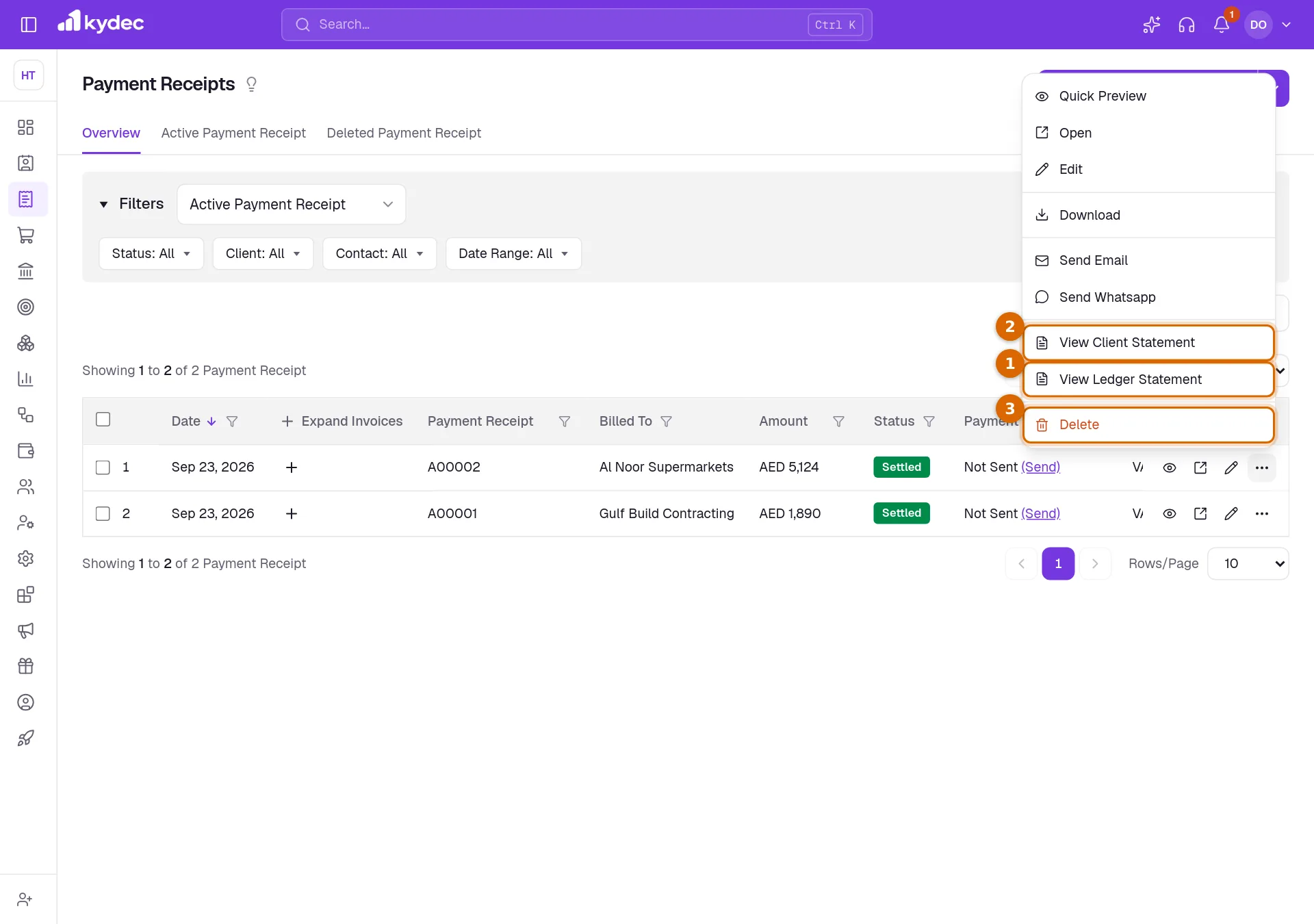
Open Sales & Invoices, then Payment Receipts, and open the ⋯ menu of the receipt.
- 1View Ledger Statement shows the payment in the ledger it was posted to.
- 2View Client Statement shows the same payment in the client's ledger.
- 3Delete takes the payment off the invoice, which is owed again, and removes its entries from the ledgers.
- On the invoice's page, Invoice Payment Records lists the payments made on that invoice, and View Journal shows its voucher entries.
- Removing a payment from the invoice cancels its receipt and reverses its voucher.
Common questions
- I cannot see Payment Ledger in the dialog. Why?
- It appears only when Advanced Accounting is on. Until then your business has no ledgers, and the payment is recorded without one.
- Do I need to pass a journal entry for each payment?
- No. With Advanced Accounting on, recording the payment writes the voucher entry for you. Passing one by hand as well would count the payment twice.
- Why is Change Ledger greyed out?
- The payment account is part of bank reconciliation. Its ledger already carries reconciled entries, so it cannot be moved to another one.
- I chose the wrong payment account. How do I fix it?
- Open the receipt under Payment Receipts, choose Edit, and correct the payment record under Add Payment Records.
Related guides
Payment Receipt
Every payment a client has made you, whether it was recorded against an invoice or matched from a bank statement. Money that settles no document yet stands here as an advance.
Payment accounts
Every account money moves through — bank accounts, the cash box, cards and wallets, and employees you reimburse. What you add here is what a document can be paid into.
Advanced accounting
Manual ledgers and voucher entries, plus the back-fills that populate them: carry closing balances into a new financial year, and generate vouchers for documents you have already raised.
Accounts (Ledgers)
Create accounts, view ledger entries, and track all your financial transactions in one place.