
Help
Bank reconciliation
Upload your account statements to check them against what this business recorded, so a payment the bank shows and your books do not is found rather than discovered at year end.
Where to find it:Banking & PaymentsBank Reconciliation
What reconciliation is
Reconciling is checking your bank's record against your own. You upload a statement, accept its transactions into a bank book, and KyDec compares each one with the payment receipts and voucher entries you recorded for that account.
What agrees is marked as matched. What does not is listed for you to settle: money the bank shows that you never recorded, and payments you recorded that the bank does not show.
It works in three stages: upload and review the statement, add its transactions to the bank book, then reconcile.
Find your way round the list
Open Banking & Payments in the sidebar and choose Bank Reconciliation.
- 1Upload Statement takes in a new statement.
- 2The strip under the title leads back to your payment accounts.
- 3Until a statement is uploaded the list shows No Bank Reconciliation Found. After that, each statement is a row here.
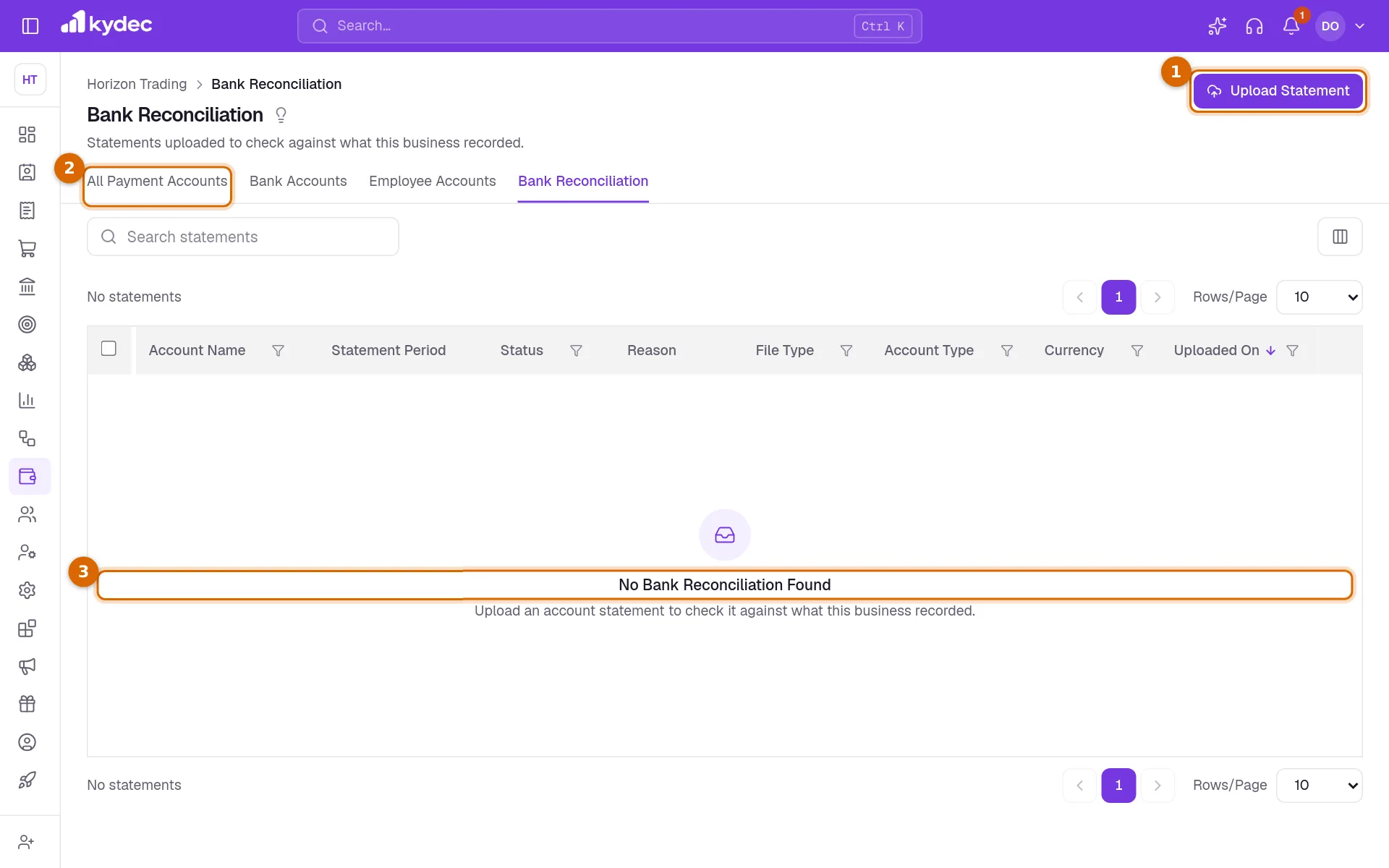
- Statement Period, Status and Reason show how far each statement has got.
- The eye on a row opens View Transactions. The ⋯ menu beside it also has View Bank Book, Start Reconciliation or View Reconciliation, Download Statement and Delete Statement.
Upload a statement
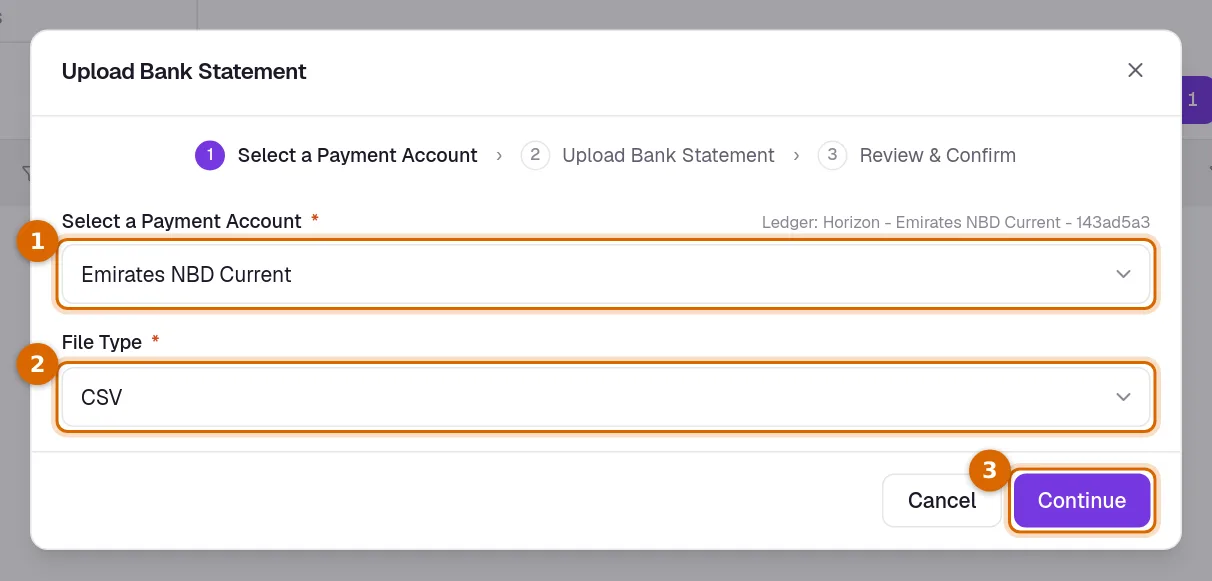
- 1Click Upload Statement, choose the bank account under Select a Payment Account, choose the File Type — CSV, Excel or PDF — and click Continue.
- 2Click Select a file from your device and pick the statement. For a PDF with a password, type it under PDF Password (if password protected). On a paid plan you can tick Enable Smart Transaction Analysis (Premium).
- 3Click Continue. The statement is read on the server.
- 4A CSV or Excel file is usually read at once: check the Start Date, End Date, Bank Account, Opening Balance, Closing Balance and No. of Transactions, then click Continue to open Review Transactions.
- 5A PDF, or a long file, is read in the background: the window says it was uploaded and closes itself, and the bell and an email tell you when it is ready, or what was wrong.
- Until it is read, the statement shows Processing on the list.
- The same file cannot be uploaded to the same account twice.
- A PDF password is used only to read the file and is never stored.
Good to know. A statement file can be up to 10 MB and 20,000 transactions.
Which files are read
Download the statement from your bank's website as CSV, Excel or PDF, in whatever layout your bank uses. You do not need to change its columns.
- KyDec finds the heading row wherever it is — over one line or several — and recognises the usual names for each column: date, narration or description, cheque or reference number, withdrawal and deposit (or debit and credit), a single amount with Dr/Cr, and the balance.
- Narration that runs over several lines is joined, page headings, footers, totals and the bank's own summary are left out, and a statement printed newest first is put in date order.
- Dates are read whichever way your bank writes them. Where every date could be day first or month first, they are read the way your business's country writes dates, and the statement says so.
- Every row is checked against the statement's own running balance. A row whose balance does not follow is named, by its row or page, and the statement shows Review pending until you have looked.
- Excel files can be .xlsx, the older .xls, or the web-page ".xls" some banks send. Download Sample File Format on a CSV gives a simple layout for typing transactions into a sheet yourself.
Rejected and failed statements
A statement is checked against the payment account it is uploaded to. When it is refused, the list shows the reason and the bell says so; Delete Statement in its ⋯ menu removes it, and you upload the right file.
- Rejected — Account number mismatch: the account number (or IBAN) printed on the statement is not the one saved on the payment account. Upload it to the right account, or correct the account's bank details. A masked number such as XXXXXXXX5541 is compared on the digits it shows.
- Rejected — Currency mismatch: the statement is in a different currency from the payment account.
- Failed: the file could not be read — a PDF whose password was missing or wrong, a damaged file, or a layout that was not recognised. Upload it again with its password, or your bank's CSV or Excel file.
Good to know. Add the account number and IBAN when you create a payment account, so statements can be checked against them.
Smart Transaction Analysis
Tick Enable Smart Transaction Analysis (Premium) when you upload, on a paid plan or the free trial, and KyDec goes beyond amounts and dates: it reads each transaction's narration and fills in the Reference Number, Party Name, Category and Payment Method columns of Review Transactions.
- Reference Number: the UTR or reference the narration carries, where the file has no reference column.
- Party Name: who paid or was paid. When it is one of your own clients or vendors, the name is taken from your records.
- Category: what it was for — Sales Receipt, Supplier Payment, Salary, Rent, Bank Charges, Interest, Tax & GST, Loan / EMI, Cash Withdrawal, Cash Deposit, Transfer, Refund, Card Payment, Utilities or Other. Money from a client is a sale, money to a vendor a purchase.
- Payment Method: UPI, NEFT, RTGS, IMPS, Cheque, ATM, Card, NACH / ECS, Cash or Account Transfer.
- With it on, a statement whose layout is not recognised is read with KyDec AI: it is sent to Claude, the AI service KyDec uses, which processes it outside India, and it counts as one scan of your plan's monthly allowance. What AI reads is checked against the statement's own balances in the same way.
Review and add to the bank book
Review Transactions shows the Statement Summary (opening and closing balance, total credits and debits) and every row of the statement.
- 1Open the Duplicate Transactions tab. It lists rows with the same date, amount, type and reference, which is what a statement downloaded twice looks like, and rows that are also on another statement of the same account whose dates overlap.
- 2Choose Mark as Duplicate in the ⋯ menu of any row that should not be counted. Remove as Duplicate takes the mark off.
- 3Click Add All to Bank Book to accept every remaining row. To accept only some, tick them and choose Add to Bank Book.
- Rows marked as duplicates are left out, and a row already in the bank book is never added twice. A row that is already there from another statement is marked as a duplicate instead, and the message says how many.
- View Bank Book opens the bank book for the account: everything you have accepted so far, with a running Closing Balance.
- When every row is in the book, KyDec takes you to the bank book.
Good to know. The statement's Status reads Added to bank book once some rows are accepted, and Adding all bank book once all of them are. After a reconciliation is started it reads Reconciliation in progress until every row is settled, then Reconciliation completed.
Reconcile
- 1In the bank book, click Start Reconciliation. It is also in the statement's ⋯ menu on the Bank Reconciliation list.
- 2KyDec matches the statement automatically and opens Reconcile Statement, with a tab for each state: Matched, Missing In Ledger, Missing In Bank Book, Reconcile Later, Discarded and Reconciled.
- 3Click View on a row that is not matched. Suggested Matches lists your receipts and voucher entries for the same amount, and Match Manually lets you search. Pick one and click Mark as Match.
- 4If nothing was recorded for a bank transaction, record it from the same panel: Create Payment Receipt for money received from a client, Create Payout Receipt for money paid to a vendor, or Create Voucher Entry under the arrow beside either for anything else.
- 5For a matched row, choose Mark as Reconcile in More to confirm it. Mark for Later sets a row aside for now.
- Matched means the bank transaction has a payment receipt, payout receipt or voucher entry recorded against it.
- Each row in your bank book is matched automatically with a receipt, payout receipt or voucher entry of the same amount, going the same way, dated within 7 days of it. The nearest date wins, and a reference or party the bank's narration names counts for more. When two of your records fit a row equally well, nothing is guessed: the row stays Missing In Ledger and you choose from its Suggested Matches.
- Missing In Ledger means the transaction is in your bank book but nothing in your records explains it.
- Missing In Bank Book means a statement row you have not added to the bank book, or a receipt, payout receipt or voucher of yours, dated within the statement, that no bank transaction is matched to.
- On a bank transaction, Match Manually searches your clients. On a receipt or voucher of your own, it searches the statement's transactions by remarks or reference number.
- Rescan reads your records again and matches what it can, including rows Missing In Ledger and rows you marked for later. Discarded and reconciled rows are left alone.
- Unmatch and Undo Reconcile take a decision back. Discard sets aside a receipt or voucher of your own that has no bank transaction.
Good to know. Create Voucher Entry needs Advanced Accounting to be switched on. Create Payment Receipt is only for money received, Create Payout Receipt only for money paid out; a payout created here is a Vendor Advance, which you can settle against purchases from Payout Receipts.
Delete and start again
- Delete Reconciliation, under the arrow beside Rescan, removes the scan and every decision made on it. The bank book and the statement are untouched. It is refused while any entry is Reconciled: use Undo Reconcile on those first.
- Delete Bank Book, under the arrow beside Start Reconciliation, empties the account's bank book. The statements that filled it go back to waiting, so their rows can be accepted again.
- Delete Statement removes the file and the rows read from it.
Good to know. These have to be done in that order. A reconciliation cannot be deleted while it has reconciled entries, a bank book cannot be deleted while it has a reconciliation, and a statement cannot be deleted while its transactions are in a bank book, reconciled, or matched to a receipt or voucher.
Common questions
- Which file formats can I upload?
- CSV, Excel (.xlsx and .xls) and PDF, including password-protected PDFs, up to 10 MB and 20,000 transactions. Any bank's own layout is read.
- My bank's export has different column names. Will it work?
- Yes. KyDec recognises the names banks use for each column — transaction date, narration, particulars, withdrawal, deposit, debit, credit, Dr/Cr, balance and more — wherever the heading row is. If it still cannot tell the columns apart, upload it with Smart Transaction Analysis on and KyDec AI reads it.
- Why can I not delete a statement?
- Something still depends on it. Undo Reconcile on reconciled entries and unmatch any transaction that is matched to a receipt or voucher, delete the reconciliation, then delete the bank book. After that Delete Statement works.
- Does reconciling change my books?
- Matching and reconciling only record how a bank transaction relates to what you already recorded. Your books change only when you create something new from a transaction, with Create Payment Receipt or Create Voucher Entry.
Related guides
Payment accounts
Every account money moves through — bank accounts, the cash box, cards and wallets, and employees you reimburse. What you add here is what a document can be paid into.
Payment Receipt
Every payment a client has made you, whether it was recorded against an invoice or matched from a bank statement. Money that settles no document yet stands here as an advance.
Voucher Books
Group your voucher entries into books by type, and see how many entries each book holds in a financial year.
Accounts (Ledgers)
Create accounts, view ledger entries, and track all your financial transactions in one place.