
Help
Payment accounts
Every account money moves through — bank accounts, the cash box, cards and wallets, and employees you reimburse. What you add here is what a document can be paid into.
Where to find it:Banking & PaymentsPayment Accounts
What a payment account is
A payment account is anywhere your business keeps or moves money: a bank account, the cash box, a company card, a wallet, a payment gateway, or an employee who pays for things and is paid back.
When you record a payment on an invoice or a purchase, you say which payment account the money went into or came out of. Bank accounts are also what you name on a document as the place to pay.
There are three kinds, each with its own form: Bank Account, Employee Account, and Other Account for everything else.
Find your way round
Open Banking & Payments in the sidebar and choose Payment Accounts.
- 1New Payments Account starts a new account.
- 2The strip under the title switches screens. All Payment Accounts lists every kind; Bank Accounts and Employee Accounts list one kind each, with the columns that matter for it; Bank Reconciliation is where statements are checked.
- 3Active Accounts are in use. Inactive Accounts have been set aside and can be restored.
- 4Edit on a row opens the account. More beside it holds the rest.
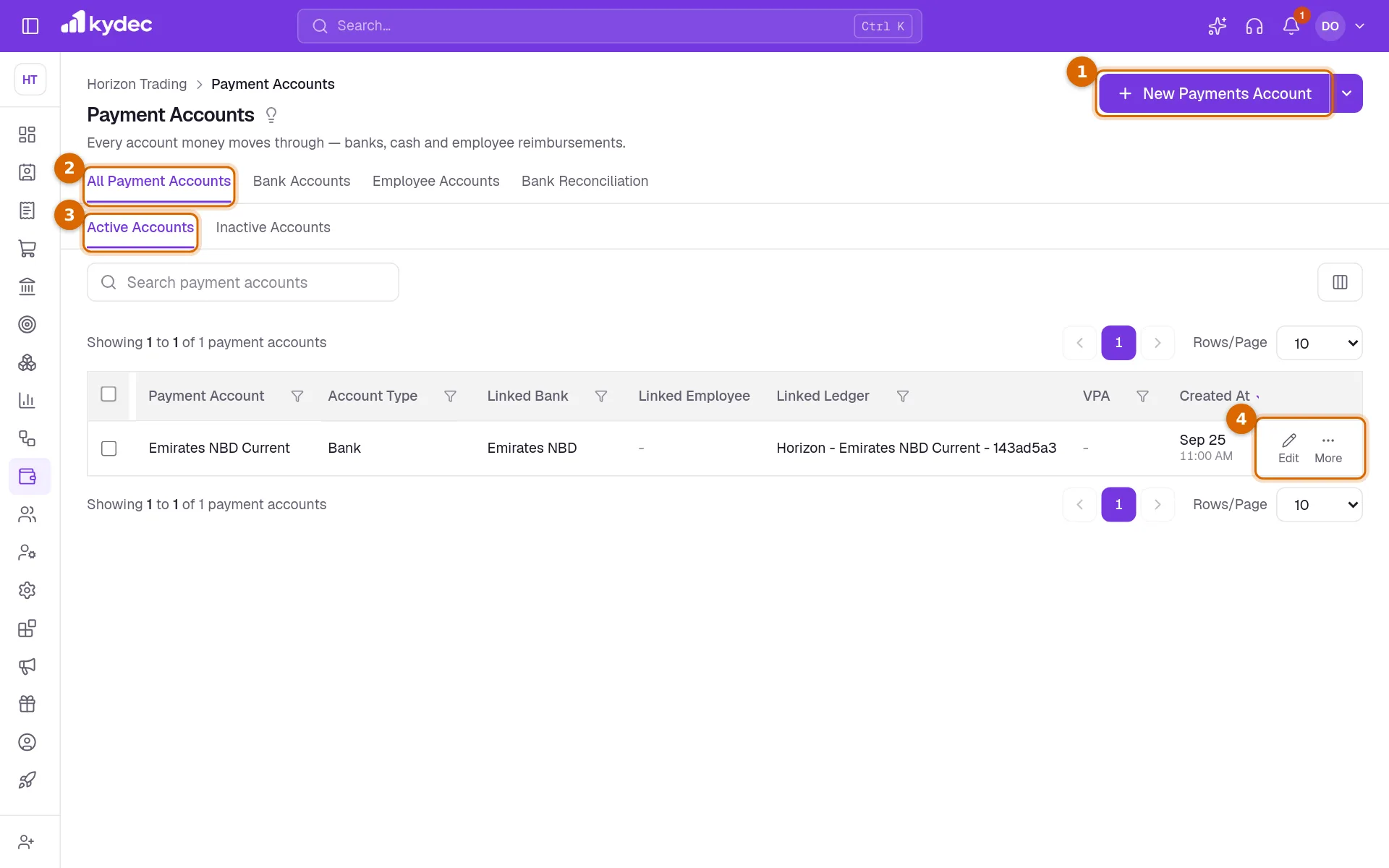
- Search, the filter beside each column heading and the sort arrows all work together.
- Linked Ledger shows the account in your Chart of Accounts that this payment account posts to, once Advanced Accounting is on.
- Each screen remembers its own columns, so hiding a column on Bank Accounts does not hide it elsewhere.
Choose the kind of account
- 1Click New Payments Account. Bank Account is for any account held at a bank.
- 2Employee Account is for a member of staff whose expenses you pay back.
- 3Other Account covers cash, debit and credit cards, wallets and more.
- 4Click Continue to open the form for the kind you picked.
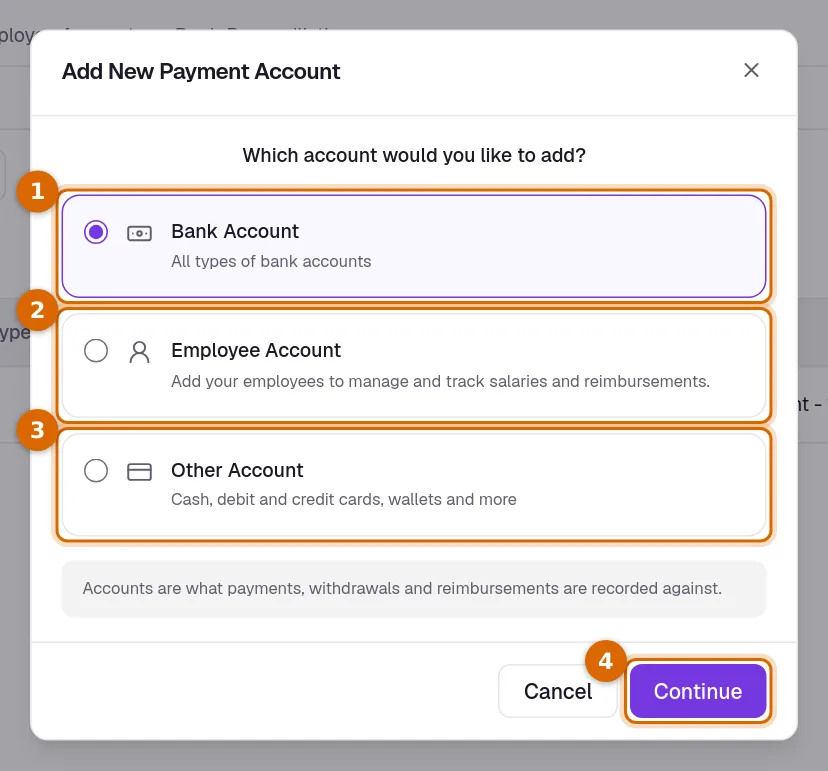
- Already know the kind you want? The arrow beside New Payments Account has Add Bank Account, Add Employee Account and Add Other Accounts, each straight to its form.
Add a bank account
- 1Choose the Country. It decides which bank codes are asked for and sets the Currency to match; you can change the currency afterwards.
- 2Enter the Bank Name and the Account Number, then type the number again in Confirm Account Number. It has to be typed: pasting is blocked, so a wrong number is not confirmed by accident.
- 3Enter the bank codes for the country: IBAN Code and SWIFT Code for most countries, IFSC Code in India, and a Sort Code as well in the United Kingdom.
- 4Enter the Account Holder Name, choose the Bank Account Type and check the Currency. Leave Ledger blank to have an account created for it in your Chart of Accounts, or pick an existing one.
- 5Click Add Account.
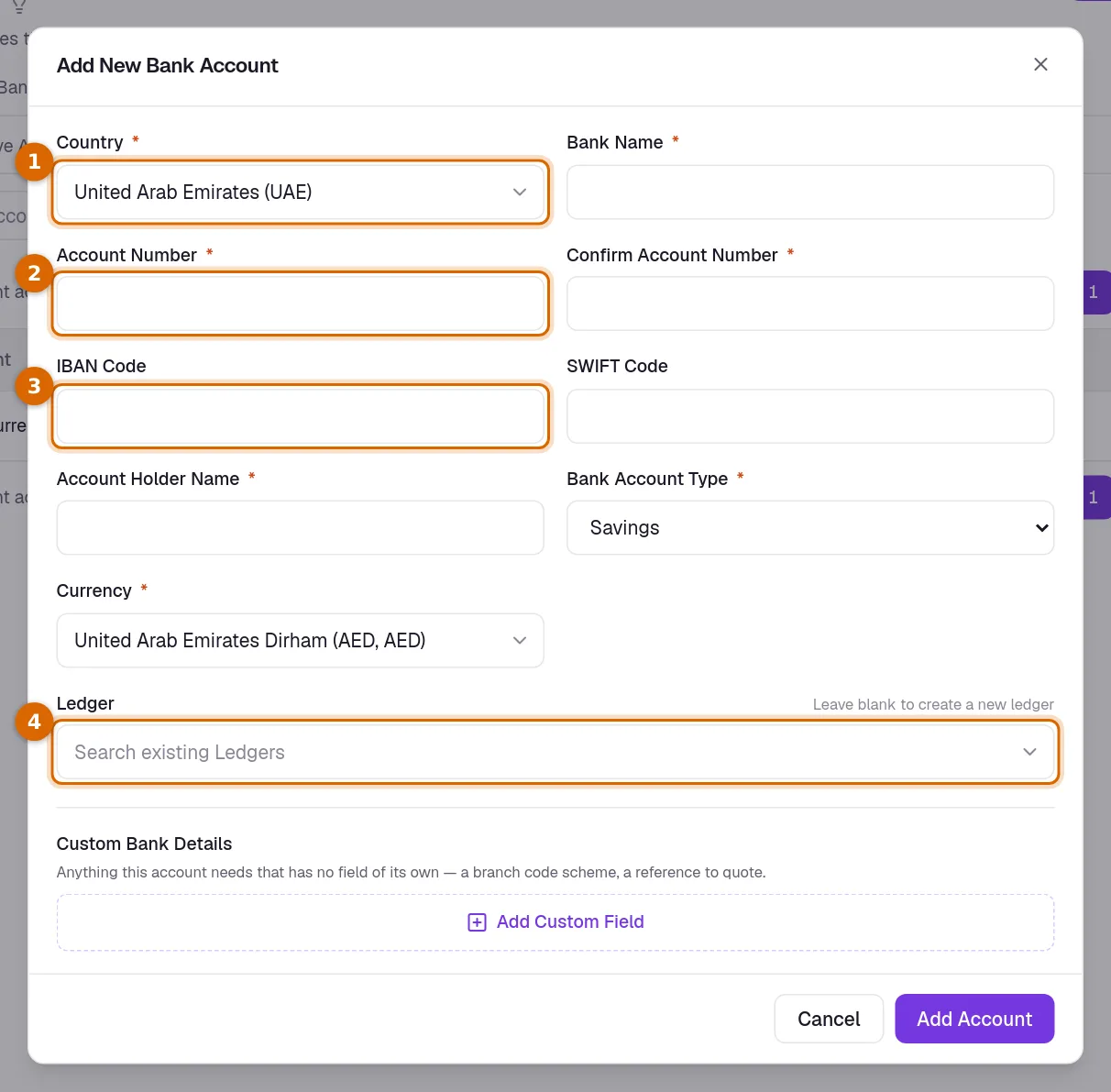
- KyDec names the account after the bank and the last four digits of the account number. You can rename it later with Edit.
- For an Indian account, UPI ID is what the Scan to Pay QR on your invoices pays into, and Add SWIFT Code adds a SWIFT field if you need one.
- Custom Bank Details takes anything that has no field of its own, such as a reference to quote. Add a line with Add Custom Field.
Good to know. The ledger is created when Advanced Accounting is on. If it is still off, the ledger is created for the account on the day you enable it.
Employee and other accounts
- An Employee Account needs a Country, an Employee Name and a Currency. Department is optional, and Add Level, Add Employee ID and Add Phone Number add those fields when you want them.
- An Other Account needs an Account Name, an Account Type and a Currency. The types are Cash, Credit Card, Debit Card, Digital Wallet, Prepaid Card, Payment Gateway and Other.
- On an other account, Link Bank Account records the bank account it settles through and Link Employee Account records whose account it is. Both are optional.
- Both forms have a Ledger field that works as it does on a bank account: left blank, a new one is created.
Change, set aside and restore
Open the More menu on a row.
- 1Mark as Inactive sets an account aside. It stops being offered on new payments; documents already paid into it are not affected.
- 2Edit Linked Bank Account changes the bank details: the number, the codes, the holder name. On an employee account the item is Edit Linked Employee Account.
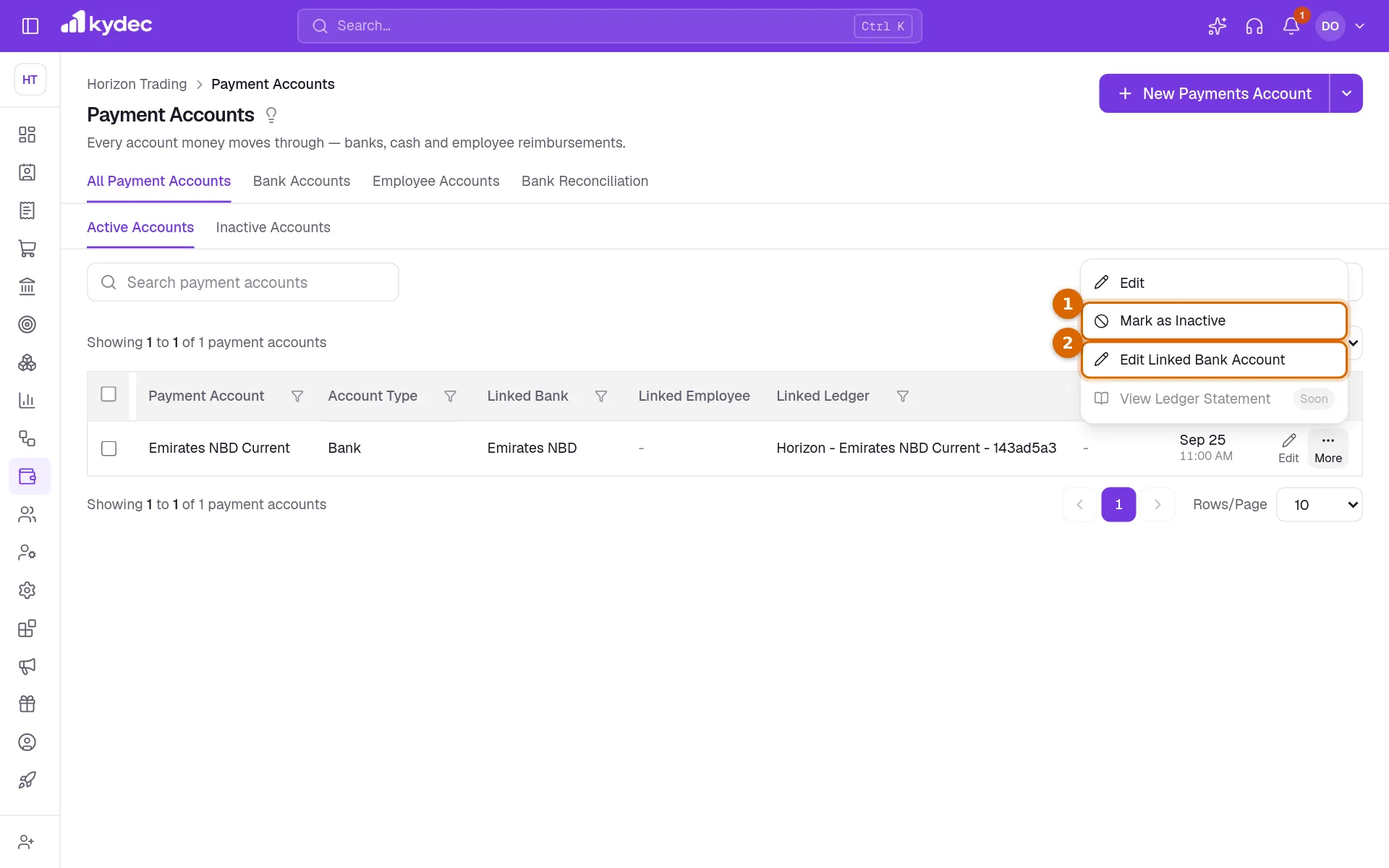
- Edit changes the payment account itself: its name, currency, links and ledger. The kind of account cannot be changed.
- On the Inactive Accounts tab, Restore Account brings an account back.
- On the Bank Accounts screen, Make Primary marks one bank account as your main one: a new document opens with its bank details, and you can still pick another there. Only one account is primary at a time.
- Record Reimbursement and View Ledger Statement are shown in the menu as coming soon.
Good to know. Changes to bank details are not copied onto documents you have already created.
Rules worth knowing
- A payment account is never deleted. One you no longer use is marked inactive, so past payments keep the account they were made with.
- An account that is set as a default payment account under Integrations in Business Settings cannot be marked inactive until another account is chosen there.
- Once a bank statement has been uploaded for an account, its Ledger is locked until the related reconciliations are removed.
- Only active bank accounts can have statements uploaded for reconciliation.
Common questions
- What is the difference between Payment Accounts and Bank Accounts in the menu?
- They are the same records shown two ways. Payment Accounts lists every kind. Bank Accounts lists only the bank accounts, with their numbers and codes as columns, and Employee Accounts does the same for employees.
- Can I delete a payment account?
- No. Use Mark as Inactive in the More menu. The account moves to the Inactive Accounts tab and can be brought back with Restore Account.
- Do I need Advanced Accounting to use payment accounts?
- No. Payment accounts work on their own. When Advanced Accounting is switched on, each one is given an account in the Chart of Accounts so that its payments reach your books.
- Can I record paying an employee back from here?
- Not yet. Record Reimbursement is in the menu of an employee account as coming soon.
Related guides
Bank reconciliation
Upload your account statements to check them against what this business recorded, so a payment the bank shows and your books do not is found rather than discovered at year end.
Accounts (Ledgers)
Create accounts, view ledger entries, and track all your financial transactions in one place.
Payment Receipt
Every payment a client has made you, whether it was recorded against an invoice or matched from a bank statement. Money that settles no document yet stands here as an advance.
Payout Receipts
Record a full or partial refund, automatically update the Credit balance, create a Refund Receipt, and keep your books updated.