
Help
Devices and sessions
You can stay signed in on several devices. Review the list and sign out anything you do not recognise.
Where to find it:User SettingsPassword & Security
What the list shows
Every time you sign in to KyDec on a browser, that browser stays signed in until you sign it out or leave it unused for 30 days. The list shows each of those sign-ins, so you can spot one that is not yours.
The list belongs to you, not to one business. It is the same whichever of your businesses you have open.
Open your devices
- 1Click your picture at the top right of any page.
- 2Choose User Settings.
- 3Choose Password & Security in the list on the left.
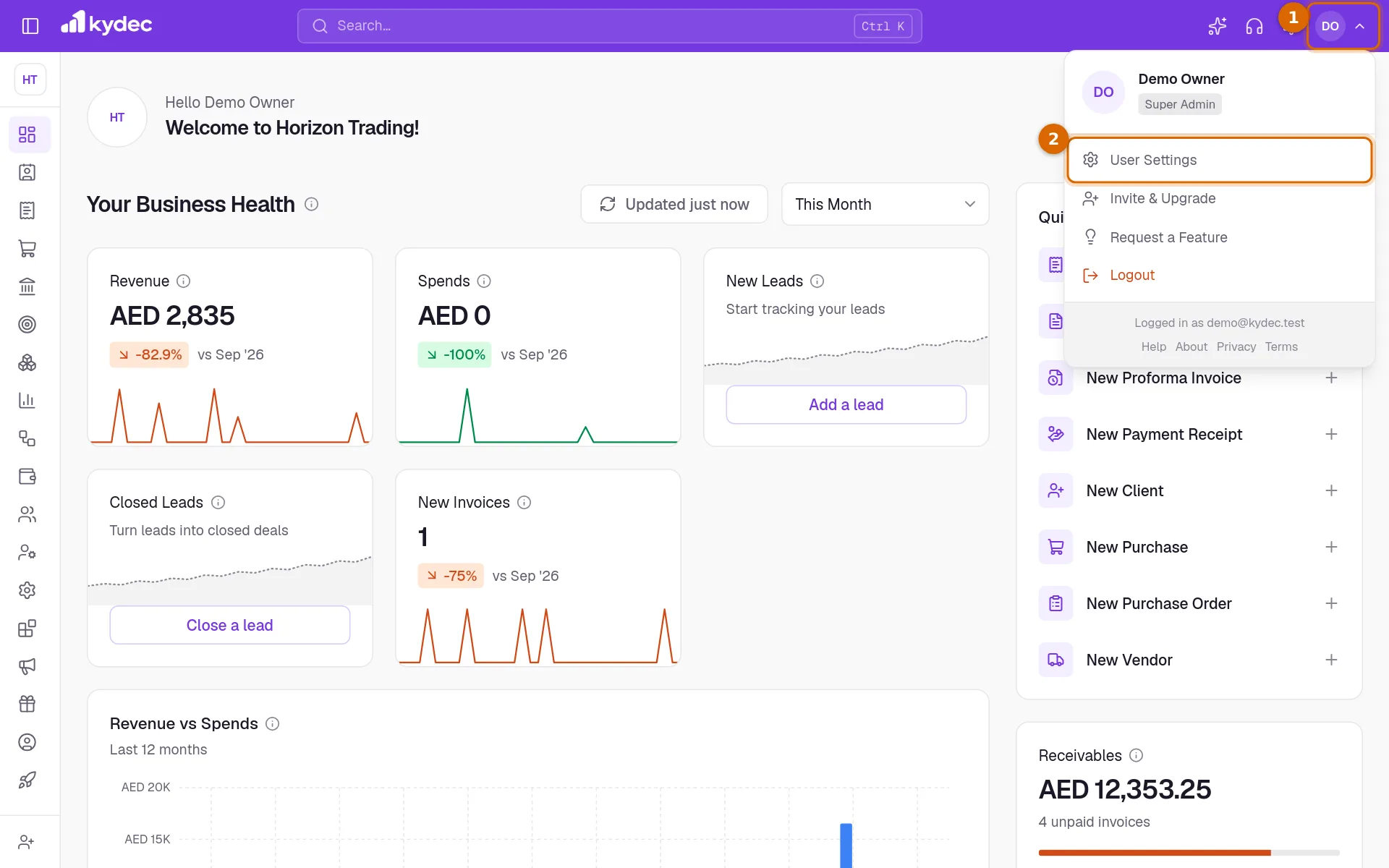
- From Business Settings you can get there too: User Settings is at the bottom of the list on the left.
Read the list
- 1Password & Security holds your password, the sign-out for every device, and the list of devices.
- 2Where you are signed in lists each device, the one used most recently first, with the number of devices on the right.
- 3This device marks the browser you are using now. It has no Sign out button of its own.
- 4Logout, beside Logout from all devices, ends every sign-in at once, this one included.
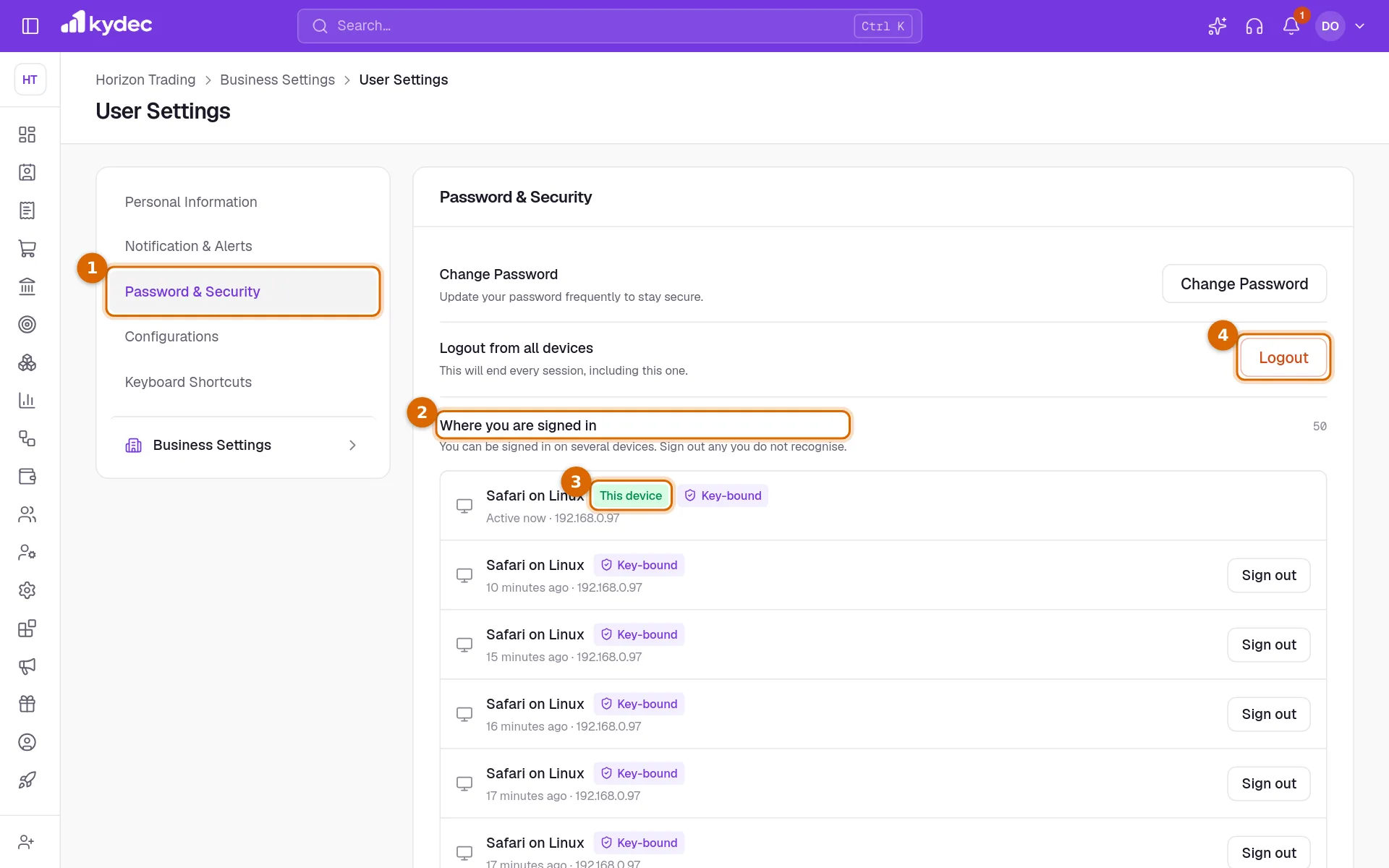
- Each row names the browser and the system, for example Chrome on Windows.
- Under the name is when it was last used: Active now, so many minutes, hours or days ago, or a date once it is more than a week old.
- The place and the network address follow when they are known. The place is worked out from the network address, so it can be approximate.
- Key-bound means that sign-in is tied to a key kept in that browser, so it cannot be copied and used from somewhere else.
Sign out a device you do not recognise
- 1Find its row in the list.
- 2Click Sign out. The row disappears and that device is signed out straight away: the next thing it tries to do is refused, and it has to sign in again.
- 3If you did not recognise the device, click Change Password on the same page and set a new one.
Good to know. Changing your password signs out every other device and keeps you signed in on this one.
Sign out everywhere
Logout from all devices is for a lost laptop or a phone you no longer have. It ends every sign-in, including the one you are using, and returns you to the sign-in page.
Good to know. Logout acts as soon as you click it. There is no second question.
Common questions
- I see a device I do not recognise. What should I do?
- Click Sign out on its row, then change your password. Changing the password signs out every other device as well.
- Why is the same computer listed more than once?
- Each sign-in has its own row. Two browsers on one computer, or signing in again without signing out first, each add one. A row drops off by itself after 30 days without use, or you can sign it out.
- Does signing a device out delete anything?
- No. It only ends that sign-in. Your account, your businesses and your records are untouched, and you can sign in on that device again.
Related guides
Invoices API
Create, edit and share invoices and other documents from your own website or app. Your app id identifies the business; the secret proves the request came from you.
Emails and notifications
Control what your clients receive automatically — receipts, quotations, testimonial requests — and what your team is alerted about.
Business profile
The name, tax registration and address printed on everything you issue. Getting these right once keeps every document compliant.