
Help
Emails and notifications
Control what your clients receive automatically — receipts, quotations, testimonial requests — and what your team is alerted about.
Where to find it:Business SettingsEmail SettingsEmails & Notifications
What this part is for
KyDec can email your clients on your behalf, and alert your team, when certain things happen: a payment is recorded, a quotation is raised, a lead arrives, a document needs approval.
Emails & Notifications is one list of switches, one for each of those messages, where your business says which of them it wants.
Where to find it
- 1Open Business Settings and choose Email Settings.
- 2Click Emails & Notifications, the last part on the tab, to open it.
- 3Flip the switch on a row to turn that message on or off. It is saved straight away.
- 4Rows marked Premium are part of a paid plan.
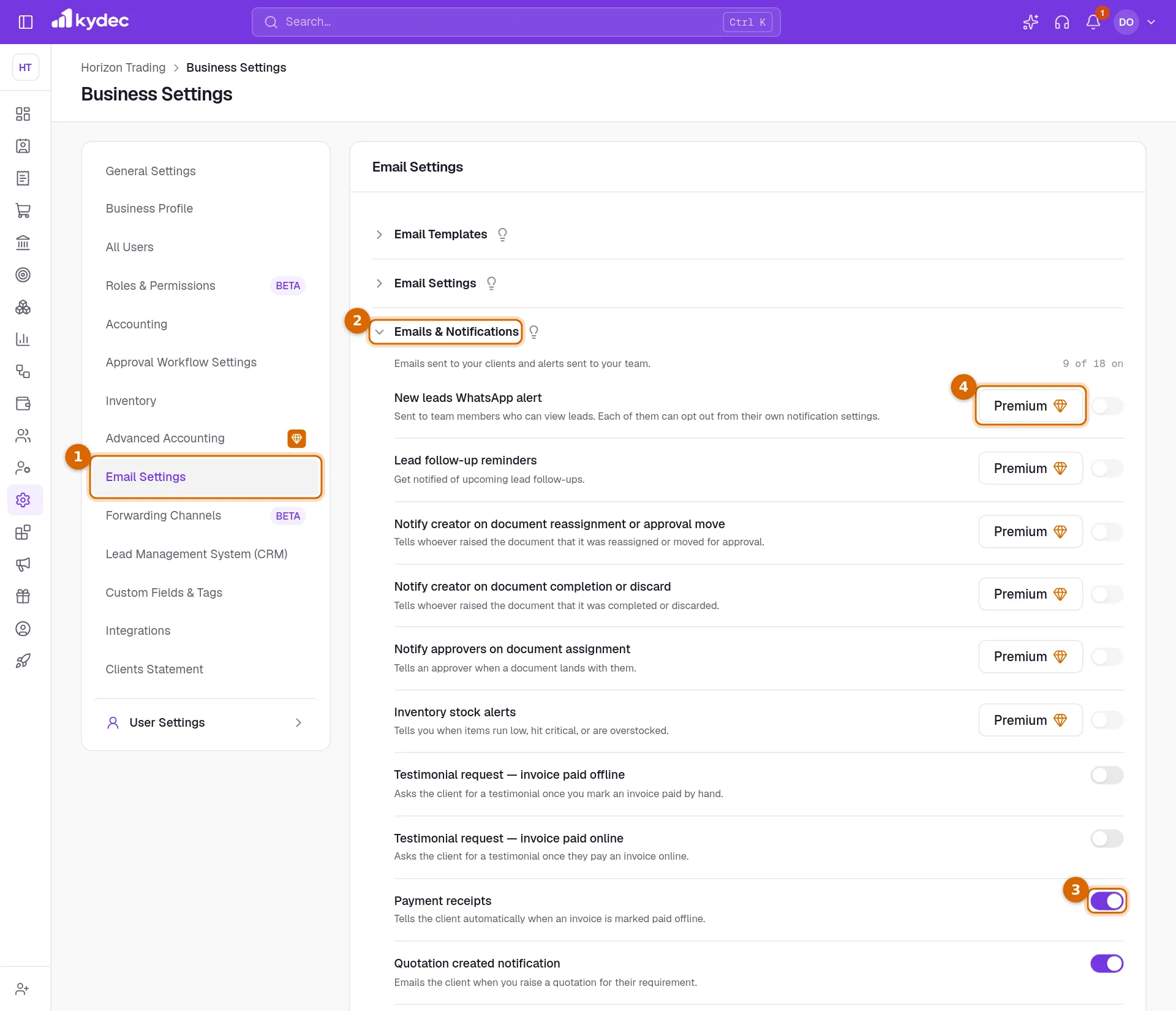
- The count at the top right, such as "13 of 18 on", shows how many are switched on.
Messages to your clients and leads
- Payment receipts: tells the client when an invoice is marked paid offline.
- Quotation created notification: a quotation you start with Create Quotation on a lead is emailed to the client, with its link, the first time it is saved (not as a draft). The lead's Activity History says so.
- Testimonial request — invoice paid offline and Testimonial request — invoice paid online: once an invoice is paid in full (by Record Payment or a payment receipt, or online through Pay Now), the client is emailed a link to rate you and say a few words. A client is asked at most once in six months.
- What a client sends waits on your Business Profile under Testimonials, marked Waiting for your approval. Approve puts it on your public profile; Remove deletes it.
- Notify client on lead comments: the reply box under a lead's Activity History shows Also email this to …, ticked. The reply then goes to the lead's email (else its contact's, else the organisation's), and the client's answer comes back to whoever wrote it. Untick it to keep a reply inside your team.
- Notify referrer after a requirement is created and Notify a lead that they were referred to you are marked Soon: KyDec has no referrals yet.
Alerts for your team
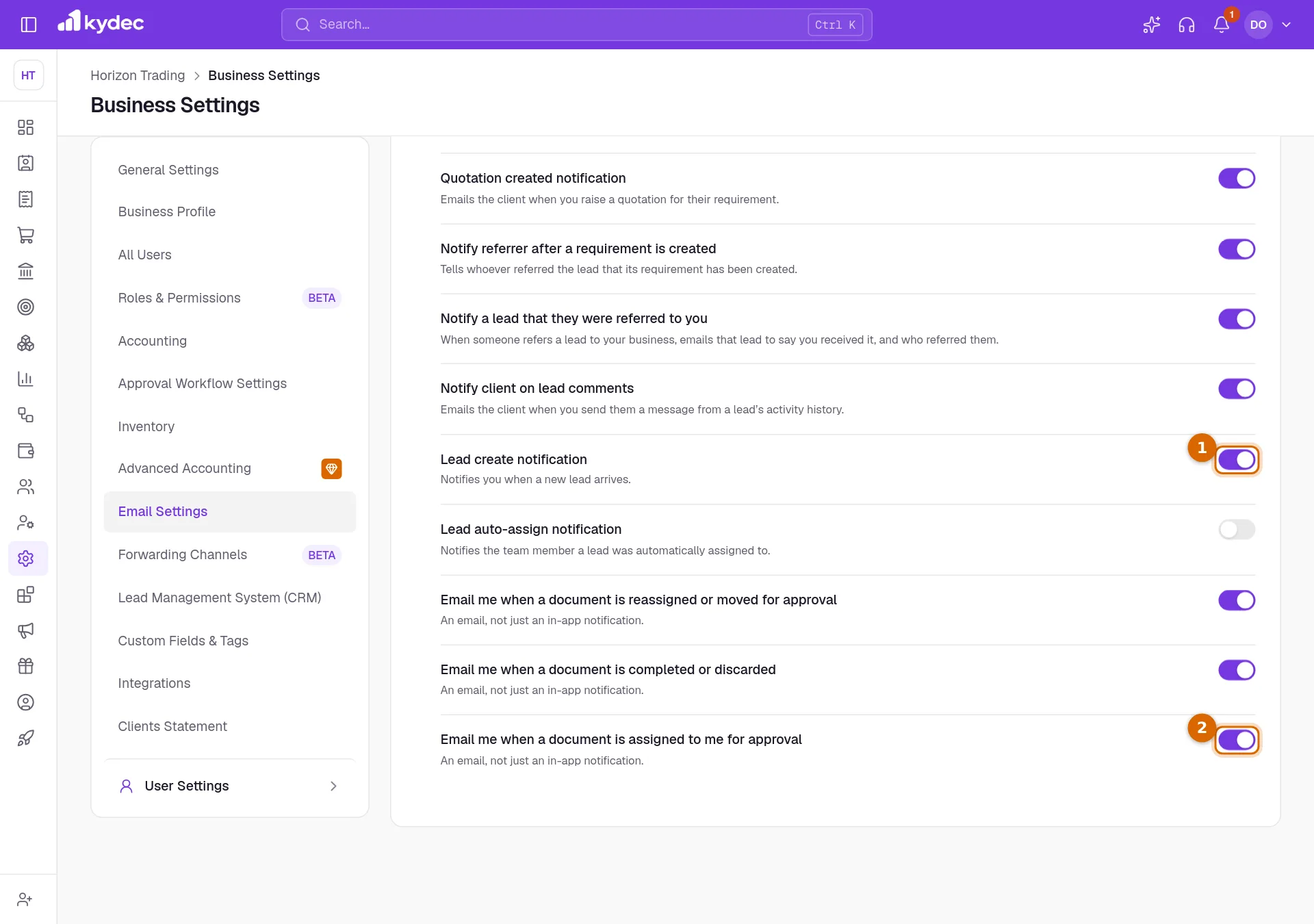
- Lead create notification and Lead auto-assign notification: a new lead arriving, and a lead being assigned to a team member automatically.
- Email me when a document is reassigned or moved for approval, Email me when a document is completed or discarded and Email me when a document is assigned to me for approval: an email as well as the notification inside KyDec.
- The six Premium rows are New leads WhatsApp alert, Lead follow-up reminders, Notify creator on document reassignment or approval move, Notify creator on document completion or discard, Notify approvers on document assignment and Inventory stock alerts. New leads WhatsApp alert is marked Soon for now.
Rules worth knowing
- On the Basic plan the Premium rows are locked and stay off. Click Premium on a row to see how to upgrade.
- A new business starts with most switches on. The two testimonial requests, Lead auto-assign notification and the two "Notify creator" rows start off.
- The switches belong to the business, not to one person. A change applies for everyone.
Good to know. Rows marked Soon are not built yet and stay off. The rest work as soon as they are on. Emails to your clients and leads go from the sender connected under Email Settings.
Common questions
- Why can I not switch on a Premium row?
- Those six rows need a paid plan or an active trial. On the Basic plan they are locked, and Premium on the row shows you how to upgrade.
- I switched a row on but no email went out. Why?
- Check that the client or lead has an email address, and that a sender is connected under Email Settings. A testimonial request goes to the same client at most once in six months, and Quotation created notification only covers a quotation started from a lead.
- Which address are emails sent from?
- From the mailbox you connect under Email Settings on the same tab. If none is connected, they leave from KyDec’s address with your business named as the sender.
Related guides
Send emails from your domain
Connect your personal or work email so invoices, quotations and other documents arrive from your own address rather than ours.
Email templates
Write the emails you send to leads, clients and vendors once, with variables that fill in the contact, company and document details when it goes out.
Document approvals
Route documents for sign-off before they are issued. Turn on auto-add for a document type and every new one joins the approval queue automatically.
Streamline Lead Management
Automate lead capture with Forms & third-party integrations, manage leads across multiple pipelines, communicate over email/WhatsApp, track deal progress, track team performance, and more.