
Help
Invoices API
Create, edit and share invoices and other documents from your own website or app. Your app id identifies the business; the secret proves the request came from you.
Where to find it:Business SettingsIntegrations
What the API is for
The API lets your own website, app or another system work with the records of one KyDec business without anyone signing in. A shop can raise an invoice when an order is paid, a CRM can add a client, a dashboard can read your reports.
It is opened with a pair of keys. The app ID says which business a request is for, and the app secret proves the request came from you. This is the one part of KyDec meant for a developer: give them this page and the API reference it points to.
Good to know. The keys can read records and create new ones. They cannot change or delete a record, send or share a document, or touch users and settings. Those are done in KyDec itself.
Find the API settings
- 1Open Business Settings and choose the Integrations tab. Integrations in the sidebar opens the same page.
- 2Under Accounting Integrations, find the row Enable Invoices API.
- 3The button on that row reads Generate API Keys until keys exist, and Manage API Keys afterwards.
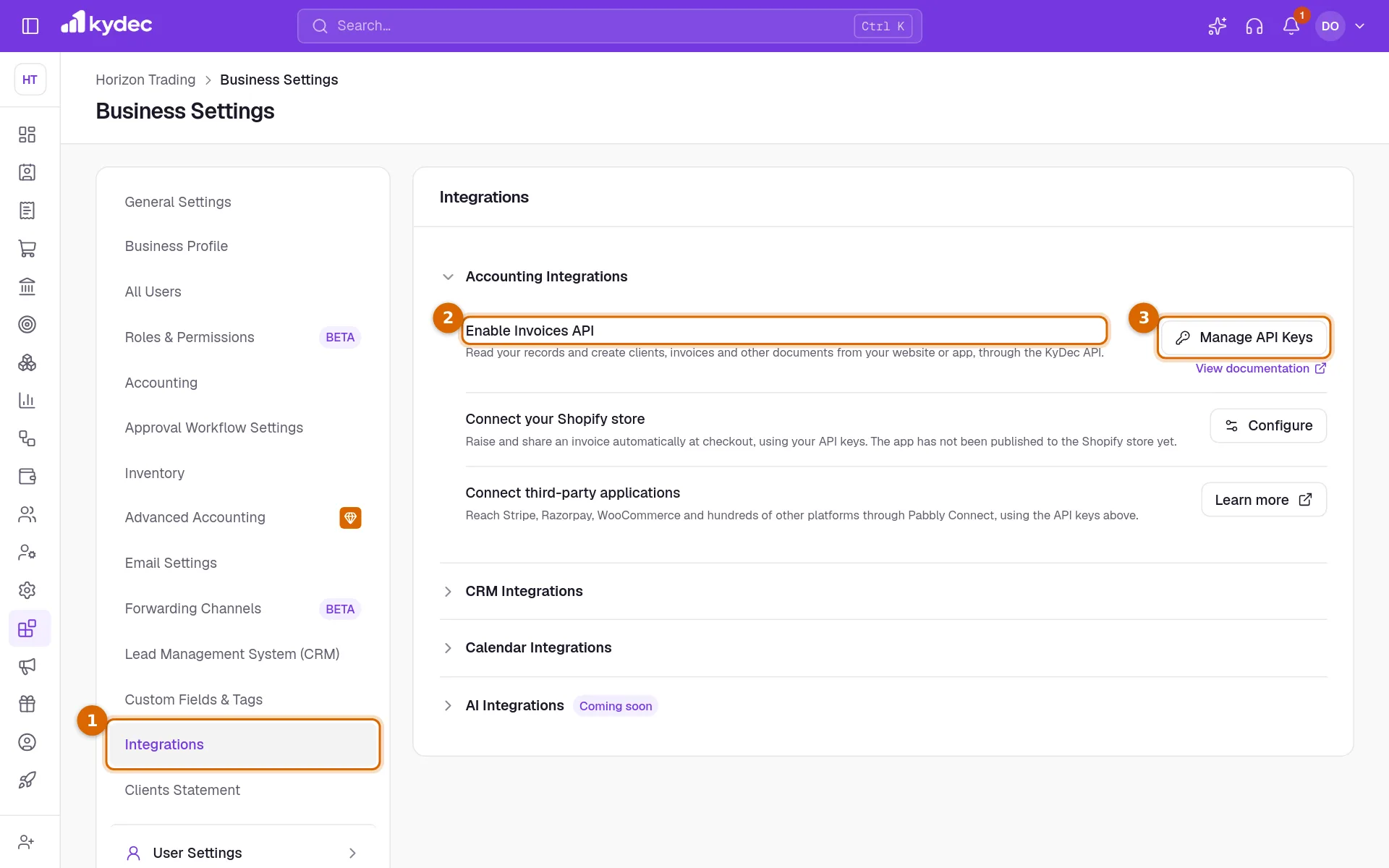
Good to know. The row is shown only to people whose role includes Complete business permissions. If you cannot see it, ask the owner of the business.
Generate your keys
Click Generate API Keys. A dialog opens and explains what is about to happen; nothing is created until you confirm.
- 1Read the warning at the top: the app secret and the private key can be read only once.
- 2Click Yes, Generate.
- 3Four values appear: Your URL key, Your app ID, Your app secret and Your private key. The last two show as dots. Click Copy beside each one and paste it somewhere safe, such as a password manager.
- 4Click Done.
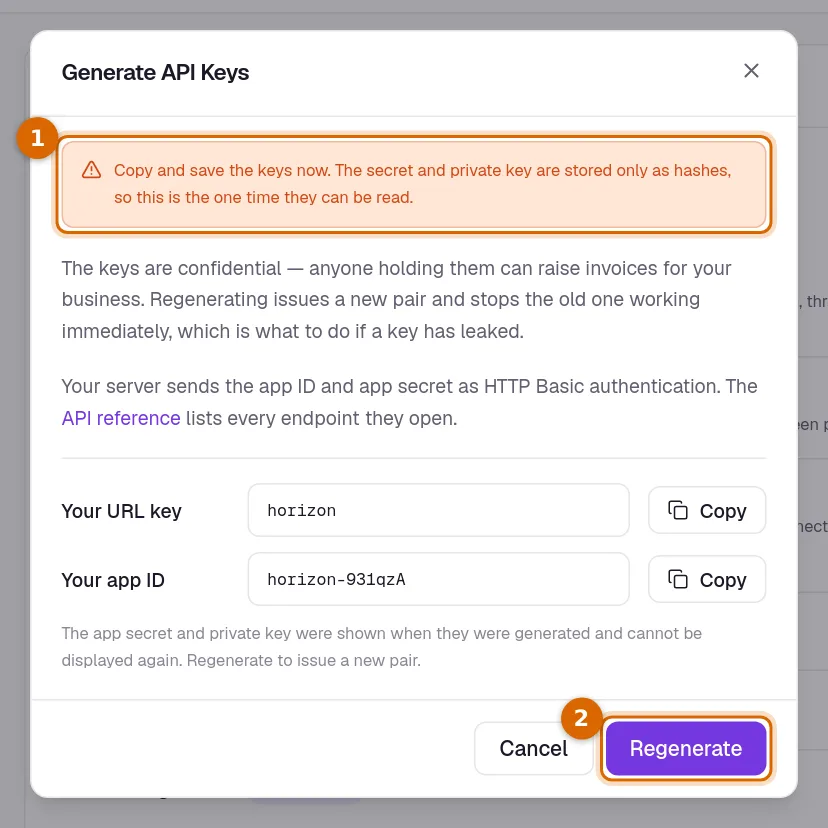
Good to know. KyDec keeps no readable copy of the app secret or the private key. Once you close the dialog nobody can show them to you again. If you lose them, generate new ones.
Hand the keys to your developer
Every request carries the app ID and the app secret, sent as the user name and password of HTTP Basic authentication. The URL key and the private key are issued with them; keep them safe too, although no request asks for them today.
The API reference link in the keys dialog opens the full reference, which is also at /api/docs on your KyDec address. It lists every request with its fields and an example, so it is the page your developer works from.
- Read and create: clients, contacts, items, quotations, sales orders, proforma invoices, invoices, delivery challans, credit notes, debit notes, payment receipts, purchase orders, and purchases and expenses.
- Read only: HSN and SAC codes, the chart of accounts, voucher books and their entries, and reports such as the Trial Balance, Profit & Loss, Balance Sheet, Cash Flow Statement and Day Book.
- A request acts as the person who generated the keys, with their role. If that person sees only their own records, so do the keys.
- Keys belong to one business. Each of your businesses generates its own.
Good to know. Keep the app secret on your server. Never put it in a web page or a mobile app, where anyone can read it.
Replace keys that have leaked
- 1Click Manage API Keys. The dialog shows Your URL key and Your app ID; the secret and the private key are not shown again.
- 2Click Regenerate. A new set is issued and the old keys stop working immediately.
- 3Copy the new values and give them to your developer, so your website or app keeps working.
Good to know. A business has one set of keys. Regenerating replaces it; an old and a new set cannot work side by side.
The other rows in Accounting Integrations
- Connect your Shopify store is not available yet: the KyDec app has not been published to the Shopify store. Configure on that row opens Configure Payment Accounts, where you choose the payment account printed on your documents.
- Connect third-party applications points to Pabbly Connect, a service that links apps to each other using your API keys. Learn more opens its directory in a new tab; a ready-made KyDec app is not listed there yet.
Common questions
- I lost the app secret. Can I see it again?
- No. It is shown once, when it is generated. Click Manage API Keys and then Regenerate to get a new set. The old keys stop working at once, so update your website or app with the new ones.
- How do I switch the API off?
- There is no off switch. Click Regenerate and do not hand out the new keys: the old ones stop working immediately, and nothing can reach your business through the API.
- Can the API change or delete my invoices?
- No. Keys can read records and create new ones. Changing, deleting, sending and sharing are done in KyDec.
- Who can generate keys?
- Only someone whose role includes Complete business permissions.
Related guides
Invoice
Create invoices from customisable templates, share them as a PDF, a print or a link over WhatsApp or email, and record and track what is paid against each one.
Clients & Prospects
Every business you sell to, and the ones you hope to. A prospect becomes a client the moment you invoice it; archiving keeps old ones out of the way without losing their history.
Bulk Upload Documents
Upload many invoices at once from a CSV file. Use the sample file format, or turn on “I have my own CSV format”: map your file’s columns to KyDec’s fields once, save the mapping as a template, and pick that template the next time you upload a similar file. Every file is checked first, and rows with a problem come back in an error report with the reason beside each.
Devices and sessions
You can stay signed in on several devices. Review the list and sign out anything you do not recognise.