
Help
GSTR-1 sales return
Build your GSTR-1 from the invoices you raised: review the sales report, clear what fails validation, download the file for the GST portal, and mark the return as filed.
Where to find it:GST ComplianceGST ReturnsGSTR-1
What GSTR-1 is and what KyDec does with it
GSTR-1 is the GST return of your sales, which the form calls outward supplies: the invoices, credit notes and debit notes you issued in a tax period, and the advances you received. KyDec works it out from the documents already in your books and lays it out table by table, as the form numbers them.
The tax period is a month, or a quarter when the Filing Frequency in GST Profile & Settings is Quarterly (QRMP). QRMP is the scheme under which a business files quarterly and pays its tax monthly.
The pages are under GST Compliance, GST Returns, GSTR-1: Sales Report, Exceptions / Validation, IFF (QRMP months), GSTR-1A (Amendments) and File GSTR-1.
- Regular, Casual, SEZ Unit and SEZ Developer registrations see these pages. A Composition registration and the special registration types file other returns and do not.
- IFF (QRMP months) shows only for a quarterly filer.
- Each GSTIN has its own GSTR-1. With several GSTINs, the pages work on the one chosen in the GSTIN picker at the top.
Good to know. KyDec does not send GSTR-1 to the GST portal. You download the return, file it on the portal yourself, then click Mark as Filed in KyDec.
Prepare the return on the Sales Report
Open GST Compliance, then GST Returns and GSTR-1, and choose Sales Report. The page is titled GSTR-1 Sales Report.
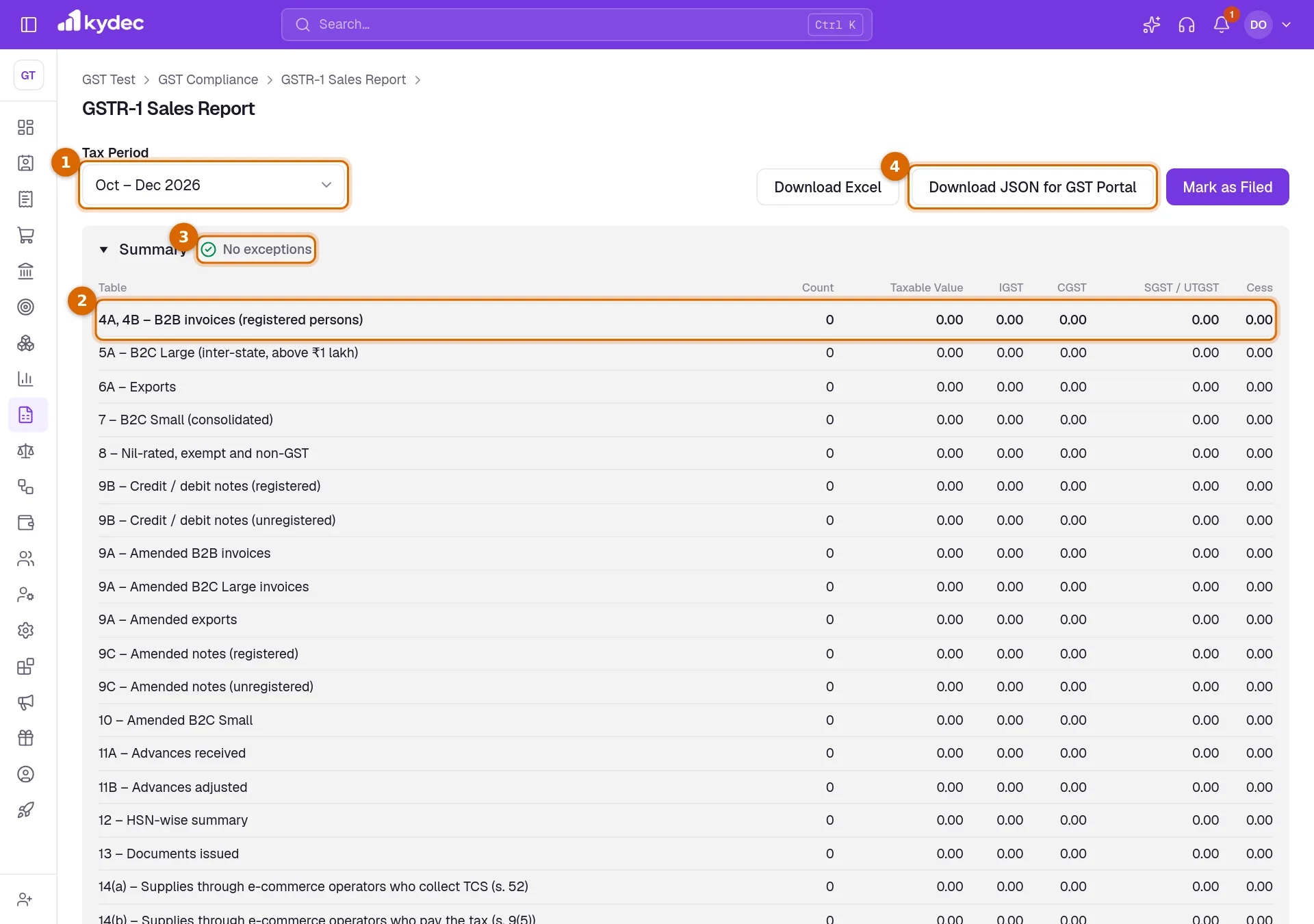
- 1Choose the Tax Period. Periods run from the newest back to your date of registration, and one you have marked as filed reads Filed beside its name.
- 2Read the Summary. It has one row for each table of the return, with Count, Taxable Value, IGST, CGST, SGST / UTGST and Cess. Click a row to list what is in that table underneath. The page opens on the B2B table.
- 3Check the link at the right of Summary. It reads No exceptions, or how many there are to fix and to review, and opens Exceptions / Validation for the same period.
- 4Click Download JSON for GST Portal for the file the Returns Offline Tool of the GST portal imports. Download Excel gives the same return as a workbook to review or pass to your accountant.
- 5When the return has been filed on the portal, click Mark as Filed.
- The return counts the invoices, credit notes and debit notes dated in the period and issued under this GSTIN. Drafts and deleted documents are left out. A cancelled document is left out of the value tables and counted as cancelled in Table 13.
- All figures are in rupees. A document in another currency is converted at its own exchange rate.
- In the lower table, the document number opens the document. Download CSV saves the table you are on, and the search box works on the document tables and the HSN summary.
- (late) beside a number marks a document dated before the period that no earlier return reported.
Good to know. Mark as Filed is greyed out while the period has an exception to fix.
What each table holds
B2B means a sale to a business registered for GST, one that has a GSTIN. B2C means a sale to anyone without a GSTIN.
- 4A, 4B – B2B invoices (registered persons): invoices to clients with a GSTIN, one row for each invoice and rate. Type reads R for a regular sale, SEWP or SEWOP for an SEZ supply with or without payment of tax, and DE for a deemed export. Reverse Charge says whether the client accounts for the tax.
- 5A – B2C Large (inter-state, above ₹1 lakh): invoices above ₹1 lakh to clients without a GSTIN in another state.
- 6A – Exports: invoices to clients outside India, with Type WPAY or WOPAY for with or without payment of tax, and the Shipping Bill.
- 7 – B2C Small (consolidated): every other sale to clients without a GSTIN, added up by Place of Supply and Rate %, with their credit and debit notes taken off.
- 8 – Nil-rated, exempt and non-GST: the value of invoice lines marked Nil Rated, Exempt or Non-GST, split between sales within your state and to other states, and between registered and unregistered clients.
- 9B – Credit / debit notes (registered) lists notes to clients with a GSTIN, and Against Invoice names the invoice each one belongs to. 9B – Credit / debit notes (unregistered) lists notes on exports and on B2C Large sales. Other notes to clients without a GSTIN are netted into B2C Small.
- The tables titled Amended (9A, 9C and 10) hold documents that a filed return reported and that have changed since, with the period each was Originally Filed In.
- 11A – Advances received holds money received on a payment receipt in the period and not settled against an invoice by the end of it, taxed at the GST rate on this advance (%) entered on the receipt. 11B – Advances adjusted holds earlier advances settled against an invoice in this period.
- 12 – HSN-wise summary: the taxable lines of your invoices added up by HSN / SAC, unit (UQC) and rate. Section keeps B2B and B2C apart.
- 13 – Documents issued: for each number series of invoices, credit notes, debit notes and delivery challans, the first and last number, the Total Number, how many were Cancelled and the Net Issued.
- 14(a) and 14(b) hold sales made through an e-commerce operator, by the GSTIN of the operator: 14(a) for operators who collect TCS, 14(b) for operators who pay the tax themselves.
Good to know. In Summary, Count is the number of documents in a table, or the number of rows where the table is a consolidated one.
Clear the exceptions
Exceptions / Validation lists every document of the period that the portal, or the rules, would refuse. Open it from the sidebar or from the link on Summary.
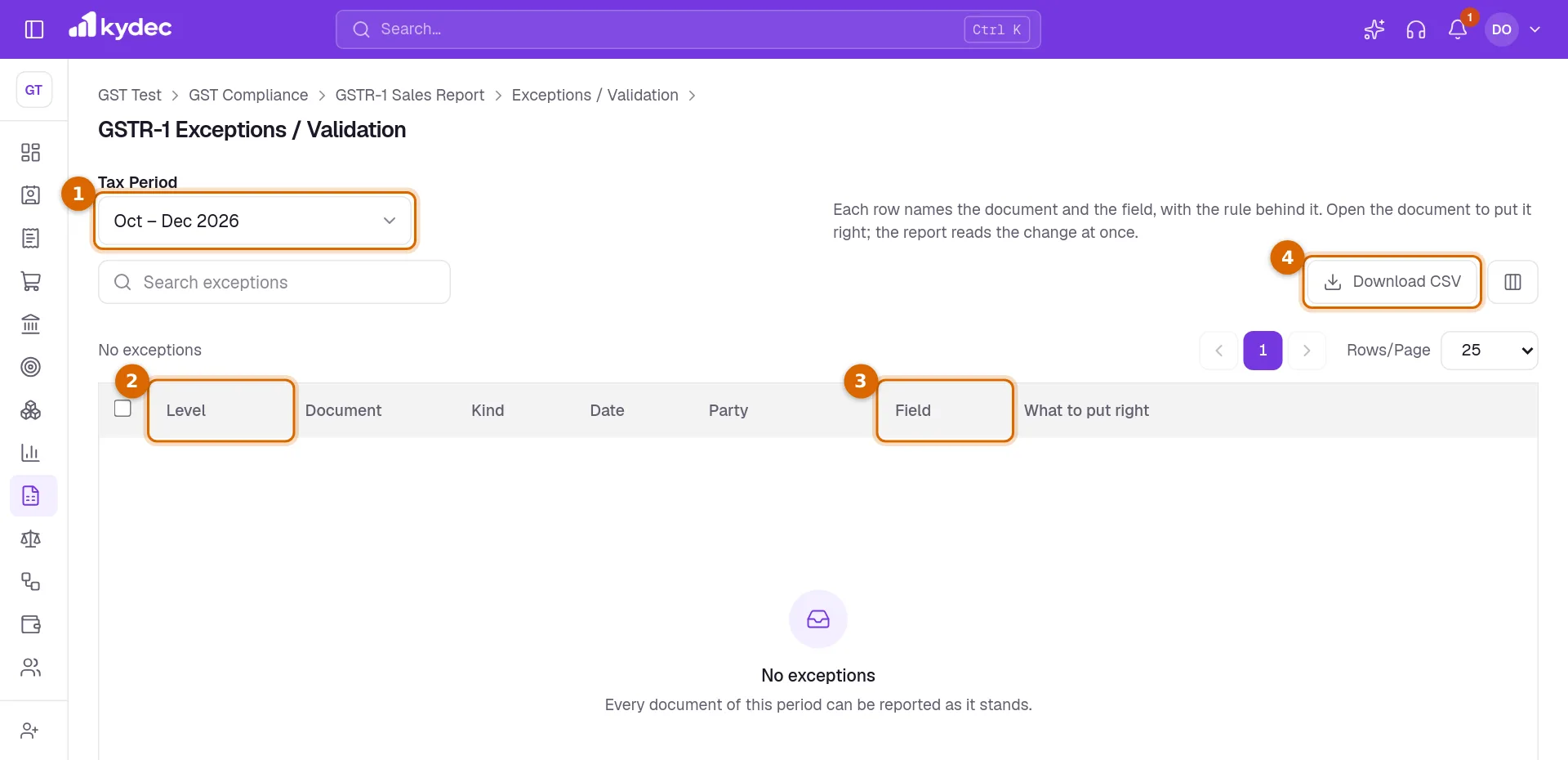
- 1Choose the Tax Period. Coming from the Sales Report, it opens on the same one.
- 2Read the Level. Fix before filing must be put right. Review is worth a look but does not stop you, and Note only tells you something.
- 3Field and What to put right name the problem and the rule behind it. Click the number under Document to open the document and correct it. The report reads the change at once.
- 4Download CSV saves the list, for example to pass to whoever keeps the documents.
- Fix before filing includes: a document number longer than 16 characters or with characters other than letters, digits, "-" and "/"; a client GSTIN that is missing or fails its check; a missing Place of Supply; IGST charged where CGST and SGST apply, or the other way round; a taxable line with no GST rate, or a rate that is not a GST rate; an HSN/SAC that is missing or too short; and a wrong GSTIN for an e-commerce operator.
- The HSN/SAC must have 4 digits, or 6 when your aggregate turnover is above ₹5 crore. Up to ₹5 crore it may be left off lines sold to clients without a GSTIN.
- Review covers an export or SEZ sale without payment of IGST when no Letter of Undertaking is on record for the year, an export with payment of tax that has no shipping bill, and an advance with no GST rate.
- Note covers late documents, amendments, and documents changed or added after the period was marked as filed.
- When nothing is wrong the list reads No exceptions.
Good to know. A single Fix before filing row keeps Mark as Filed switched off for the period.
File on the GST portal and mark the return as filed
The return is filed on the GST portal, not in KyDec. File GSTR-1 gives you the file for it and says so plainly.
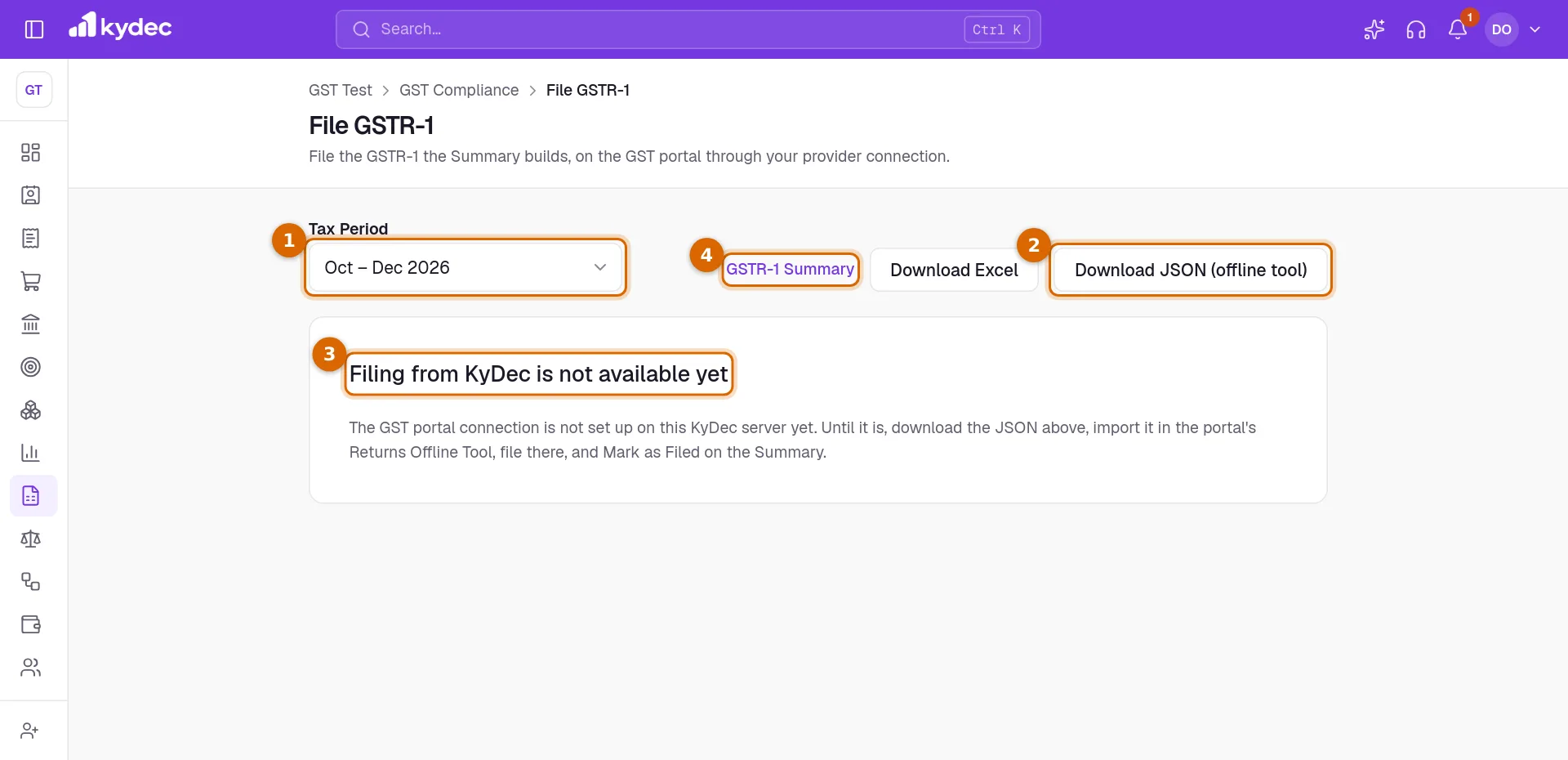
- 1Open File GSTR-1 and choose the Tax Period.
- 2Click Download JSON (offline tool). It is the same file as Download JSON for GST Portal on the Sales Report.
- 3Follow the card Filing from KyDec is not available yet: import the JSON in the Returns Offline Tool of the GST portal, check the figures there, and file on the portal.
- 4Click GSTR-1 Summary to return to the Sales Report for that period, then click Mark as Filed. Enter the ARN (acknowledgement reference), optional from the portal and confirm with Mark as Filed.
- Once marked, the period reads Filed in the Tax Period list, the Sales Report shows the date and the ARN, and the GST Dashboard and Return History show the return as filed.
- KyDec keeps what each document reported, so it can tell later what has changed.
- Unmark takes the mark back. It is refused while the GSTR-1A of the same period is marked as filed. Unmark that first.
- Marking is refused while an exception of the level Fix before filing stands, and when the period is already marked.
Good to know. Mark as Filed only records the filing in KyDec. It sends nothing to the GST portal, so use it only after you have filed there.
After filing: late documents and amendments
Marking a period as filed freezes it in KyDec as it was reported. What you change afterwards is carried forward for you.
- A document changed after its period was marked as filed stays in that period as it was filed, and is listed as a Note on Exceptions / Validation.
- The change is then reported as an amendment in the next GSTR-1 you prepare, in the tables titled Amended, with the period it was Originally Filed In.
- A document added later with a date inside a filed period goes into the next GSTR-1, tagged (late).
- A document that was reported and has been cancelled since is a Fix before filing exception. KyDec tells you to issue a credit note, or to amend it on the portal with a nil value.
- This tracking begins with the first period you mark as filed. Documents dated before that period are not picked up as late.
IFF for quarterly filers
IFF (QRMP months) is in the menu only when the filing frequency is Quarterly (QRMP). The page is titled IFF — Invoice Furnishing Facility. As the page explains, it carries the B2B invoices and notes of the first two months of a quarter, up to ₹50 lakh a month, furnished by the 13th of the next month so that your buyers get their credit sooner.
- The Tax Period list holds only the first two months of each quarter.
- Summary has four tables: B2B invoices, credit and debit notes to registered clients, and the amended table of each. Only documents to clients with a GSTIN are counted, and exports are left out.
- B2B invoices above ₹50 lakh in the month raise a Fix before filing exception. Leave the rest for the quarterly GSTR-1.
- The buttons are the same as on the Sales Report: Download Excel, Download JSON for GST Portal and Mark as Filed.
- IFF is optional. Documents in an IFF you mark as filed are left out of the GSTR-1 of the quarter, and everything else goes into it.
GSTR-1A for corrections before GSTR-3B
GSTR-1A (Amendments) opens GSTR-1A — Amendment of GSTR-1. It holds what the filed GSTR-1 of a period missed or got wrong: documents added since go in their own tables, and documents changed since go in the amended tables. The page says GSTR-1A is optional, is filed once, online on the GST portal, and only before GSTR-3B of the same period.
- Only periods whose GSTR-1 is marked as filed are listed. With none, the page reads No GSTR-1 filed yet.
- A line under the description says whether GSTR-1A is open, when it opens on the portal, or that it is closed because GSTR-3B is filed. KyDec works this out from its own records of what you marked as filed, not from the portal.
- It has no advances tables and no Table 13.
- Only Download Excel is offered. The Offline Tool does not take GSTR-1A, so you enter it on the GST portal.
- Mark as Filed is refused before GSTR-1A opens, after GSTR-3B of the period is marked as filed, and when there is nothing to report.
- A change to the GSTIN of a buyer cannot go in GSTR-1A. It is shown for Review and goes into the next GSTR-1 as an amendment.
Common questions
- Does KyDec file GSTR-1 for me?
- No. File GSTR-1 says "Filing from KyDec is not available yet". Download the JSON, import it in the Returns Offline Tool of the GST portal, file there, and then click Mark as Filed on the Sales Report.
- Why is Mark as Filed greyed out?
- The period has at least one exception of the level Fix before filing. Open Exceptions / Validation, correct the documents it names, and the button comes back. On GSTR-1A it is also greyed out once GSTR-3B of the period is marked as filed.
- A sale is missing from the report. Why?
- Check that the invoice is not a draft, that its date falls in the period, and that it was issued under the GSTIN you are looking at. A cancelled invoice is left out of the value tables. A sale to a client without a GSTIN is usually not listed by itself: it is added into 7 – B2C Small (consolidated).
- I changed an invoice after I filed. What happens?
- The filed period keeps the figures it reported. The change shows as a Note on Exceptions / Validation and is reported as an amendment in the next GSTR-1 you prepare, or in GSTR-1A if you file one before GSTR-3B.
- Can I undo Mark as Filed?
- Yes, with Unmark beside the filed date on the Sales Report. Later changes to the documents of that period are then no longer reported as amendments. If the GSTR-1A of the period is marked as filed, unmark that first.
Related guides
GST Compliance
Set up GST for a business in India: add your GSTINs, choose how each one files, and follow what is due from the GST dashboard.
GSTR-3B summary return
See the tax due for the period from your sales and purchases, make adjustments, download the return for the GST portal, and mark it as filed.
e-Invoicing
See which invoices need an e-invoice and whether each is ready, keep the register, and look up an IRN. Generating from KyDec waits on the GST portal connection.
Invoice
Create invoices from customisable templates, share them as a PDF, a print or a link over WhatsApp or email, and record and track what is paid against each one.