
Help
GSTR-3B summary return
See the tax due for the period from your sales and purchases, make adjustments, download the return for the GST portal, and mark it as filed.
Where to find it:GST ComplianceGST ReturnsGSTR-3BSummary
What GSTR-3B is, and what KyDec does with it
GSTR-3B is the summary GST return of a tax period. It reports your sales, the purchases that carry tax or credit, the input tax credit (ITC) you take, and the tax left to pay. KyDec builds it from your documents, so you do not add the figures up yourself.
KyDec prepares the return and keeps your record of it. The return itself is filed on the GST portal: you take the figures or the JSON file from KyDec, file there, and then mark the period as filed here.
- Under GST Returns, GSTR-3B has four pages: Summary, Adjustments, Monthly Payment (PMT-06) and File GSTR-3B. TDS and TCS Credits sits beside them in the same menu.
- The GSTR-3B pages are for a GSTIN that files GSTR-1 and GSTR-3B: regular, casual and SEZ registrations. A composition business and the special registrations (ISD, TDS, TCS, non-resident, OIDAR, UIN) do not have them in the menu.
- Monthly Payment (PMT-06) shows only when Filing Frequency on GST Profile & Settings is quarterly (the QRMP scheme). The tax period is then a quarter instead of a month.
- You need a role with View GST returns and reports to open the pages, and Prepare and file returns, and change GST settings to save adjustments, record challans or mark a period as filed.
- With several GSTINs, each has its own return. Choose the GSTIN in the bar at the top of the page.
Good to know. KyDec does not send the return to the GST portal today. The section on filing below says exactly what you do instead.
Read the summary
Open GST Compliance, GST Returns, GSTR-3B, Summary. The page lays the return out table by table, as the form does.
- 1Tax Period chooses the period. Under it the page shows the due date, whether you are in time or how many days late, and a link that counts the exceptions: how many to fix and how many to review, or No exceptions.
- 23.1 Outward supplies and inward supplies liable to reverse charge is your sales, and the purchases on which you pay the tax yourself.
- 34 Eligible ITC is the credit: what is available, what is reversed, and the net figure.
- 46.1 Payment of tax sets the credit against the tax due and shows what is left to pay in cash, with interest and late fee.
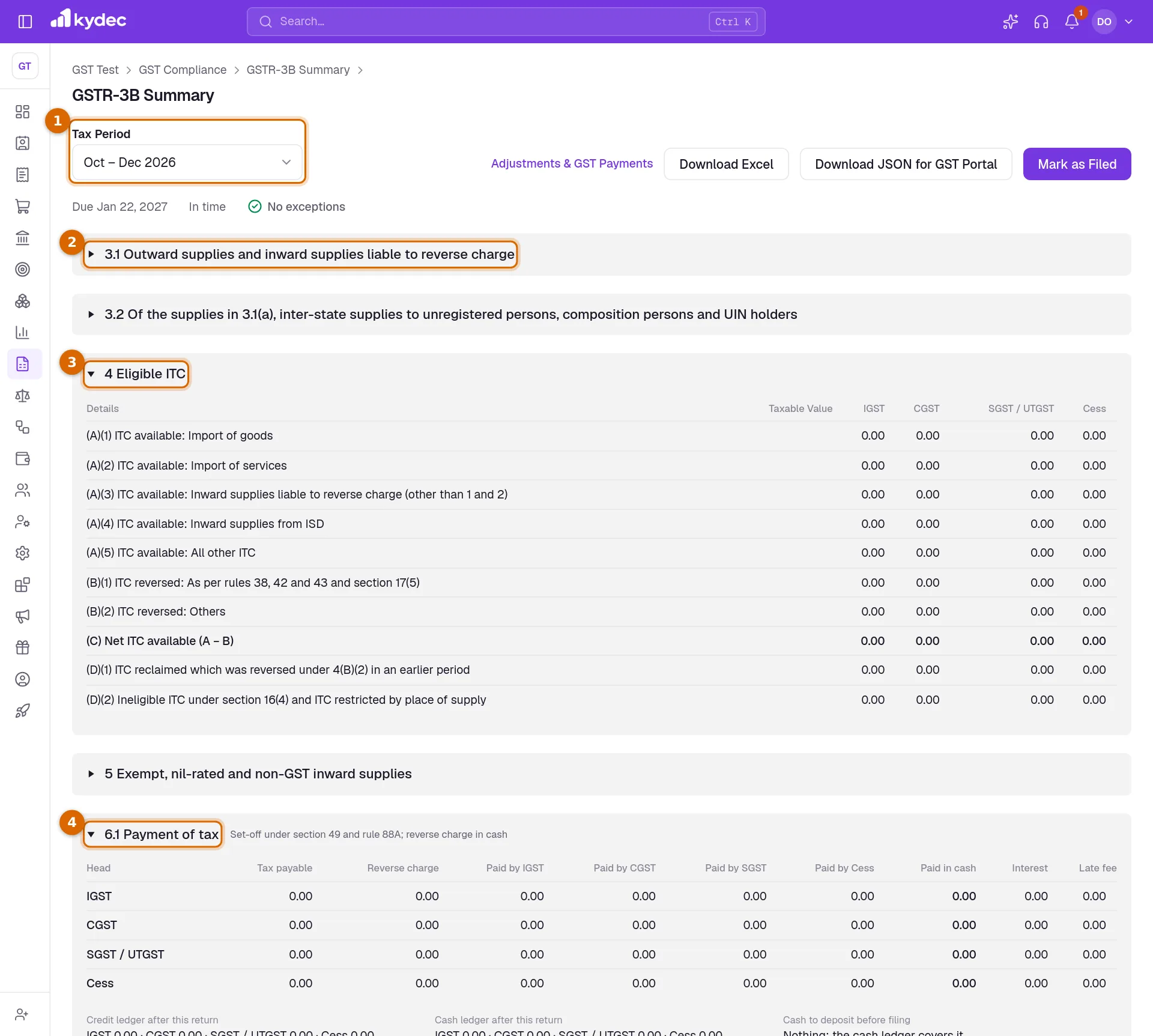
- Between them sit 3.2, the inter-state sales to unregistered buyers and UIN holders, and 5 Exempt, nil-rated and non-GST inward supplies.
- Documents behind the figures switches the list at the bottom between Sales (3.1, 3.2) and Purchases (3.1(d), 4, 5). Each row names the table it falls in and opens the document.
- The Sales list holds the documents that GSTR-1 reports one by one. Sales that GSTR-1 reports as a total are in the figures but not in the list.
- Download CSV saves that list, up to its first 200 rows.
- At the top right, Adjustments & GST Payments opens the adjustments page, and Download Excel, Download JSON for GST Portal and Mark as Filed are for filing.
What tables 3.1, 3.2 and 5 are built from
- 3.1(a) is your taxable sales other than zero-rated ones. It comes from the same figures as the period's GSTR-1: invoices to registered and unregistered buyers, with credit notes and debit notes taken in, advances received, and amendments by their difference.
- 3.1(b) is zero-rated sales: exports and supplies to SEZ.
- 3.1(c) is nil-rated and exempt sales, and 3.1(e) is non-GST sales.
- 3.1(d) is purchases under reverse charge, where you pay the GST instead of the supplier: their value and the tax.
- 3.1.1 (ii) is the value of sales made through an e-commerce operator that pays the tax on them. Line 3.1.1 (i) is for the operator itself and stays at zero.
- 3.2 breaks out, by place of supply, the inter-state sales in 3.1(a) made to unregistered buyers and to UIN holders. It reads None this period. when there are none.
- 5 is purchases with no GST on them, split into Inter-state and Intra-state: one line for supplies from composition suppliers and exempt or nil-rated purchases, one for non-GST purchases.
Good to know. Draft documents are never counted. A cancelled purchase is listed under Purchases with Cancelled in the Table column and adds nothing to the figures.
What Table 4 and Table 6.1 are built from
- 4(A) is the credit available. Import of goods and import of services come from purchases from vendors outside India, reverse charge from purchases recorded under reverse charge, and All other ITC from every other purchase with GST. Credit from an ISD is filled only from an imported GSTR-2B.
- With the period's GSTR-2B imported, import of goods, ISD credit and All other ITC are taken from the statement instead of your purchases. Reverse charge credit and import of services still come from your books.
- 4(B)(1) is credit you cannot keep: purchases whose Input Tax Credit is Blocked – section 17(5), purchases Used for exempt supplies only or for non-business use, and the exempt share of common credit under rules 42 and 43.
- 4(B)(2) is other reversals: the amount you type on Adjustments, credit on bills unpaid after 180 days (rule 37), credit where the supplier has not filed their own return (rule 37A) and, with a GSTR-2B imported, credit your books claim beyond the statement.
- 4(C) is the net credit: 4(A) less 4(B), plus 4(D)(1). 4(D)(1) is credit reversed earlier and taken back, typed on Adjustments or worked out when an unpaid bill is paid or a supplier files. 4(D)(2) is the tax on purchases whose Input Tax Credit is Not available.
- Under Table 4, KyDec lists each reversal it worked out, rule by rule, when there is one.
- 6.1 Payment of tax has a row per tax head. Tax payable is the tax on your sales, Reverse charge the tax on reverse charge purchases, the Paid by columns the credit used against the tax, and Paid in cash what is left, reverse charge included. Interest and Late fee apply when the filing date is after the due date.
- The set-off starts from the opening balances under Electronic Ledgers — Opening Balances on GST Profile & Settings. Every earlier GSTR-3B marked as filed, every challan recorded and every TDS or TCS credit accepted moves them on.
- Below the table are Credit ledger after this return, Cash ledger after this return and Cash to deposit before filing. The last is what the cash ledger, as it stood at the end of the period, is short of. It reads Nothing: the cash ledger covers it when there is enough.
Good to know. With a GSTR-2B imported, credit that your books claim but the statement does not show is added to 4(B)(2), so it comes off the net credit in 4(C) for that period.
Adjustments and GST challans
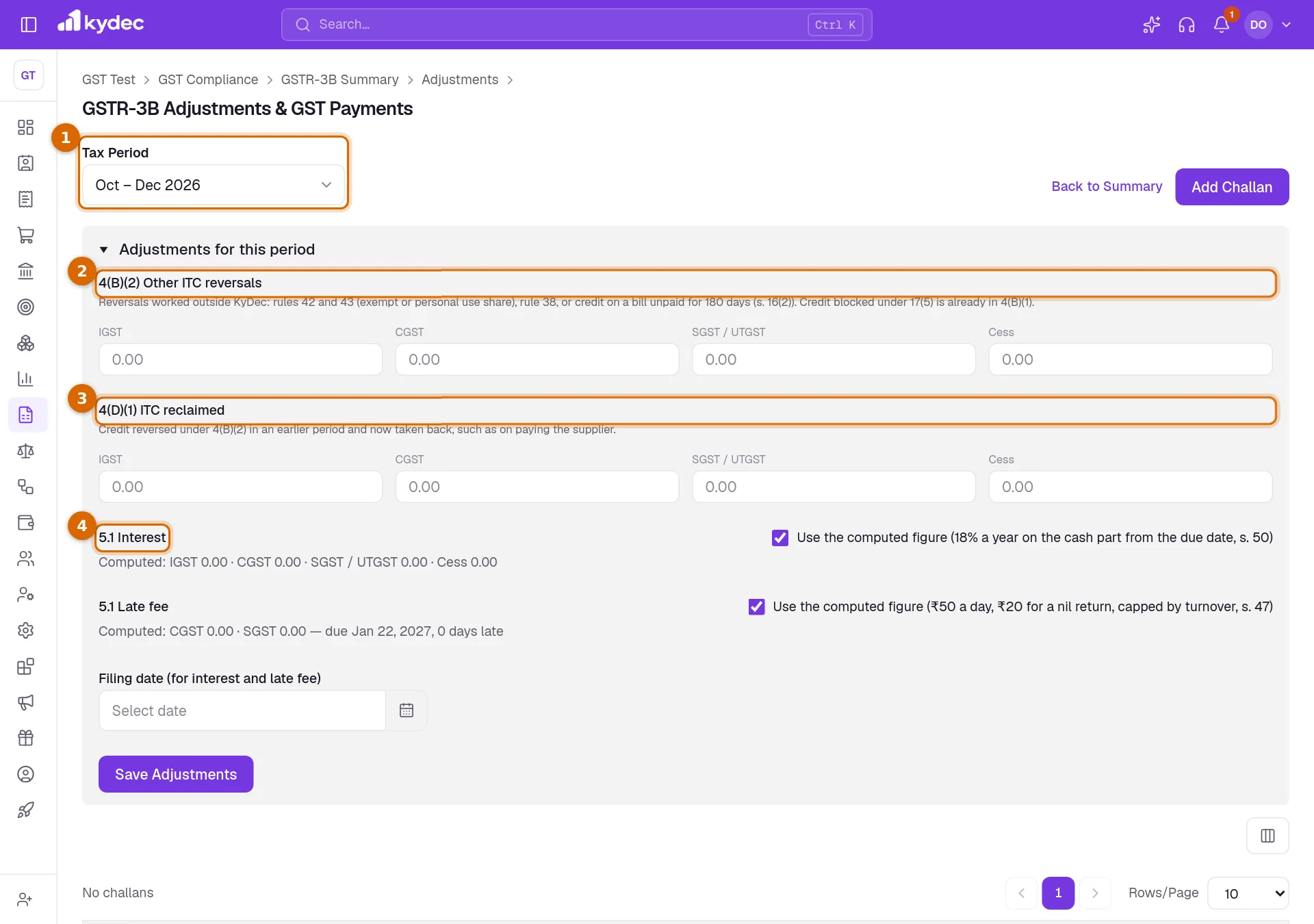
Open Adjustments under GSTR-3B, or click Adjustments & GST Payments on the Summary. An adjustment is a figure that no document gives. You type it for one period and the Summary takes it in.
- 1Choose the Tax Period.
- 24(B)(2) Other ITC reversals: credit to reverse that KyDec has not worked out itself. Type it per tax head: IGST, CGST, SGST / UTGST, Cess. It is added to line 4(B)(2).
- 34(D)(1) ITC reclaimed: credit reversed in an earlier period that you now take back. It is added to line 4(D)(1) and to the net credit.
- 45.1 Interest and 5.1 Late fee: leave Use the computed figure ticked to keep KyDec's figure, or untick it and type the figure the GST portal shows.
- 5Filing date (for interest and late fee) is the day you will file. Days late are counted up to it. Left empty, today is used.
- 6Click Save Adjustments.
- Add Challan records a payment you made on the GST portal: Payment date, Tax period (or leave it as Deposit (no period)), Mode, Paid from, CPIN, CIN, and the amounts for Tax, Interest, Late fee and Penalty under each head. The button reads Record with the total.
- A challan fills the cash ledger from its Payment date: it counts in every return whose period ends on or after that date. A challan paid after a period has ended does not reduce Cash to deposit before filing of that period; it shows in the cash ledger of the next one.
- With Advanced Accounting on, a challan is posted to your books: GST Payable goes down, and so does the account under Paid from. The Entry column shows the entry number, or Pending until it is posted. Remove takes the challan off and reverses the entry.
- The computed interest and late fee are worked out as the page states: interest at 18% a year on the part paid in cash, from the due date; late fee per day late, lower for a nil return and capped by turnover.
Good to know. Once the period is marked as filed, its adjustments are locked and the panel reads Marked filed: unmark to change.
Monthly Payment (PMT-06), for quarterly filers
A quarterly filer still pays tax for the first two months of each quarter, with a challan in Form PMT-06 on the GST portal. This page works out the amount for each of those months and keeps track of what you paid. It is in the menu only for a GSTIN whose Filing Frequency is quarterly.
- Each month is a card with its standing (Paid, Due, Overdue or Nothing to pay) and the date to pay by. The six most recent such months are shown.
- Choose the method on the card. As the page explains, Fixed Sum is 35% of the tax you paid in cash for the last quarter, or all of it if your last return was monthly. Self-Assessment is the tax due for the quarter so far, less your credit, less what your cash ledger already holds.
- Fixed Sum needs last quarter's GSTR-3B marked as filed in KyDec. Until then Self-Assessment is used.
- The table shows To pay, Paid and Still to pay per tax head. A challan counts for the month when its Tax period is that month, and only the amounts on the challan's Tax line count.
- Record PMT-06 payment shows while the month is Due or Overdue. It opens the challan form with the month and the unpaid tax filled in. After the date to pay by, the card also shows Interest if paid today.
- A monthly filer who opens the page sees Not for monthly filers.
Good to know. KyDec does not create or pay the challan. You pay on the GST portal and record the payment here; the quarter's GSTR-3B then counts it in the cash ledger.
File the return and mark it as filed
Filing from inside KyDec is not available yet. It needs a connection to the GST portal through a licensed GST Suvidha Provider, and that connection is not set up. Until it is, you file on the GST portal yourself and record the filing in KyDec.
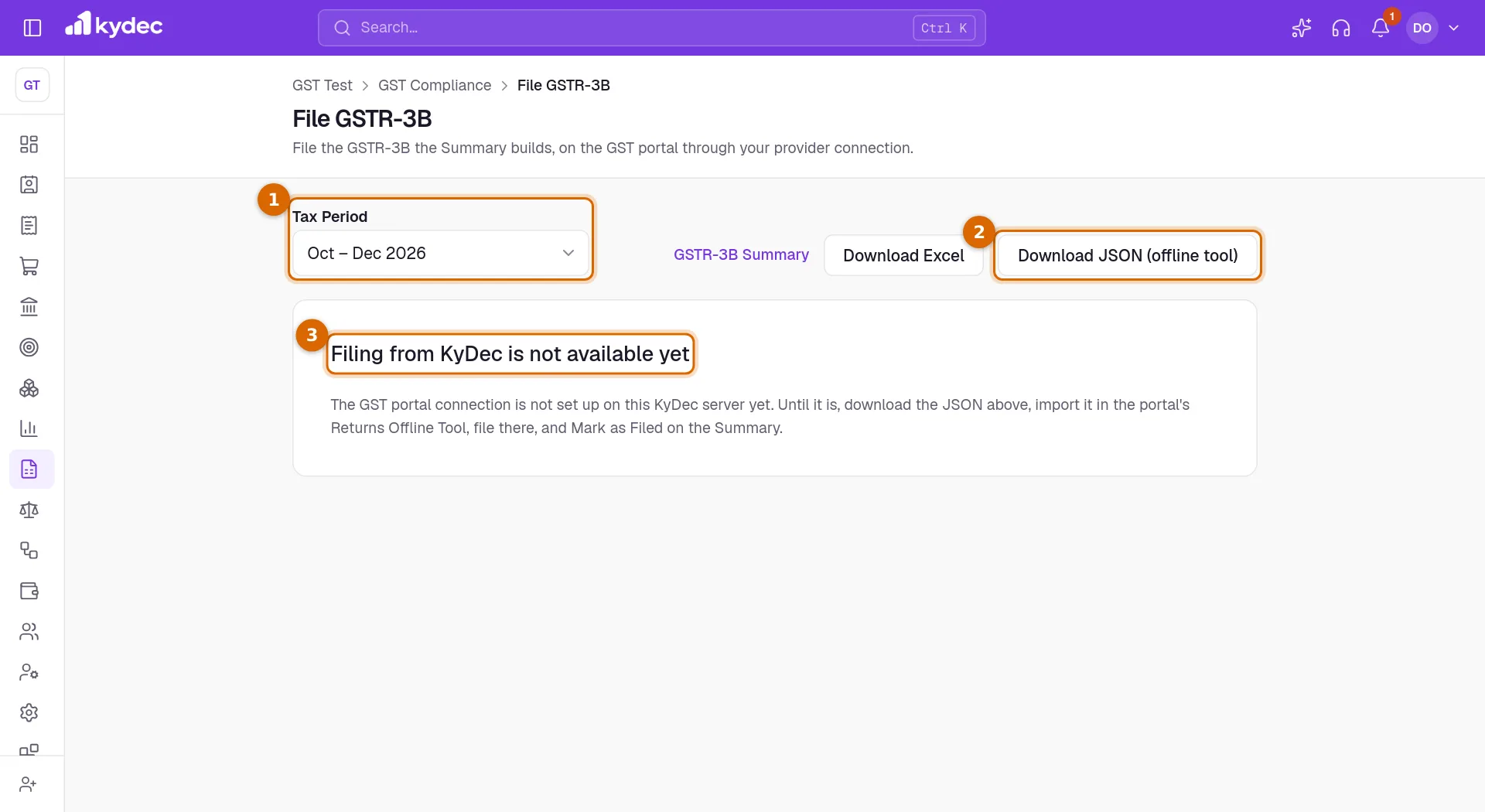
Open File GSTR-3B under GSTR-3B.
- 1Choose the Tax Period.
- 2Click Download JSON (offline tool) to save the return as a JSON file. Download Excel saves the same tables as a workbook to check first.
- 3The card Filing from KyDec is not available yet says what to do with the file: import it in the GST portal's Returns Offline Tool and file the return there.
- 4Pay the tax due on the GST portal, and record the challan with Add Challan on the Adjustments page.
- 5Click GSTR-3B Summary to go back to the Summary, then Mark as Filed. Enter the Filing date and, if you have it, the ARN (acknowledgement reference), optional. Click Mark as Filed again.
- The Summary has the same two files, as Download Excel and Download JSON for GST Portal. The JSON carries tables 3.1 to 5 and the interest and late fee; the payment itself is made on the portal.
- Mark as Filed is greyed out while the period has exceptions to fix. Click the exceptions count on the Summary to see each one.
- Interest and late fee are worked out up to the filing date you enter.
- A period marked as filed reads Filed in Tax Period and in Return History, and the credit and cash ledgers of the later periods start from its figures.
- With Advanced Accounting on, the set-off is posted to your books as a journal entry.
- Unmark takes the filing back: the entry is reversed, the ledgers move back, and the adjustments can be changed again.
Good to know. Mark as Filed only records in KyDec that you filed. It does not file anything on the GST portal.
TDS and TCS Credits
Open GST Compliance, GST Returns, TDS and TCS Credits. GST TDS is tax that a government buyer deducts when it pays you. GST TCS is tax that an e-commerce operator collects on your sales through it. Both reach you as credits on the GST portal, and you record them here.
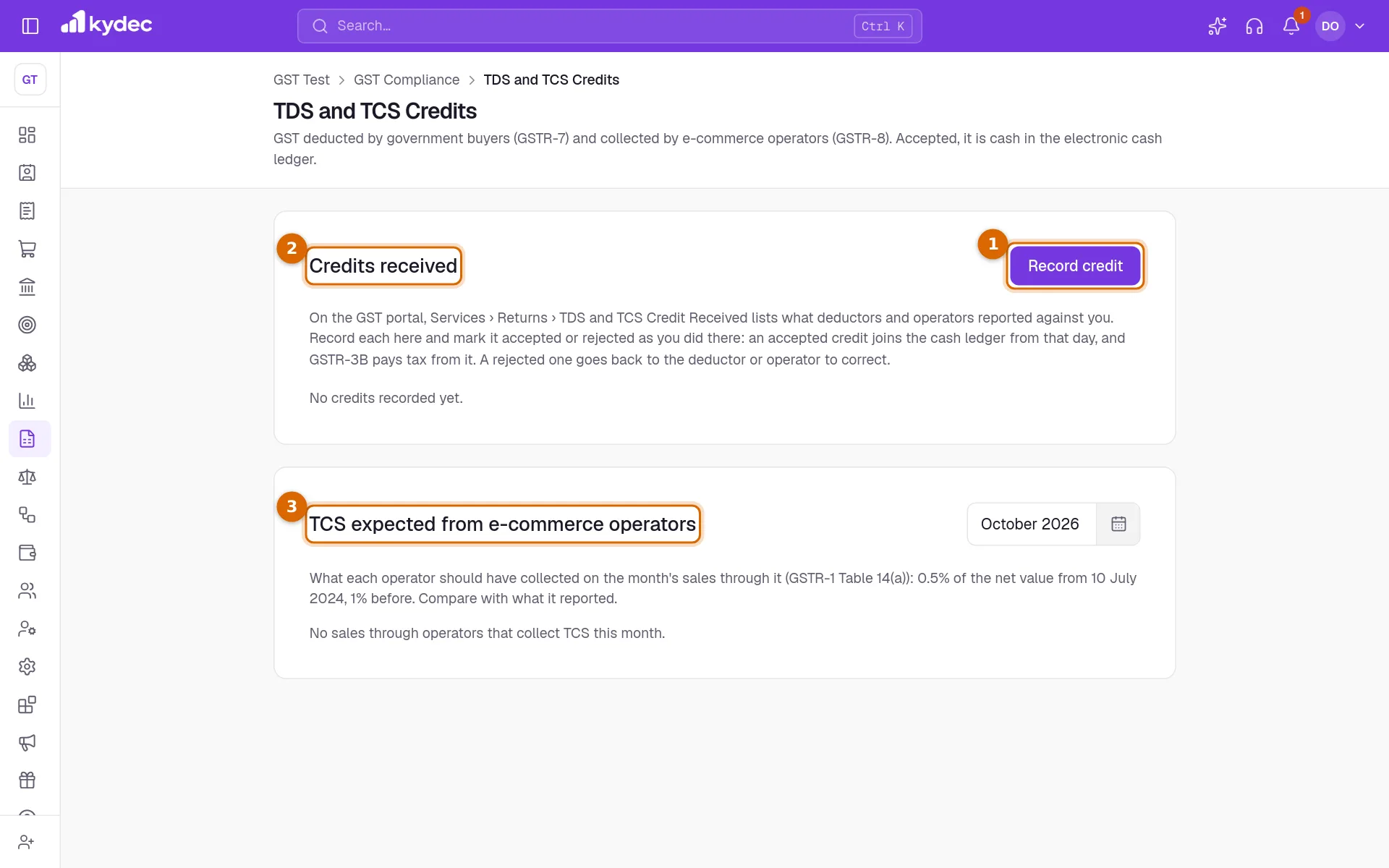
- 1Click Record credit and enter the credit as the GST portal lists it under TDS and TCS Credit Received: TDS or TCS, the Tax period, the deductor's or operator's GSTIN, the amount, and the Integrated tax, Central tax and State / UT tax. Click Record.
- 2The credit appears under Credits received as Pending. Click Accept on its row once you have accepted it on the portal. Reject is in the menu of the row.
- 3TCS expected from e-commerce operators is a check. Pick a month to see, for each operator, the Net value of your sales through it, the TCS Expected, what was Reported and the Difference.
- An accepted credit is cash in the electronic cash ledger from the day you accept it, and GSTR-3B pays tax from it.
- A rejected credit adds nothing. Back to pending undoes an accept or a reject.
- Remove is not available for an accepted credit. Set it back to pending first.
- The GSTIN must be of the right kind: a deductor's for TDS, an operator's for TCS. The form warns you when it is not.
- KyDec does not read these credits from the GST portal. You record what the portal shows, and you accept or reject each credit there as well.
- A composition business has this page too, as a register only: its CMP-08 does not draw on these credits.
Common questions
- Does KyDec file GSTR-3B on the GST portal for me?
- Not today. File GSTR-3B shows the card Filing from KyDec is not available yet. Download the JSON file, file on the GST portal, and then click Mark as Filed on the Summary so KyDec knows.
- Why is **Mark as Filed** greyed out?
- The period has exceptions to fix. The link under Tax Period counts them; click it to see each document and what to correct. The button is not shown at all once the period is marked as filed.
- Table 4 changed after I imported the GSTR-2B. Why?
- With the period's GSTR-2B in, import of goods, ISD credit and all other ITC come from the statement instead of your purchases, and credit your books claim beyond the statement is added to 4(B)(2).
- The interest or late fee is not what the GST portal shows. Can I change it?
- Yes. On Adjustments, untick Use the computed figure beside 5.1 Interest or 5.1 Late fee, type the figure from the portal, and click Save Adjustments.
- I marked the wrong period as filed. How do I undo it?
- Open that period on the Summary and click Unmark. The entry posted to your books is reversed and the ledgers move back.
Related guides
GSTR-2A and GSTR-2B reconciliation
Import the GSTR-2A or GSTR-2B you downloaded from the GST portal and match it against the purchases in your books, so you claim only the input tax credit that is really available.
GSTR-1 sales return
Build your GSTR-1 from the invoices you raised: review the sales report, clear what fails validation, download the file for the GST portal, and mark the return as filed.
Annual, composition and other GST returns
GSTR-9 and 9C, CMP-08 and GSTR-4 for composition dealers, the returns for special registrations, export LUT and refunds, and the history of what was filed.
Advanced accounting
Manual ledgers and voucher entries, plus the back-fills that populate them: carry closing balances into a new financial year, and generate vouchers for documents you have already raised.