
Help
e-Invoicing
See which invoices need an e-invoice and whether each is ready, keep the register, and look up an IRN. Generating from KyDec waits on the GST portal connection.
Where to find it:GST Compliancee-Invoicing
What e-invoicing is, and where it stands today
e-Invoicing means registering a tax invoice, credit note or debit note on the Invoice Registration Portal run by the government. The portal answers with an IRN (Invoice Reference Number) and a signed QR code, which then belong on the document.
The settings screen states the rule KyDec works to: e-invoicing is required once aggregate turnover has passed ₹5 crore in any year since 2017-18, and at ₹10 crore and above each document must be reported within 30 days of its date.
KyDec reaches the portal through a GST Suvidha Provider, a provider licensed to connect software to the GST systems. That connection is not set up yet. Until it is, the pages show "e-Invoicing is not set up on this KyDec server yet. Please contact KyDec support." and Generate stays greyed out, so KyDec cannot obtain an IRN for you.
- What works today: Generate e-Invoice lists the documents that would need an IRN and checks each one, so you can put right whatever the portal would refuse.
- What does not work yet: sending a document to the portal, cancelling an IRN, and everything that depends on an IRN existing, such as the register, the QR code and the signed download.
- KyDec has nowhere to type in an IRN you obtained elsewhere. The register holds only what was sent from KyDec.
Good to know. The e-Invoicing pages are in the menu for Regular, Casual and SEZ Developer registrations. SEZ Unit, Composition and the special registration types do not see them.
Switch e-invoicing on for a GSTIN
- 1Open GST Compliance and choose GST Profile & Settings, then scroll to e-Invoicing & GST Portal.
- 2Turn on e-Invoicing. The switch is greyed out unless the registration is Regular, SEZ Developer or Casual.
- 3The e-Invoice API login box opens under it. It lists the steps for creating a login for KyDec on the e-invoice portal, and has API username and API password fields with a Save login button.
- 4Click Save at the foot of the page to keep the switch.
- With the switch on, the chip on the GST Dashboard reads e-Invoicing on. Nothing else changes yet.
- One of the steps on the e-invoice portal is to pick the provider KyDec uses. While no provider is set up, the box does not name one and carries the "not set up" message, so that step cannot be completed. Leave the login until it can.
- The login is kept for the GSTIN you are on. A saved password is never shown again. The field then reads API password (saved — type to change).
- Changing the registration to a type that cannot e-invoice, or switching it to the Composition Scheme, turns the switch off.
Good to know. Once the connection is in place, a document can be sent only for a GSTIN that has this switch on and a saved login. The Generate e-Invoice list shows either way.
Check your documents on Generate e-Invoice
Open GST Compliance, then e-Invoicing, and choose Generate e-Invoice.
- 1Generate e-Invoice lists the documents of the GSTIN you are on that have no IRN yet, newest first.
- 2The line under the title says what qualifies: issued invoices, credit notes and debit notes of the last 60 days to registered, SEZ, export and deemed-export parties.
- 3The notice under it says why nothing can be sent. Today it reads "e-Invoicing is not set up on this KyDec server yet. Please contact KyDec support."
- 4Look at the Ready column. Ready means the document passes every check. A count such as 2 to fix opens a list of what to put right before it can be sent.
- 5Generate at the end of the row is the button that sends the document to the portal. It is greyed out while the notice shows, and on any row that still has something to fix.
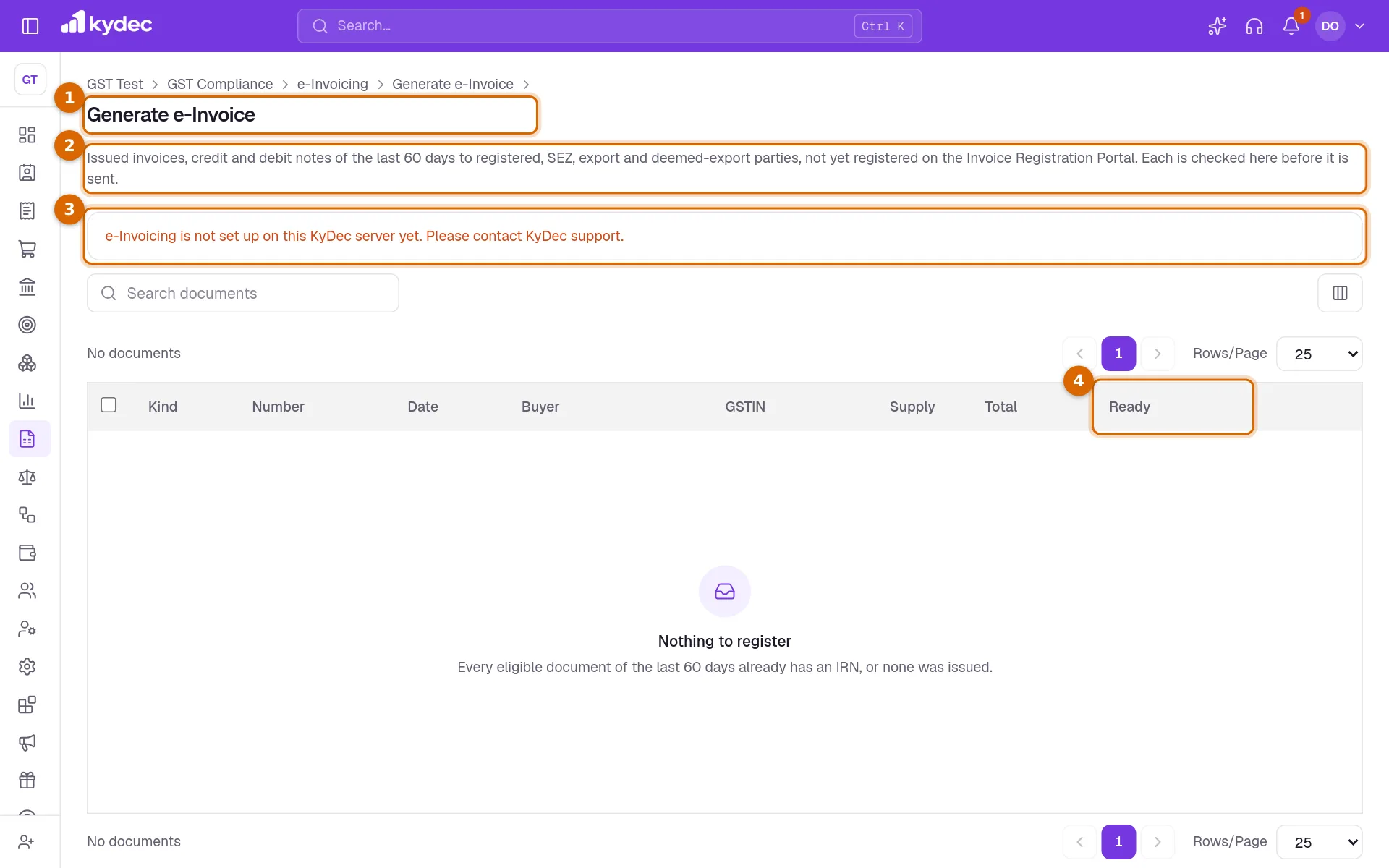
- The columns are Kind (Invoice, Credit Note or Debit Note), Number, Date, Buyer, GSTIN, Supply, Total and Ready. The number opens the document.
- Supply reads B2B for a sale to a registered business, SEZWP or SEZWOP for an SEZ supply with or without payment of tax, EXPWP or EXPWOP for an export with or without payment of tax, and DEXP for a deemed export.
- Not listed: drafts, cancelled and deleted documents, documents older than 60 days, documents issued under another GSTIN, and documents that already have an IRN or had one cancelled.
- A sale to a client without a GSTIN is not listed, because a sale to a consumer is not e-invoiced. Nor is a sale within India that carries no GST.
- The search box finds a document by its number, the buyer or the GSTIN of the buyer.
- When nothing qualifies the list reads Nothing to register.
What the readiness check looks for
KyDec makes the checks the portal would make, before the portal is asked. Each failure is listed in plain words when you click the count in the Ready column.
- Your side: the PIN code of the business must be 6 digits, and its address and city must be filled in. They come from the Place of Business of the GSTIN when it has one, and from Business Profile otherwise.
- The client, for a sale to a registered business, an SEZ or a deemed export: a GSTIN that passes its check, a 6-digit PIN code, an address and a Place of Supply.
- The document number: at most 16 characters, using only letters, digits, "-" and "/".
- The lines: at least one and at most 1,000. Each needs a description and an HSN/SAC of at least 6 digits, a goods line needs a unit, and no line may be negative.
- The total: the lines, the other charges and the rounding must add up to the document total.
- The e-commerce operator, when the document names one: its GSTIN must be a TCS registration.
Good to know. Put each problem right on the document, the client or the business record it names. The list is worked out afresh every time the page loads.
e-Invoice Register
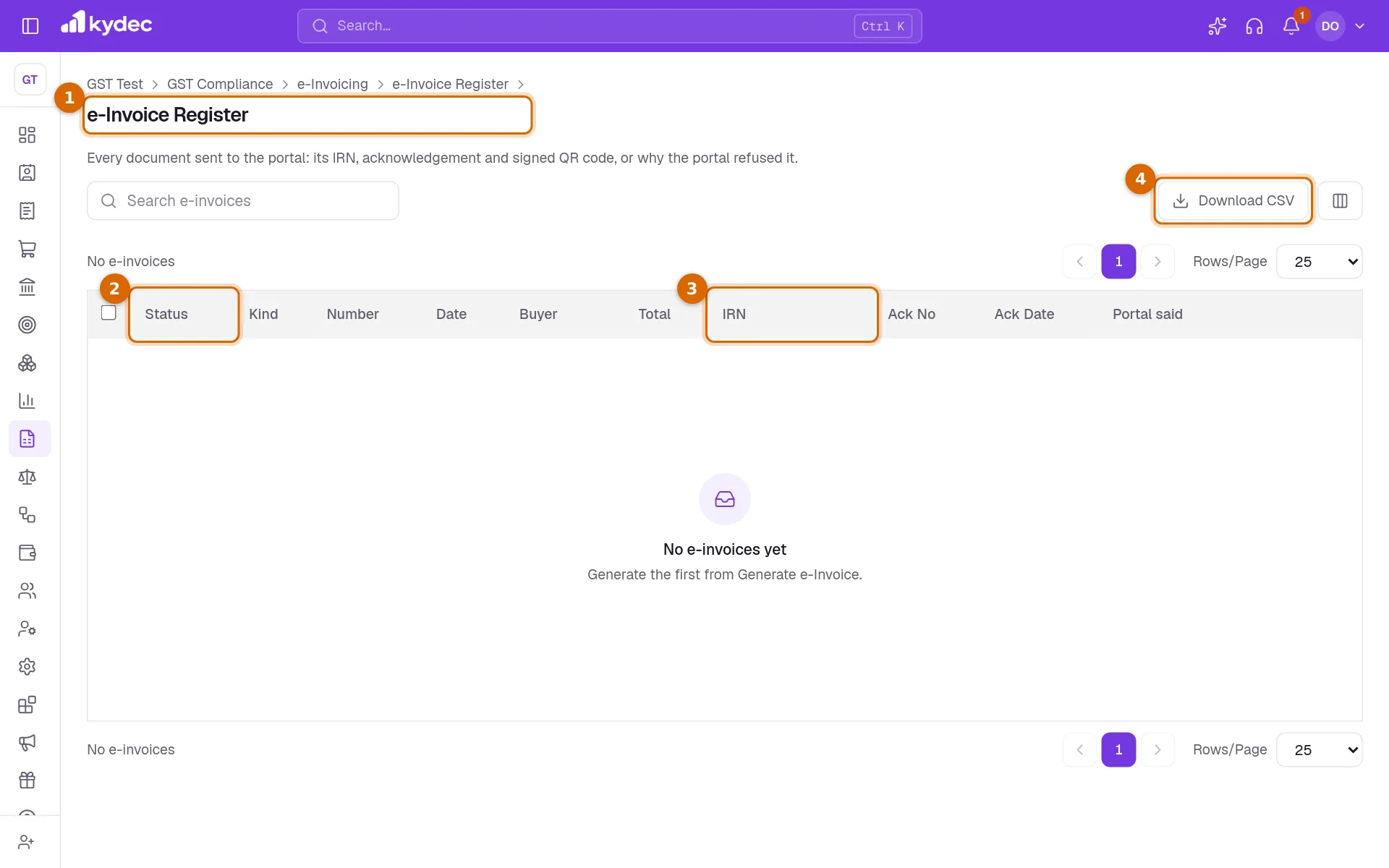
Choose e-Invoice Register under e-Invoicing. It is built to hold every document sent to the portal: its IRN and acknowledgement, or the reason the portal refused it. Until documents can be sent it is empty and reads No e-invoices yet.
- 1e-Invoice Register lists the e-invoices of the GSTIN you are on, newest first.
- 2Status reads IRN generated, Cancelled or Refused by portal.
- 3IRN, Ack No and Ack Date hold what the portal returned. Portal said holds its reason when it refused a document.
- 4Download CSV saves the register as a file you can open in a spreadsheet.
- At the end of a row, QR opens the details of an e-invoice above the list, Cancel shows while the IRN can still be cancelled, and Retry shows on a document the portal refused.
- The details show the QR code, the IRN, Ack No and Ack Date, with Download signed JSON and Open document.
- A document with an IRN shows an e-Invoice band with the IRN and acknowledgement on its own page, and prints the signed QR code in place of its usual QR code.
Cancel e-Invoice
Cancel e-Invoice lists the documents whose IRN is live. As the page says, an IRN can be cancelled within 24 hours of its acknowledgement. After that, issue a credit note. Cancelling goes through the same connection as generating, so it is not available yet either.
- 1Find the document and click Cancel at the end of its row. The link is greyed out once the 24 hours have passed.
- 2Choose the Reason: 1 · Duplicate, 2 · Data entry mistake, 3 · Order cancelled or 4 · Others. Type a Remark, which is required.
- 3Click Cancel IRN. Keep it closes the dialog and leaves the IRN as it is.
- Cancelling the IRN does not cancel the document. Cancel the document, or raise a credit note against it, separately.
- A document whose IRN was cancelled cannot be given a new IRN under the same number.
IRN / QR Code
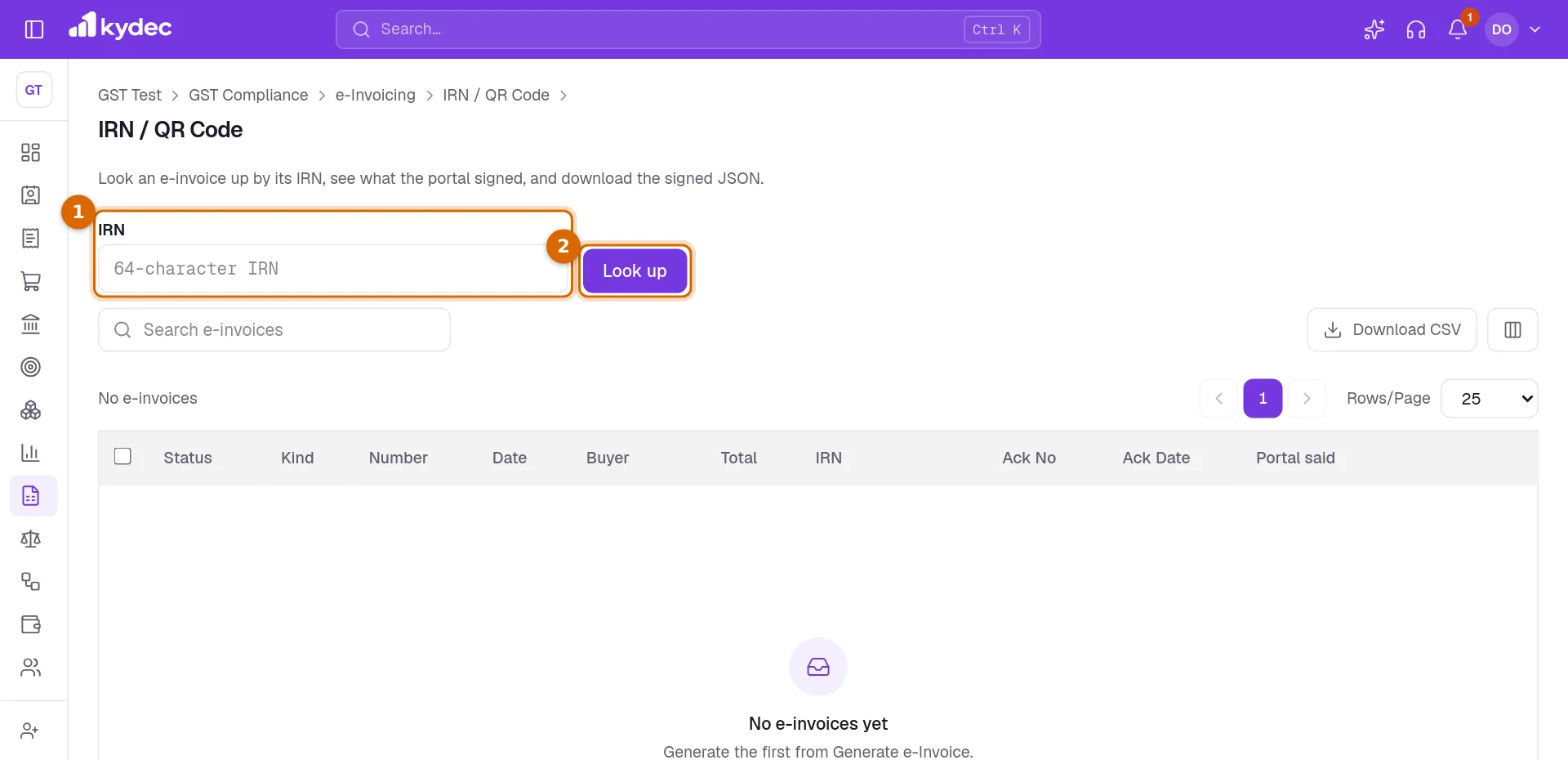
IRN / QR Code looks an e-invoice up by its IRN. The register is listed under the search box.
- 1Paste the IRN, which is 64 characters long, into the IRN box.
- 2Click Look up.
- 3The details open under the box: the QR code, the IRN, Ack No, Ack Date, when it was Cancelled if it was, and the Signed QR claims. Download signed JSON saves what the portal signed, and Open document opens the invoice or note.
Good to know. The search looks only among e-invoices generated from KyDec for the GSTIN you are on. It does not ask the government portal, so an IRN obtained elsewhere is answered with "No e-invoice by that IRN here".
Common questions
- Can KyDec generate my e-invoices today?
- No. Generating needs a connection to the Invoice Registration Portal that KyDec has not set up yet, and Generate is greyed out until then. An IRN has to be obtained outside KyDec for now. You can still use Generate e-Invoice to check that your documents carry everything the portal asks for.
- Why is Generate greyed out?
- Either the notice above the list is showing, which means e-invoicing is not set up or your e-invoice login is not saved, or the row has something to fix. Click the count in the Ready column to see what.
- Why is my invoice not in the Generate e-Invoice list?
- The list holds issued invoices, credit notes and debit notes of the last 60 days, under the GSTIN you are on, to a registered, SEZ, export or deemed-export party. A draft, a cancelled document, a sale to a client without a GSTIN, an older document and one that already has an IRN are all left out.
- I got an IRN on the government portal myself. Can I record it in KyDec?
- No. KyDec has no field for an IRN typed in by hand. The register and IRN / QR Code show only e-invoices generated from KyDec.
- Can I cancel an e-invoice after 24 hours?
- No. The Cancel link is available only within 24 hours of the acknowledgement. After that the page tells you to issue a credit note instead.
Related guides
GST Compliance
Set up GST for a business in India: add your GSTINs, choose how each one files, and follow what is due from the GST dashboard.
GSTR-1 sales return
Build your GSTR-1 from the invoices you raised: review the sales report, clear what fails validation, download the file for the GST portal, and mark the return as filed.
Invoice
Create invoices from customisable templates, share them as a PDF, a print or a link over WhatsApp or email, and record and track what is paid against each one.
Credit Note
Give a client credit back — for returned goods or an overcharge — against an invoice, and track how much of it they have used.