
Help
GST Compliance
Set up GST for a business in India: add your GSTINs, choose how each one files, and follow what is due from the GST dashboard.
Where to find it:GST Compliance
What GST Compliance is and who sees it
GST Compliance keeps your GST registration and works out your GST returns from the invoices, notes and purchases you already record in KyDec. It is for businesses in India that charge GST.
The GST Compliance group is in the sidebar only when the country of your business is India and its tax type is GST. For any other business the pages read "GST Compliance is not available for this business" and link to Business Profile and Accounting settings, where those two are set.
Everything here works on a GSTIN, the 15-character GST registration number on your registration certificate. Until you add one, the group lists only Dashboard and GST Registration.
- Dashboard shows what is due and where the current period stands.
- GST Registration holds your GSTINs, and GST Profile & Settings holds how each one files its returns.
- Composition Scheme Changes records a move into or out of the Composition Scheme.
- e-Invoicing and GST Returns open onto the working pages. Return History, GST Exceptions and Audit Logs look back over what has been done.
- Your role decides what you may do. Opening the pages needs View GST returns and reports. Preparing a return, marking it as filed and changing GST settings need Prepare and file returns, and change GST settings. Both are listed under GST Compliance in a role.
Good to know. KyDec prepares your returns but does not yet send anything to the government. Filing from KyDec and generating e-invoices both need a connection to the GST portal that is not set up yet. Until it is, you file on the GST portal yourself and then mark the return as filed in KyDec.
Add your GST registration
Until a GSTIN is added, every GST Compliance page shows Add your GST registration to get started. Click Add GST Registration there, or open GST Compliance in the sidebar and choose GST Registration.
- 1Choose the Registration Type. It decides the shape of the GSTIN and the returns you file.
- 2Set the Effective Date of Registration as it reads on your registration certificate. It cannot be before 1 July 2017 or in the future.
- 3Type the GSTIN. It is 15 characters, and KyDec checks it against the registration type when you leave the field. PAN and State are then filled in from it. You do not type them.
- 4Check the Legal Name, which starts as the name of your business, and add a Trade Name if you trade under a different one. Status is Active, Suspended or Cancelled, as the GST portal shows it.
- 5Under Place of Business, enter the address this GSTIN is registered at. The screen says it is printed on the invoices of this GSTIN and sent with its e-invoices. Leave it empty to use the address of the business.
- 6Click Save. The rest of the GST Compliance menu opens, and a GST Profile & Settings link appears on the card.
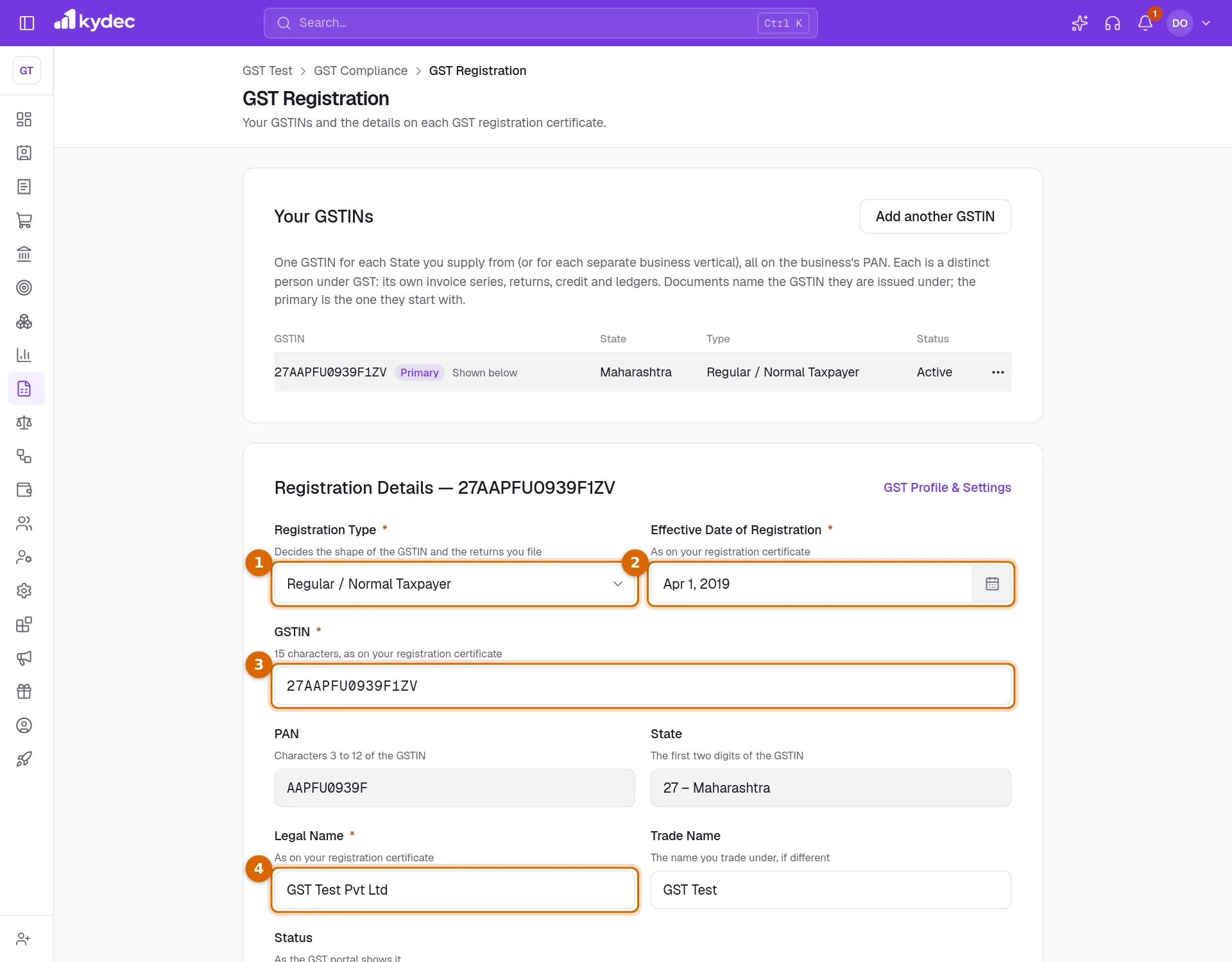
- The registration types are Regular / Normal Taxpayer, Composition Taxpayer, Casual Taxable Person, Non-Resident Taxable Person (NRTP), Input Service Distributor (ISD), SEZ Unit, SEZ Developer, TDS Deductor, TCS Collector / E-commerce Operator, OIDAR / Overseas Online Service Provider and UIN Holder.
- For a UIN Holder the field is labelled UIN in place of GSTIN.
- A number that does not fit the registration type, starts with a state code that does not exist, or ends in the wrong check character is refused, with the reason under the field.
- You can change these details later on the same page. If you change the registration type, the menu changes to match it.
Good to know. KyDec does not look your GSTIN up on the GST portal. It checks only that the number is well formed, so copy the details from your certificate with care.
Work with more than one GSTIN
A business registered in more than one State, or for separate business verticals, adds each GSTIN to the same business. As the screen puts it, each one is a distinct person under GST, with its own invoice series, returns, credit and ledgers.
- 1On GST Registration, click Add another GSTIN on the Your GSTINs card.
- 2Fill in the same form as for the first one and click Add GSTIN. The page reloads on the new GSTIN, ready for its settings.
- 3A GSTIN picker now sits at the top of every GST Compliance page. Choose a GSTIN there and the page reloads on it: the returns, ledgers and settings below are the ones of that GSTIN. Open on a row of Your GSTINs does the same.
- 4To change which GSTIN your documents start with, open the ⋯ menu on its row and choose Make primary.
- In Your GSTINs, Primary marks the GSTIN documents start with and Shown below marks the one the page is on.
- Each line of the picker gives the GSTIN and its state, and how many of its returns are overdue or due soon when there are any. A reminder such as "1 return overdue on another GSTIN" shows beside the picker when a GSTIN you are not looking at has fallen behind.
- Your choice is remembered in this browser. Until you choose, the primary GSTIN is used.
- The sidebar follows the GSTIN you are on, so a page that does not apply to its registration type drops out of the menu.
- Every GSTIN of one business must be on the same PAN. KyDec refuses one on a different PAN and tells you to add it as a business of its own. A TDS Deductor registration is the exception.
- A Composition Taxpayer GSTIN cannot sit beside a Regular, Casual or SEZ one. Composition is for every such GSTIN on the PAN or for none.
- The Aggregate Turnover band is shared. Change it on one GSTIN and it changes on all of them.
- When you make another GSTIN primary, documents that name no GSTIN stay with the one that was primary before.
Good to know. Remove works only on a GSTIN that is not the primary and has no documents, returns, challans or e-invoices under it. Otherwise KyDec refuses and asks you to set its Status to Cancelled instead.
Which pages each registration type sees
The menu, and the search at the top of the app, offer only the pages that apply to the GSTIN you are on.
- No GSTIN yet: Dashboard and GST Registration only.
- Regular / Normal Taxpayer: everything except Composition (CMP-08 / GSTR-4) and GSTR-5 / 5A / 6 / 7 / 8 / 11.
- Casual Taxable Person and SEZ Developer: the same as Regular, without Composition Scheme Changes.
- SEZ Unit: the same as Regular, without Composition Scheme Changes and without e-Invoicing.
- Composition Taxpayer: Dashboard, GST Registration, GST Profile & Settings, Composition Scheme Changes, TDS and TCS Credits, Composition (CMP-08 / GSTR-4), Return History, GST Exceptions and Audit Logs. It does not see e-Invoicing, GSTR-1, GSTR-2A Reconciliation, GSTR-2B Reconciliation, GSTR-3B, Export LUT and Refunds or Annual Return.
- Non-Resident Taxable Person (NRTP), OIDAR / Overseas Online Service Provider, Input Service Distributor (ISD), TDS Deductor, TCS Collector / E-commerce Operator and UIN Holder: Dashboard, GST Registration, GST Profile & Settings, GSTR-5 / 5A / 6 / 7 / 8 / 11 and Audit Logs.
- IFF (QRMP months) under GSTR-1 and Monthly Payment (PMT-06) under GSTR-3B show only when the Filing Frequency is Quarterly (QRMP).
Read the GST Dashboard
Open GST Compliance and choose Dashboard. The page is titled GST Dashboard and shows one GSTIN at a time.
- 1The chips under the title give the GSTIN, its state, the registration type with Monthly or Quarterly (QRMP), and whether e-Invoicing is switched on.
- 2GST settings opens GST Profile & Settings. The button beside it reads Prepare GSTR-1 or Prepare GSTR-3B with the period, and opens the next return that is not yet marked as filed.
- 3Returns due has a card for the GSTR-1 and the GSTR-3B of the last period and of the running one, each with its due date and the days left or overdue. The next one to file is tagged Next up. Click a card to open that return.
- 4Tax position by month, or by quarter for a quarterly filer, sets the last period beside the running one. The list below explains its rows.
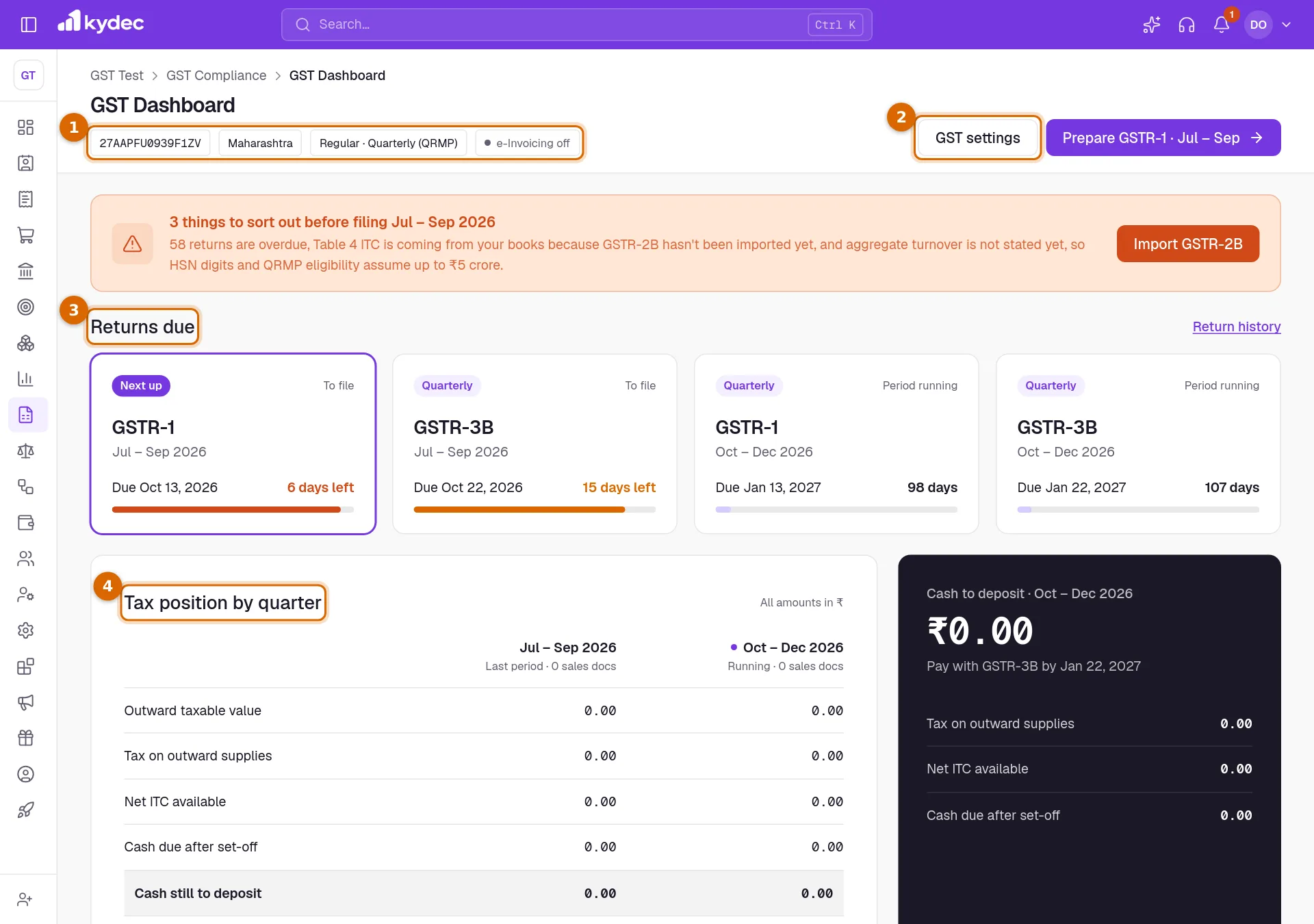
- Outward taxable value and Tax on outward supplies come from the GSTR-1 of the period: your invoices, your exports, and your credit and debit notes.
- Net ITC available is your input tax credit (ITC), the GST on purchases that you can set against the GST on sales. Cash due after set-off is what is left to pay in cash once that credit is used, and Cash still to deposit is the part of it your cash ledger does not yet cover.
- Table 4 ITC source reads GSTR-2B imported when the credit comes from a GSTR-2B statement you imported, and Books · no GSTR-2B when it comes from the purchases you recorded.
- Exceptions counts what needs fixing or reviewing in the period and opens the list.
- The Cash to deposit panel repeats the amount still to pay with the due date of GSTR-3B, and Review GSTR-3B opens that return.
- Heads at a glance splits the last period by IGST, CGST, SGST / UTGST and Cess.
- Recently filed lists the latest returns marked as filed, with their ARN, the acknowledgement number the portal gives a filed return. Recent activity lists the latest GST actions and who took them, and Audit logs opens the full list.
- A band at the top of the page names what to sort out before filing: overdue returns, exceptions to fix, a GSTR-2B not yet imported, or an aggregate turnover not yet stated.
- A Composition registration sees a Composition Scheme card in place of the returns and the tax position.
Good to know. A return counts as filed only once it is marked as filed in KyDec. The dashboard does not read your filing status from the GST portal.
Set how a GSTIN files in GST Profile & Settings
Open GST Compliance and choose GST Profile & Settings. The settings belong to the GSTIN the page is on. The Registration card at the top repeats the details from the certificate, and Edit takes you back to GST Registration.
- 1Under Return Filing, choose your Aggregate Turnover (last financial year): Up to ₹1.5 crore, ₹1.5 crore to ₹5 crore or Above ₹5 crore. It decides the HSN/SAC digits your lines must carry, whether you may file quarterly, and whether e-invoicing applies.
- 2Choose the Filing Frequency. Monthly means GSTR-1 and GSTR-3B every month. Quarterly (QRMP) means both every quarter, with tax paid monthly, and is greyed out when the turnover is Above ₹5 crore.
- 3Check Returns you file. It lists each return this GSTIN files and when it is due, and changes as you change the frequency.
- 4Fill in the cards below as they apply, then click Save at the foot of the page.
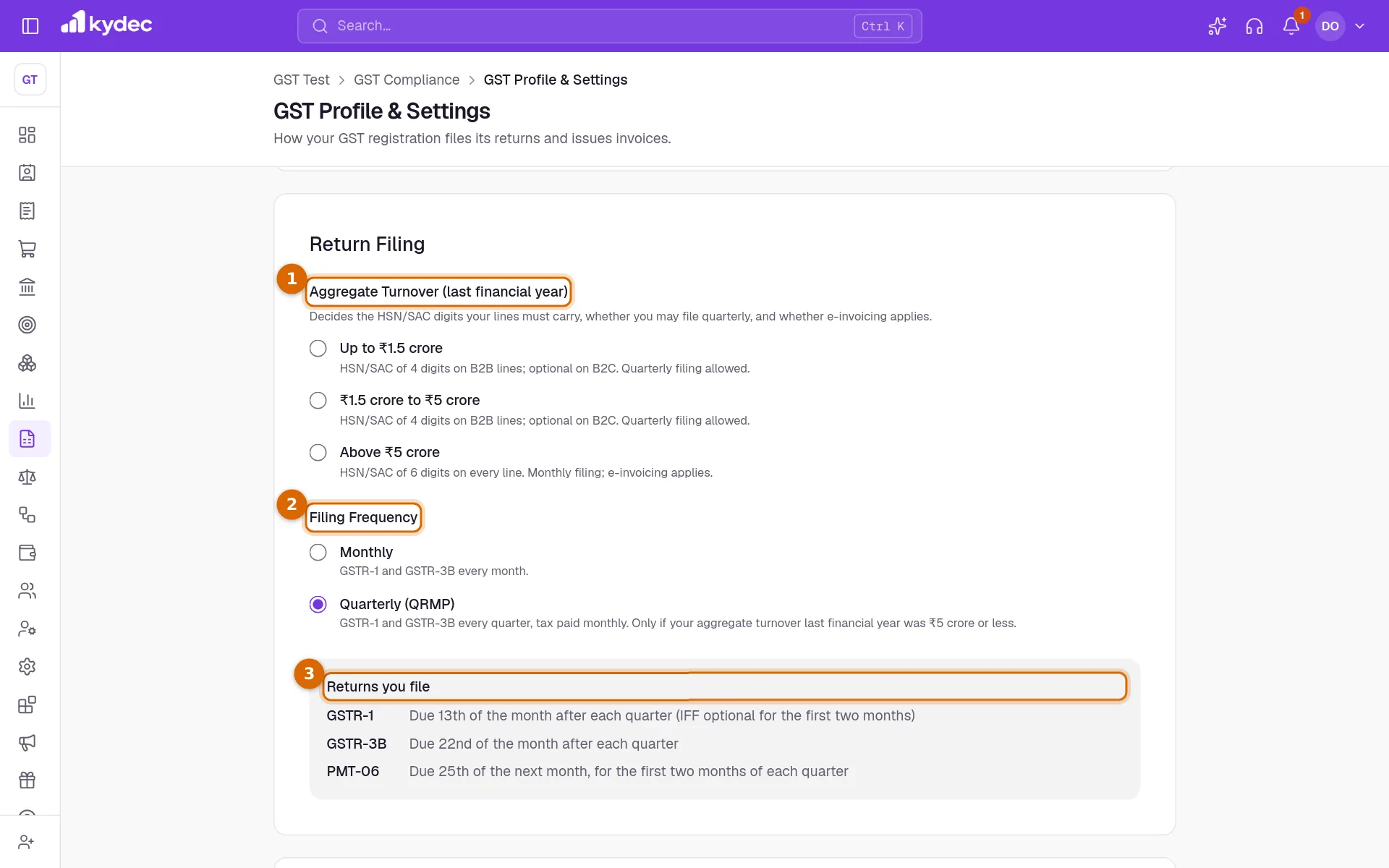
- For the two bands up to ₹5 crore the screen asks for an HSN/SAC of 4 digits on B2B lines and makes it optional on B2C lines. Above ₹5 crore it asks for 6 digits on every line.
- For a monthly filer Returns you file shows GSTR-1 due on the 11th and GSTR-3B on the 20th of the next month. For a quarterly filer it shows GSTR-1 on the 13th of the month after the quarter, GSTR-3B on the 22nd or the 24th depending on the state of the GSTIN, and PMT-06 on the 25th of the next month for the first two months of each quarter.
- Registration types that file on a fixed cycle, such as Composition, show that cycle in place of the choice.
- Composition Category shows for a Composition registration: Manufacturer, Trader, Restaurant or Services, or mixed.
- Input Tax Credit — Common Credit (Rules 42 and 43) shows for every other type. Choose Purchases are for taxable supplies or Purchases serve taxable and exempt supplies alike. This is what applies to a purchase that does not say what it is used for.
- Electronic Ledgers — Opening Balances takes the balances of your credit ledger and cash ledger on the GST portal, head by head, on the day you started keeping GST in KyDec. Enter that day in As of. The set-off in GSTR-3B starts from these figures.
- A period that ended before the As of date is treated as filed elsewhere. It reads Before KyDec and is never shown as overdue.
Good to know. If the aggregate turnover is left unset, KyDec assumes up to ₹5 crore for the HSN digits and for quarterly filing, and the dashboard reminds you to state it.
e-Invoicing and the GST portal connection
The last card of GST Profile & Settings holds the two things that reach out to the government systems. Neither can be completed yet.
- 1Scroll to e-Invoicing & GST Portal at the foot of the page.
- 2The e-Invoicing switch can be turned on for a Regular, SEZ Developer or Casual registration, and is greyed out for the rest. Turning it on opens the e-Invoice API login box under it.
- 3Connect GSTN Account opens the Connect your GSTN Account dialog. Today the dialog says "The GST portal connection is not set up on this KyDec server yet. Please contact KyDec support." and Continue stays greyed out, so no account can be connected.
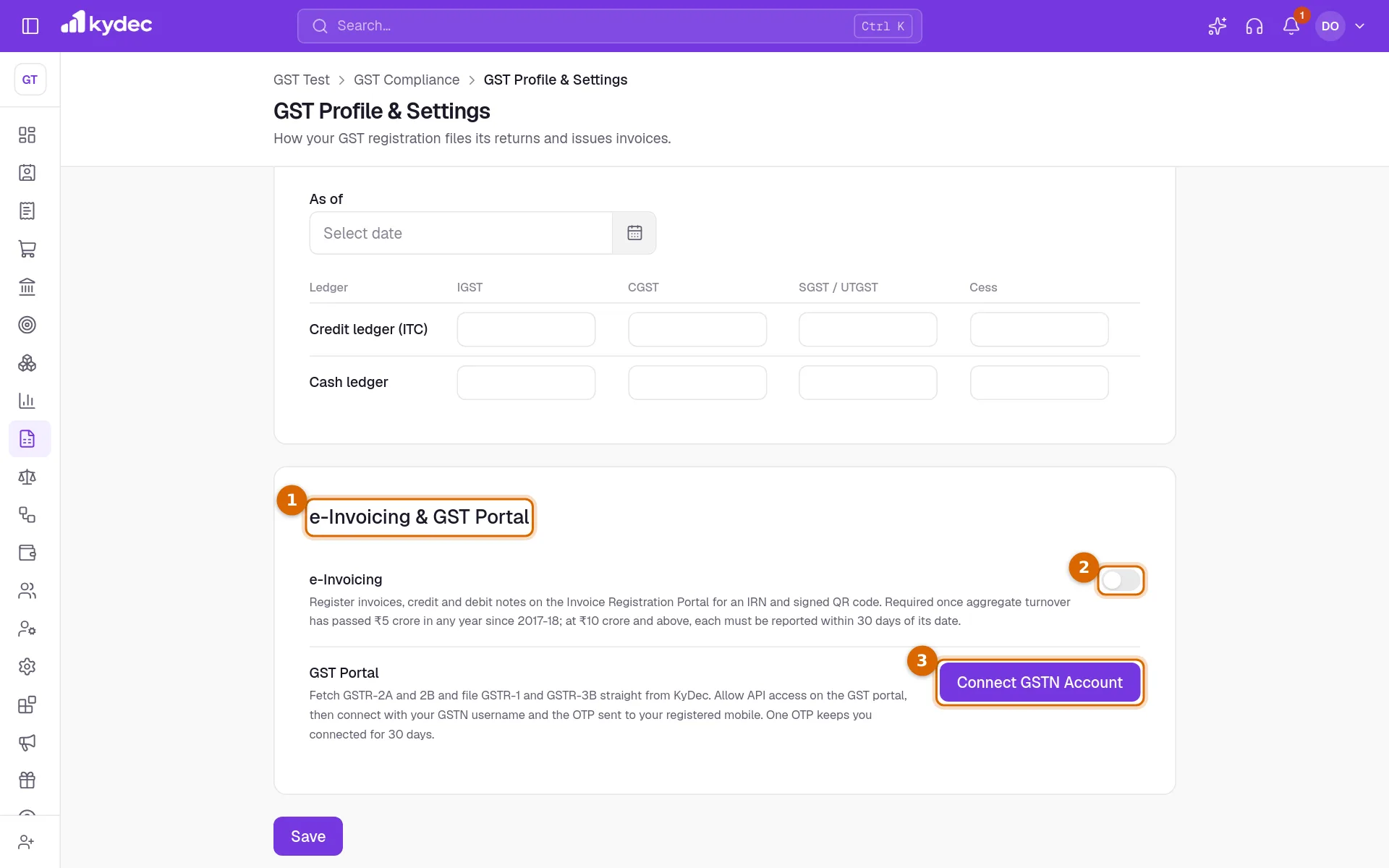
- The GST Portal row describes fetching GSTR-2A and 2B and filing GSTR-1 and GSTR-3B straight from KyDec. None of that works until the connection is set up.
- What works today: KyDec prepares each return, you download it, file it on the GST portal yourself, and click Mark as Filed in KyDec. GSTR-2A and 2B statements are imported from the file you download from the portal.
- The e-Invoice API login box carries the message "e-Invoicing is not set up on this KyDec server yet. Please contact KyDec support." for the same reason.
Good to know. The connection is made once by KyDec, for every business, through a licensed GST Suvidha Provider. There is nothing you can switch on yourself to enable it.
Record a move into or out of the Composition Scheme
Composition Scheme Changes shows for Regular and Composition registrations. It records the forms you file on the GST portal to opt in (CMP-02) or out (CMP-04), and the stock statement that goes with each (ITC-03 or ITC-01). KyDec does not file these forms. The Scheme card says which scheme the GSTIN is under today.
- 1Click Record CMP-02 / CMP-04.
- 2Choose CMP-02 — opt into composition or CMP-04 — opt out. Set Takes effect from and Filed on, add the ARN, optional, and for CMP-02 choose What the business does. Click Record.
- 3The form is now listed under Intimations. Click ITC-03 or ITC-01 on its row to prepare the stock statement. KyDec starts it from the items you hold in stock and the purchases marked as capital goods. Correct the lines, use Add line for anything missing, and click Save.
- 4When the statement is filed on the portal, open it again, enter ARN, once filed and Filed on (moves the credit ledger), and save. From that date your credit ledger in KyDec moves by its total.
- 5Once the date in Takes effect from has arrived, open the ⋯ menu on the row and choose Switch to Composition or Switch to Regular. The registration type changes, and the menu and the returns follow.
- A CMP-02 must take effect on 1 April, or on the date of registration for a new registration. KyDec refuses it when the Aggregate Turnover in GST Profile & Settings is above ₹1.5 crore.
- Each change must take effect after the one before it, and Filed on cannot be in the future.
- Switching to composition sets the filing frequency to quarterly, turns e-Invoicing off and moves the other Regular GSTINs of the business with it.
- Returns filed under the earlier scheme stay in Return History.
Good to know. Remove is refused while a later change exists, while the stock statement is recorded as filed, or once the registration has been switched on it.
Common questions
- Why is GST Compliance missing from my sidebar?
- It shows only for a business whose country is India and whose tax type is GST, and only to a role that has View GST returns and reports. Check the country under Business Profile, the tax type under the accounting settings of the business, and your role.
- Does KyDec file my returns on the GST portal?
- Not yet. KyDec works out the return and gives you the file to upload, but the connection that would file from KyDec is not set up. File on the GST portal yourself, then click Mark as Filed in KyDec so the dashboard and later periods know.
- We are registered in two states. How do we keep their returns apart?
- Add both GSTINs under GST Registration with Add another GSTIN. Each has its own returns, ledgers and settings, and the GSTIN picker at the top of the GST pages chooses which one you are working on.
- Why is Quarterly (QRMP) greyed out?
- Quarterly filing is offered only while the Aggregate Turnover (last financial year) is ₹5 crore or less. With Above ₹5 crore chosen, the filing frequency is set to Monthly.
- I chose the wrong registration type. Can I change it?
- Yes. Open GST Registration, choose the right Registration Type and click Save. The GSTIN is checked again against the new type, the menu changes to match, and a type with a fixed filing cycle takes that cycle.
Related guides
e-Invoicing
See which invoices need an e-invoice and whether each is ready, keep the register, and look up an IRN. Generating from KyDec waits on the GST portal connection.
GSTR-1 sales return
Build your GSTR-1 from the invoices you raised: review the sales report, clear what fails validation, download the file for the GST portal, and mark the return as filed.
GSTR-3B summary return
See the tax due for the period from your sales and purchases, make adjustments, download the return for the GST portal, and mark it as filed.
Business profile
The name, tax registration and address printed on everything you issue. Getting these right once keeps every document compliant.