
Help
GSTR-2A and GSTR-2B reconciliation
Import the GSTR-2A or GSTR-2B you downloaded from the GST portal and match it against the purchases in your books, so you claim only the input tax credit that is really available.
Where to find it:GST ComplianceGST ReturnsGSTR-2B ReconciliationReconciliation
What the reconciliation is for
Input tax credit (ITC) is the GST you paid on your purchases, which you set against the GST you owe on your sales. The GST portal shows how much of it your suppliers have reported. GSTR-2B is the portal's fixed statement of that credit for one tax period. GSTR-2A is the running view of the same documents, and it also says whether each supplier has filed.
KyDec holds the statement against the purchases in your books for the same period, line by line. You see which purchases your suppliers have reported, which they have not, and where the two sides disagree.
- These pages are for a GSTIN that files GSTR-1 and GSTR-3B: Regular / Normal Taxpayer, Casual Taxable Person, SEZ Unit and SEZ Developer. A composition business and the special registrations (ISD, TDS, TCS, non-resident, OIDAR, UIN) do not have them in the menu.
- You need a role with View GST returns and reports to open the pages, and Prepare and file returns, and change GST settings to import a statement or link a line.
- A business with more than one GSTIN reconciles each one on its own. Choose the GSTIN in the bar at the top of the page.
Good to know. Once the GSTR-2B of a period is imported, Table 4 of that period's GSTR-3B follows the statement instead of your books.
Find your way round the screen
Open GST Compliance in the sidebar, then GST Returns, GSTR-2B Reconciliation and Reconciliation. This page shows every line of the statement and every purchase the statement lacks, side by side.
- 1Tax Period chooses the month, or the quarter if you file quarterly. The page opens on the current period. A period whose GSTR-3B is marked as filed reads Filed beside its name.
- 2Connect GSTN & fetch is meant to bring the statement straight from the GST portal. It is greyed out for now; a section below explains why.
- 3Import GSTR-2B JSON takes the statement file you downloaded from the GST portal. Once a statement is in for the period, the button reads Import GSTR-2B again.
- 4Other views opens the same period on Purchase Report, ITC Available and ITC Not Available.
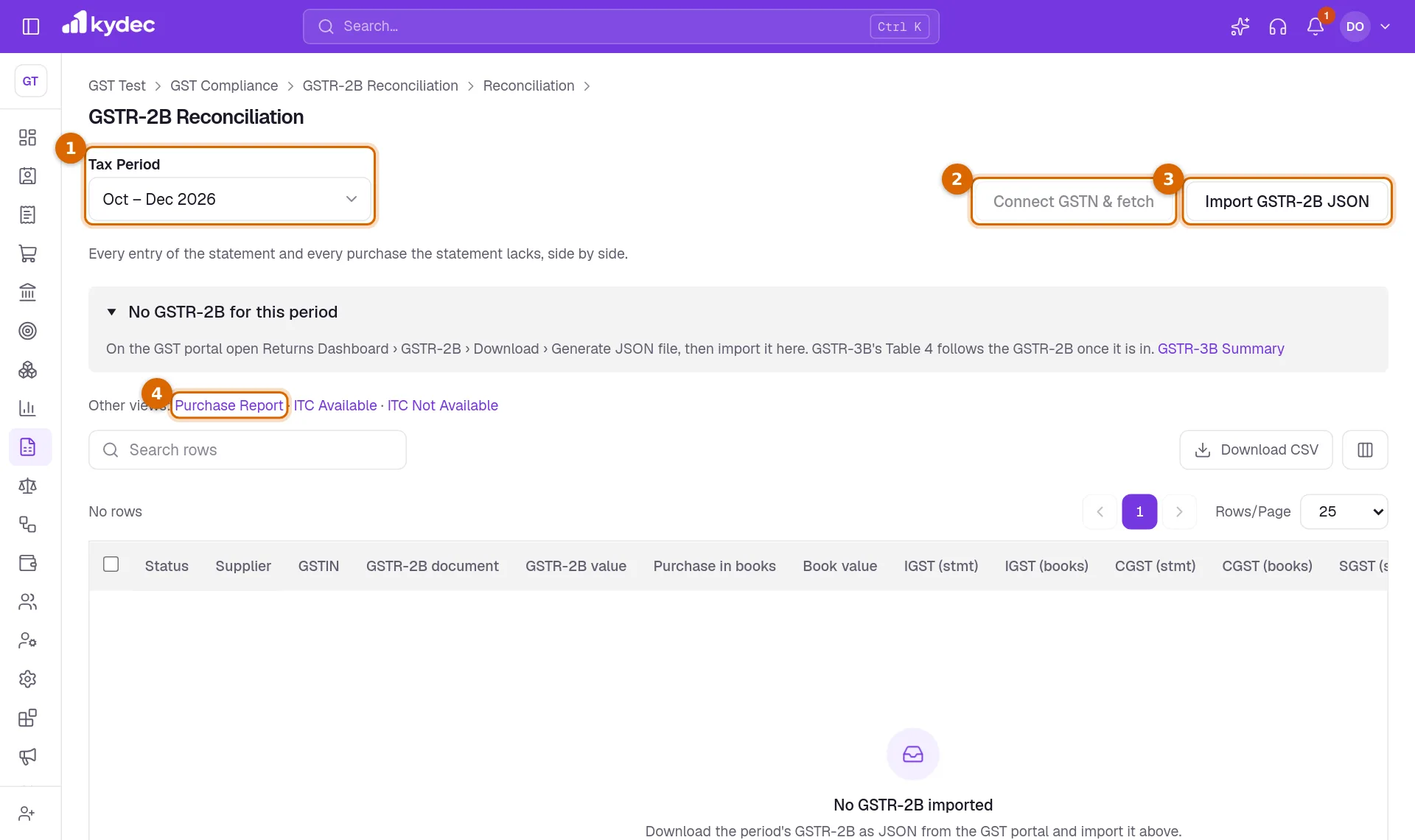
- The panel under the buttons reads No GSTR-2B for this period until a statement is in. After that it reads GSTR-2B imported and shows how many entries it holds, when the portal generated it, when you imported it and the file name.
- Search above the table looks in the supplier name, the GSTIN, the document number in the statement, and the purchase number and invoice number in your books.
Bring the statement in
- 1On the GST portal, download the GSTR-2B of the period as a JSON file. The panel on the page gives the route: Returns Dashboard, then GSTR-2B, then Download, then Generate JSON file.
- 2In KyDec, choose the same Tax Period and click Import GSTR-2B JSON. Pick the file from your computer.
- 3A panel opens, headed Import GSTR-2B: choose the documents. It lists every document in the file with its status against your purchases, and the purchase it matches under Purchase in books. Nothing has been saved yet.
- 4Every document starts ticked. Untick the ones to leave out. One button unticks all the documents your books do not have: it reads Leave out the 12 not in books, with your own number. Select all ticks everything again.
- 5Click the import button at the foot of the panel. It reads Import 40 documents, with the number you ticked. Cancel closes the panel and imports nothing.
- KyDec checks the file before it shows anything. It must be the portal's JSON file, the right statement (a GSTR-2A is refused on a GSTR-2B page), for your own GSTIN and, if you file monthly, for the period you chose. The file can be up to 25 MB.
- In the panel, the search box and the status buttons narrow a long list. When more than 500 documents are listed, the first 500 are drawn; search or pick a status to reach the rest.
- Only the ticked documents are imported and counted. The panel on the page then shows how many were left out at import.
- If you file quarterly, a period is the whole quarter and holds one statement. Use the file that covers the quarter: a second file replaces the first.
- A file with no documents can still be imported. It records a nil GSTR-2B for the period.
Good to know. Importing again for the same period replaces the statement that was there, along with any links you made by hand.
Fetching from the GST portal is not available yet
KyDec is built to reach the GST portal through a licensed GST Suvidha Provider, a go-between that connects software to the portal. That connection is not set up yet.
So Connect GSTN & fetch is greyed out on every GSTR-2A and GSTR-2B page. Point at it and it tells you that the GST portal connection is not set up yet.
- Until the connection is set up, the way to bring a statement in is the JSON file you download from the GST portal yourself.
- Nothing on these pages reads from the GST portal or sends anything to it. The reconciliation is worked out inside KyDec, from the imported file and your purchases.
How lines are matched, and what each status means
The books' side is your purchases and expenses dated in the tax period, for this GSTIN. Drafts and cancelled purchases are left out. A statement line is matched only to a purchase from a vendor with the same GSTIN, and a purchase is matched to one line only.
KyDec first looks for the supplier's invoice number. It compares it with Invoice No on the purchase, and with the purchase's own number, ignoring capitals, spaces, dashes, slashes and leading zeros: INV/0012 and inv-12 are the same number. If no number fits, it looks for a purchase from that supplier with the same date and the same value.
Only invoices are matched automatically. Credit notes, debit notes, bills of entry for imports and ISD documents in the statement stay Not in books until you link them yourself.
- Matched: the invoice number was found on a purchase from that supplier, and the value, the taxable value, each tax and the date all agree.
- Mismatch: the invoice number was found, but something differs. Differences / reason lists what, for example the value in the books and the value in the statement.
- Probable match: the number was not found, but a purchase from the same supplier has the same date and value. The column shows both invoice numbers.
- Linked by hand: you paired the line with a purchase yourself. Any differences are still listed.
- Not in books: the statement has the document, and no purchase in the period was found for it.
- Not in statement: your books have a purchase with GST from a GST-registered vendor in India, and the statement does not carry it. The column says the supplier has not reported it, so the credit waits. For a purchase under reverse charge it says the credit follows the tax you pay, not the statement.
- ITC not available: the statement itself marks the credit on that document as not available, and gives the reason. This status shows whether or not the document matches a purchase.
Good to know. Amounts are compared to within ₹1, so rounding does not raise a mismatch.
Read the four GSTR-2B pages
GSTR-2B Reconciliation in the sidebar holds four pages. They share one reconciliation and one table layout; each shows a different set of rows.
- 1Choose the Tax Period. Each page opens on the current period, so pick the same one again when you move between the pages from the sidebar.
- 2Status is the first column. After it come the supplier and GSTIN, the document and value in the statement, the purchase and value in your books, and the tax on each side.
- 3Download CSV saves the rows as a file for a spreadsheet. It takes the first 200 rows of the list as it is sorted and filtered.
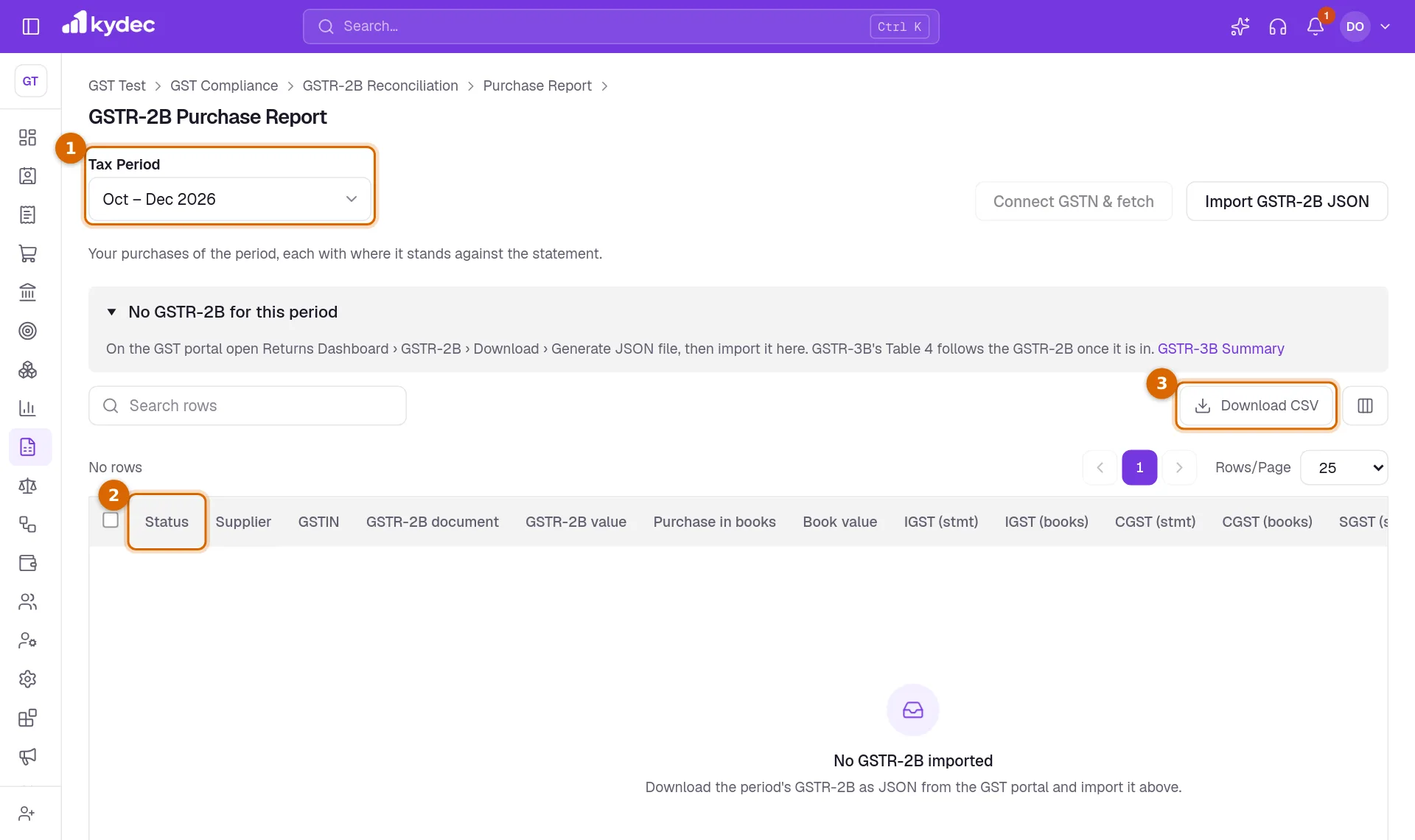
- Purchase Report lists your purchases of the period, each with where it stands against the statement.
- ITC Available lists the statement lines whose credit is available, each against the purchase it matches.
- ITC Not Available lists the lines the portal withholds credit on, with its reason, and your purchases the suppliers have not reported.
- Reconciliation lists everything.
- Columns marked (stmt) are the statement's figures and (books) are yours. Purchase in books opens the purchase.
- Once a statement is in, each status is a button above the table with its count. Click one to see only those rows; click it again to see all.
- Beside the buttons, a small Credit table compares the totals per tax head. Available per GSTR-2B is the tax on the lines whose credit is available, less credit notes; amended documents and reverse charge lines are left out. Claimed in books (eligible) is the tax on your purchases whose Input Tax Credit is Eligible, reverse charge left out.
- In books, not yet in statement is how far your books' total is above the statement's, and In statement, not in books how far it is below. They compare the two totals; they are not the sum of the rows with those statuses.
Put the differences right
- Mismatch: read Differences / reason, then open the purchase from Purchase in books. Correct it if your entry is wrong. If the statement is wrong, only the supplier can correct what they reported.
- Probable match: usually the invoice number was typed differently. Correct Invoice No on the purchase so the numbers agree, or click Link… to confirm the pair.
- Not in books: if the purchase is yours and missing, record it with a date in the period. If it is in your books under another number, click Link….
- Link… opens Link to a purchase. Type the purchase number, or the supplier's invoice number on it, exactly as it is saved, and click Link. The row becomes Linked by hand. Unlink on that row removes the link.
- Link… is offered on rows that are Not in books, Probable match or Mismatch.
- Not in statement: check the vendor's GSTIN and the Invoice No on the purchase first. If they are right, the supplier has not reported the invoice in this statement.
Good to know. A statement is held only against purchases dated in the same tax period. If you link a line to a purchase dated in another period, the row stays Not in books.
GSTR-2A Reconciliation
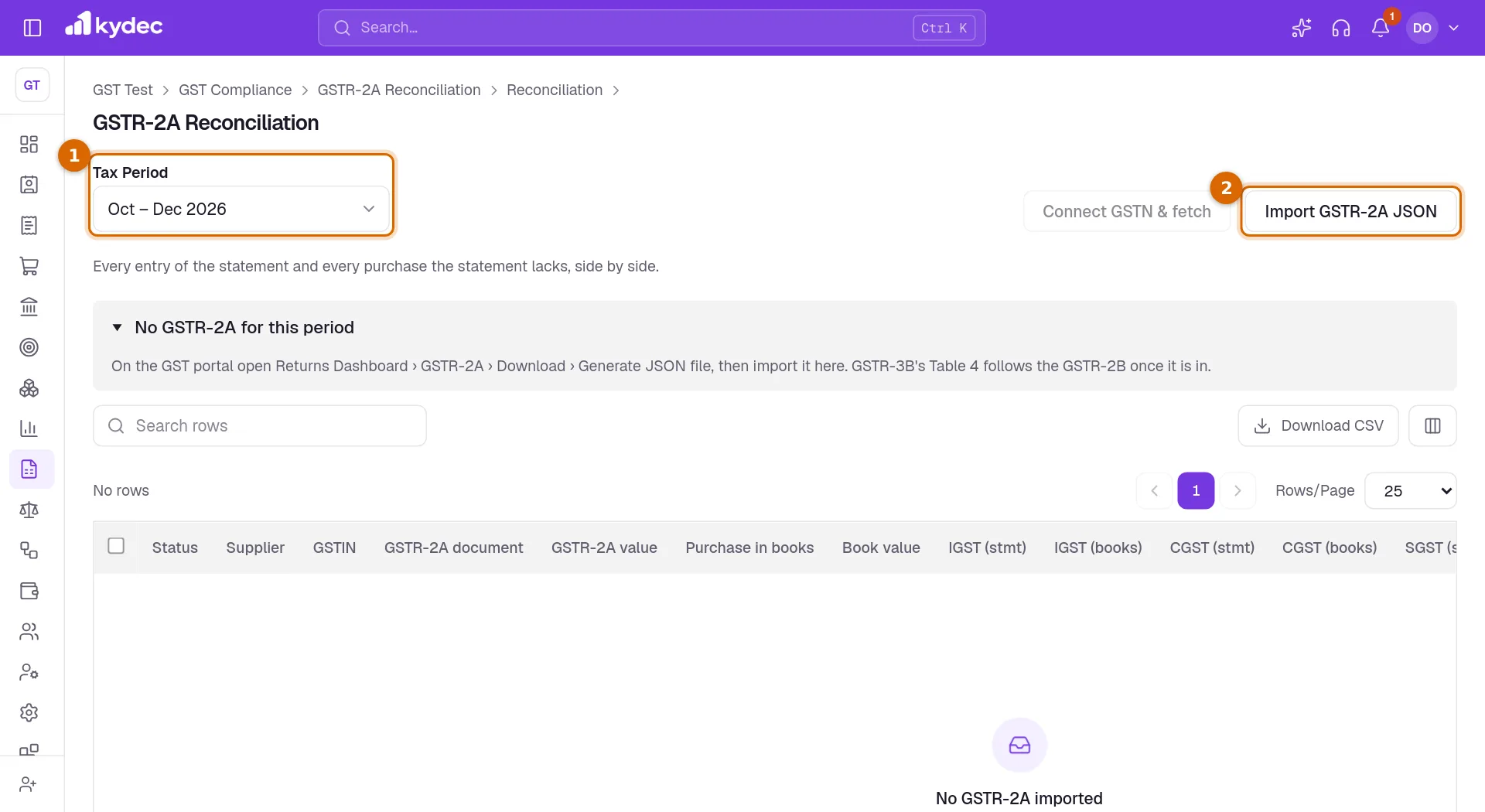
Open GST Compliance, GST Returns, GSTR-2A Reconciliation. It is a single page that works like the GSTR-2B Reconciliation page: the same period picker, the same import, the same statuses and links.
- 1Choose the Tax Period.
- 2Click Import GSTR-2A JSON and pick the GSTR-2A file you downloaded from the GST portal. The same panel lets you choose the documents before anything is saved.
- 3Read the extra column Supplier filed: Yes or No, as the statement reports it.
- A GSTR-2A does not change Table 4 of GSTR-3B. Only the period's GSTR-2B does.
- In a GSTR-2A every document counts as credit available, so ITC not available does not occur there.
- KyDec uses GSTR-2A for one check on GSTR-3B: whether the suppliers of last year's invoices have filed their own GSTR-3B. In October's return (July to September's if you file quarterly) it reverses the credit on invoices whose supplier had not filed, and gives it back in a later return once a newer GSTR-2A shows that they have.
- When no GSTR-2A downloaded after 30 September is in for part of that year, the exceptions of that return ask you to import one.
Common questions
- Can KyDec download my GSTR-2B from the GST portal by itself?
- Not yet. The Connect GSTN & fetch button is on the page, but the connection to the GST portal is not set up, so it is greyed out. Download the JSON file from the GST portal and use Import GSTR-2B JSON.
- What happens to GSTR-3B after I import the GSTR-2B?
- Table 4 of that period's GSTR-3B takes import of goods, ISD credit and all other ITC from the statement instead of your purchases. Reverse charge credit still comes from your books. Credit your books claim beyond the statement is added to line 4(B)(2).
- A line is **Not in books**, but I did record the purchase. Why?
- The usual reasons: the vendor has no GSTIN on their record, or a different one; the purchase is dated in another period, or is a draft; the document is a credit note, a debit note or an import, which are not matched automatically; or the invoice number, the date and the value all differ. Use Link… to pair the line with the purchase, as long as the purchase is dated in the same period.
- Can I import the statement of a period a second time?
- Yes. Click Import GSTR-2B again. The new file replaces the earlier statement for that period, and links you made by hand are lost, so make them again afterwards.
- A purchase shows **Not in statement**. What does KyDec do with its credit?
- The page shows that the supplier had not reported the invoice in the statement you imported. With that period's GSTR-2B imported, GSTR-3B takes its credit from the statement, and what your books claim beyond it goes to line 4(B)(2). KyDec matches a statement only against purchases dated in the same period.
Related guides
GSTR-3B summary return
See the tax due for the period from your sales and purchases, make adjustments, download the return for the GST portal, and mark it as filed.
Purchases and Expenses
Record, track, manage, and analyze all your purchases and expenses in one place.
Vendors & Suppliers
Everyone you buy from. One record can be both a client and a vendor, with its purchases, payouts and statement.
GST Compliance
Set up GST for a business in India: add your GSTINs, choose how each one files, and follow what is due from the GST dashboard.