
Help
Annual, composition and other GST returns
GSTR-9 and 9C, CMP-08 and GSTR-4 for composition dealers, the returns for special registrations, export LUT and refunds, and the history of what was filed.
Where to find it:GST ComplianceGST Returns
Which of these pages your GSTIN has
Besides GSTR-1 and GSTR-3B, KyDec prepares the yearly returns, the statements of a composition business, the returns of the special registrations, and it keeps your export undertakings and refund claims. The menu shows only the pages that apply to the GSTIN you are working on.
For every return here, KyDec prepares the figures and keeps your record. You file on the GST portal yourself, and then click Mark as Filed in KyDec. Nothing on these pages is sent to the portal.
- A regular, casual or SEZ registration has GSTR-9 Annual Return, GSTR-9C Reconciliation, Export LUT and Refunds, Return History, GST Exceptions and Audit Logs.
- A Composition Taxpayer has CMP-08 Quarterly Statement and GSTR-4 Annual Return in place of GSTR-9 and GSTR-9C, and has no Export LUT and Refunds. It keeps Return History, GST Exceptions and Audit Logs.
- A special registration (non-resident, OIDAR, ISD, TDS, TCS or UIN) has one return page, GSTR-5 / 5A / 6 / 7 / 8 / 11, and Audit Logs.
- Before the first GSTIN is added, GST Compliance shows only Dashboard and GST Registration.
- With several GSTINs, the menu follows the one chosen in the GSTIN bar at the top of the page.
- You need a role with View GST returns and reports to open the pages, and Prepare and file returns, and change GST settings to save figures or mark a return as filed.
GSTR-9 Annual Return
Open GST Compliance, GST Returns, Annual Return, GSTR-9 Annual Return. KyDec builds the year from the GSTR-1 and GSTR-3B of each of its periods, table by table as the form lays it out. The page states when it is due: 31 December after the year.
- 1Financial Year picks the year. A year still in progress reads Running: it can be prepared but not marked as filed. A year you have marked reads Filed.
- 2Edit figures lets you type over any figure that is not a total. Clear a cell to go back to KyDec's figure, then click Save figures. A typed figure is tagged Typed; a line KyDec cannot work out is tagged Enter.
- 3Download JSON for GST Portal saves the return as a JSON file for the GST portal. Download Excel puts every table on its own sheet, and Download CSV gives one flat file.
- 4Mark as Filed records the filing once you have filed on the portal. Enter the Filing date and, if you have it, the ARN.
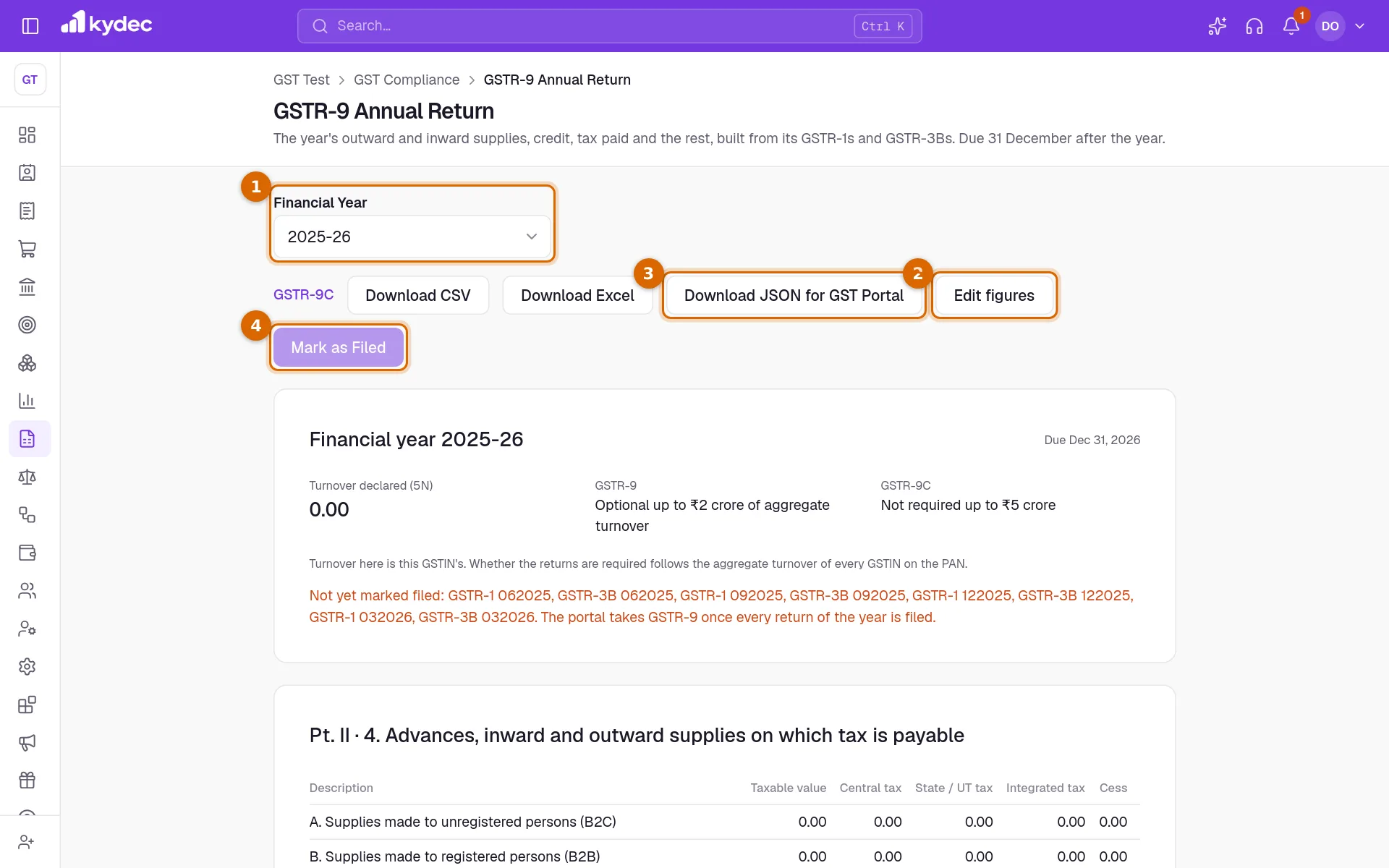
- The first card shows Turnover declared (5N) and says whether GSTR-9 and GSTR-9C are required for the year: GSTR-9 above ₹2 crore of turnover and GSTR-9C above ₹5 crore. The figure is this GSTIN's; the card reminds you that the rule follows the turnover of every GSTIN on the PAN.
- Mark as Filed stays greyed out until the year has ended and every GSTR-1 and GSTR-3B of the year is marked as filed in KyDec. The card lists the ones still open after Not yet marked filed.
- If the year owes more tax than its GSTR-3Bs paid, the card says so, with the amount under each head.
- The tables run from 4 to 19, with the HSN summaries as 17 and 18. Table 8 uses the GSTR-2B statements imported for the year, and Table 15 reads the applications recorded on Export LUT and Refunds.
- The late fee runs to the filing date you enter. With Advanced Accounting on, a late fee is posted to your books when you mark the return as filed.
- Unmark takes the filing back. If GSTR-9C for the year is marked as filed, unmark that one first.
Good to know. KyDec does not send GSTR-9 to the GST portal. The JSON file is for you to take there.
GSTR-9C Reconciliation
Open GSTR-9C Reconciliation under Annual Return. The page is headed GSTR-9C Reconciliation Statement. It sets your audited financial statements against the annual return: turnover, taxable turnover, tax and input tax credit.
- The first card shows the four differences: Turnover (5R), Taxable turnover (7G), Unpaid liability (9R) and Input tax credit (12F). It also says whether the statement is required for the year, above ₹5 crore of turnover. It can be prepared either way.
- The annual return side comes from the GSTR-9 page. The audited turnover and input tax start from your books when Advanced Accounting holds them; otherwise you enter them. With several GSTINs the audited turnover is always entered. Replace the starting figures with the audited ones.
- Edit figures and reasons opens every figure that is not a total, and the reason box after each reconciliation: 6. Reasons for the unreconciled turnover, 8. Reasons for the unreconciled taxable turnover, 10. Reasons for the unpaid liability and 13. Reasons for the unreconciled ITC. Click Save to keep them.
- Mark as Filed needs GSTR-9 of the same year marked as filed first, and a reason for every difference that is not zero.
- Download CSV and Download Excel save the tables. Download JSON saves the statement by table and row number, for your records or your auditor.
- Table 14, ITC by expense head, is optional and is not prepared.
Good to know. The GST portal takes GSTR-9C only from its own offline utility, so the JSON from KyDec cannot be uploaded there. Use the figures to fill in that utility.
Composition: CMP-08 and GSTR-4
A composition business pays a fixed percentage of its turnover instead of charging GST on its sales. It files CMP-08 each quarter and GSTR-4 once a year. Both pages are under GST Returns, Composition (CMP-08 / GSTR-4).
- CMP-08 Quarterly Statement: choose the quarter in Tax Period. The first card shows the Category and its rate, the Turnover (outward supplies), how much of it is taxable and how much exempt, the amount under Levy worked on, and the Balance to pay.
- Table 3 — Summary of self-assessed liability has five lines: outward supplies, inward supplies under reverse charge, tax payable, interest, and tax and interest paid.
- It is built from the invoices, credit notes and debit notes of the quarter, the purchases under reverse charge, and the challans whose Tax period is that quarter. GST Payments (challans) opens the page where challans are recorded.
- A card Before filing lists what stands in the way: no Composition Category set on GST Profile & Settings, or tax charged on a sale. Mark as Filed is greyed out until it is cleared.
- GSTR-4 Annual Return: choose the Financial Year. Table 4 lists purchases by supplier, Table 5 the four CMP-08 statements with Filed or Not filed, Table 6 the figures by tax rate, and Table 8 the tax, interest and late fee payable and paid.
- Mark as Filed on GSTR-4 needs all four quarters' CMP-08 marked as filed.
- With Advanced Accounting on, marking CMP-08 as filed posts the levy and any reverse charge to your books, and marking GSTR-4 posts any late fee. Unmark reverses the entry.
- A GSTIN that is not under the composition scheme sees Not a composition registration on these pages.
Good to know. Neither page has a file to download, and neither is sent to the GST portal. Read the figures from the screen, file on the portal, then click Mark as Filed.
GSTR-5, 5A, 6, 7, 8 and 11 for special registrations
Six kinds of registration file a return of their own in place of GSTR-1 and GSTR-3B. For them, GST Returns shows one page, GSTR-5 / 5A / 6 / 7 / 8 / 11, and it opens the return that fits the registration type.
- Non-Resident Taxable Person (NRTP) files GSTR-5, OIDAR / Overseas Online Service Provider GSTR-5A, Input Service Distributor (ISD) GSTR-6, TDS Deductor GSTR-7, TCS Collector / E-commerce Operator GSTR-8 and UIN Holder GSTR-11.
- Choose the Tax Period. The tables are laid out from your documents. Edit lets you type over any figure that is not a total, and Save keeps it.
- GSTR-6, GSTR-7 and GSTR-8 have a worksheet for what your books do not hold: the units the credit is distributed to, the deductees, or the suppliers on the platform. Click Edit, then Add row. The tables take the rows once saved. GSTR-7's list starts from the period's purchases above ₹2.5 lakh from registered suppliers.
- Under the period picker the page shows the due date and reminds you to file on the GST portal and then mark the return as filed here.
- Mark as Filed asks for the Filing date and, if you have it, the ARN. It is refused while the period has not ended. Unmark takes it back.
- There is no file to download, and nothing is sent to the GST portal.
Good to know. A regular or composition GSTIN that opens this page is told which returns it files instead.
Export LUT and Refunds
Open GST Compliance, GST Returns, Export LUT and Refunds. A Letter of Undertaking (LUT) is what lets you export, or supply to an SEZ unit, without charging IGST; it covers one financial year. The page keeps your LUTs, works out the refund of credit you can claim, and holds a register of the refund applications you filed.
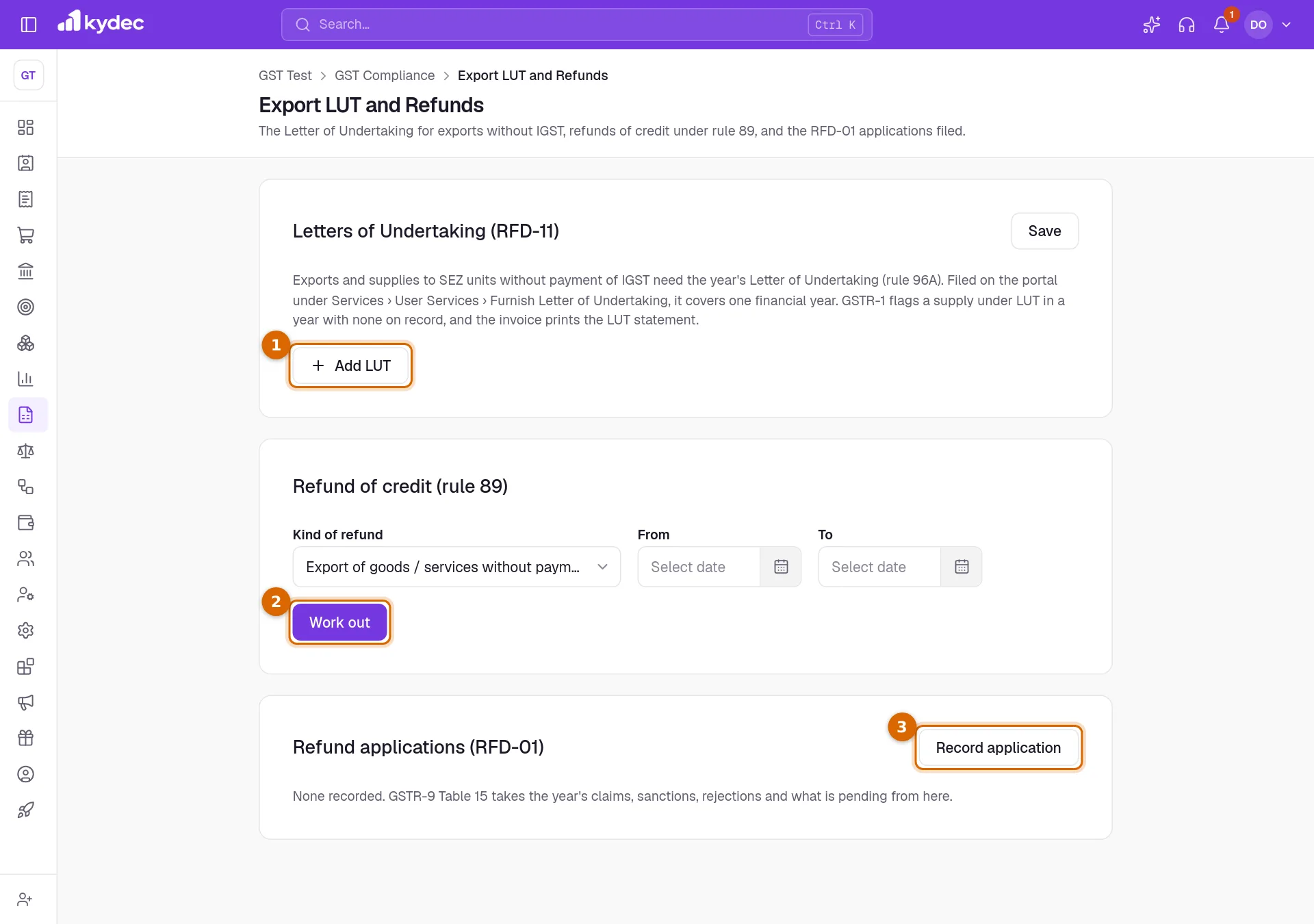
- 1Add LUT adds a line under Letters of Undertaking (RFD-11). Choose the Financial year, enter the ARN and the Filed on date, then click Save on the card. One LUT per financial year.
- 2Under Refund of credit (rule 89), choose the Kind of refund and the From and To months, then click Work out. KyDec fills in the turnover and the credit from your sales and purchases. Type over any figure and the result follows.
- 3Record application adds a refund application you filed on the portal to the register: the kind, the periods, the ARN, the Filed on date and the Amount claimed.
- What the LUT does in KyDec: GSTR-1 flags a supply made under LUT in a year with no LUT on record, and the invoice prints the LUT statement.
- Work out covers three kinds of refund: exports without payment of tax, supplies to SEZ without payment of tax, and credit built up by an inverted tax structure. For the last, tick the output rates that are lower than the rate on your inputs.
- The result shows the formula and the refund that may be claimed: the lesser of the formula and the balance of the credit ledger, split into Integrated, Central and State / UT. Record the RFD-01 filed for this carries the figures into the register.
- On a recorded application, Record the order sets the outcome: Sanctioned with the amount (never more than claimed), Rejected, Withdrawn or Still pending. Remove deletes the application.
- GSTR-9 Table 15 takes the year's claims, sanctions, rejections and pending amounts from this register.
- A composition business does not have this page.
Good to know. KyDec does not file the LUT or the refund application; both are filed on the GST portal. Recording an application does not change the credit ledger that KyDec keeps for GSTR-3B.
Return History
Open GST Compliance, Return History. It lists every tax period since your registration date with its GSTR-1 and its GSTR-3B: when each is due and where it stands.
- 1Return names the return, beside its Tax Period and the date it is Due.
- 2Standing says where it stands: Filed, Overdue with the number of days, Due in so many days, Period running while the period is not over, or Before KyDec.
- 3Download CSV saves the list as a file for a spreadsheet, up to its first 200 rows.
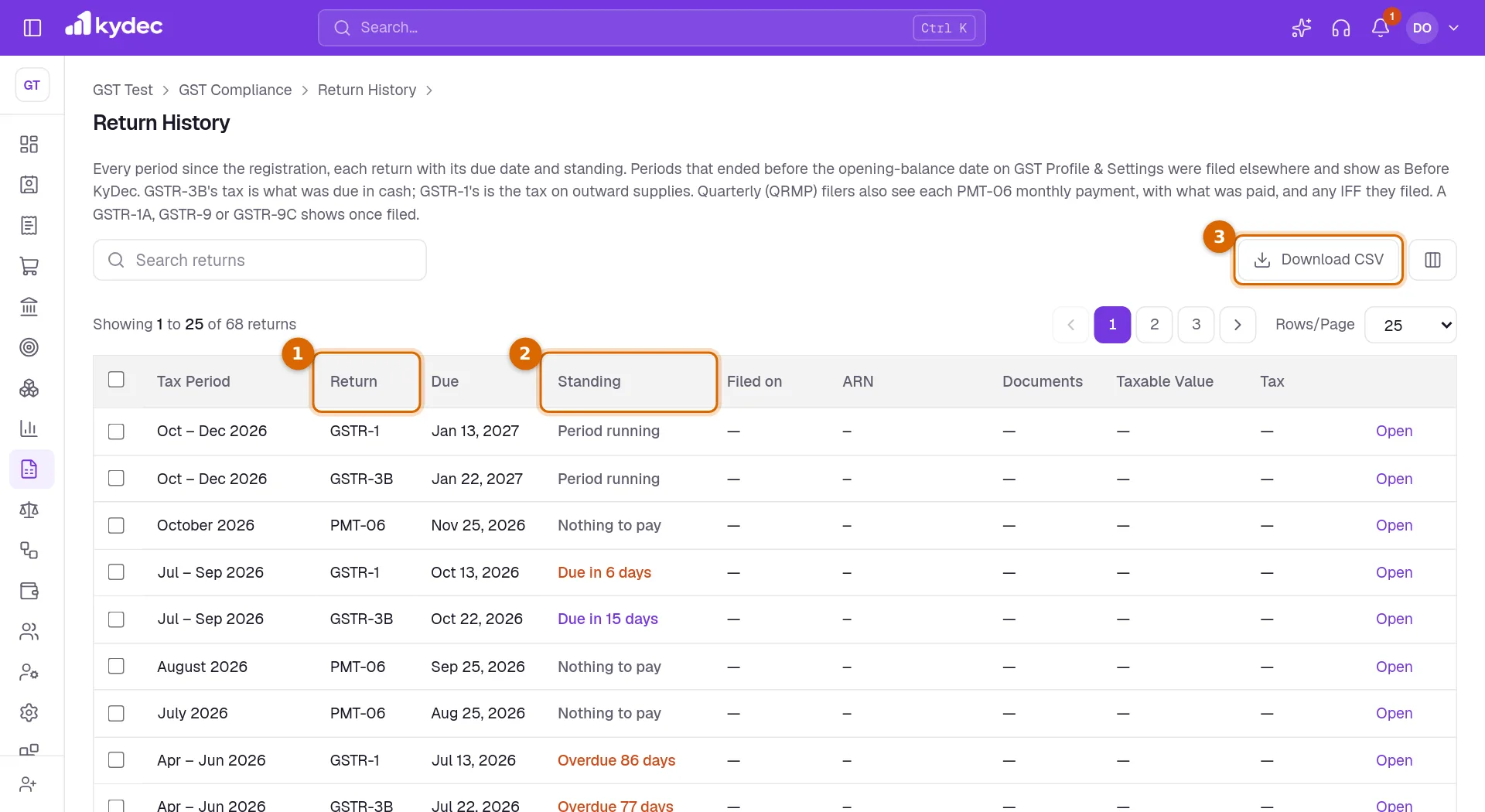
- Filed on and ARN are what you entered in Mark as Filed. Taxable Value and Tax are filled for filed returns: for GSTR-3B the tax is what was due in cash, for GSTR-1 it is the tax on your sales.
- Open on a row goes to that return for that period.
- Before KyDec marks periods that ended before the As of date of the opening balances on GST Profile & Settings. They were filed elsewhere and are not tracked.
- Quarterly filers also see each PMT-06 monthly payment, which reads Paid once it is covered or Nothing to pay, and any IFF they filed. A GSTR-1A, GSTR-9, GSTR-9C or special registration return appears once it is marked as filed.
- The list is built on GSTR-1 and GSTR-3B. It does not list CMP-08 or GSTR-4, so a composition business should read the standing on those two pages: a filed quarter or year reads Filed in the picker.
Good to know. Standing is read from what is marked as filed in KyDec, not from the GST portal. A return you filed on the portal stays overdue here until you click Mark as Filed.
GST Exceptions and Audit Logs
Both pages are directly under GST Compliance. GST Exceptions gathers in one list everything that stands in the way of your open returns. Audit Logs records what was done under GST Compliance, by whom and when.
- 1Level says how serious a row is. Fix before filing stops Mark as Filed for that period, Review asks you to check, and Note only informs.
- 2Period is the tax period the row belongs to, or Master data for a party, an item or the registration itself.
- 3Document / record opens the document, the party or the item so that you can correct it. What to put right says what is wrong.
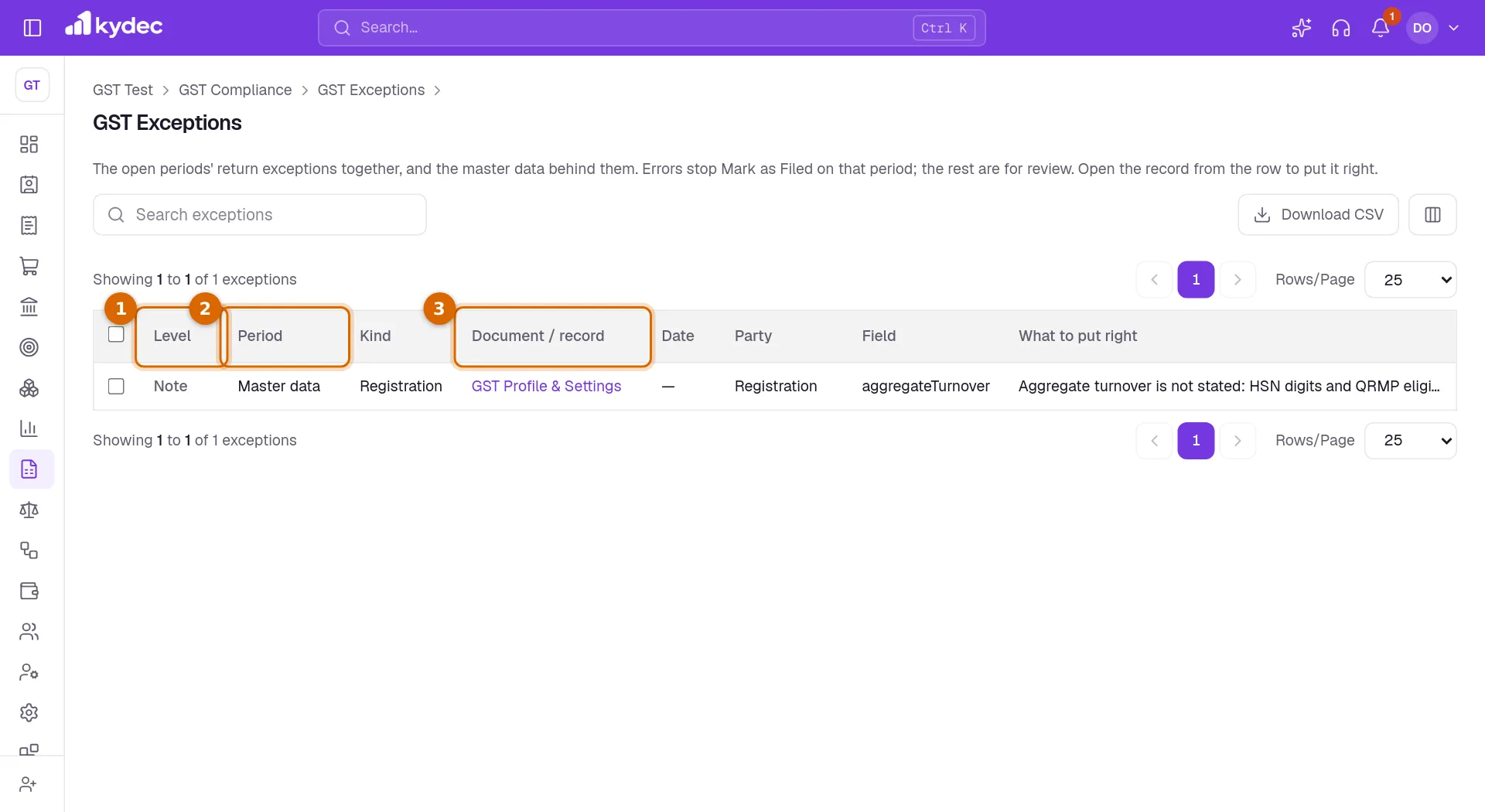
- The list covers the six most recent periods whose GSTR-1 is not marked as filed, and your master data: parties whose GST treatment needs a GSTIN they lack or whose GSTIN fails its check, items without a usable HSN/SAC, and a registration with no aggregate turnover stated.
- Audit Logs has the columns When, Who, What, Period, On and Details. View details on a row opens everything recorded for it. The entries are written by KyDec and cannot be edited.
- It logs saving the registration and settings, marking a return as filed or unmarking it, saving adjustments, recording or removing a challan, importing a statement, linking a statement line, e-invoices, TDS and TCS credits and refund applications.
- The page shows the latest 1,000 entries, for every GSTIN of the business.
- A few actions share a label under What: marking CMP-08 as filed is logged as GSTR-3B marked as filed, GSTR-4 as GSTR-1 marked as filed, and a special registration return as Annual return marked as filed. The On column names the actual return.
- Both lists have Download CSV, which saves the first 200 rows. The file of the audit log leaves out the Details column.
- Special registrations have Audit Logs but not GST Exceptions.
Common questions
- Does KyDec file GSTR-9, CMP-08 or GSTR-4 on the GST portal?
- No. KyDec prepares the figures. You file on the GST portal and then click Mark as Filed in KyDec, with the filing date and the ARN if you have it.
- Why can I not click **Mark as Filed** on GSTR-9?
- Either the financial year has not ended, or a GSTR-1 or GSTR-3B of that year is not marked as filed in KyDec. The first card lists the ones still open. Mark them as filed and the button becomes available.
- I cannot find GSTR-9, or CMP-08, in my menu. Where is it?
- The menu follows the registration type of the GSTIN. GSTR-9 and GSTR-9C are for regular, casual and SEZ registrations; CMP-08 and GSTR-4 are for a Composition Taxpayer. With several GSTINs, check which one is chosen in the GSTIN bar at the top.
- Can I upload the GSTR-9C file from KyDec to the GST portal?
- No. The portal takes GSTR-9C only from its own offline utility. Use Download Excel or Download JSON as your working copy and enter the figures in that utility.
- Return History says a return is overdue, but I filed it. Why?
- Return History reads only what is marked as filed in KyDec. Open the return and click Mark as Filed. If the period was filed before you started using KyDec, set the As of date of the opening balances on GST Profile & Settings; earlier periods then read Before KyDec.
Related guides
GSTR-3B summary return
See the tax due for the period from your sales and purchases, make adjustments, download the return for the GST portal, and mark it as filed.
GSTR-1 sales return
Build your GSTR-1 from the invoices you raised: review the sales report, clear what fails validation, download the file for the GST portal, and mark the return as filed.
GSTR-2A and GSTR-2B reconciliation
Import the GSTR-2A or GSTR-2B you downloaded from the GST portal and match it against the purchases in your books, so you claim only the input tax credit that is really available.
GST Compliance
Set up GST for a business in India: add your GSTINs, choose how each one files, and follow what is due from the GST dashboard.