
Help
Greetings
Make a branded greeting card for a festival or an occasion and share it with a link.
Where to find it:Greetings
What Greetings is for
Greetings makes a festive card with your business name and logo on it: a picture you can download, or pass on as a link, when you want to wish your clients well on an occasion.
You choose the occasion and a layout, and KyDec draws the card. The sending is done by you, through WhatsApp, email or a social network. KyDec does not send cards to your clients or contacts for you.
Make a card
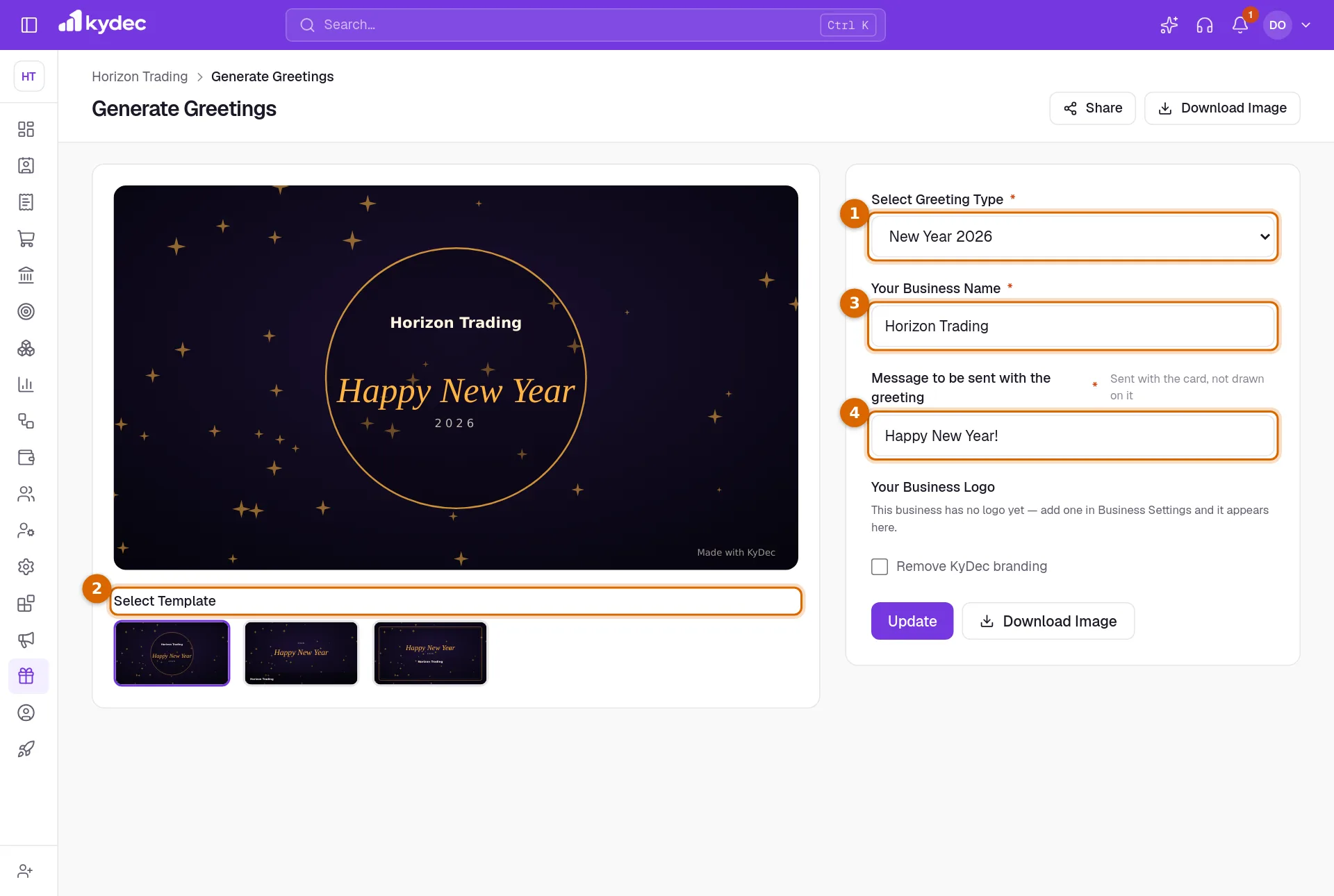
Open Greetings in the sidebar. The page is headed Generate Greetings: the card is on the left and changes as you type.
- 1Choose the occasion under Select Greeting Type, for example Christmas, Eid Mubarak, Deepawali or Happy Holi. The words on the card and its colours change with it.
- 2Pick a layout under Select Template. There are three: your name in a round badge, along the bottom of the card, or inside a frame.
- 3Check Your Business Name. It is drawn on the card, and you can shorten it here without changing it anywhere else.
- 4Write the Message to be sent with the greeting. It goes out with the card when you share it; it is not drawn on the picture.
- 5Click Update to keep your choices, so the page opens the same way next time.
- When you change the occasion, the message changes to that occasion's greeting, unless you have already written your own.
- A long business name is set over two lines on the card, and anything beyond that is cut short.
Good to know. The business name is limited to 120 characters and the message to 280. Both are required.
Logo and branding
- The card carries your business logo. The × on the logo under Your Business Logo takes it off the card, and Put the logo back returns it.
- If your business has no logo yet, upload one under Profile, Edit Profile, and it appears here.
- Tick Remove KyDec branding to take the line "Made with KyDec" off the card.
- The occasions, the wording on the card and the colours are fixed. You cannot upload a design of your own, change the colours or add an occasion.
Download or share the card
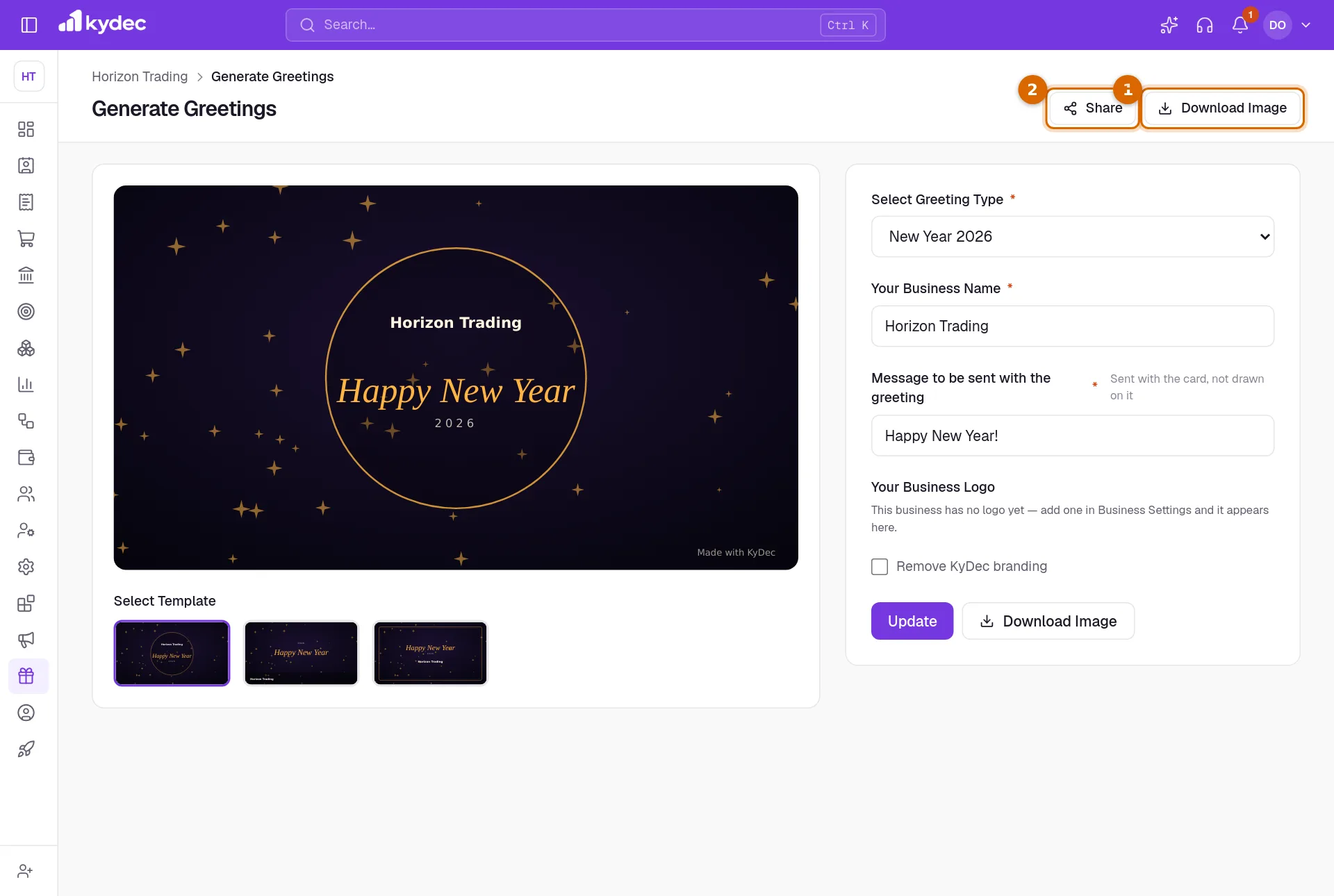
- 1Download Image saves the card to your device as a PNG picture named after the occasion. Attach it to an email or post it wherever you like.
- 2Share saves the card online and opens a box with the ways to send it and the link to the card.
- The round buttons open Facebook, X, WhatsApp, LinkedIn or your email program in a new tab, with the link already filled in. You choose who receives it and send it from there.
- WhatsApp, X and email carry your message as well as the link. Facebook and LinkedIn take the link only.
- The link button copies the address of the card, which is also shown at the bottom of the box.
- On a phone, or any device with a share menu of its own, one more button opens that menu, which can send the picture itself.
Good to know. Nothing goes out when you press Share in KyDec. The card is sent only when you finish the post or the message in the app that opens.
The public link
The link opens a page that anyone can see without signing in.
- It shows the card, your message and your business name, with your logo if the card carries it.
- Your business name links to your business profile page. That link works only while the profile page is published.
- The page says it was made with KyDec and invites the visitor to make greetings of their own. Remove KyDec branding takes the line off the card, not off this page.
- When the link is pasted into a chat or a post, the card is shown as its preview picture.
Good to know. Your business has one greeting link. Each time you press Share, the new card replaces the one behind it, so a link you sent earlier now opens the latest card.
Rules worth knowing
- KyDec keeps one card per business: your last occasion, layout, name and message. There is no list of past cards.
- Download Image and Share use the card as it is on screen, whether or not you clicked Update first. Share keeps your choices as well.
- To use Update or Share your role needs Create, edit and share templates and greetings under Marketing CRM, or Edit business profile.
Common questions
- Does KyDec send the greeting to all my clients?
- No. There is no list of recipients and nothing is sent for you. Download the picture or use Share, then send it yourself from WhatsApp, email or a social network.
- Can I use my own picture or change the colours?
- No. Each occasion comes with its own wording and colours, in three layouts. What you can change is the business name, the message, whether your logo shows, and whether the card says "Made with KyDec".
- I shared a new card. What happens to the link I sent before?
- It now opens the new card. Your business has one greeting link, and each share replaces the card behind it.
- Why is my logo missing from the card?
- Either your business has no logo yet, or the logo was taken off the card. Upload one under Profile, Edit Profile, or click Put the logo back.
Related guides
Business profile page
Your business’s public page: what you do, your services, projects and clients, arranged the way you want and shared with a link.
WhatsApp templates
Draft the WhatsApp messages you plan to send to leads and clients, with variables and a live phone preview.
Roles and permissions
Decide what each role can see and do, module by module, down to seeing only their own records.