
Help
Business profile page
Your business’s public page: what you do, your services, projects and clients, arranged the way you want and shared with a link.
Where to find it:ProfileEdit Profile
What the business profile page is
Your business profile page is a public web page about your business: who you are, what you offer, the work you have done and how to reach you. Once you publish it, anyone with the link can read it without signing in to KyDec.
It is not the same as Business Profile in Business Settings. That one holds the details printed on your documents, such as your tax registration and address; this one is the page you show to the world.
- In the sidebar, Profile, Edit Profile opens the page as you arrange it. View Profile opens the published page in a new tab, and is greyed out until you publish.
- Manage Testimonials is shown in the sidebar as coming soon. You can already add testimonials on the page itself, under Ratings & reviews.
Good to know. You need a role that includes Edit business profile to open and change the profile page.
Find your way round the page
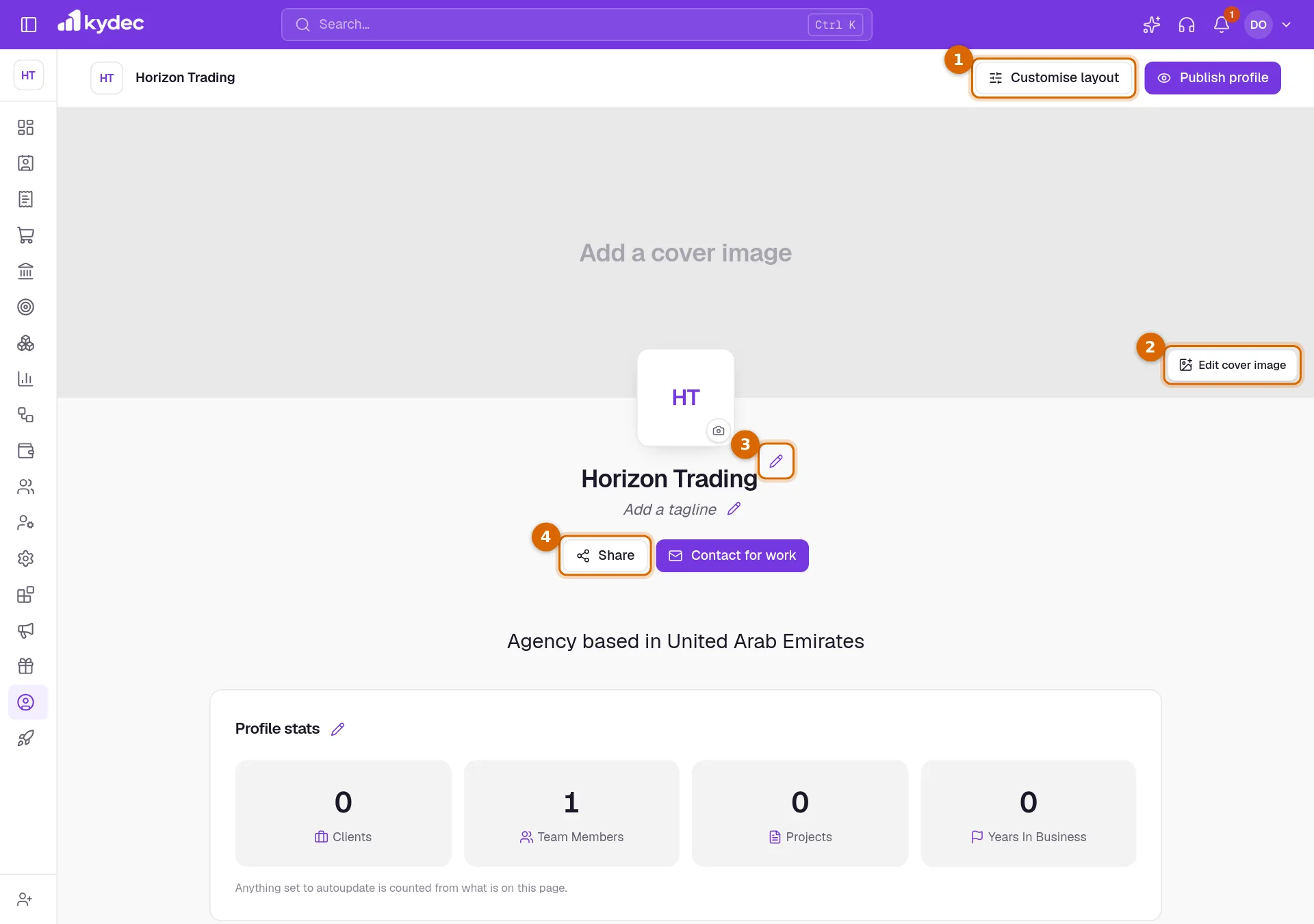
Open Profile, then Edit Profile. You see the page much as a visitor will, with extra buttons for changing each part.
- 1Customise layout opens the panel where you add blocks and arrange the sections.
- 2Edit cover image turns on the band across the top of the page and gives it a colour or a picture.
- 3The pencils beside your name, your tagline and About us open the Edit Profile form at the part that holds those details.
- 4Share opens the ways to pass your link on.
- Click the logo to upload a new one. You crop it before it is saved, and it is your business logo everywhere in KyDec.
- Contact for work shows you the form visitors fill in. Here it is a preview: nothing is sent.
- Each section further down has its own button: Add client, Add project, Add service and Add testimonial, and a pencil beside Profile stats.
- The foot of the page says whether the page is published.
Fill in your details
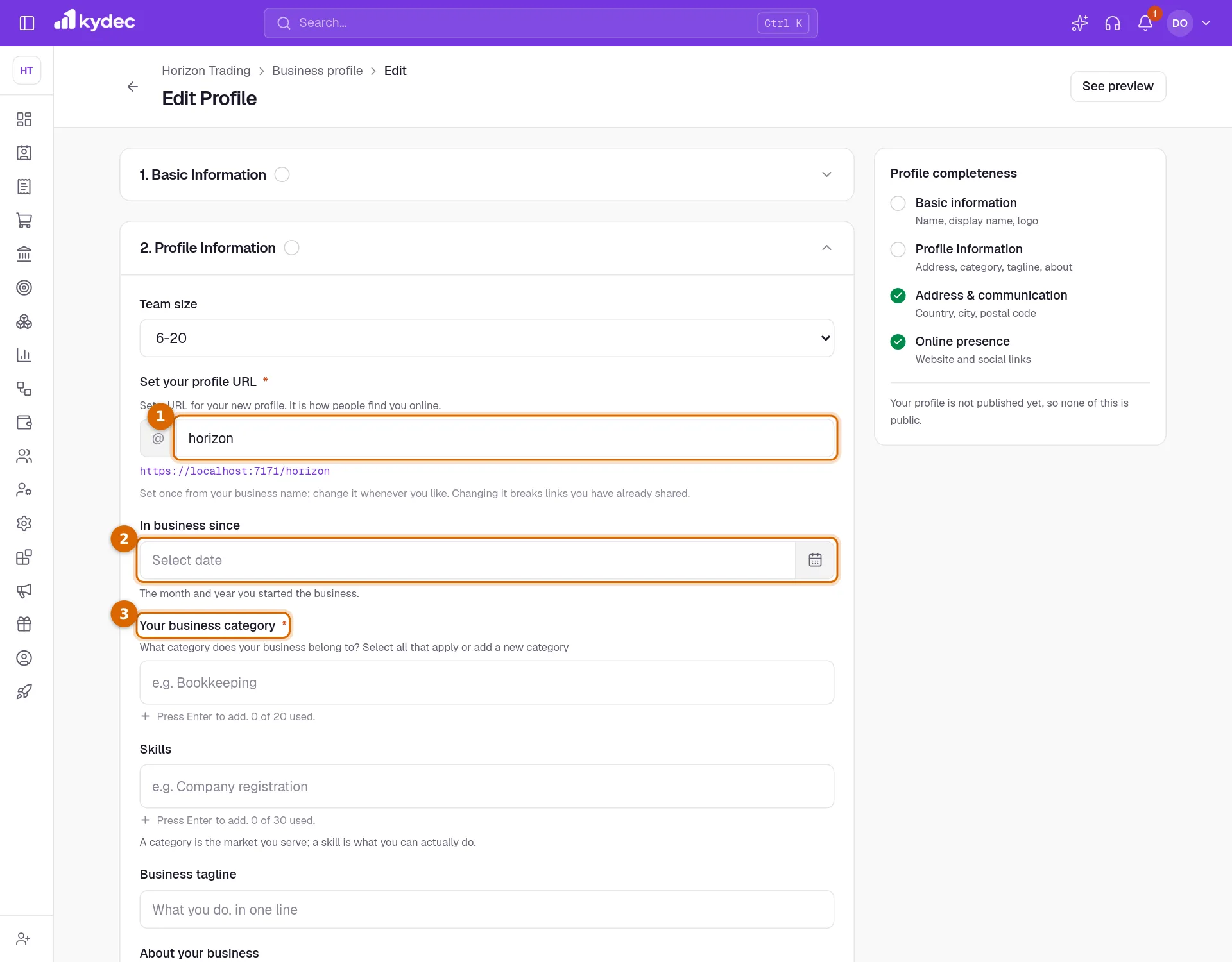
The pencils open the Edit Profile form. It has four parts, and each has its own Save changes button, so you can correct one thing without completing the rest.
- 1Set your profile URL is the address of your page. As you type, KyDec tells you whether that address is Available.
- 2In business since is the month and year you started. It feeds the Years In Business figure on your page.
- 3Your business category says what market you serve. Pick from the list or add your own, up to 20. Skills are what you can do, up to 30.
- 4Business tagline is the one line under your name, and About your business is the longer text for the About us section.
- 5Click Save changes in that part. Reset puts back what was last saved.
- Basic Information holds your Business logo, Country and Business name. Add Brand or Display name adds a name that is shown on the page in place of the business name.
- Address & Communication Details holds your country, state, city, postal code and street address.
- Online Presence holds your Website and your social accounts: LinkedIn, Instagram, Facebook, X (Twitter), YouTube, GitHub, Behance, Dribbble, Medium, and one other link of your choice.
- The profile address takes 3 to 60 lower-case letters, numbers and single hyphens. Changing it later breaks links you have already shared.
- Profile completeness, beside the form, ticks each part as you finish it, and See preview returns to the page.
Good to know. The business name, country, address and website are the same ones the rest of KyDec uses, your documents included. Changing them here changes them there.
Add services, projects, clients and testimonials
- Services: Add service opens a page for the Name of service, a description and up to 5 categories. Under Pricing, add up to 10 price plans, each with a name, a currency, an amount or a price range, and how it is charged, from Per project to Every year. Turn on Contact for pricing to keep your prices off the page.
- Projects: Add project opens a page for pictures or a video link, the Name of the project, who it was for and up to 5 categories. The links under the form add a completion date, a description, collaborators, a budget, external links and the services the project belongs to. Publish project puts it on your page; Save as draft keeps it off until you are ready.
- Featured clients: Add client opens Edit featured clients. Add new client records a client's name, logo, industry and place, Set as featured decides whether it shows, and you drag the rows into order before clicking Save changes. These names are typed in here; they are not taken from Clients & Prospects.
- Ratings & reviews: Add testimonial records Who said it, Their role and company, a Rating out of five and What they said. Add their picture from the card once it is saved.
- Profile stats: the pencil opens Edit profile stats, where you rename each figure, type its value or let KyDec count it, drag the rows into order, and untick Show on profile to hide one. Average Rating is always worked out from your testimonials, and appears once one of them has a rating.
Good to know. A project names its client from your featured clients list, unless you choose Project for yourself. Add your clients first. Under Verify project from client the contact is saved with the project, but no email is sent to them yet.
Add blocks and arrange the layout
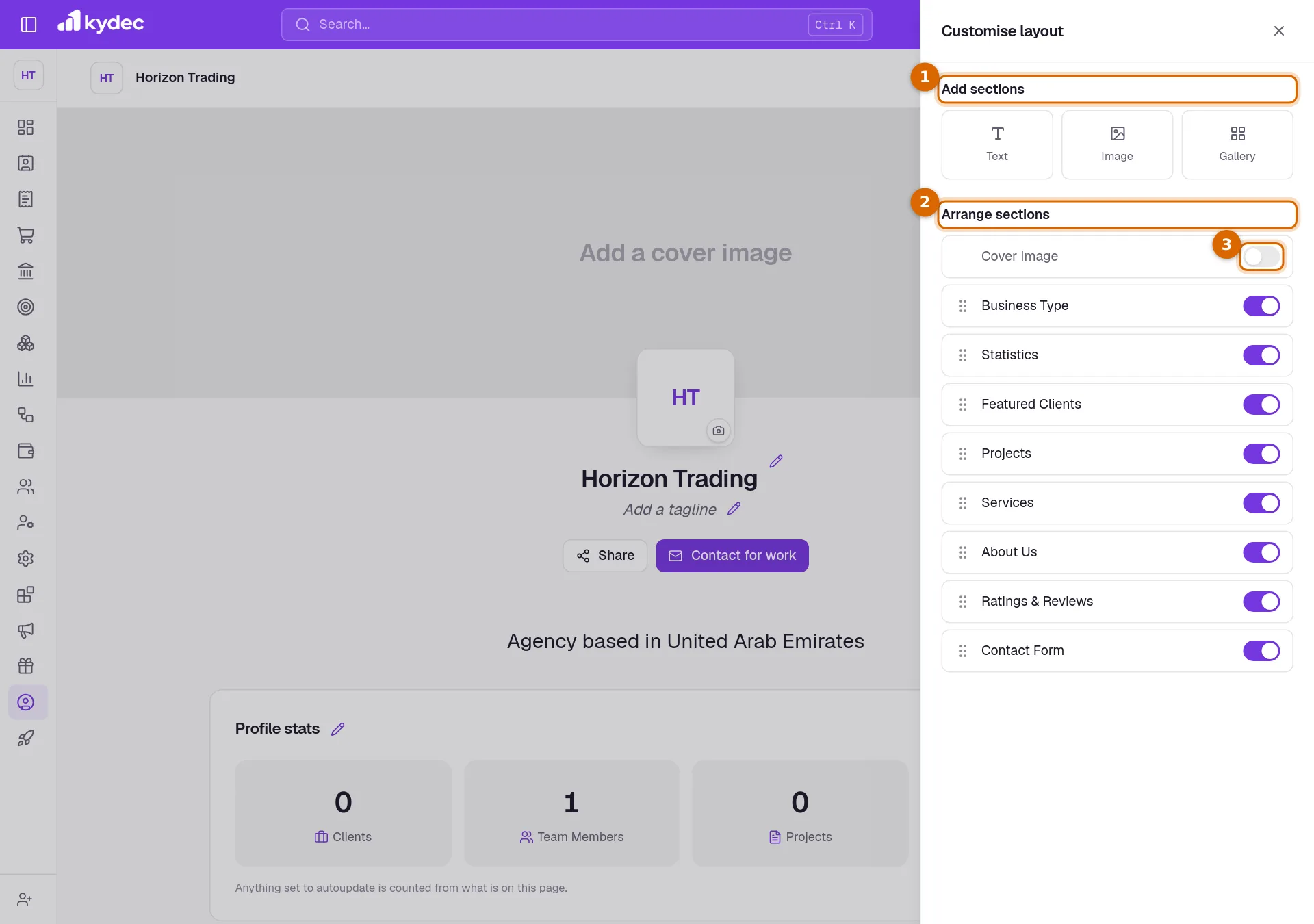
Click Customise layout. Every change in this panel is saved as you make it; there is no save button.
- 1Under Add sections, choose Text, Image or Gallery to add a block of your own.
- 2Under Arrange sections, drag a row by its handle to move that section up or down the page.
- 3Use the switch on a row to show or hide that section.
- Text adds a titled block of writing. Add custom field puts labelled details under it, such as an email, a phone number, a link or a date, up to 12.
- Image adds a banner: one picture or one video, with a title and a caption. Gallery adds a titled set of up to 10 pictures, and videos.
- A video is added as a link. YouTube and Vimeo links play on the page.
- A new block joins the end of the page and gets a row of its own under Arrange sections. On the page it has Edit and Delete buttons.
- The built-in rows are Cover Image, Business Type, Statistics, Featured Clients, Projects, Services, About Us, Ratings & Reviews and Contact Form. Cover Image always stays at the top, and starts switched off.
- Business Type is the line under the buttons that reads "Agency based in", followed by your city, state and country.
- Switching Contact Form off changes nothing at present: the Contact for work buttons stay on the page.
Publish and share your page
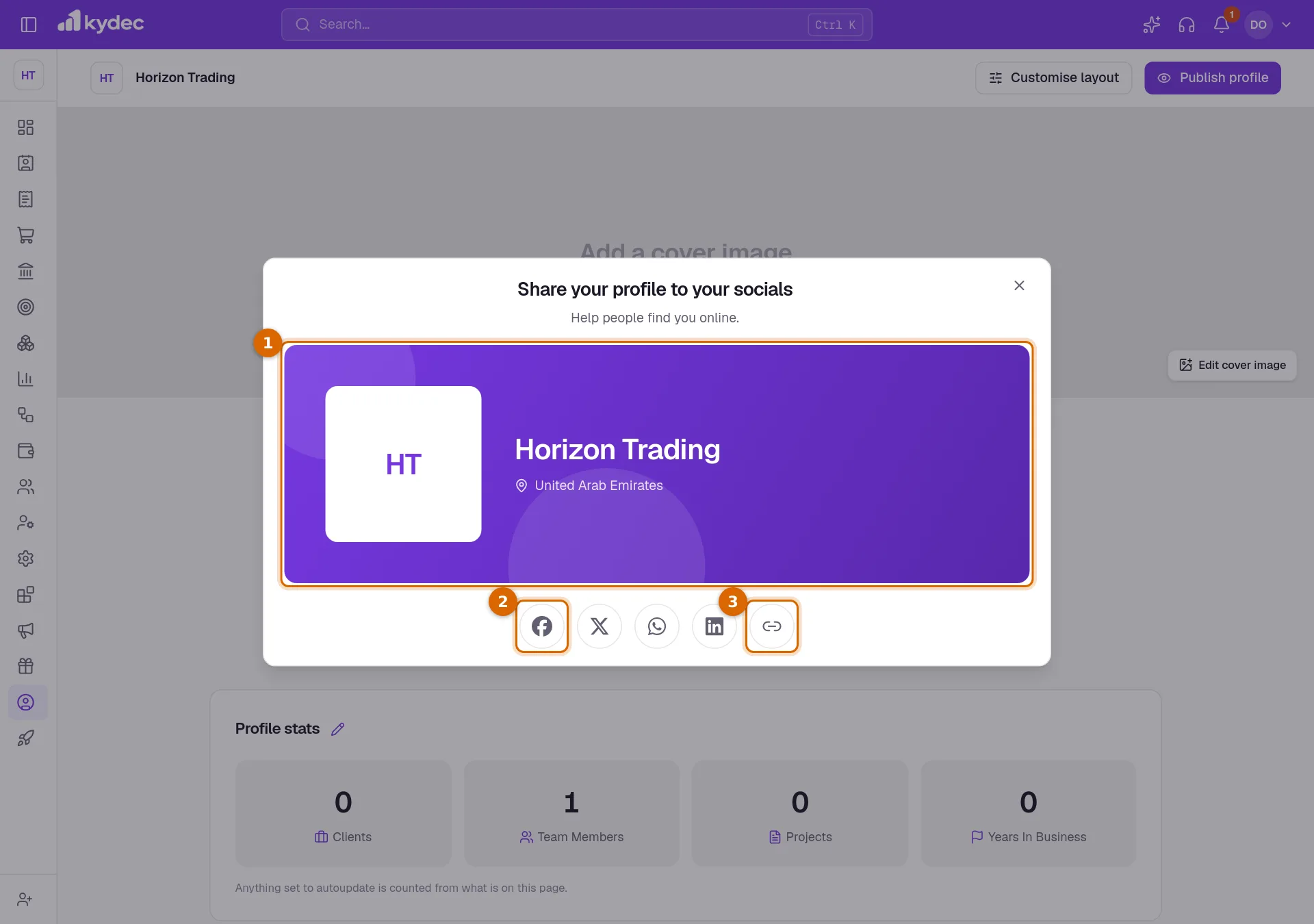
Nothing is public until you click Publish profile at the top of the page. The button then reads Unpublish, the foot of the page shows your address, and View Profile in the sidebar starts working. To pass the address on, click Share.
- 1The card shows what you are sharing: your logo, name, tagline, place and up to five categories.
- 2The round buttons open Facebook, X, WhatsApp or LinkedIn in a new tab, with your link ready to post.
- 3The link button copies your page address, to paste into an email or a message.
- If you publish before setting a profile address, KyDec makes one from your business name.
- Changes you save after publishing appear on the public page straight away.
- Unpublish takes the page off the web at once. The address then shows a "not found" page, and everything you entered is kept for when you publish again.
- A published page can be found by search engines.
Good to know. Share opens before you publish too, but the link leads nowhere until the page is published.
What visitors see and can do
- Only sections that are switched on and have something in them are shown. An empty section is left out, not shown blank.
- Draft projects, clients that are not featured, and the price plans of a service set to Contact for pricing stay off the page.
- Links at the top jump to Projects, Services, Clients, Reviews and About us.
- Clicking a project opens its pictures, details and links. View details on a service opens its description, its price plans and the projects linked to it, as Work samples.
- Share lets a visitor pass your page on. Contact for work opens a form asking for their name, work email, phone number and a subject, with room for a brief. Enquire now, beside a price, opens the same form.
- Your skills and your street address are not shown to visitors. The page gives your city, state and country.
Good to know. A message sent through Contact for work is recorded, but KyDec has no screen for reading these messages yet and does not email or notify you when one arrives. Until it does, give visitors a direct way to reach you, such as your website under Online Presence, or an email and a phone number in a Text block.
Common questions
- How is this different from Business Profile in Business Settings?
- Business Profile in Business Settings holds the details printed on your invoices and other documents. The business profile page is a public web page that presents your business. The two share your business name, country, address and website, so those are entered once.
- Who can see my page?
- Nobody, until you click Publish profile. After that, anyone with the link, and search engines. Unpublish takes it down again.
- Where do I read the messages visitors send me?
- Nowhere in KyDec yet. A message sent through Contact for work is recorded, but there is no screen that lists these messages and you are not emailed or notified. Put your website, or an email and a phone number, on the page so visitors can also reach you directly.
- Can I change my page address later?
- Yes, under Set your profile URL, as long as the new address is free. Links you have already shared stop working, so settle the address before you hand it out.
Related guides
Business profile
The name, tax registration and address printed on everything you issue. Getting these right once keeps every document compliant.
Greetings
Make a branded greeting card for a festival or an occasion and share it with a link.
Roles and permissions
Decide what each role can see and do, module by module, down to seeing only their own records.