
Help
Team and users
Add the people who work in this business, choose what each can do, and remove someone who has left.
Where to find it:Business SettingsAll Users
Who is on your team
Everyone who can open this business is listed under All Users. Each person signs in with their own email, and the roles you give them decide what they can see and do.
Access is given business by business. Someone who works in two of your businesses is added to each one, and what they may do in one says nothing about the other.
- Manage Team and then Manage Users in the sidebar opens the same screen.
- The tab is shown to people whose role includes Can view team members. Adding, editing, deactivating and removing people also needs Can invite, edit and deactivate users.
Find your way round the list
Open Business Settings and choose All Users.
- 1Add user opens the dialog for a new teammate.
- 2The search box narrows the list as you type a name or an email.
- 3The chips on a row are that person's roles. A padlock marks Super Admin.
- 4Permissions shows exactly what that person may do and lets you change it. Edit, Deactivate and Remove sit beside it.
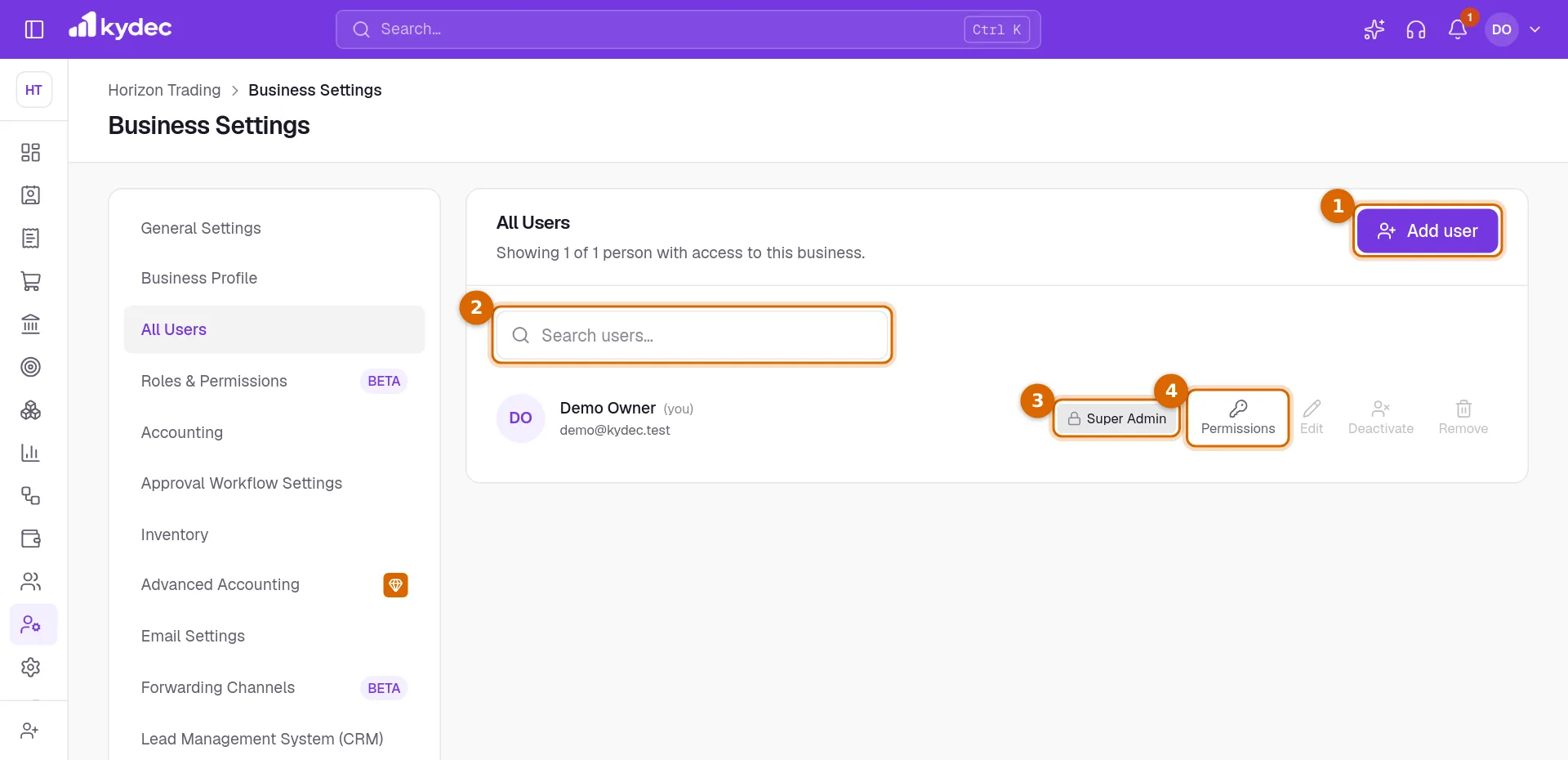
- (you) marks your own row. Your own Edit, Deactivate and Remove are switched off: you change your own name in User Settings, and you cannot deactivate or remove yourself.
- Invitation pending means the person has not set a password yet. Deactivated means they are switched off in this business.
- The line under the heading counts the people with access to this business.
Add someone
- 1Click Add user and enter their Name.
- 2Enter their Email. It is the address they will sign in with, and where the invitation goes.
- 3Choose one or more Business roles. Send invite stays switched off until a role is chosen.
- 4Click Send invite. The message that follows tells you what was sent and to whom.
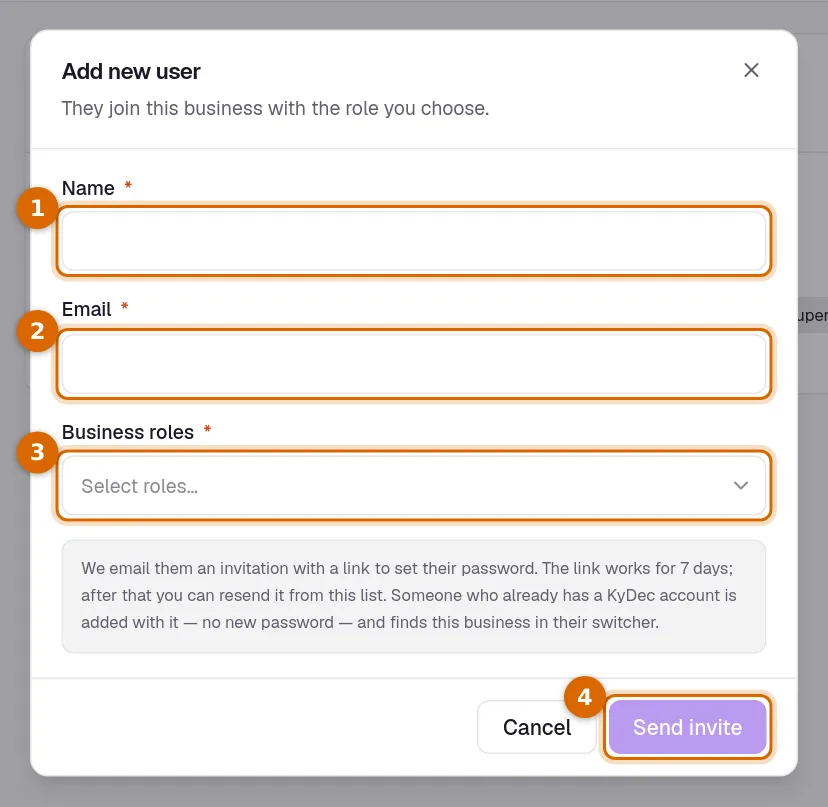
- An email that is already on the team of this business is refused.
Good to know. Super Admin cannot be combined with another role. It is marked exclusive in the list: once another role is chosen it is switched off, and once it is chosen the others are.
What the new person receives
- Someone new to KyDec is sent an email invitation with a button to set their password. The link works for 7 days. Until they use it, their row shows Invitation pending.
- Someone who already has a KyDec account is added with that account. They set no new password, are sent an email saying they were added, and find this business under Switch business when they sign in.
- Resend invite on a pending row sends the invitation again with a fresh link.
- Typed the wrong address? Click Edit on the pending row and correct the Email. The invitation already sent is cancelled and a new one goes to the new address.
- If the invitation does not arrive, check the address and use Resend invite. The person can also get in without it: Forgot password? on the sign-in page sends them a link to set a password.
- Your other Super Admins, and anyone else who may manage users, get a notification and an email that a teammate was added, unless they have switched that notification off.
Good to know. After setting a password the person is taken to the sign-in page, where they sign in with their email and that password.
Change what someone can do
- 1Click Permissions on their row.
- 2Under Assign roles, add or take away roles. At least one must stay.
- 3In the grid below, open an area and set a single ability to Yes, No or Self for this person alone.
- 4Click Save changes.
- What you change for one person is highlighted, and its area is labelled Customised. Everything you leave alone keeps following their roles, so a later change to a role still reaches them.
- The person is told by a notification and an email that their access has changed.
- You cannot change your own roles or permissions.
- A Super Admin always holds every permission, so their Permissions dialog can only be read: nothing in it can be changed, their role included. The only way to give a Super Admin a smaller role today is to remove them and add them again.
Edit, deactivate or remove
- Edit changes the person's name. Their email can be changed only while the invitation is pending; once they have joined it is the address they sign in with, and it is locked here.
- Edit is switched off for someone who also works in another business. Their name and email belong to their own account.
- Deactivate asks you to confirm, then signs the person out of this business. They cannot open it until you click Activate. They keep their roles, and nothing they created is changed.
- Remove asks for your own password under Confirm with your password, then Yes, remove. The person loses access at once, along with their roles and any permissions customised for them. This cannot be undone, but the records they created stay.
- Someone who has joined is sent an email when they are deactivated, activated again or removed.
- Only a Super Admin can edit or deactivate another Super Admin.
- A person with an employee account under Banking & Payments cannot be removed while that account still points to them.
Good to know. A business always keeps at least one active Super Admin. The last one cannot be removed or deactivated.
Common questions
- Does the person get an email when I add them?
- Yes. Someone new to KyDec gets an invitation with a link to set their password, which works for 7 days. Someone who already has a KyDec account gets an email saying they were added. If an invitation does not arrive, Resend invite sends a fresh one.
- What is the difference between Deactivate and Remove?
- Deactivate is a pause: the person keeps their roles and you can switch them back on with Activate. Remove takes them out of the business for good, with their roles and custom permissions, and asks for your password first.
- How many users can I add?
- The Add user dialog does not show a limit or count people against your plan. Each plan lists the number of users it includes on the pricing page, so check there before the team grows.
- Can one person work in more than one of my businesses?
- Yes. Add their email in each business. They keep one sign-in and choose the business under Switch business, with the roles you gave them in each.
Related guides
Roles and permissions
Decide what each role can see and do, module by module, down to seeing only their own records.
Plans and billing
Each business has its own plan. See yours, start the free trial, upgrade, and find out what is premium.
Sign in and passwords
Sign in with your email or Google, reset a forgotten password, and change your password.
Devices and sessions
You can stay signed in on several devices. Review the list and sign out anything you do not recognise.