
Help
Batch Expiry Report
See how much of each batch-tracked item expires soon and how much already has, so you can sell, return or write off stock before it is lost.
Where to find it:Products & InventoryBatch Expiry Report
What the report answers
How much of your stock is about to expire, and how much already has? For every item you track in batches, the report sorts its batches by how soon they expire, or how long ago they did, as of today.
It is for stock with a shelf life: food, medicines, chemicals. Use it to sell, return or write off a batch before it is lost.
Good to know. An item appears only if its Tracking Method is Batchwise and at least one of its batches has an Expiry Date.
Give your batches an expiry date
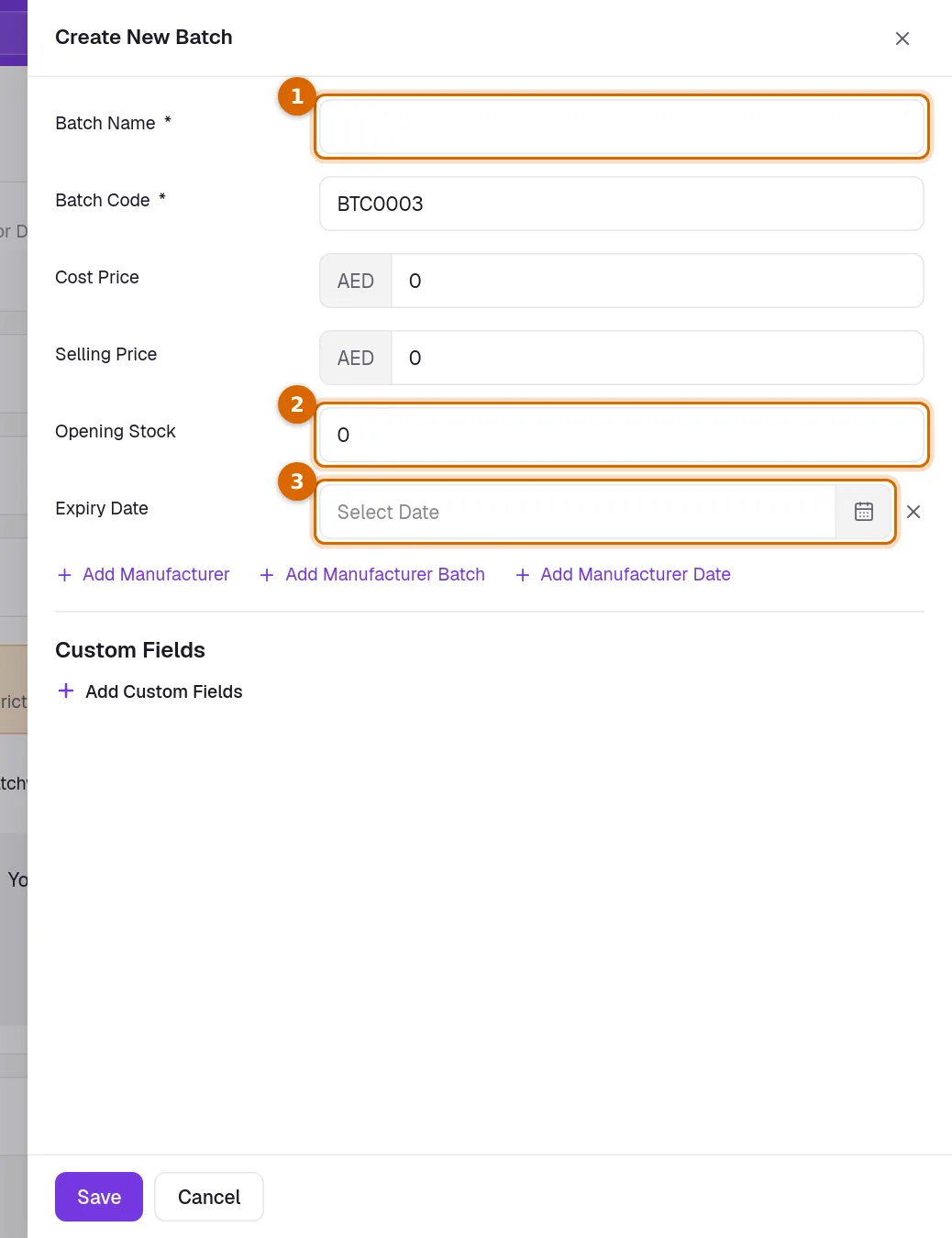
Batches are entered on the item. Open All Items under Products & Inventory, then Add Item or edit an item, and open Stock Management. Set Tracking Method to Batchwise and click + Create Batch.
- 1Enter the Batch Name and the Batch Code. Both are required.
- 2Enter the Opening Stock: how many units are in this batch. Cost Price is what one unit of the batch cost you.
- 3Click Add Manufacturer Expiry and choose the Expiry Date.
- 4Click Save in the panel, then save the item.
- 5Or, on a purchase, click Select Batches under the line and Create New Batch. Its stock arrives with the purchase.
Open and filter the report
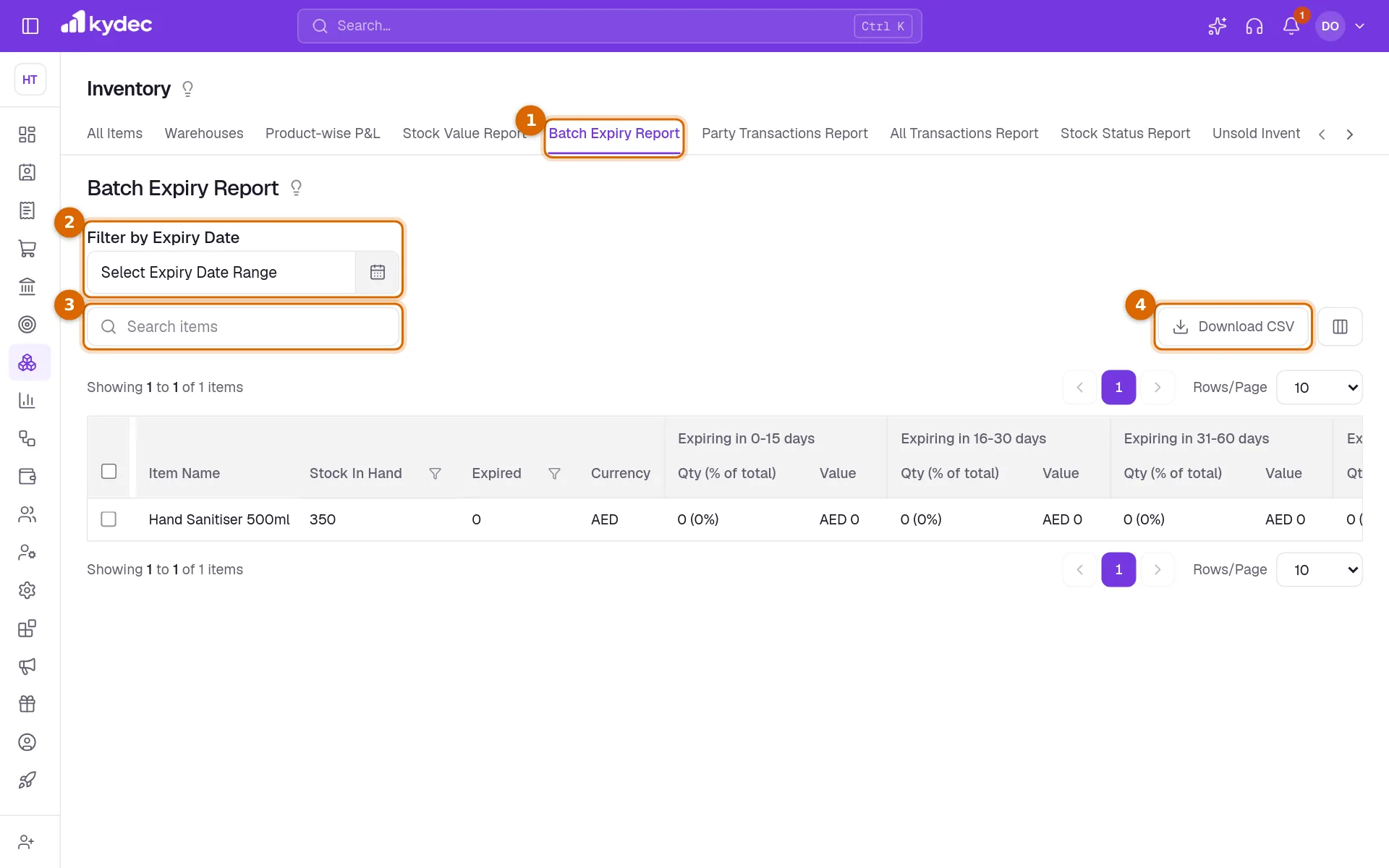
- 1Open Batch Expiry Report under Products & Inventory in the sidebar. It is also a tab on every Products & Inventory page.
- 2Filter by Expiry Date keeps only the batches that expire between two dates you pick on the calendar. An item with no batch in that range is left out.
- 3With warehouses on, Warehouse shows the batches as they stand in one warehouse; Stock In Hand is then what the item holds there.
- 4Search items finds an item by its name or SKU ID.
- 5Click a quantity to see the batches behind it: each with its expiry and manufacturing dates, quantity, cost price, value and the warehouses it is in.
- 6Download CSV saves what the report is showing as a file for a spreadsheet.
- The sort arrows work on every quantity and value. Stock In Hand and Expired can also be filtered by number under their headings.
What each column means
- Item Name is the item. It stays in place while you scroll across the other columns. SKU ID is beside it.
- Stock In Hand is the item's stock now.
- Expired is the quantity in batches whose expiry date has passed.
- Currency is the item's currency, which the values are in.
- Five groups look ahead: Expiring in 0-15 days, Expiring in 16-30 days, Expiring in 31-60 days, Expiring in 61-90 days and Expiring in 90+ days.
- Five groups look back: Expired 0-15 days ago, Expired 16-30 days ago, Expired 31-60 days ago, Expired 61-90 days ago and Expired 90+ days ago.
- In each group, Qty (% of total) is the quantity in those batches and its share of all the batches of the item, and Value is what that quantity cost.
Good to know. A batch is good through its expiry date. One that expires today is still in Expiring in 0-15 days.
How quantity and value are worked out
- A batch's quantity is its Opening Stock, plus what documents and adjustments brought into it, less what they took out. Stock that moved before batches were chosen on lines is in no batch: Stock In Hand still counts it.
- A batch's value is its quantity multiplied by its Cost Price. If the batch has no cost price, the Buying Price saved on the item is used.
- The percentage is always of all the batches of the item, also when Filter by Expiry Date is hiding some of them.
Download the report
- 1Set the expiry range and any filters first: the file holds what the report is showing, on every page of it.
- 2Click Download CSV. A small window prepares the file.
- 3Click Download when it says the file is ready.
Good to know. Opening the report needs a role with Can access inventory reports. Downloading it needs Can download inventory reports.
Common questions
- Why is the report empty?
- It lists only items tracked Batchwise that have a batch with an Expiry Date. Open the item, check its Tracking Method, and add the expiry date to its batches.
- I sold most of a batch. Why does the report still show the full quantity?
- The report counts a batch at its Opening Stock. Stock sold from a batch is not taken off it here yet. Stock In Hand shows the item's real stock.
- Can I see only what expires next month?
- Yes. Pick the first and the last day of next month in Filter by Expiry Date.
Related guides
Inventory and units
Track stock from the documents that move it, choose the units you buy and sell in, and set the levels that raise a re-order or over-stock alert.
Track Product Profitability
Track the average purchase price, average selling price, and gross profit margin for each of your products.
Purchases and Expenses
Record, track, manage, and analyze all your purchases and expenses in one place.