
Help
Sign in and passwords
Sign in with your email or Google, reset a forgotten password, and change your password.
Where to find it:Sign in page
Sign in
- 1Sign in with Google signs you in with your Google account.
- 2Or enter the Email of your account.
- 3Enter your Password. The eye in the field shows what you typed.
- 4Click Sign in. You land on the dashboard of the business you last had open.
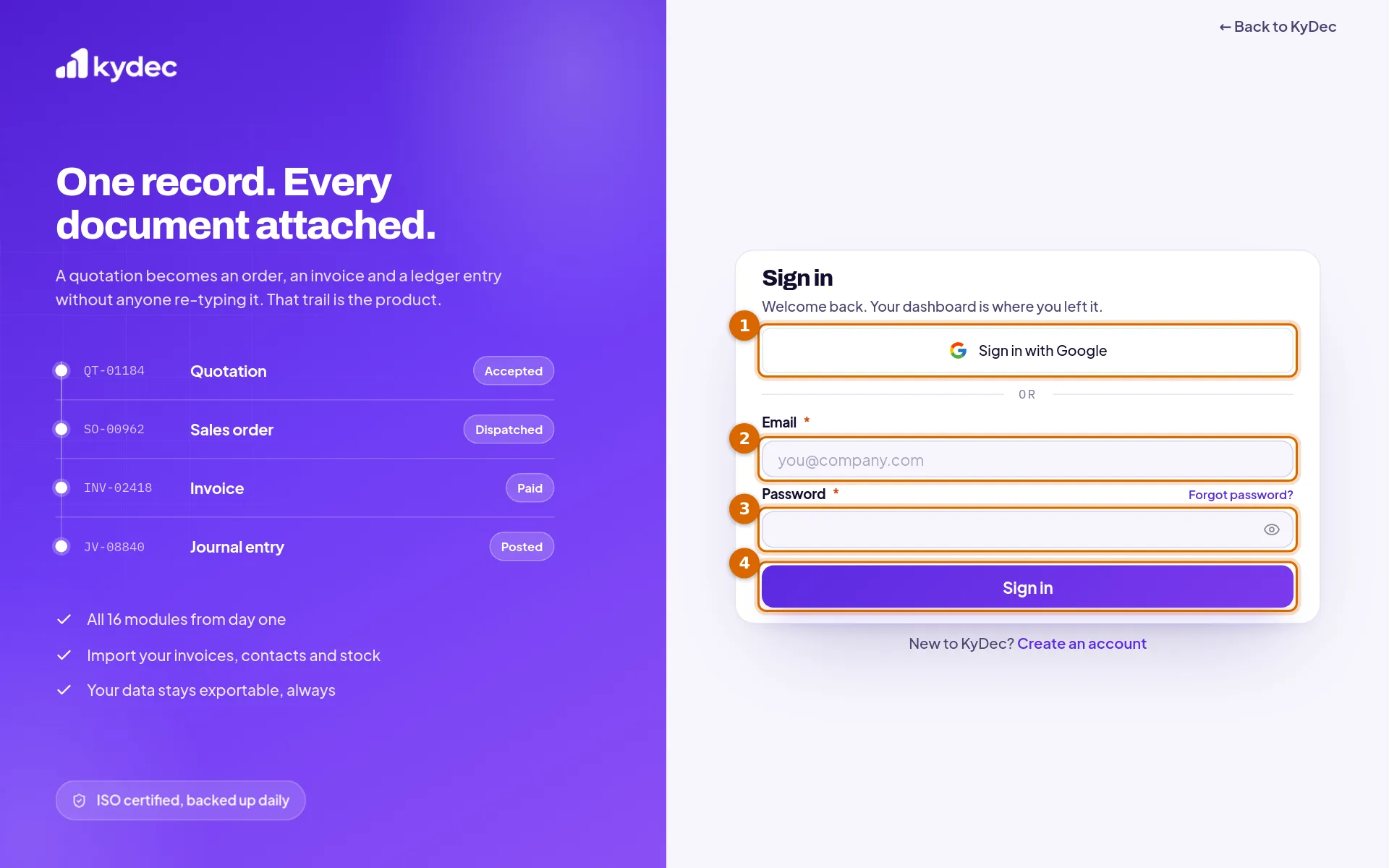
- When the email or the password is wrong the page says Email or password is incorrect. It does not say which of the two.
- New here? Create an account under the form opens the sign-up page.
- KyDec emails you when your account is signed in on a browser it has not seen before. You can switch these security emails off with Email Verification under Notification & Alerts in User Settings.
Signing in with Google
- If KyDec has no account for your Google email, one is created and you are taken to the setup of your first business.
- If the email already has an account, you are signed in to it. Your password keeps working, so you can use either way from then on.
- Google must have confirmed the email address. An unconfirmed one is refused.
- If you cancel at Google you are told so, and Back to sign in returns you to the form.
- An account created with Google has no password until you set one. Until then, signing in with the email and a password does not work.
Forgot your password
- 1Click Forgot password? on the sign-in page and enter the Email of your account.
- 2Click Send reset link.
- 3Open the email from KyDec and click the link in it.
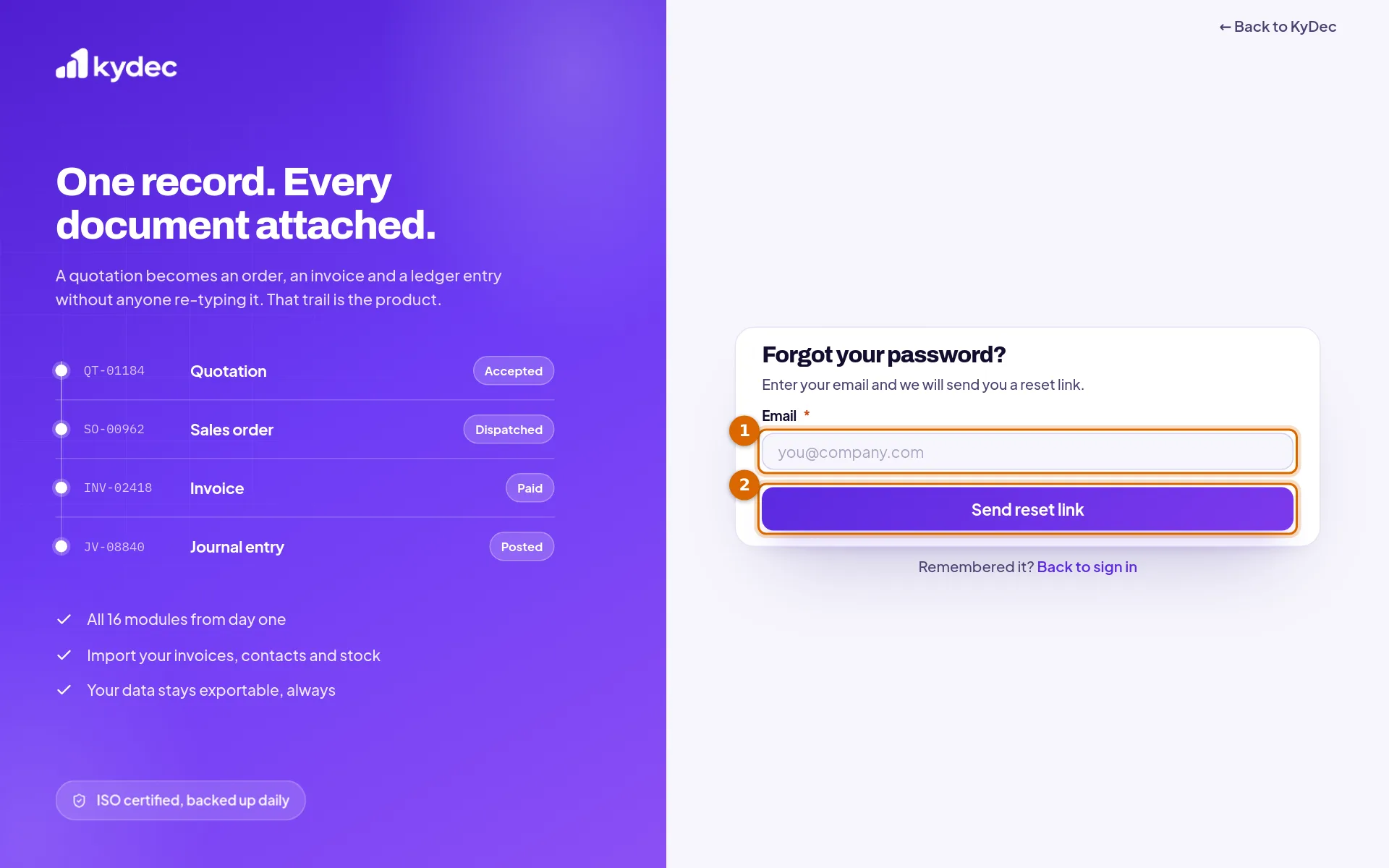
- The page answers the same way whether or not the email has an account: if one exists, a reset link is on its way. That keeps strangers from finding out who is registered.
- The link expires in 30 minutes and can be used once.
- The email shows when the reset was asked for, and from which device and network address. If it was not you, ignore the email: your password has not changed.
Choose the new password
- 1Enter the New password. The checklist at the field ticks off each rule.
- 2Enter it again under Confirm password.
- 3Click Update password. You are taken to the sign-in page to sign in with it.
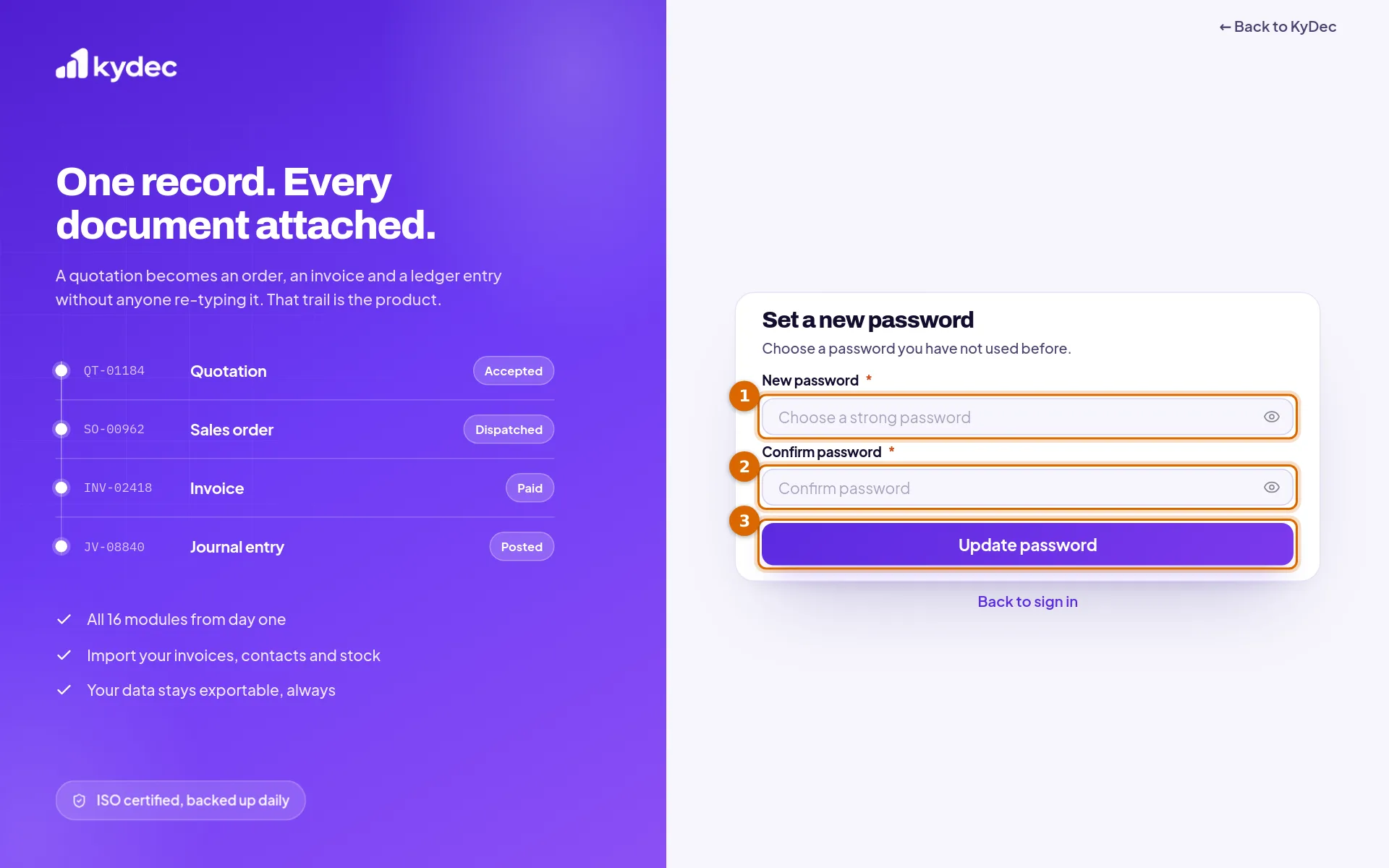
- The rules are the same as at sign-up: at least 8 characters, an upper case letter, a lower case letter, a number and a special character.
- A link that has expired or was already used says so. Go back to Forgot password? and ask for a new one.
- Once the password is set, any other reset link still waiting stops working, and KyDec emails you that the password was changed.
Good to know. Resetting with a link does not sign out the devices you are already signed in on. To do that, use Logout from all devices under Password & Security.
If you were invited, or signed up with Google
- A teammate who was invited has no password yet. The link in the invitation opens the Set your password page: enter a Password, repeat it under Confirm password and click Set password. The invitation link works for 7 days.
- An account created with Google can get a password with Forgot password?: enter your Google email and use the link to choose one. After that, both ways of signing in work.
- Change Password in User Settings asks for your current password, so it cannot be used until the account has one.
- Removing a user or a business asks for your password too, so set one first if you only ever signed in with Google.
Change your password
Click your picture at the top right, choose User Settings, then Password & Security, and click Change Password.
- 1Enter your Current Password.
- 2Enter the New Password. It must differ from the current one.
- 3Enter it again under Confirm Password.
- 4Click Update.
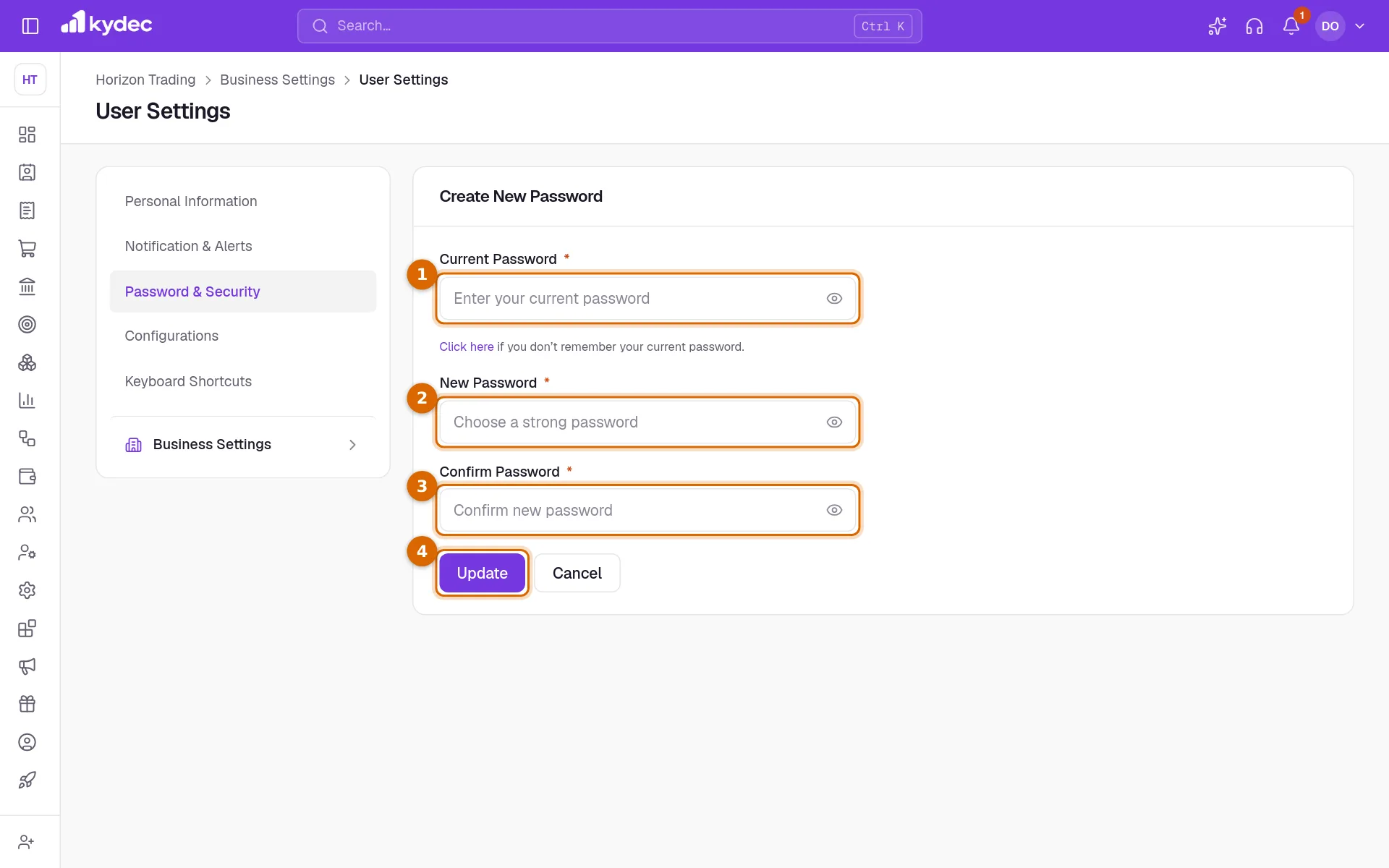
- If you do not remember the current password, Click here under the field opens the forgot password page.
- KyDec emails you that the password was changed.
Good to know. Changing your password signs out every other device and keeps you signed in on this one.
Staying signed in, and being signed out
- A browser stays signed in until you log out, or until it has not been used for 30 days. There is no box to tick for this.
- Logout in the account menu at the top right signs out the browser you are using.
- If you are signed out while working, a message says your session has ended and the sign-in page opens. It happens when the device was signed out from another one, when your password was changed elsewhere, or after the 30 days.
- After several tries in a short time the page says Too many attempts and how long to wait, in seconds or minutes. Wait that long and try again. Reset links are limited more tightly than sign-in tries, so that wait can run to a few minutes.
- If every business you belong to has deactivated you, signing in is refused with a message to ask your administrator to turn your access back on.
Common questions
- I did not get the reset email. What should I do?
- Check your spam folder, and check that you entered the email your account uses: the page does not say when an email has no account. The link lasts 30 minutes, so ask for a new one if it is older. If you asked several times in a row, wait a few minutes first.
- I signed up with Google. Do I have a password?
- Not until you set one. Use Forgot password? on the sign-in page with your Google email, and choose a password from the link you are sent.
- How long do I stay signed in?
- Until you log out, or until that browser has gone 30 days without being used. Password & Security in User Settings lists every device you are signed in on.
- Does resetting my password sign out my other devices?
- Changing it under Password & Security does. Resetting it with an emailed link does not, so use Logout from all devices afterwards if you think someone else has been in your account.
Related guides
Sign up and set up your business
Create your account, set up your first business, and add or switch between businesses.
Devices and sessions
You can stay signed in on several devices. Review the list and sign out anything you do not recognise.
Team and users
Add the people who work in this business, choose what each can do, and remove someone who has left.