
Help
Sign up and set up your business
Create your account, set up your first business, and add or switch between businesses.
Where to find it:Sign up page
Create your account
Open the sign-up page. Starting is free and no card is asked for.
- 1Sign up with Google creates the account from your Google account and skips the rest of the form.
- 2Or enter Your name, Your email and your Phone number, with its country code.
- 3Choose a password under Set password. A checklist opens at the field and ticks off each rule as you meet it.
- 4Choose your Country, leave the Terms and Privacy Policy box ticked, and click Create account.
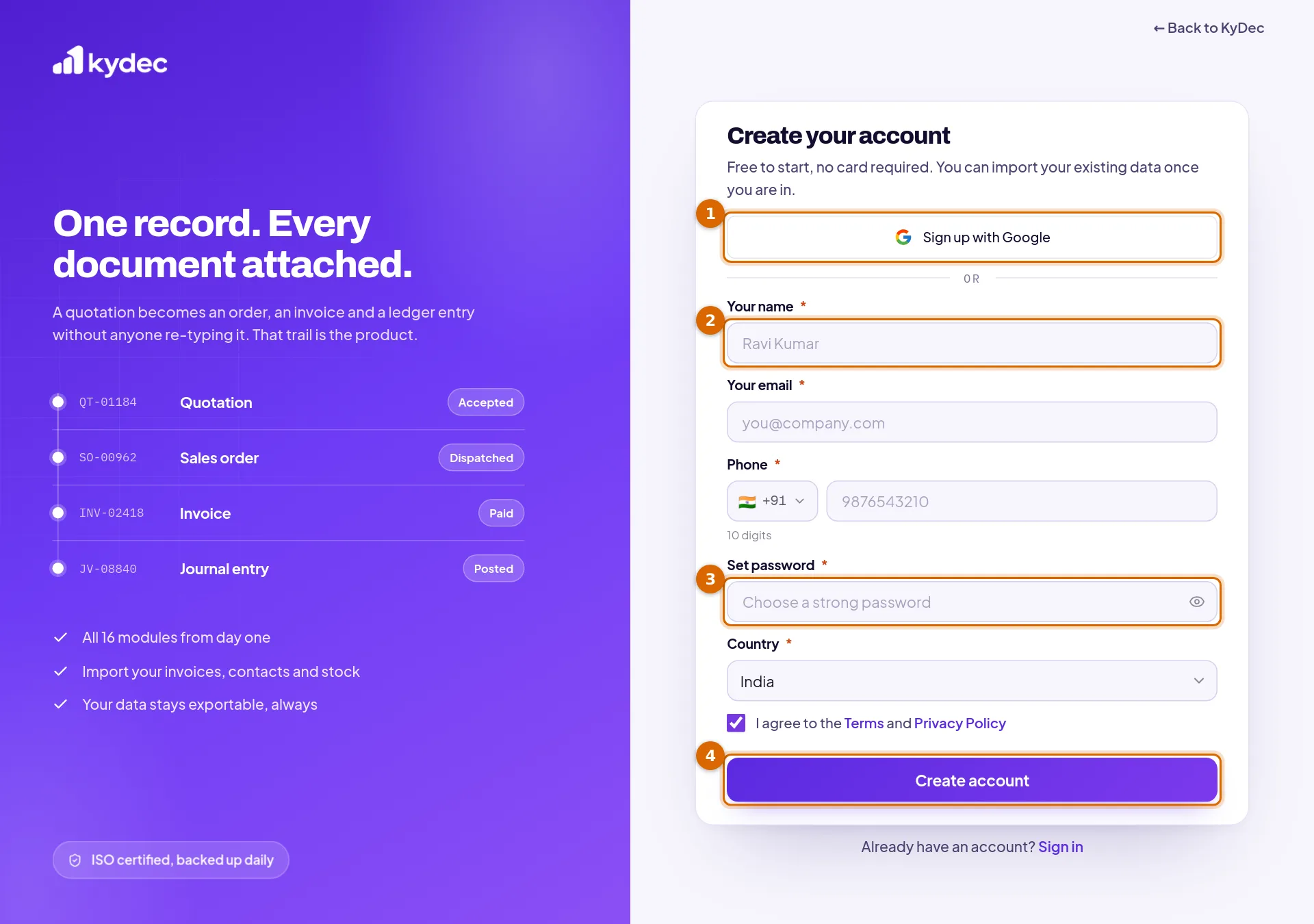
- A password needs at least 8 characters, one upper case letter, one lower case letter, one number and one special character. It can be up to 72 characters long.
- The phone number is checked against the country you chose.
- An email can have one account. If yours is already registered, the form says so: sign in instead.
- With Google, an email that already has a KyDec account is signed in to that account. No second account is made.
Good to know. As soon as the account is created you are signed in and taken to the setup of your first business.
Confirm your email
- When you sign up with an email and a password, KyDec sends two emails: a welcome, and one asking you to confirm your email address.
- You do not have to confirm before you start. The account works straight away.
- The confirmation link works for 48 hours and can be used once.
- The link opens the Set your password page, which asks for a password and its confirmation. What you enter there becomes your password, so enter the one you want to keep. You are then taken to the sign-in page.
- There is no button to send the confirmation email again.
- An account created with Google gets no confirmation email: Google has already confirmed the address.
Set up your first business
Setup has two steps, Basic Details and Additional Details. The rest of KyDec opens once they are done.
- 1Enter the Business name: the official name used on documents and reports. A freelancer can enter their own name. Add brand or display name adds a second name if you trade under one.
- 2Choose your Team size and enter the Phone number of the business. Website and What best describes your role? are optional.
- 3Choose the Country and the Currency. The currency follows the country until you choose another. In India, switch on Have a GST number? to enter your GSTIN; in the UAE, Are you a VAT registered business? to enter your TRN. The number is checked before you can continue. Elsewhere, add it later under Business Profile.
- 4Click Continue. On the second step, say what you want to use KyDec for and what best describes your business, then click Finish setup. Both answers are optional.
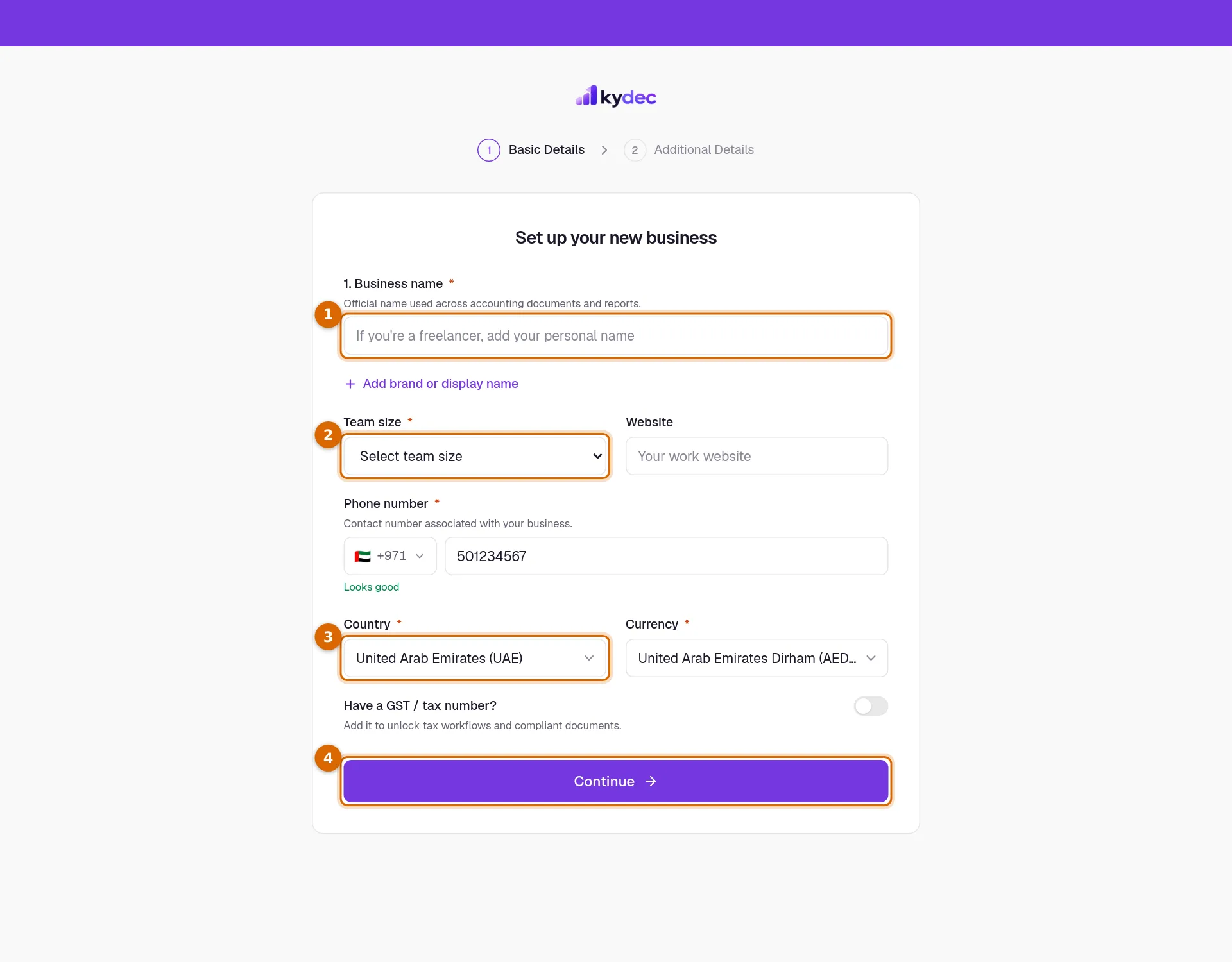
- The first time a business is set up, KyDec chooses the time zone, the tax type and the start of the financial year that suit its country. You can change them later in Business Settings.
- You are the Super Admin of the business you create. It starts on the Basic plan with the four built-in roles.
Good to know. Until setup is finished, every page of the app brings you back to it.
Add another business and switch between them
- 1Click the card with the business name at the top of the sidebar.
- 2Switch business lists every business you belong to. Click one to open its dashboard. A tick marks the one you are in.
- 3Create new business opens the same two setup steps. The business is created when you click Finish setup, and it opens at once.
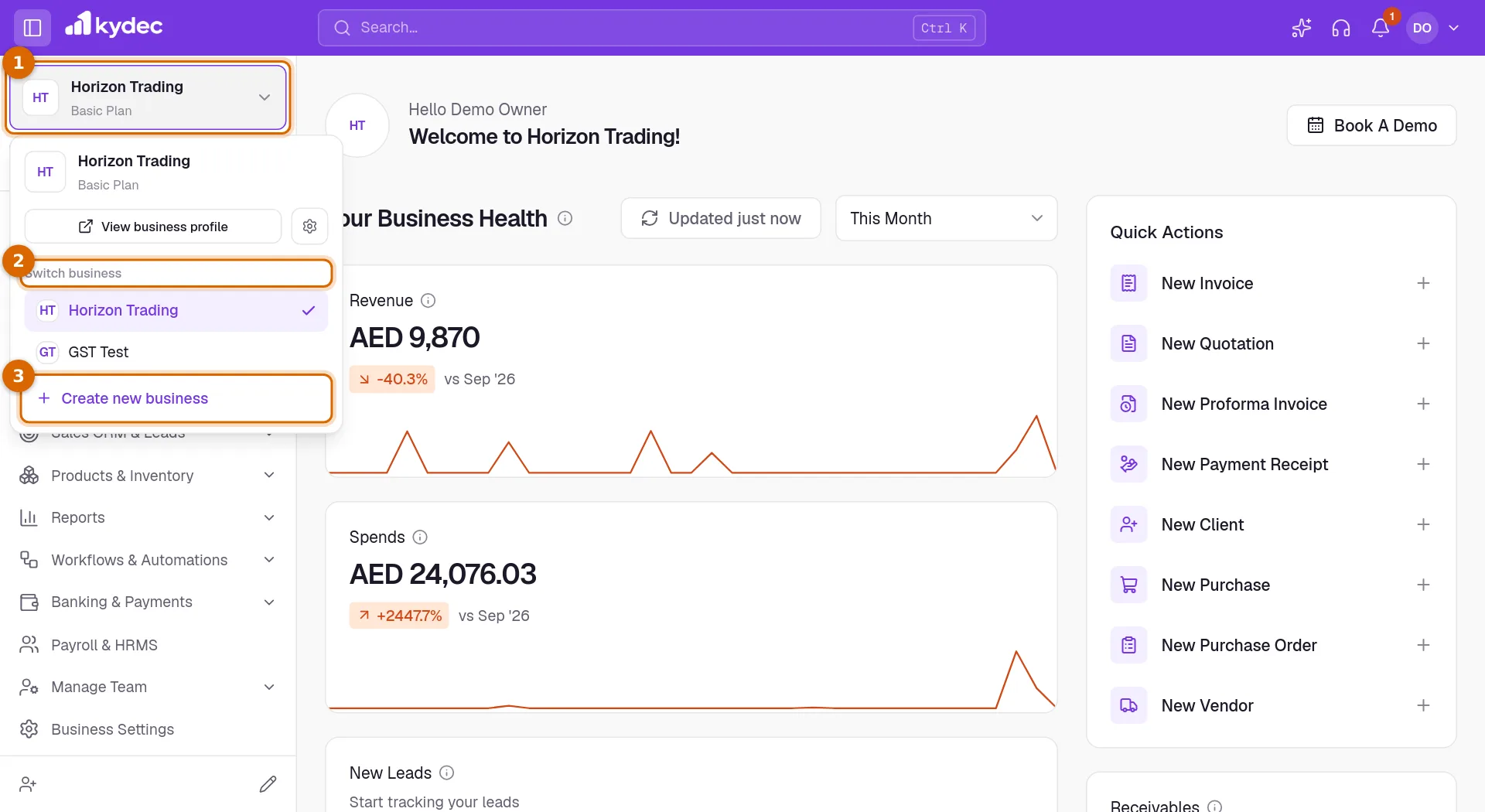
- Each business has its own records, team, roles, settings and plan. One sign-in covers them all.
- The address of every page names the business it belongs to, so two businesses can be open in two tabs at the same time.
- Setup beside a business in the list means its setup was never finished.
- KyDec sends you an email when a new business is added to your account.
Remove or restore a business
- 1Open Business Settings, stay on General Settings, and open the Security section.
- 2Find Remove current business.
- 3Click Remove, read what it means, enter your password under Confirm with your password, and click Yes, remove.
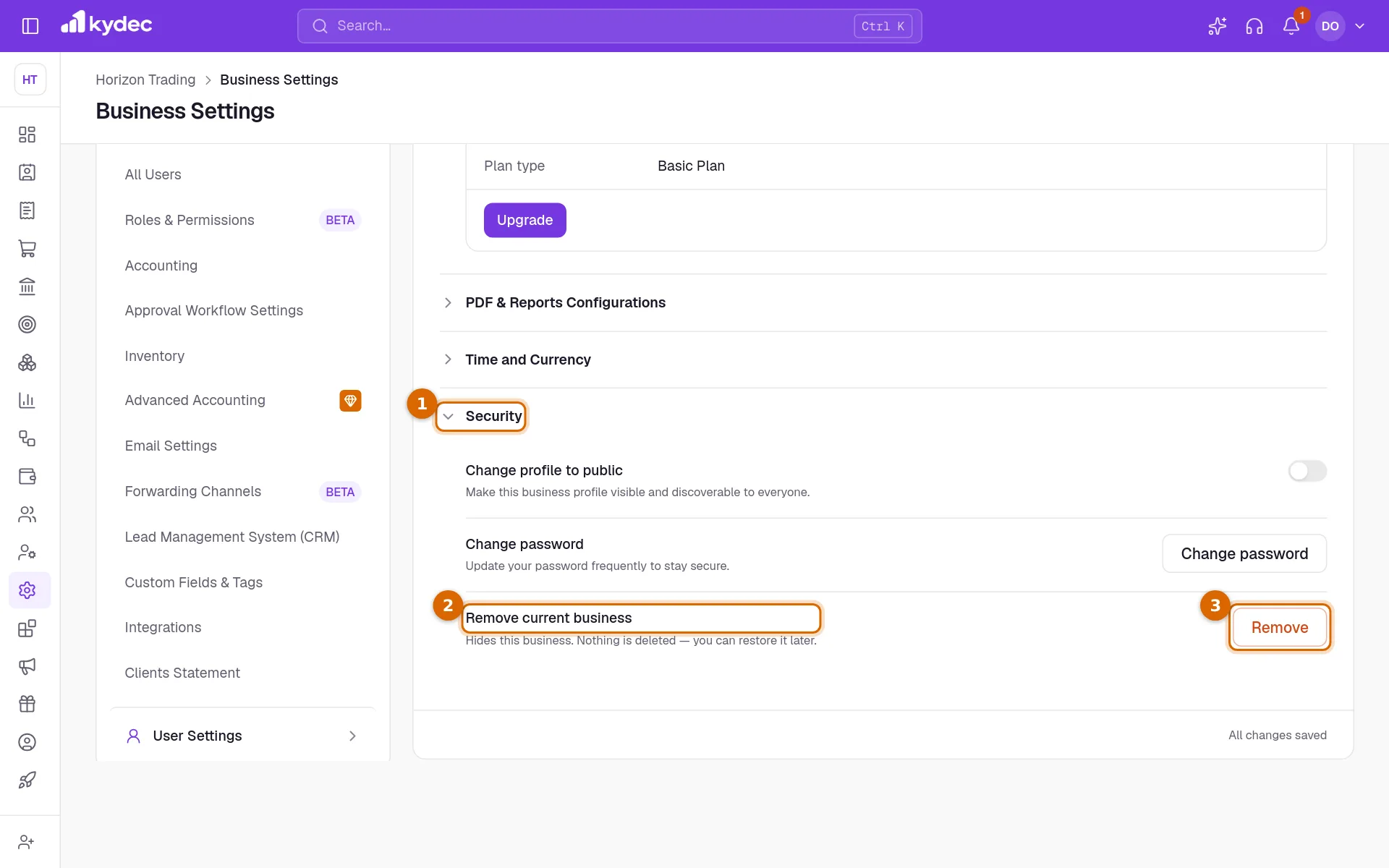
- Removing hides the business. Nothing is deleted: every document, contact, role and setting is kept.
- You and your team can no longer open it, its public profile goes off the web and links to it stop working, and its plan stops renewing.
- You are taken to another of your businesses, or to the setup of a new one if it was your only business.
- To bring it back, open Removed Businesses in General Settings of any of your businesses, click Restore, enter your password and click Yes, restore. If you have no business left, the list is under the setup page.
- Only a Super Admin of the business can remove or restore it.
Good to know. Both ask for your password. If you signed up with Google and never set one, set a password first with Forgot password? on the sign-in page.
Common questions
- Do I have to confirm my email before I can use KyDec?
- No. Your account works as soon as you sign up. The confirmation email is sent, and its link works for 48 hours, but nothing waits for it.
- Can I change the business name or the currency later?
- Yes, under Business Profile in Business Settings. The currency can no longer be changed once Advanced Accounting is switched on.
- Is removing a business permanent?
- No. Removing hides it and keeps everything. A Super Admin can restore it from Removed Businesses in General Settings, with their password.
- Does a second business cost extra?
- Each business has its own plan and starts on the free Basic plan. A paid plan covers one business; the pricing page has the details.
Related guides
Sign in and passwords
Sign in with your email or Google, reset a forgotten password, and change your password.
Business profile
The name, tax registration and address printed on everything you issue. Getting these right once keeps every document compliant.
Plans and billing
Each business has its own plan. See yours, start the free trial, upgrade, and find out what is premium.
Team and users
Add the people who work in this business, choose what each can do, and remove someone who has left.