
Help
Client Retention Report
Identify at-risk clients, spot spending drops, and prioritise follow-ups before they churn.
Where to find it:ReportsReportsClient Retention Report
What the report answers
Which clients have gone quiet, and which are spending less than they did? The report takes every client you have invoiced and looks at how long it is since you last raised a document for them.
From that it sorts them into Active, At Risk and Churned, so you know who to call first. The clients that need attention are listed first: At Risk, then Churned, then Active, the longest idle at the top of each.
Good to know. A client appears once they have an invoice that is not a draft or cancelled. A client invoiced in two currencies has a row for each.
Open the report
- 1Open Reports in the sidebar, choose Reports, and find Accounts Receivable.
- 2On the Client Retention Report row, click Open.
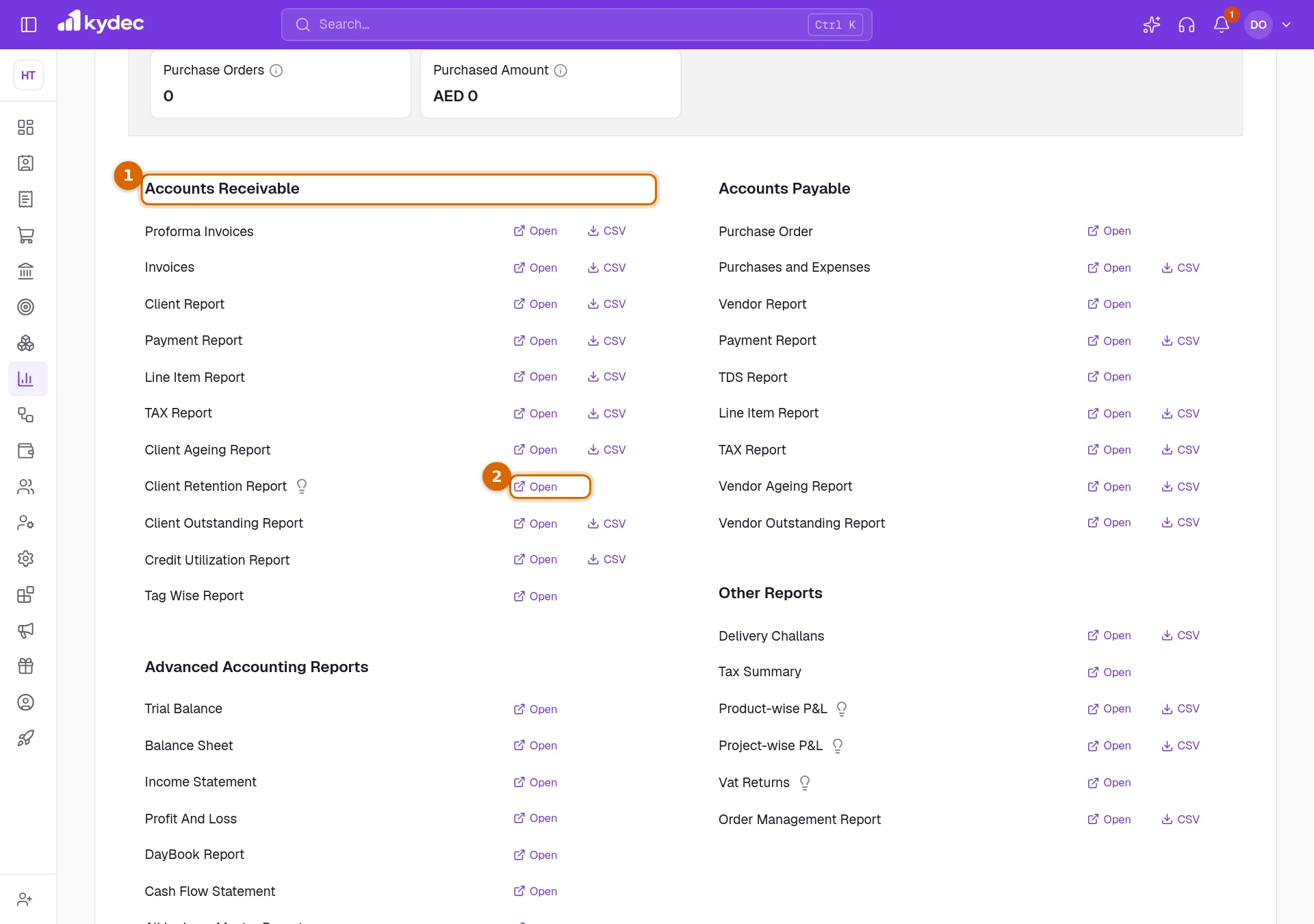
Good to know. You need a role that can view invoices and includes Accounts receivable reports.
Read the summary
Click Retention Summary to open it. It counts every client, whatever filters are set below. Hover the small i beside a figure to see the number of days it uses.
- 1Active Clients have had a document within the last 60 days.
- 2At Risk Clients have had none for 61 to 90 days.
- 3Churned Clients have had none for more than 90 days.
- 4Revenue at Risk adds up the average invoice of each At Risk client, in your business currency. It is roughly what one more order from each of them is worth.
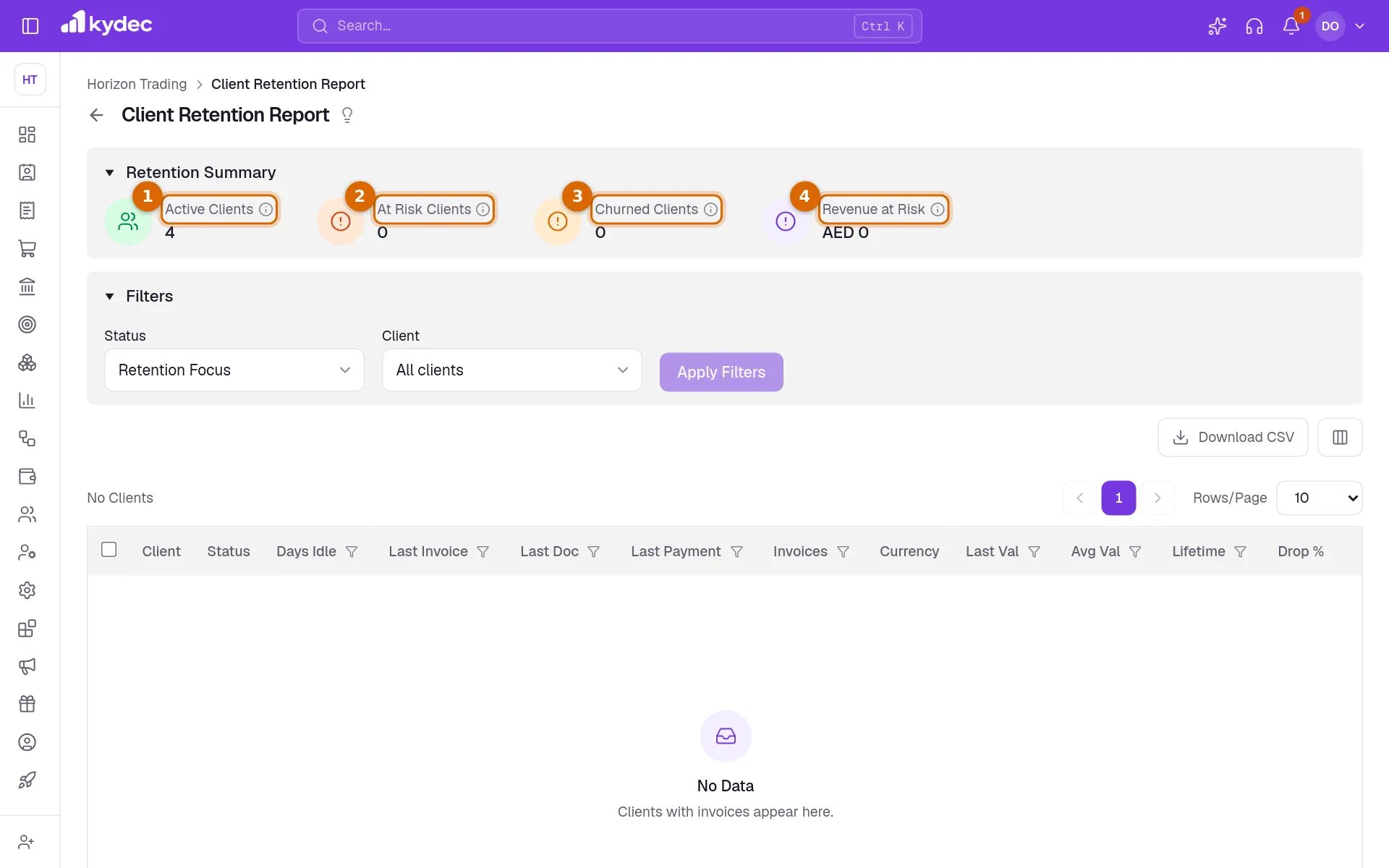
Good to know. The 60 and 90 days are what a new business starts with. You can change both; see the last section.
Filter the list and download it
- 1Status chooses who is listed. Retention Focus, which the report opens on, is everyone who needs a follow-up: At Risk, Churned, and Active clients whose spending has dropped. The others are All clients, Churned, At Risk and Active.
- 2Client narrows the report to one client.
- 3Click Apply Filters. Nothing changes until you do.
- 4Download CSV saves the list as a file for a spreadsheet. A small window prepares it; click Download when it is ready.
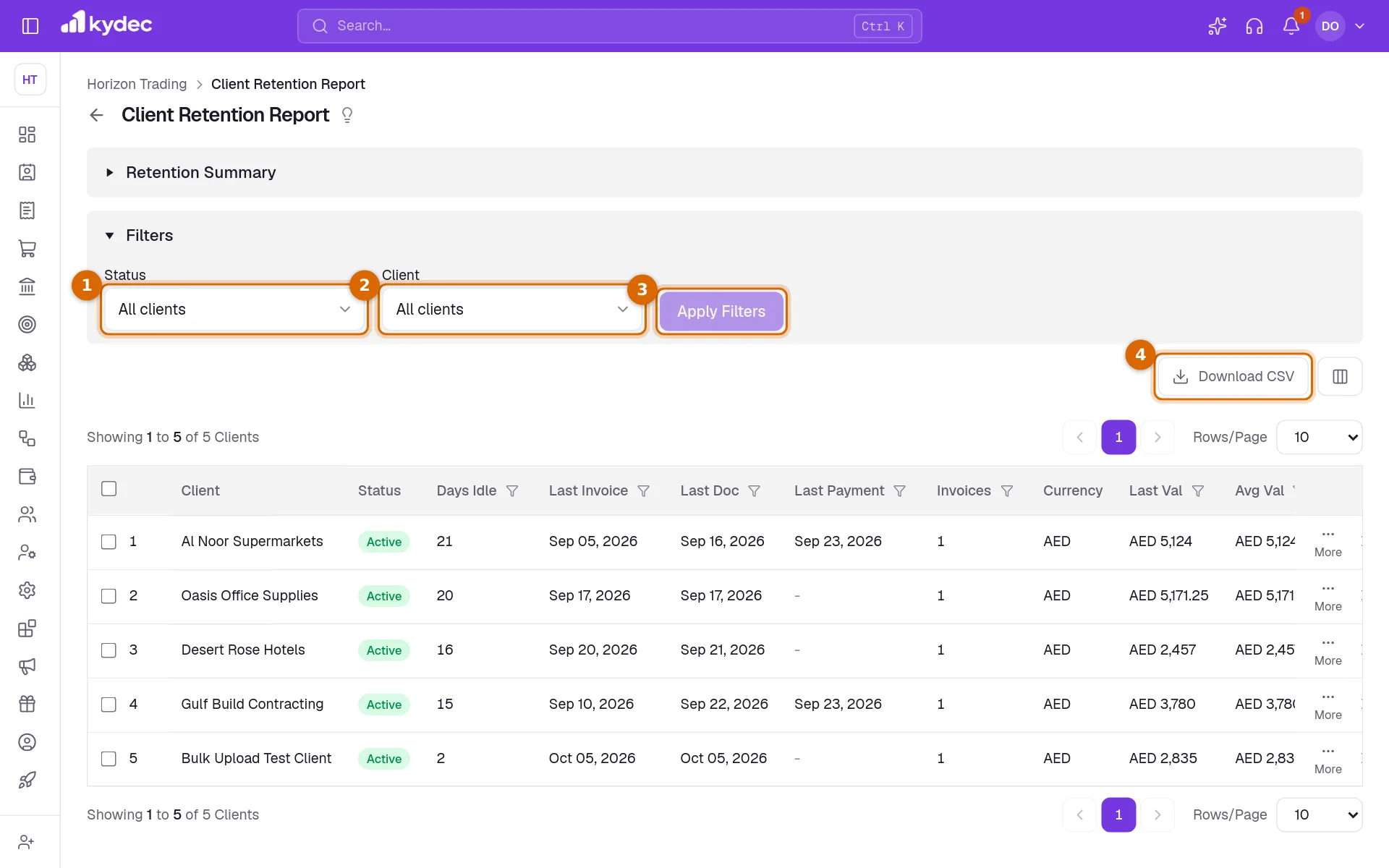
- Each row ends with View Client, View Client Invoices and View Client Quotations, which open that client, or the list of their invoices or quotations.
- The filter under a column heading narrows by a number or by a range of dates, for example by Days Idle or by Last Payment.
What each column means
- Status is Active, At Risk or Churned, from Days Idle.
- Days Idle is the number of days since their last document.
- Last Invoice is the date of their latest invoice. Last Doc is the date of their latest document of any kind: a quotation, a proforma invoice, an invoice, a sales order or a delivery challan. Drafts do not count.
- Last Payment is the date of the latest payment receipt from them.
- Invoices is how many invoices they have had, in the Currency of the row.
- Last Val is the amount of their last invoice, Avg Val the average of all of them, and Lifetime their total.
- Drop % is shown for an Active client whose invoicing over the last 90 days is lower than in the 90 days before, and says by how much. A dash means no drop.
Change what counts as Active and At Risk
Open Business Settings, choose the Accounting tab, and open Client Retention. A business that sells once a year needs longer limits than one that sells every week.
- 1Active Client is the number of days within which a client with a document is still Active.
- 2At Risk Client is the number of days up to which an idle client is At Risk. Past it they are Churned.
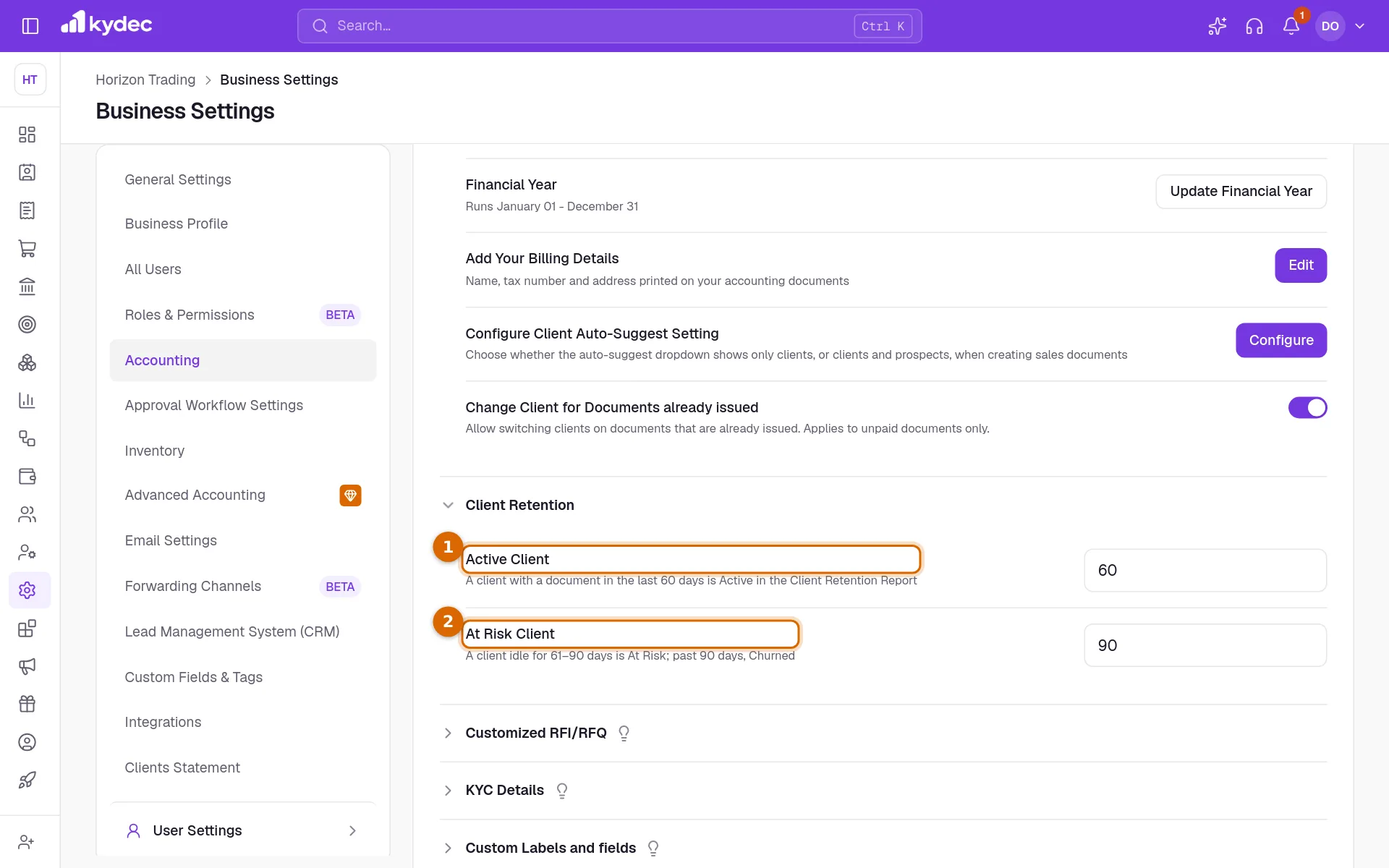
Good to know. A change is saved when you click out of the field. At Risk Client must be more days than Active Client, and both are whole numbers of days up to 3650.
Common questions
- A client I work with is missing from the report.
- Only clients with at least one invoice are listed. A client who so far has only quotations or orders appears once you invoice them. Also check Status: on Retention Focus a healthy Active client is not listed. Choose All clients and click Apply Filters.
- Why is a client Active when their last invoice is months old?
- The status goes by their last document of any kind. A recent quotation or sales order keeps a client Active even though the last invoice is old. Compare Last Invoice with Last Doc.
- Why does one client appear twice?
- They were invoiced in two currencies. Each currency has its own row and its own amounts.
- Does the report contact the client for me?
- No. It shows who to follow up with. Use the links at the end of the row to open the client and their documents.
Related guides
Clients & Prospects
Every business you sell to, and the ones you hope to. A prospect becomes a client the moment you invoice it; archiving keeps old ones out of the way without losing their history.
Invoice
Create invoices from customisable templates, share them as a PDF, a print or a link over WhatsApp or email, and record and track what is paid against each one.
Payment Receipt
Every payment a client has made you, whether it was recorded against an invoice or matched from a bank statement. Money that settles no document yet stands here as an advance.
Quotations & Estimates
Create professional quotations from customisable templates, share them in one click as a PDF, a print or a link over WhatsApp or email.