
Help
Dashboard
Your business at a glance: revenue, spends, leads and what is owed, with shortcuts to create anything and to find any page.
Where to find it:Dashboard
What the dashboard is for
The dashboard is the first page you see after signing in. It greets you by name, shows how the business is doing, and puts the things you create most often one click away.
Everyone in the business can open it. Each person sees only the figures and cards of the areas their role allows, so two people can see different dashboards.
Read Your Business Health
- 1Choose the period for the cards: Today, This Week, This Month, This Quarter or This Financial Year. It opens on This Month.
- 2The button beside it says when the figures were last loaded. Click it to load them again.
- 3Each card shows a figure for the period, the change against the period before, and a line of the days. Point at the line to read one day.
- 4Receivables and Payables show what is owed as it stands today, whatever period is chosen.
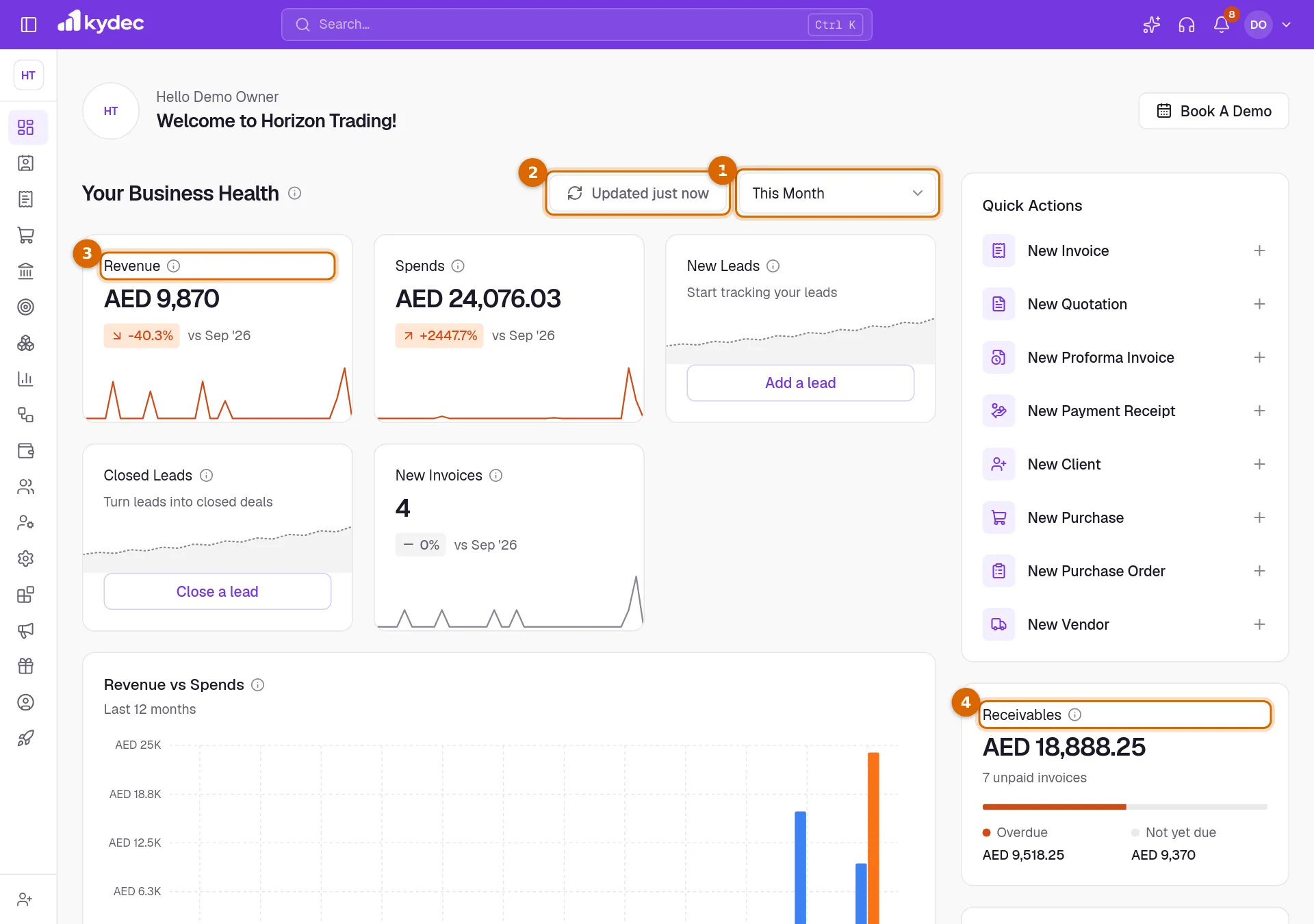
- Revenue is the total of the invoices dated in the period, taxes included. Draft and cancelled invoices are left out.
- Spends is the total of the purchases and expenses dated in the period, taxes included, without draft and cancelled ones. Here a fall is shown as the good news.
- New Leads counts the leads created in the period. Closed Leads counts the leads moved to Deal Done. Deleted leads are left out of both.
- New Invoices counts the invoices dated in the period, without draft and cancelled ones.
- The change is measured against the period before: yesterday, last week, the month before, last quarter or last year. No prior data means there was nothing in that period to compare with.
- A card with nothing recorded behind it yet shows a button to make a start, such as Record a spend or Add a lead.
Good to know. A figure your role does not let you see is left out. It is not shown as zero.
Charts, Receivables and Payables
- Revenue vs Spends shows what was invoiced and what was spent in each of the last 12 months, by document date and with taxes.
- Money In vs Money Out shows the payments received against invoices and the payments made against purchases and expenses in each month, by payment date.
- The slider under a chart narrows the months it shows. The period picker does not change the charts: they always cover the last 12 months.
- Receivables is what clients still owe on unpaid and part-paid invoices, with the number of unpaid invoices.
- Payables is what you still owe on unpaid and part-paid purchases and expenses.
- Each splits its total into Overdue, the part past its due date, and Not yet due.
Quick Actions and Getting Started
- 1Quick Actions opens a new record in one click: an invoice, quotation, proforma invoice, payment receipt, client, purchase, purchase order or vendor.
- 2Getting Started has a card for each module. Before the first record a card explains the module, and See How opens its help article. After that it shows your latest record, and a link to view them all.
- 3The button at the foot of a card, such as Create New Invoice, opens a new record of that kind.
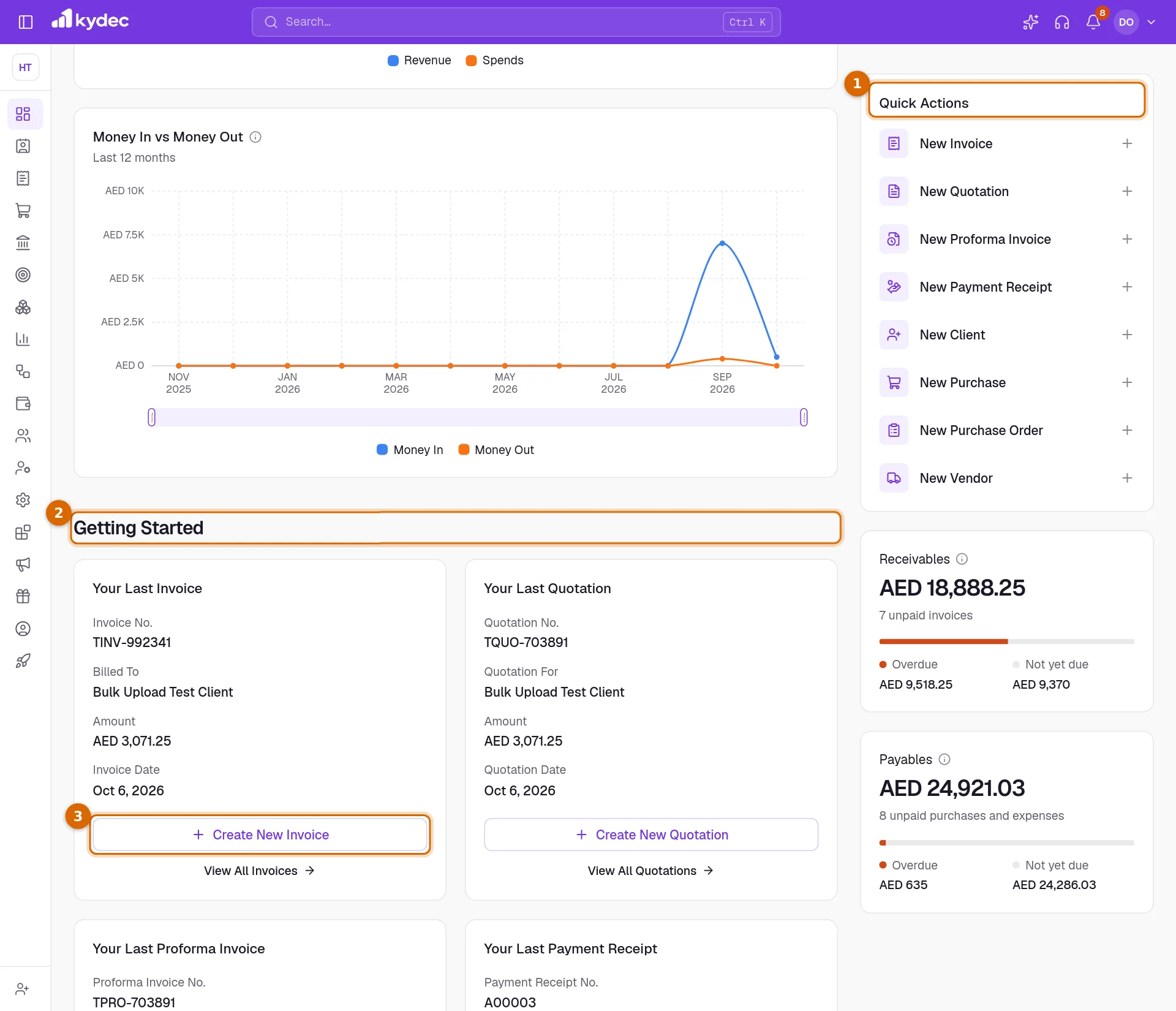
- The cards cover invoices, quotations, proforma invoices, payment receipts, clients, sales orders, delivery challans, credit notes, purchases, purchase orders and debit notes. Complete Your Profile opens the page where you fill in your public business profile.
- Only the actions and cards your role allows are shown.
The top bar and the business card
- 1The button at the far left of the top bar keeps the sidebar open, or lets it fold away. Folded, the sidebar is a strip of icons that opens when you point at it.
- 2The card at the top of the sidebar names the business you are in and its plan. Click it to switch to another business, create a new one or open the business profile.
- 3The search box finds pages, reports and things to create. Ctrl K opens it from anywhere.
- 4The bell shows how many notifications you have not read. It opens the latest ones, with Mark all as read and View All.
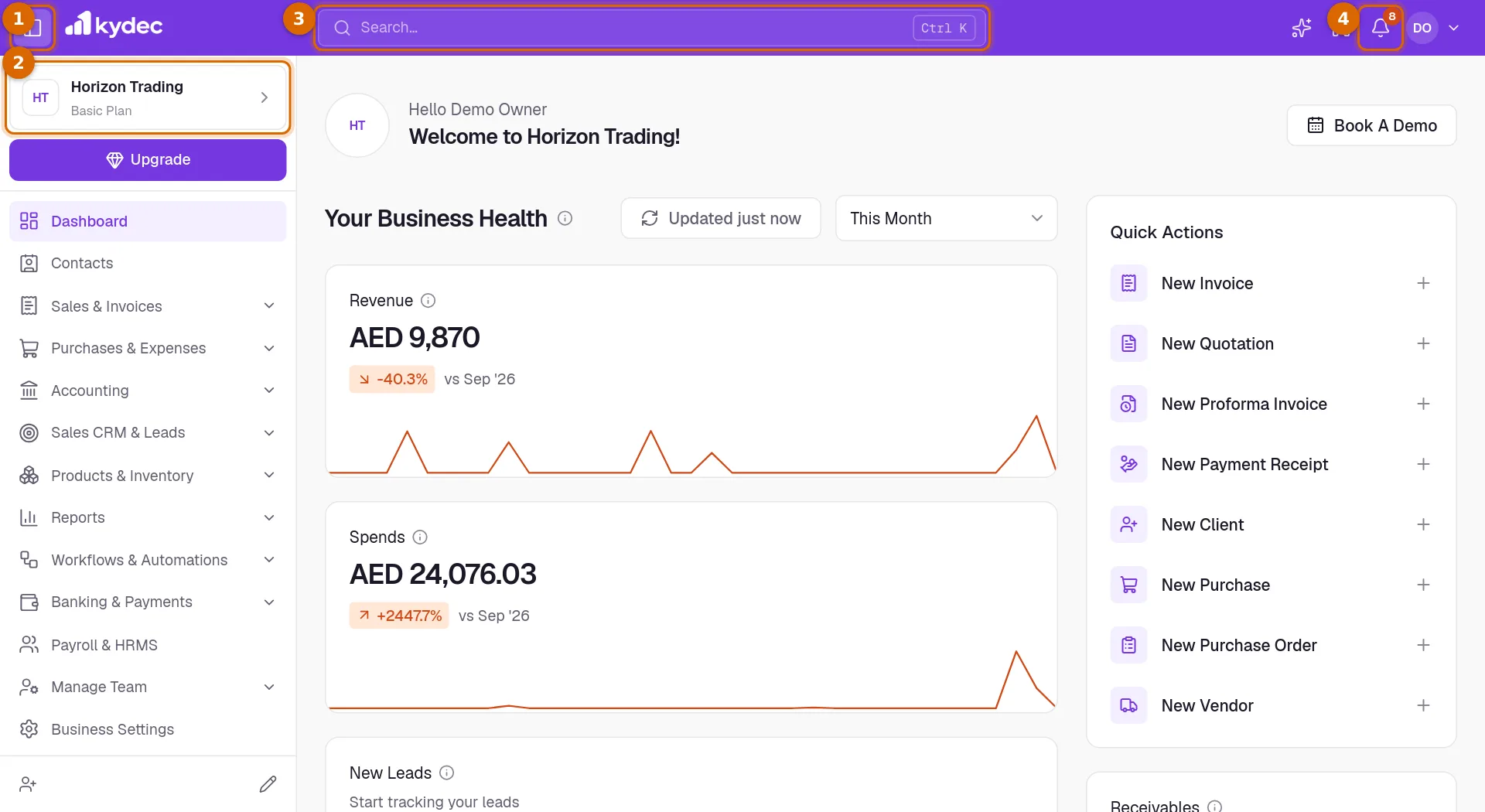
- Your picture at the far right opens the account menu: User Settings, Invite & Upgrade, which opens the dialog for adding a teammate, Request a Feature and Logout.
- The foot of that menu shows the email you are signed in with, and links to Help, About, Privacy and Terms.
Search
- 1Type a few letters of what you want. Part of a word is enough.
- 2The tabs narrow the results to one area: Sales, Purchase, CRM, Inventory, Accounting, Workflows or General. The number beside each says how many results it holds.
- 3Click a result, or move with the arrow keys and press Enter. A row with a plus creates something new; the others open a page or a report.
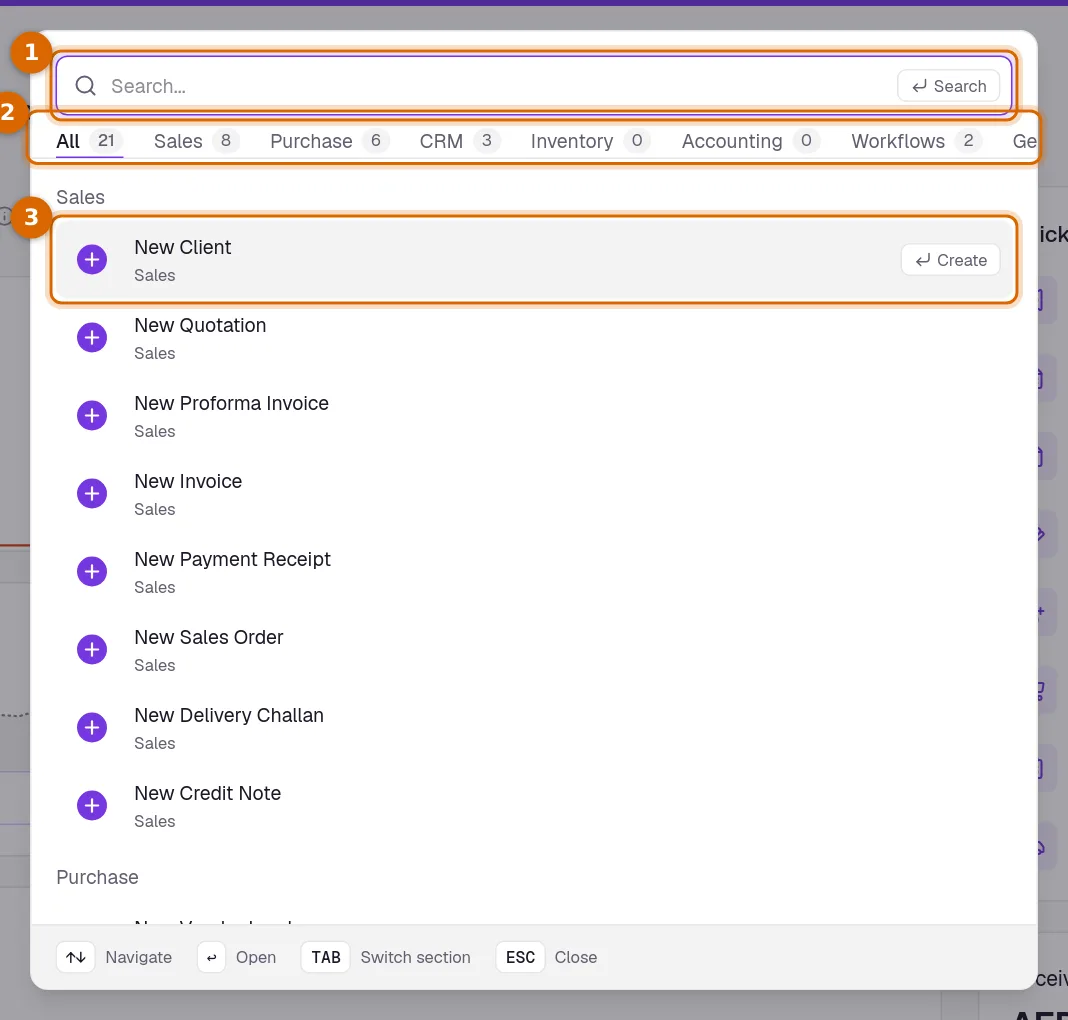
- Search finds pages, reports and create screens. It does not look inside your records, so it will not find a client by name or an invoice by number. Use the search on the list itself for that.
- Before you type, it lists everything you can create.
- Tab moves to the next area and Esc closes the search.
- It offers only what your role allows, and leaves out modules that are still to come.
- Keyboard Shortcuts in User Settings lists the keys that open a list or a new record directly.
Common questions
- Why is a card or a figure missing from my dashboard?
- Your role does not include that area. The dashboard shows only what you are allowed to see. Ask a Super Admin to change your permissions if you need it.
- Can I find a client or an invoice from the search in the top bar?
- No. That search finds pages, reports and create screens. To find a record, open its list and use the search there.
- Does the period I choose change the charts?
- No. The period changes the cards. The two charts always show the last 12 months, and the slider under each one narrows that range.
- Why does a card say No prior data?
- There is a figure for this period but nothing in the period before it, so there is no change to work out.
Related guides
Invoice
Create invoices from customisable templates, share them as a PDF, a print or a link over WhatsApp or email, and record and track what is paid against each one.
Purchases and Expenses
Record, track, manage, and analyze all your purchases and expenses in one place.
Sign up and set up your business
Create your account, set up your first business, and add or switch between businesses.
Roles and permissions
Decide what each role can see and do, module by module, down to seeing only their own records.